


Ubuntu Rip DVD: What You Should Know (2026)
Ubuntu is the most modern, complete, and open-source Linux operating system for the enterprise server, cloud, desktop, and IoT. Ubuntu is accessible by the regular community and professional support. The program is suitable for either desktop or server use, and Ubuntu rip DVD.
Its features cover every desktop application such as word processing, online applications, e-mail software, web server software, spreadsheet applications, various programming tools and languages, and a few other games. Another part of its most incredible features is that users can easily store this software on supported computers.
But despite its excellent features, there are still a few complications that happen with this popular software. Some users cannot smoothly rip their DVDs; that is usually done on the program. So, to help you with the stress of going all over the place with ripping DVD that is not feasible for you, here’s what you can do.
Contents Guide Part 1. How to Rip DVD on Ubuntu?Part 2. How to Rip DVD on Windows/Mac?Part 3. Conclusion
Part 1. How to Rip DVD on Ubuntu?
You can copy any DVD content to a new device, such as a hard disk, using DVD ripper software. You can also convert a video on DVD to other formats and make a backup of it. Some DVD ripper software can also convert any video for media player playback, streaming, and on some mobile phones.
Some software can make copies of any protected disk to make them region-free or unrestricted. A few DVD rippers software can copy protected disks so that you can make discs unrestricted and region-free. So, how can you make Ubuntu rip DVD possible? By using software that has the mentioned functions.
Method 1. Use VLC on Ubuntu

Not only can VLC play media files, but it is also extensively used to rip DVDs. Unlike other ripper software, the VLC Media Player basically plays a DVD to a file instead of your screen.
Although it will take you a few before the program detects the file you want to play, VLC processes the progress smoothly.
- Download and install VLC on your computer
- Fire up VLC on your PC, go to the “Media” option at the top of the VLC main interface
- Select “Convert/Save” from the drop-down menu
- A new window will pop up. Once there, find and click the “Disc” tab, and click the “Convert/Save” button
- Next, choose either DVD or Blu-Ray from the options on the top of the interface. After that, browse the location of your DVD
- A new window will pop up to let you set up the ripped file. Select a profile from the list of all your videos. Note, this will also determine the codecs used and the output format
- Finally, select a destination file which is the file from your rip that you will use for the DVD content playback. Once you are done, proceed to click “Start” to begin the ripping process
Method 2. Use HandBrake on Ubuntu

If you’ve heard about HandBrake and read some things about how it works, then you probably have the idea that it does quite a better job at reading DVD content.
Not only that, but HandBrake can also rip DVDs to a format such as MP4 and other common formats available. It also has cross-platform support that is available on Windows, Mac, Ubuntu, and Fedora. Generally, HandBrake is more flexible and expansive.
- Start by downloading and installing HandBrake. HandBrake is ideal with Ubuntu.
- Go to “Ubuntu Software Center,” the search for “HandBrake”.
- You will be shown a window that features two packages. Select the second package and install it on your computer.
- After the installation of HandBrake on Ubuntu, insert a DVD into your computer’s disc drive.
- HandBrake will then show a dialog box that asks you what to rip or convert. If not, click the “Source” button to make the dialog box appear.
- On the left-hand side of the interface, select the DVD and click “OK”. Wait for a few moments for the system to scan your DVD, and the “Summary” tab will present information.
- From the “Format” drop-down menu, select the new format such as MP4, the common format for an output video file. You may also choose other formats according to your preference.
- Lastly, name the converted files, choose the location to save them in the “Save As” box, and click the “Start” button to begin the ripping process.
Part 2. How to Rip DVD on Windows/Mac?
If you want more options on rip DVD to any format such as MP4, and regardless of the device you are using, either Mac or Windows, you can have a better ripping experience with DumpMedia Video Converter.
Sure, you can try different tools or rippers. Some are even paid for regular or professional use, but this video converter does better if you want powerful functionality to Ubuntu rip DVD.
Get ahead of everything with DumpMedia. Take a look at what’s in store for you:
What DumpMedia Video Converter Will Do:
- DumpMedia Video Converter allows and helps you convert files into various popular output formats supported by most devices.
- Available output formats are MP3. MP4, M4A. AVI, MKV, M4V, FLV, SWF, ASF, WMV, AAC, AC, AIFF, FLAC, M4A. OGG, WAV, WMA, etc. For instance, you can convert your DVDs to MP4.
- Enhances the video quality for a more precise visual experience.
- Upscales video resolution from standard definition to high definition.
- Optimizes the brightness, hues, and contrast setting to give you a better video output.
- Flexible video editing such as clip, rotate, crop, watermark.
- It offers preset profiles that include the highest quality video settings for iPhone, iPad, iPod, Samsung Galaxy, Nokia Lumia, BlackBerry, Google Nexus, Moto X, Kindle Fire, etc.
How to use DumpMedia Video Converter:
Step 1. Download and install DumpMedia Video Converter.
Step 2. Launch the software on your computer, and select “Add Multiple Videos or Audios” to start transferring the media files you want to convert with DumpMedia.
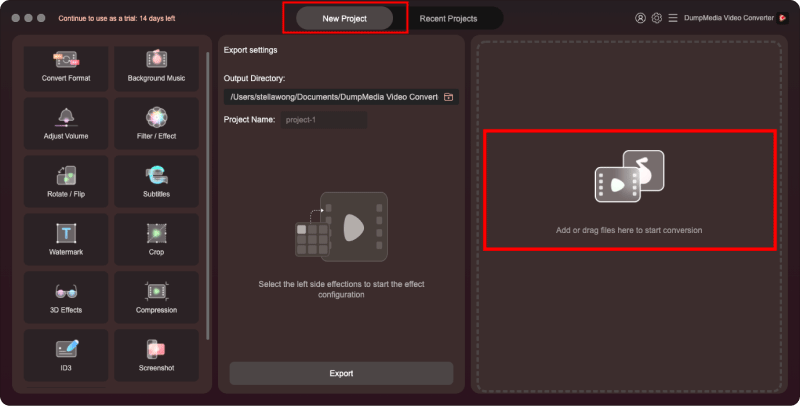
Step 3. Select the format and storage location for the media files.
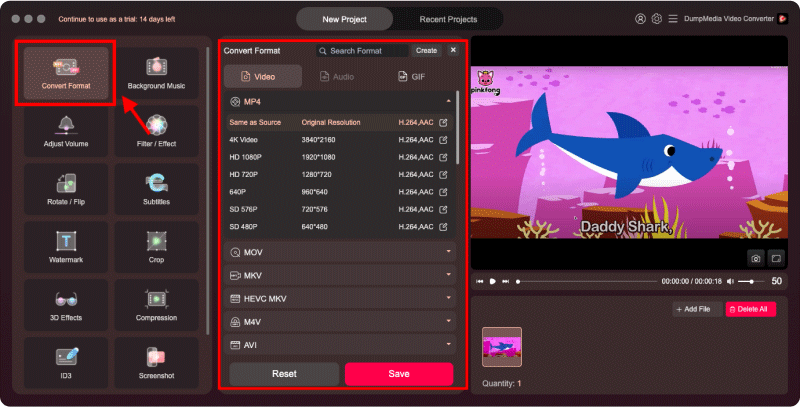
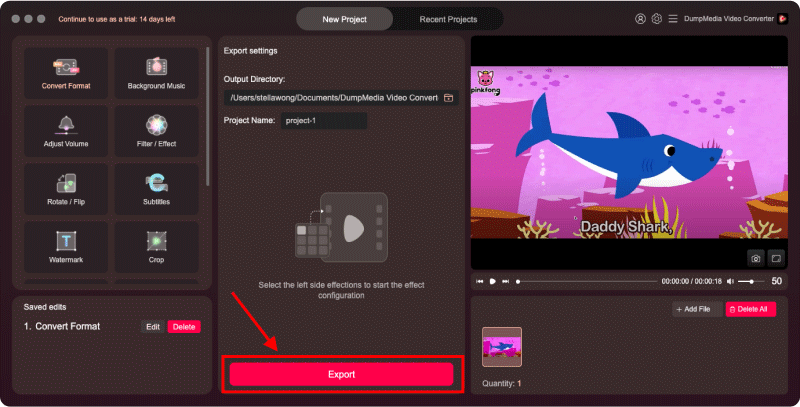
Step 4. Finally, click the “Convert” option to start converting the media files into other formats. When done, preview and check the new videos by clicking “Recent Projects.”
Part 3. Conclusion
Ripping DVDs seem tasking. For Ubuntu rip DVD to MP4, you can use the suggested software I mentioned above, such as VLC Player and HandBrake. But if you want to rip DVD to other formats besides MP4 on Windows or Mac PC, you can utilize DumpMedia Video Converter. It is foolproof and easy to use.