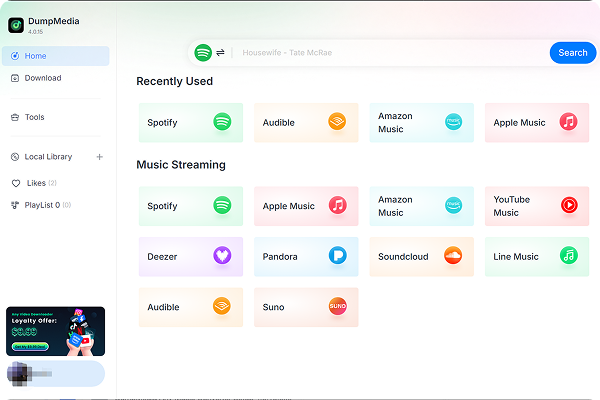
Enjoy greater flexibility with your AI-generated music.
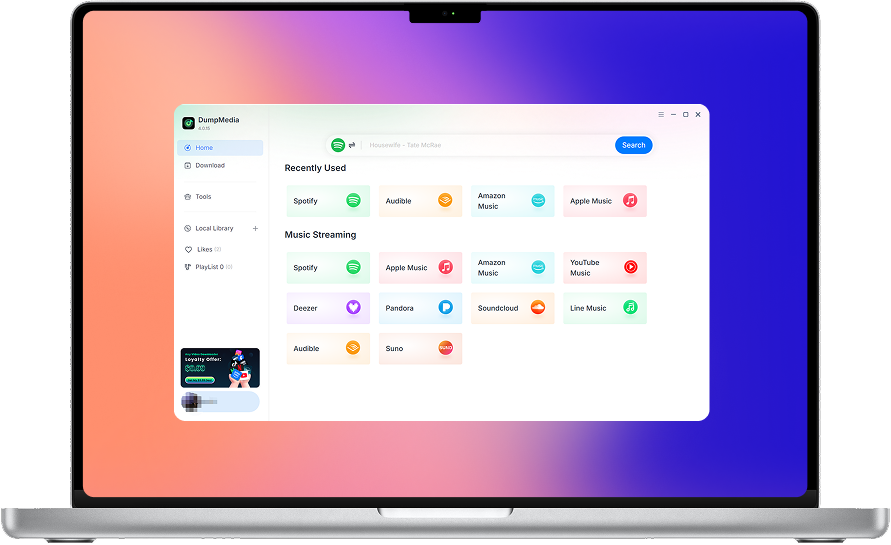
DumpMedia strictly follows United States Copyright regulations. We adopt leading technology to record unencrypted audio data while maintaining lossless sound quality.
More details here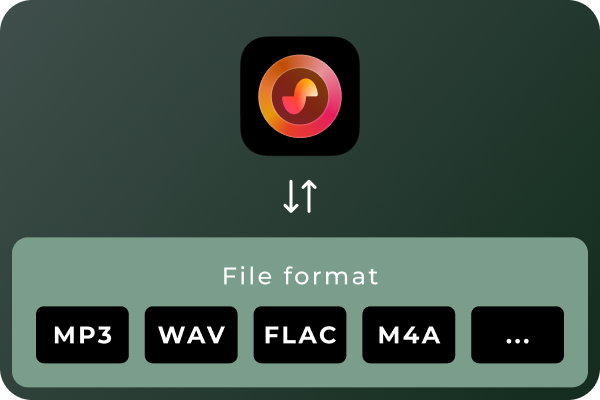
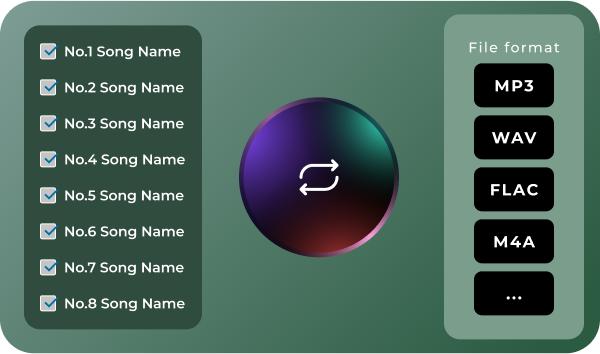
Convert Suno Songs to Multiple Audio Formats Different situations call for different audio formats. MP3 is a practical choice for everyday listening and portable devices, while WAV and FLAC can be useful for audio workflows that prioritize uncompressed or lossless files. With DumpMedia Suno Music Converter, you can convert Suno music to MP3, WAV, FLAC, M4A, and other supported formats. Choose the format that best suits your playback devices, storage preferences, or audio workflow.
Convert Multiple Songs in Batches Managing a large music collection can become time-consuming when every track needs to be handled separately. DumpMedia Suno Music Converter supports batch processing, helping you work with multiple songs in a more organized workflow. Select the tracks you want to process, configure your output preferences, and manage the conversion tasks together. Spend less time repeating the same steps and more time enjoying or organizing your music.
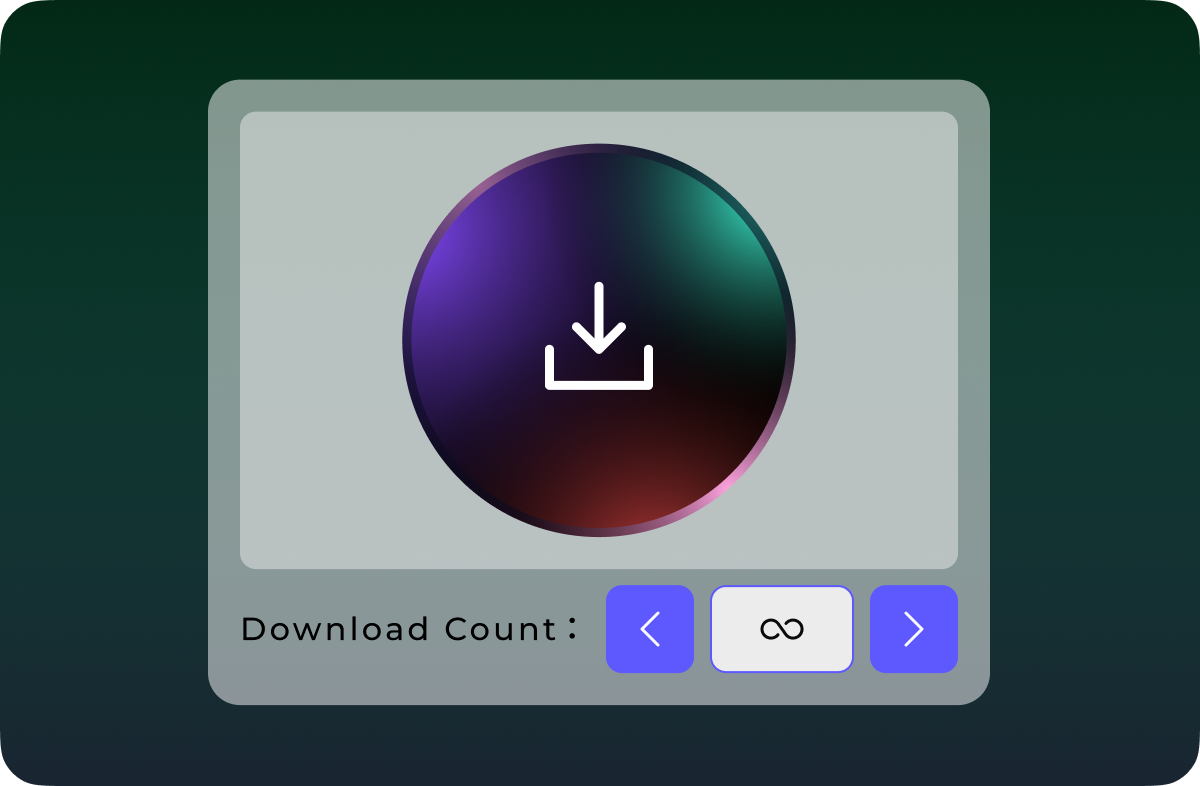
Download Suno Music Without Quantity Limits Don't let download quotas interrupt your music collection. Unlike Suno's official download options, which are subject to plan-based download limits, DumpMedia Suno Music Converter lets you download and convert Suno songs without a limit on the number of tracks processed. Whether you're saving a few favorite songs or building a large collection of AI-generated music, enjoy greater flexibility with unlimited song downloads.
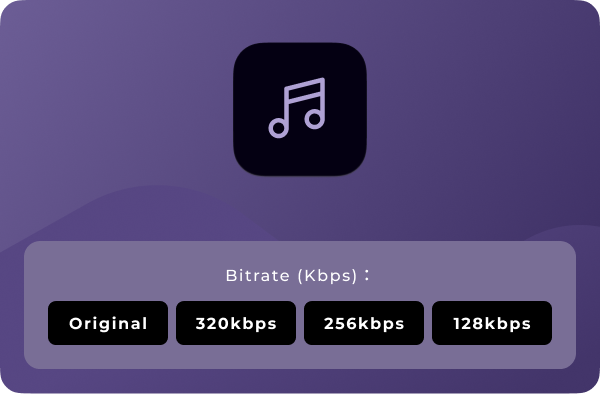
Customize Audio Quality Your preferred audio settings may vary depending on how you plan to use your music. DumpMedia Suno Music Converter lets you choose available output-quality settings so you can tailor converted files to your needs. Whether you prefer more compact files for everyday listening or higher-quality output for compatible audio workflows, you can select from the options provided by the software. Note: Output quality depends on the available settings and the quality of the source audio. Converting a file to a lossless format does not restore audio information absent from the original source.
Advanced Features

User-Friendly Interface
Enjoy a seamless listening experience with the built-in Suno player. Preview your favorite tracks and manage your music without switching between apps.

Secure & Privacy-Focused
Keep your music management workflow focused on your own device, with no unnecessary sharing of your local music files.

Ongoing Support & Updates
Get access to product updates and support resources to help you maintain a smooth music conversion experience.

Preserve Metadata
Keep essential song metadata, such as track titles and artist information, organized in your converted music files for easier browsing and management.

Clear Cache
Clear cached data to free up storage space and keep your music management experience smooth and organized.
How to Use DumpMedia Suno Music Converter
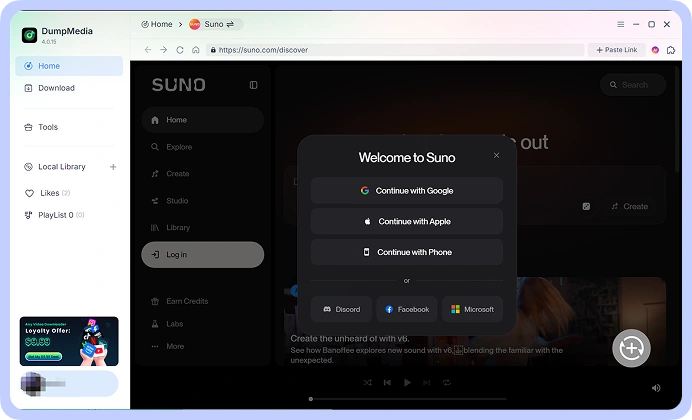
Step 1. Connect your Suno account and access your music library. Choose the song.
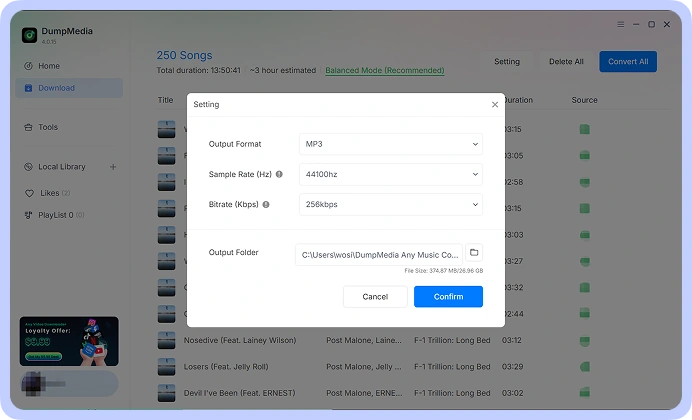
Step 2. Select your preferred format, such as MP3, WAV, FLAC, or M4A, from the available options. Adjust the output-quality settings to suit your requirements.
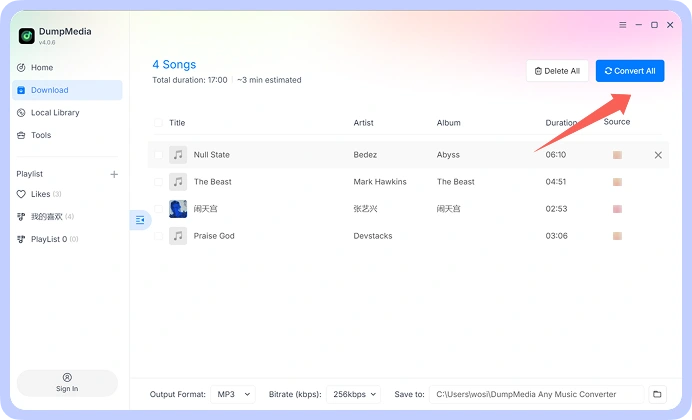
Step 3. Start the conversion process and save the resulting audio files to your computer. Your converted files are then available for local playback and organization.
Step 1
Step 2
Step 3
Tech Specs
System Requirements
Windows OS: Windows 7 or later (64-bit required)
Mac OS: macOS X 10.15 or higher
Resolution: 1024×768 display or above
Processor: 1 GHz processor or above
RAM: 512 MB or more (1 GB recommended)
Supported Input Content
Songs, Albums, and Playlists from Suno.
Supported Output Formats
Windows/Mac: MP3, WAV, FLAC, AIFF, M4A (AAC and ALAC codecs)
Frequently Asked Questions
1. What's the limitation of the free trial version?
With the free trial version, you can only convert 3 full songs from Suno. To convert more tracks without any limitations, you will need to register and activate the full version of the software.
2. Can I convert multiple Suno songs at once?
Yes. DumpMedia Suno Music Converter supports batch processing, allowing you to handle multiple tracks within a single workflow rather than repeating the process for every song.
3. Where to buy Suno Music Converter?
Most of the time, yes. DumpMedia uses a smart matching system to find the same or similar songs across platforms. While rare, some tracks may be unavailable on your new service and won’t transfer.
4. How to retrieve DumpMedia registration code?
Go to the refund policy page: https://www.dumpmedia.com/refund-policy/
5. Which audio formats does DumpMedia Suno Music Converter support?
The software is designed to support MP3, WAV, FLAC, M4A, and other available output formats. Check the format options in your software version for the complete list.
Free Try
Suno Music Converter
DumpMedia Suno Music Converter helps you convert and save your Suno music in the audio formats you need. Access your Suno music library, process multiple songs in batches, choose your preferred audio quality, and keep your favorite tracks organized on your computer.