


Why Does Spotify Keep Pausing? 8 Ways to Fix!
Spotify is a popular music streaming service for many music lovers, known for its deep music well, countless podcasts, AI-powered curation, and more. However, like any other app, Spotify can have its fair share of issues. One common problem users face is the app randomly pausing while playing songs. Why does Spotify keep pausing songs? If you've been annoyed by this issue, worry no more! We've gathered some effective fixes to prevent Spotify from pausing unexpectedly.
It’s worth noting that Spotify is a streaming-based service. Even if you fix temporary issues like cache errors or network instability, Spotify may still pause again in the future. This is because online streaming depends heavily on a stable internet connection and background app activity. If Spotify keeps pausing frequently, the most reliable way to avoid interruptions is to listen to Spotify music offline instead of relying on real-time streaming.
Contents Guide Part 1: Why Does My Spotify Keep Pausing?Part 2: 7 Ways to Fix Spotify Keeps Pausing ErrorPart 3: The Most Reliable Fix: Download Spotify Music for Offline PlaybackPart 4: FAQsPart 5: To Sum It All
Part 1: Why Does My Spotify Keep Pausing?
Are the songs getting paused automatically in the Spotify app? This annoying behavior can ruin your whole music-listening experience. Why does Spotify keep pausing songs? Before seeing the solutions to troubleshoot it, you have to identify the reason for this issue which will help fix the issue. Some of them are:
- You have a weak internet connection
- Your Spotify app is outdated
- Your Spotify account is active on multiple devices
- Too many temp or cache files about Spotify
- There are too many apps running background
- Enabled battery-saving mode on your device
- Spotify relies on continuous internet streaming
- Bluetooth interference or hardware issues
- ......
Part 2: 7 Ways to Fix Spotify Keeps Pausing Error
Do your tracks keep on pausing automatically on Spotify? We know some reasons why does Spotify keep pausing songs, and solving this problem won’t take much time. Here a list of solutions to fix Spotify keeps pausing error on your device:
Solution #1. Check Network Connection
If your cellular or Wi-Fi network is slow or not working, the music on the Spotify app will likely continue to pause or buffer. Ensure you have a valid data pack for playing music online. Alternatively, on a smartphone, you may consider toggling airplane mode on and off to reset your network connection. If you are using a Wi-Fi connection, check your router. Once done, launch Spotify to confirm that it is functioning properly.
Solution #2. Force Quit the Spotify App and Restart It
The thing you should do when you notice your Spotify keeps stopping is to force quit and restart this app on your device. Follow our steps to restart Spotify to remove any flaws or glitches that could be the root of the problem:
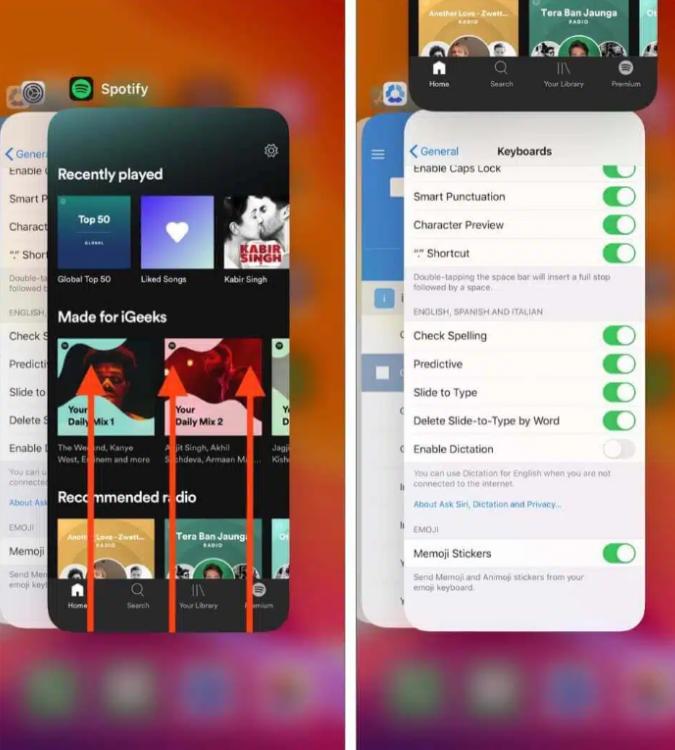
Force Stop and Restart Spotify on iOS: Swipe upwards from the bottom of the screen > Find the Spotify app among the open apps > Close the app by swiping it up from the background > Wait for a moment and then relaunch the app.
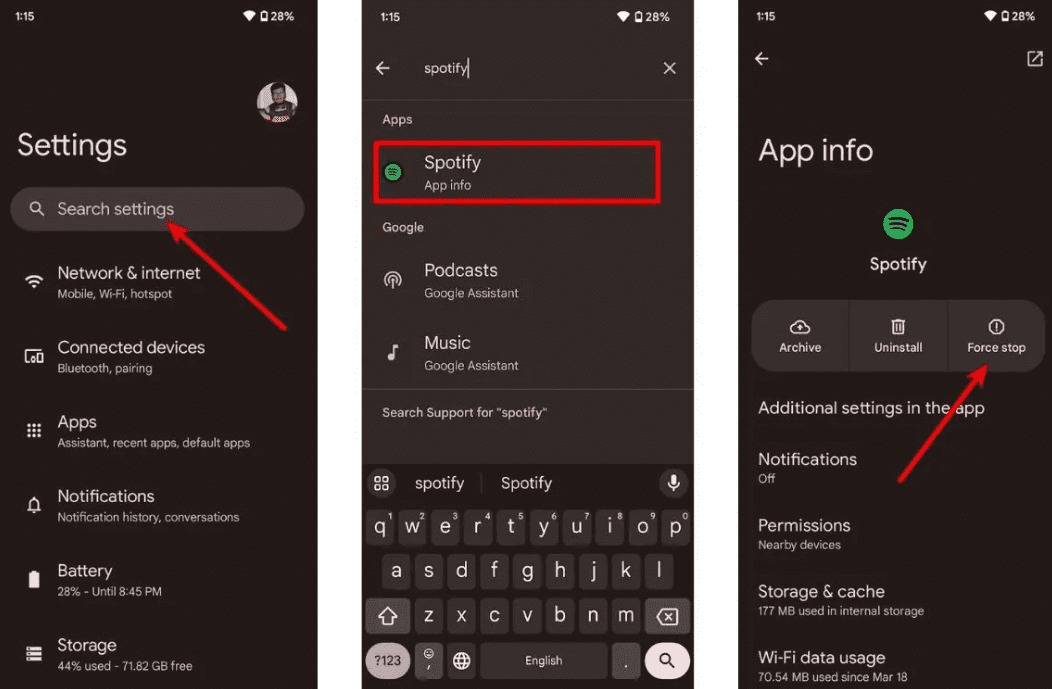
Force Stop and Restart Spotify on Android: Open the Settings app > Select the Apps or Apps & notifications option > Select See all apps to view all opened applications > Tap Spotify > Choose the Force stop option > Wait for a moment and then relaunch the app.
Force Stop and Restart Spotify on Windows: Right-click the Start button and select Task Manager from the menu > From the Apps option, right-click Spotify and select End task > Wait a few seconds to see if the application shuts down > Relaunch the Spotify app.
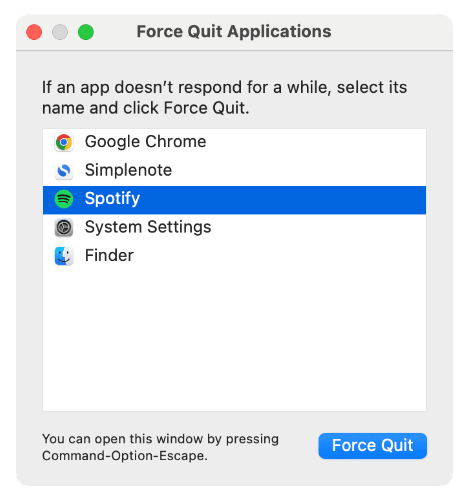
Force Stop and Restart Spotify on Mac: Press Option-Command-Esc > A Force Quit window opens. Select the Spotify app > Click Force Quit > Relaunch the Spotify app.
Solution #3. Update Spotify to the Latest Version
Why does Spotify keep pausing music? When was the last time you updated the Spotify app? The older Spotify release may have bugged playing music. Given how big the app is, Spotify must have already pushed a fix for the problem, hence, updating your Spotify app to the latest version should fix the issue.
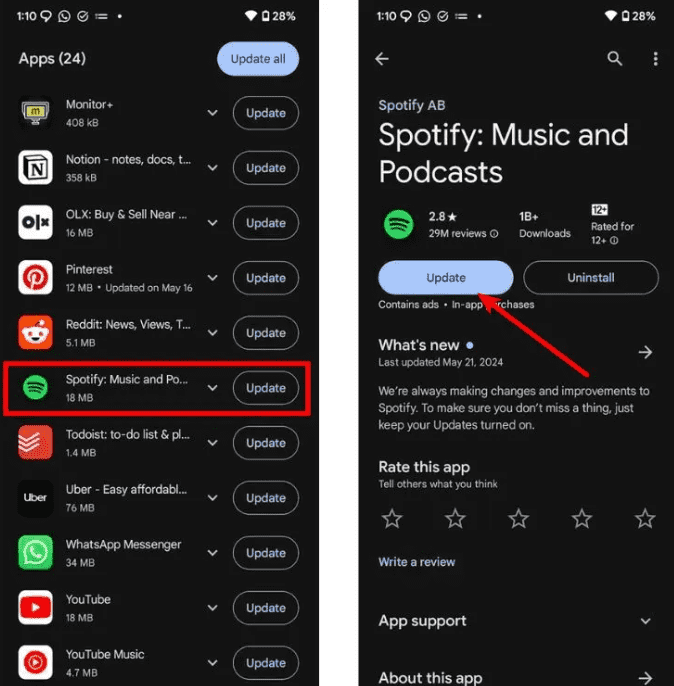
On Android, go to the Google Play Store and go to My apps & games. Check if an update to the Spotify app is available, tap on Update.
On iOS, open the App Store > find Spotify > Update.
On the desktop, click on the three dots located in the top left corner of the app interface. Then, select Help > About Spotify. You will see a dialog box showing your current version using. If your app requires an update, a button with a download link will appear just below the app version number. Click on the link to download the update.
Solution #4. Sign out of All Devices on Spotify
Why does Spotify keep pausing music? You may log into several devices via your account as Spotify does not allow you to play simultaneously on multiple devices with the same account. This is usually why Spotify keeps pausing because whenever you log into your account on another device and start playing music, your music on the first device will stop.
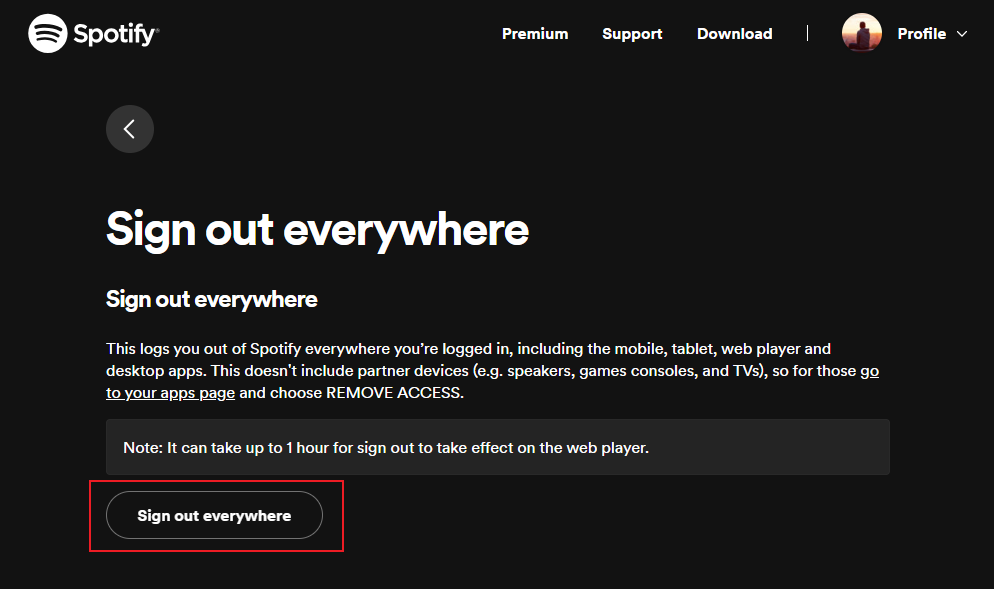
You can fix this by logging your account out of all connected devices. To log out of your Spotify on all devices:
Step 1. Visit your Spotify account page and sign in to your account.
Step 2. Scroll down to Security and Privacy and click on Sign out everywhere. Within the menu, click on Sign out everywhere again.
Solution #5. Check Your Bluetooth Devices
Spotify may pause music if your device is attempting to connect to a nearby Bluetooth audio device. To avoid this, it’s best to turn off Bluetooth when you are using your device’s built-in speakers or wired headphones. You can also check the supported Bluetooth versions for your device. Your Bluetooth headphones may not be compatible with your device.
It's also worth checking if your Bluetooth headphones have enough battery. If they're running low on charge, they might pause Spotify to preserve their final charge for other processes, such as phone calls and notifications.
Solution #6. Disable Power Saver Mode/Low Power Mode
Why does Spotify keep pausing music? The Low Power mode or Battery Saver mode in your mobile phone can restrict the background activity and cause unnecessary pause in the music playback. Therefore, you must turn off the Low Power/Battery Saver mode.
On Android, settings for the Low Power/Battery Saver mode may vary depending on your phone’s manufacturer. In most Android devices, you can go to Settings > Battery and device care, then tap the Battery entry. Below the battery usage chart, disable Power Saving mode.
On iOS, open Settings on your iPhone/iPad. Scroll down below and choose Battery. From there, toggle off Low Power Mode.
Solution #7. Delete Corrupted Cache
An outdated or corrupted app cache can interfere and prevent you from playing Spotify songs. If Spotify is glitching or not working, you might want to clear the app’s cache. Clearing Spotify’s cache and data can help resolve issues related to app performance.
On Android/iOS, open Spotify and tap on your profile icon at the top left. Go to Settings and privacy > Storage. Here, tap on the Clear cache option.
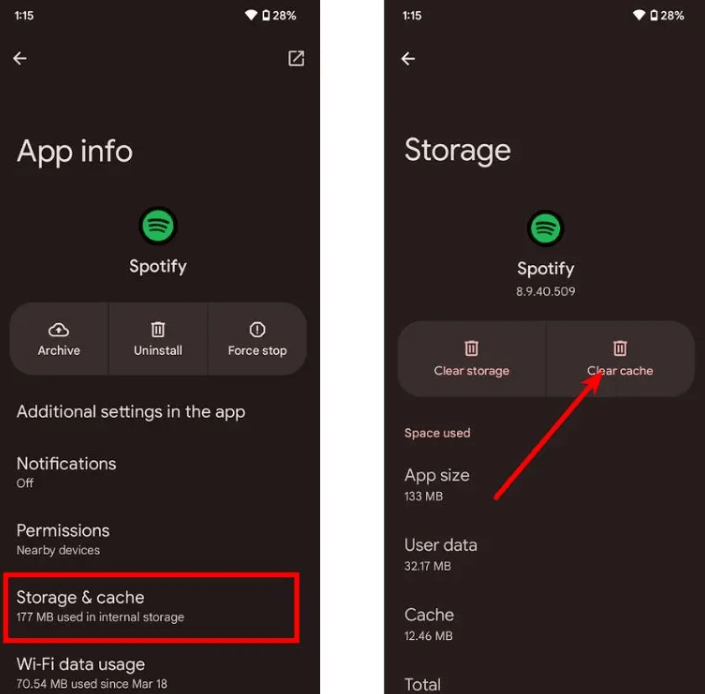
On some Android devices, Go to Settings and search for Spotify. Tap on Spotify the app to open its App info page. Go to Storage & cache > Clear cache.
On the desktop, click Settings from your profile photo. Find the Storage subsection. Next to Cache, click Clear Cache. Confirm the deletion.
Part 3: The Most Reliable Fix: Download Spotify Music for Offline Playback
Why does Spotify keep pausing even though you've tried the common solutions, such as checking your network connection, resetting your device, or others? While the fixes above can help reduce Spotify pausing issues, they are mostly temporary solutions. As long as Spotify relies on online streaming, playback interruptions may still occur.
Downloading Spotify music for offline playback is the most effective way to stop Spotify from pausing completely. Offline music files do not depend on network conditions, background app permissions, or system optimizations, ensuring smooth and uninterrupted playback. DumpMedia Spotify Music Converter allows you to download Spotify songs, playlists, and albums as local audio files. Once downloaded, you can play Spotify music without using the Spotify app, avoiding buffering, pausing, or unexpected interruptions.
Once downloaded, your Spotify songs will be stored on your local device and you can easily manage them as safe backups, or listen to Spotify music offline using any media device you own, without the need for a Premium subscription. You can also easily keep Spotify music after unsubscription.
Good News: Spotify Music Converter has now been integrated into our new software, Any Music Converter. The new software integrates all the previous Spotify Music conversion features while expanding support to multiple streaming platforms, offering more output formats, and improved performance.
🏅More Amazing Features of DumpMedia Spotify Music Converter:
- ✅Preserve All Metadata Info
- ✅Keep the Original Audio Quality
- ✅100% Clean. No Risk in Using
- ✅Free Updates & Technical Support
- ✅Work for Both Spotify Premium and Spotify Free Users
- ✅Access the Full Music Library from the Built-In Spotify Web Player
How can I download songs from Spotify to other music players without Premium using DumpMedia Spotify Music Converter? The steps are typically simple, you just need to download the program on your computer and follow the instructions below.
Step 1. DumpMedia supports the latest operating systems of Windows and Mac. Please first download and install the DumpMedia Spotify Music Converter per your computer version.
Step 2. Use your Spotify Premium/Free account to log in. Find your favorite Spotify playlist, album, or artist on the web player. After that, drag and drop the song you like to the conversion button (a plus icon).

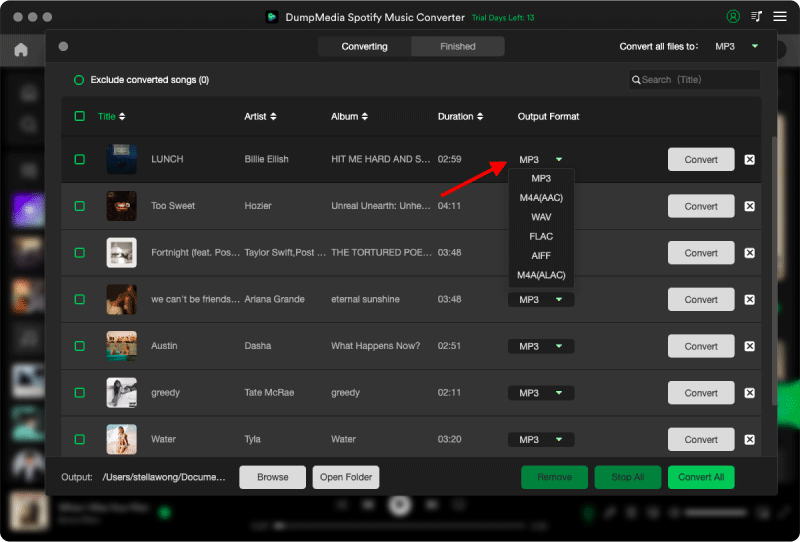
Step 3. Customize the file format, bitrate, sample rate and other output settings. And as for the file format, DumpMedia offers several popular file formats. Here we recommend choosing MP3 as the output format.
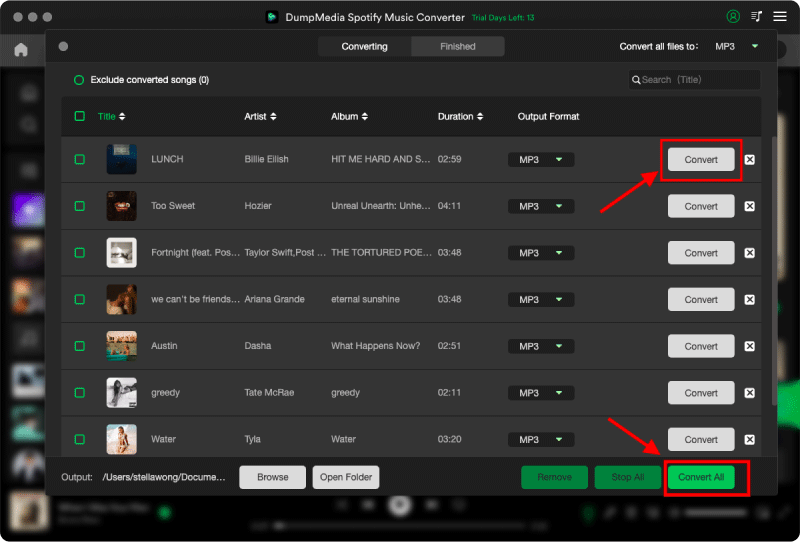
Step 4. Click the "Convert" button, and DumpMedia will start converting songs to the local drive. The downloading process will be finished soon.
After downloading, you'll quickly locate the Spotify audio files in the local folder, and even you can transfer them to MP3 players, smart speakers, or the car via a USB drive and listen to them offline for free. Now you're able to enjoy your music without interruption.
Part 4: FAQs
Q: Can downloading Spotify music stop Spotify from pausing?
A: Yes. Spotify pausing issues are often caused by streaming instability. By downloading Spotify music as local files, playback no longer depends on internet connections or background app activity, effectively preventing Spotify from pausing.
Q: How can I listen to Spotify without interruptions?
A: The best way to listen to Spotify without interruptions is to download songs for offline playback. Tools like DumpMedia Spotify Music Converter allow you to save Spotify music locally, ensuring smooth playback anytime and anywhere.
Part 5: To Sum It All
You now know why does Spotify keep pausing songs and how to fix it. Hopefully, one of the above solutions has helped fix the issue for good, and you are at peace. While basic troubleshooting methods can help reduce Spotify pausing issues, they do not address the root cause. To ensure smooth and consistent playback, listening to Spotify music offline is the most reliable solution.
With DumpMedia Spotify Music Converter, you can download Spotify songs as local audio files and enjoy uninterrupted playback without relying on the Spotify app or real-time streaming. This allows you to listen to your favorite music anytime, anywhere, without worrying about Spotify pausing again.