


How to Remove Devices from Spotify (Desktop, Mobile and All Devices)
Spotify makes it easy to listen to music across multiple devices, including smartphones, tablets, computers, smart TVs, gaming consoles, and smart speakers. However, there may come a time when you need to remove a device from your Spotify account. In this guide, you'll learn how to remove devices from Spotify on desktop, mobile, and Spotify Connect-enabled devices. We'll also cover troubleshooting tips and account security best practices.
Contents Guide Part 1. Why Would You Need to Remove Devices from Spotify?Part 2. How Many Devices Can Be Connected to Spotify?Part 3. Remove Devices from Spotify on Desktop/MobilePart 4. Remove Devices from Spotify ConnectPart 5. Keep Your Spotify Music Even After Removing Devices Part 6. FAQsPart 7. Conclusion
Part 1. Why Would You Need to Remove Devices from Spotify?
There are several reasons why users search for how to remove devices from Spotify.
You No Longer Use the Device
If you've upgraded to a new phone, tablet, or computer, you may want to remove old devices from your Spotify account to keep your device list organized.
You Shared Your Spotify Account
Many Spotify users temporarily share their accounts with family members or friends. If someone no longer needs access, removing their device can help protect your account.
A Device Was Lost or Stolen
If your phone, laptop, or tablet is lost or stolen, removing it from Spotify can prevent unauthorized access to your music and account settings.
Suspicious Account Activity
If you notice unfamiliar devices playing music through Spotify Connect or see unusual listening activity, it's a good idea to remove devices and secure your account immediately.
Too Many Connected Devices
Spotify has certain limitations on offline downloads and connected devices. Removing unused devices can help you manage your account more efficiently.
Part 2. How Many Devices Can Be Connected to Spotify?
Before learning how to remove devices from Spotify, it's helpful to understand Spotify's device policies.
Spotify allows users to sign in on multiple devices. However, music playback can generally occur on only one device at a time unless you're using specific shared plans.
Premium subscribers can download music for offline listening on multiple devices, but Spotify may restrict offline downloads if too many devices are connected to the account.
For this reason, regularly reviewing your connected devices is a smart habit.
Part 3. Remove Devices from Spotify on Desktop/Mobile
One of the easiest ways to remove devices from Spotify is through your account settings.
Method 1: Sign Out Everywhere
This method disconnects all devices associated with your Spotify account.
- Open your Spotify account page in a web browser.
- Log in using your Spotify credentials.
- Scroll down to the Security and Privacy section.
- Locate the Sign Out Everywhere option.
- Click the button and confirm your action.
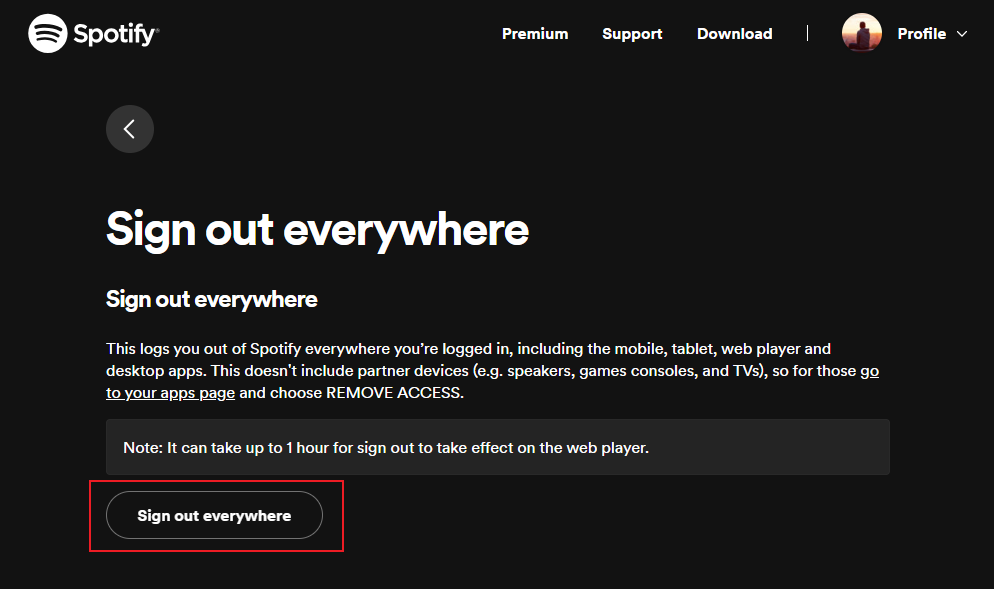
Spotify will automatically log out all connected devices except certain partner devices, which may take a little longer to disconnect. This is often the fastest solution when users want to know how to remove devices from Spotify remotely.
Method 2: Change Your Spotify Password
Changing your password forces most connected devices to sign in again.
- Visit your Spotify Account page.
- Select Change Password.
- Enter your current password and create a new secure password.
- Save your changes.
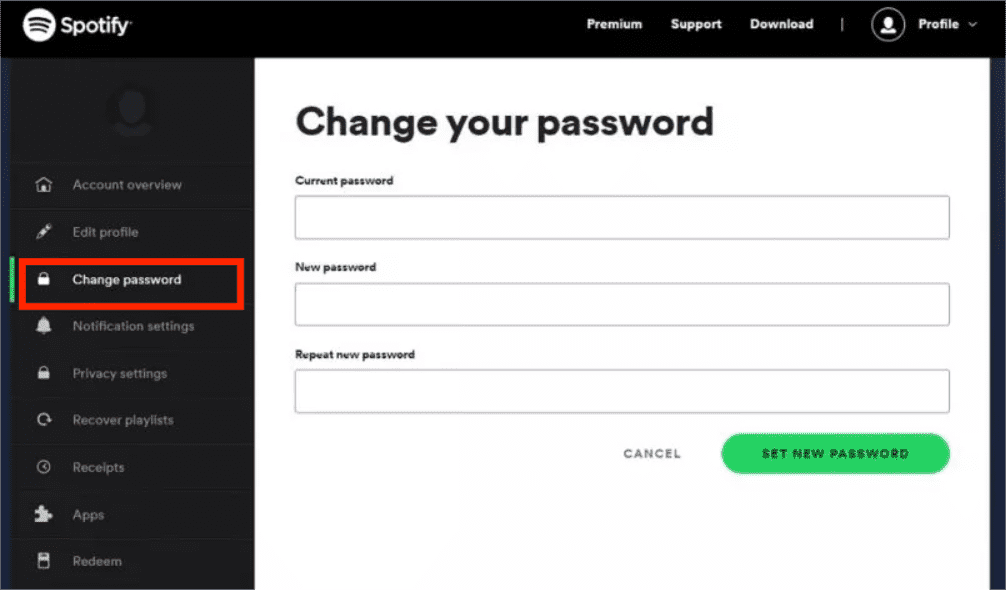
Combined with Sign Out Everywhere, this method provides stronger account protection.
Part 4. Remove Devices from Spotify Connect
Spotify Connect allows you to control playback on smart speakers, TVs, gaming consoles, and other compatible devices. Sometimes you may notice unfamiliar devices appearing in Spotify Connect.
Disconnect a Spotify Connect Device
- Open Spotify on your phone or computer.
- Start playing any song.
- Select the Devices Available icon.
- View the list of connected devices.
- Switch playback back to your current device.
This disconnects active playback from the selected Spotify Connect device.
Part 5. Keep Your Spotify Music Even After Removing Devices
Many users searching for how to remove devices from Spotify are switching to a new phone, tablet, or computer. One common concern is whether downloaded music and playlists will still be available after changing devices. Spotify's offline downloads are protected and tied to your account. If a device is removed, downloaded content may no longer be accessible on that device.
If you'd like to keep your favorite songs, playlists, albums, or podcasts available for personal offline listening, it can be helpful to create a backup before switching devices. DumpMedia Spotify Music Converter is designed for users who want greater flexibility when managing their Spotify music library.
The software is designed specifically for Spotify Premium and free users who want greater flexibility over their music libraries. With DumpMedia, you can easily convert Spotify songs into MP3, WAV, FLAC, and other formats that can be played on Spotify MP3 players, phones, car stereos, or other devices. Even if the Spotify app is not working on your device, you can play Spotify songs offline on another music player immediately.
🏆Key Benefits of DumpMedia Spotify Music Converter
- 🎵 Integration with Spotify web player
- 🎵 Keep original sound quality
- 🎵 Batch download playlists and albums
- 🎵 Fast conversion speed
- 🎵 Preserve song metadata and ID3 tags
- 🎵 Support offline playback on any device
For users upgrading devices or reorganizing their Spotify account, creating a music backup can provide additional peace of mind while managing connected devices.
Convert Spotify Music to MP3 Step by Step
Step 1. Download and install DumpMedia Spotify Music Converter on your Mac/PC. Launch it, and you will see the interface. Use your Spotify Premium/Free account to log in.
Step 2. Browse Spotify and drag the songs, albums, or playlists you want to download into the converter.
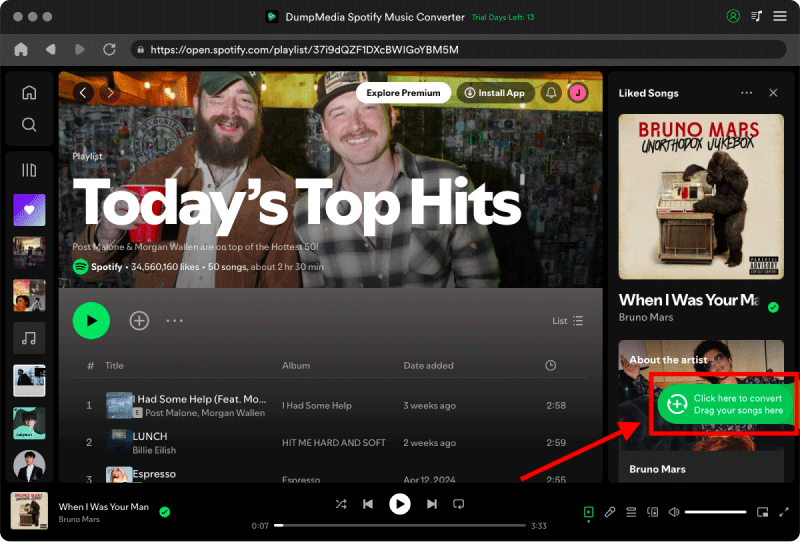
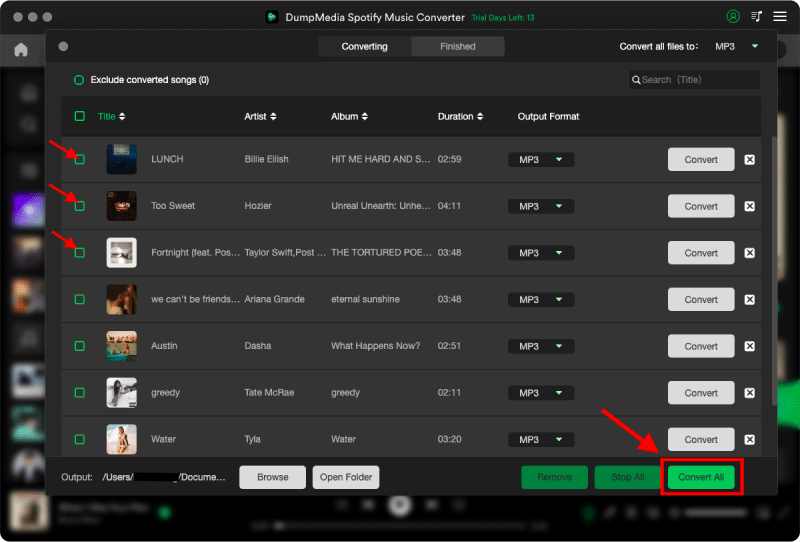
Step 3. In the settings panel, select MP3 as the output format to enable a MP3 download of your selected tracks.
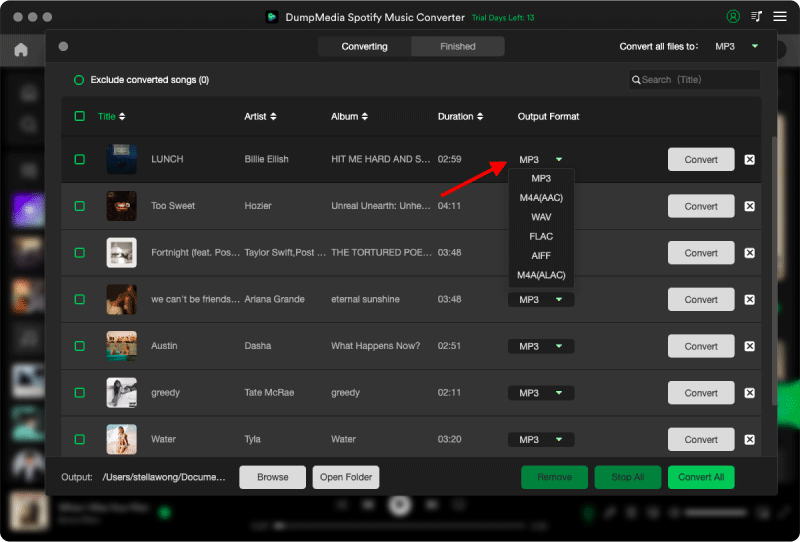
Step 4. Click Convert and download songs directly as MP3 files.
Part 6. FAQs
How do I remove a device from Spotify remotely?
The easiest way is to use Spotify's Sign Out Everywhere feature through your account settings. This logs out all connected devices and allows you to sign back in only on devices you trust.
Does Spotify have a device limit?
Spotify allows account access across multiple devices, but Premium offline downloads are subject to device limitations. Managing unused devices can help avoid potential restrictions.
Why can't I remove a device from Spotify?
This can happen because of cached login sessions, Spotify Connect activity, or connected third-party apps. Signing out everywhere and changing your password usually resolves the issue.
Will removing a device delete my downloaded music?
Downloaded Spotify content is generally tied to your account authorization. Once a device loses access, offline downloads on that device may no longer be available.
Can I transfer Spotify downloads to another device?
Spotify's official downloads are protected. Users who want broader playback flexibility often use music conversion tools to save personal copies for offline listening across different devices.
Part 7. Conclusion
Now that you know how to remove devices from Spotify, you can better manage your account security, disconnect unwanted devices, and control Spotify Connect sessions across all your devices. Whether you're replacing an old phone, troubleshooting account access, or protecting your Spotify subscription from unauthorized use, regularly reviewing connected devices is an important part of account maintenance.
If you're planning to switch devices and want continued access to your favorite Spotify tracks offline, tools like DumpMedia Spotify Music Converter can help you organize and enjoy your music library more flexibly.