


Spotify Is Not Responding? Fix It in 2026
Many users encounter the frustrating issue where Spotify is not responding while trying to play music, open playlists, or use offline mode. Sometimes the Spotify app freezes completely, crashes unexpectedly, or stops working during playback. Spotify app problems are extremely common. In this guide, we will explain why Spotify suddenly stops working, how to fix common Spotify app issues, and how to enjoy more stable offline music playback.
Contents Guide Part 1. Why Is Spotify Application Not Responding?Part 2. How to Fix Spotify Application Is Not Responding?Part 3. Best Way to Avoid Spotify Playback ProblemsPart 4. FAQsPart 5. Conclusion
Part 1. Why Is Spotify Application Not Responding?
There are many reasons why Spotify is not responding during music playback or app usage.
Poor Internet Connection
Spotify relies heavily on stable internet access for streaming and account verification. Weak network connections may cause Spotify to freeze or stop responding.
Corrupted Spotify Cache
Temporary files stored inside Spotify can become corrupted over time, causing app crashes and playback problems.
Outdated Spotify App
Older Spotify versions may contain bugs that trigger the "Spotify is not responding" error.
Spotify Server Problems
Sometimes Spotify server outages affect user playback and app performance globally.
Background Software Conflicts
Antivirus software, firewall settings, or hardware acceleration conflicts can also cause Spotify to stop responding.
Device Compatibility Issues
Older operating systems or unsupported devices may struggle to run the latest Spotify app smoothly.
These are some of the most common causes behind the "Spotify is not responding" problem.
Part 2. How to Fix Spotify Application Is Not Responding?
If Spotify is not responding on your device, try the following solutions.
Fix 1. Restart Spotify
Completely close Spotify and reopen the app. This simple fix often resolves temporary playback problems.
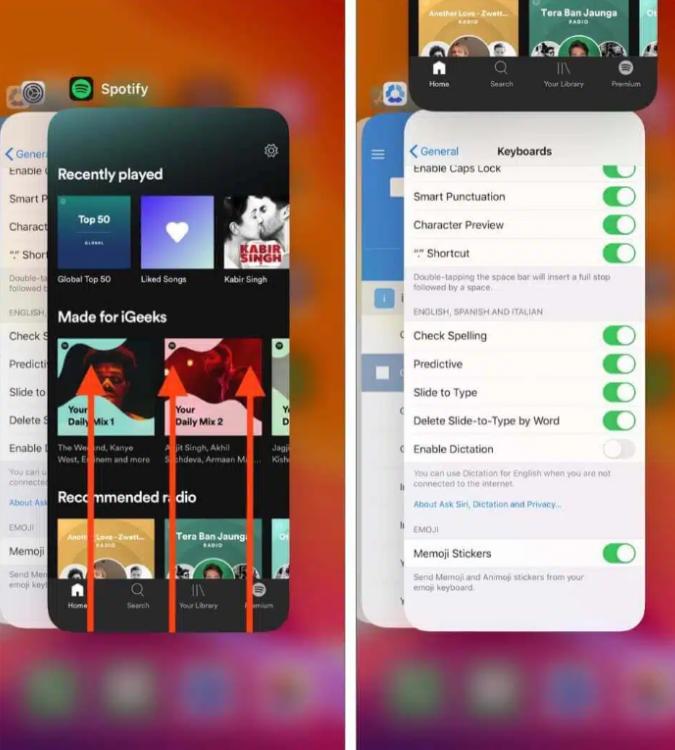
On iOS (iPhone / iPad): Swipe up from the bottom edge of the screen and pause in the middle (or double-click the Home button on older devices). Find the Spotify preview card and swipe it completely up and off the screen.
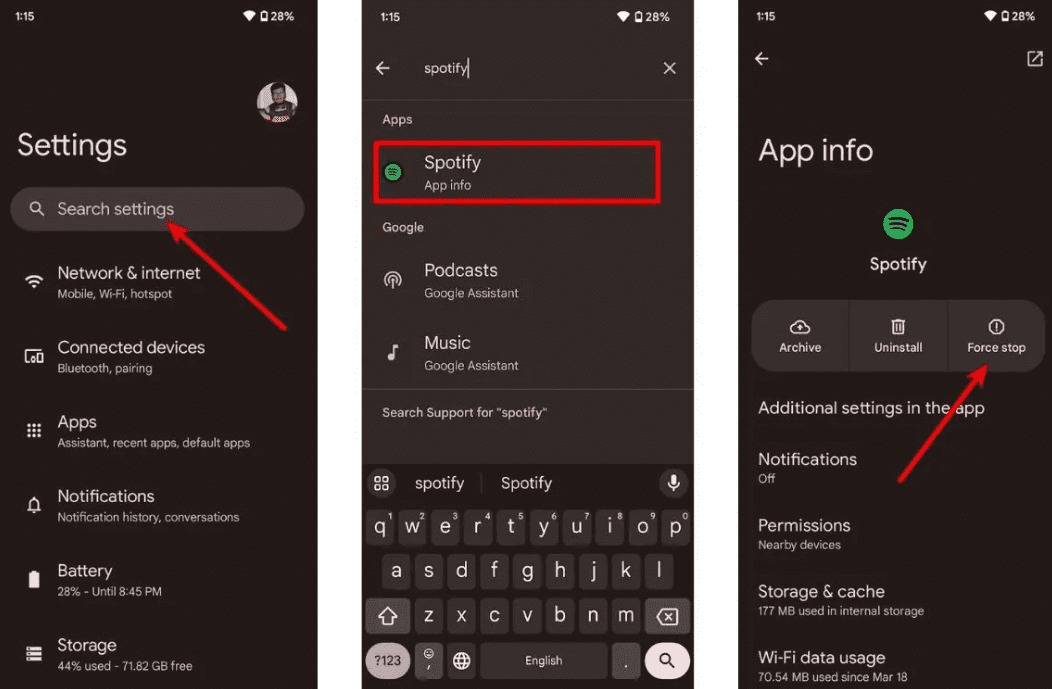
On Android: Go to Settings > Apps > Spotify and tap Force Stop. This kills all hanging background tasks. Open Spotify from your app drawer.
On macOS: Click Spotify in the top menu bar and select Quit Spotify, or simply click the window and press Command (⌘) + Q.
On Windows (10/11): Click File in the top-left corner of the Spotify window and select Exit (pressing the "X" in the top right corner often just minimizes it to the system tray rather than closing it).
Fix 2. Check Your Internet Connection
Switch between Wi-Fi and mobile data to test connection stability.
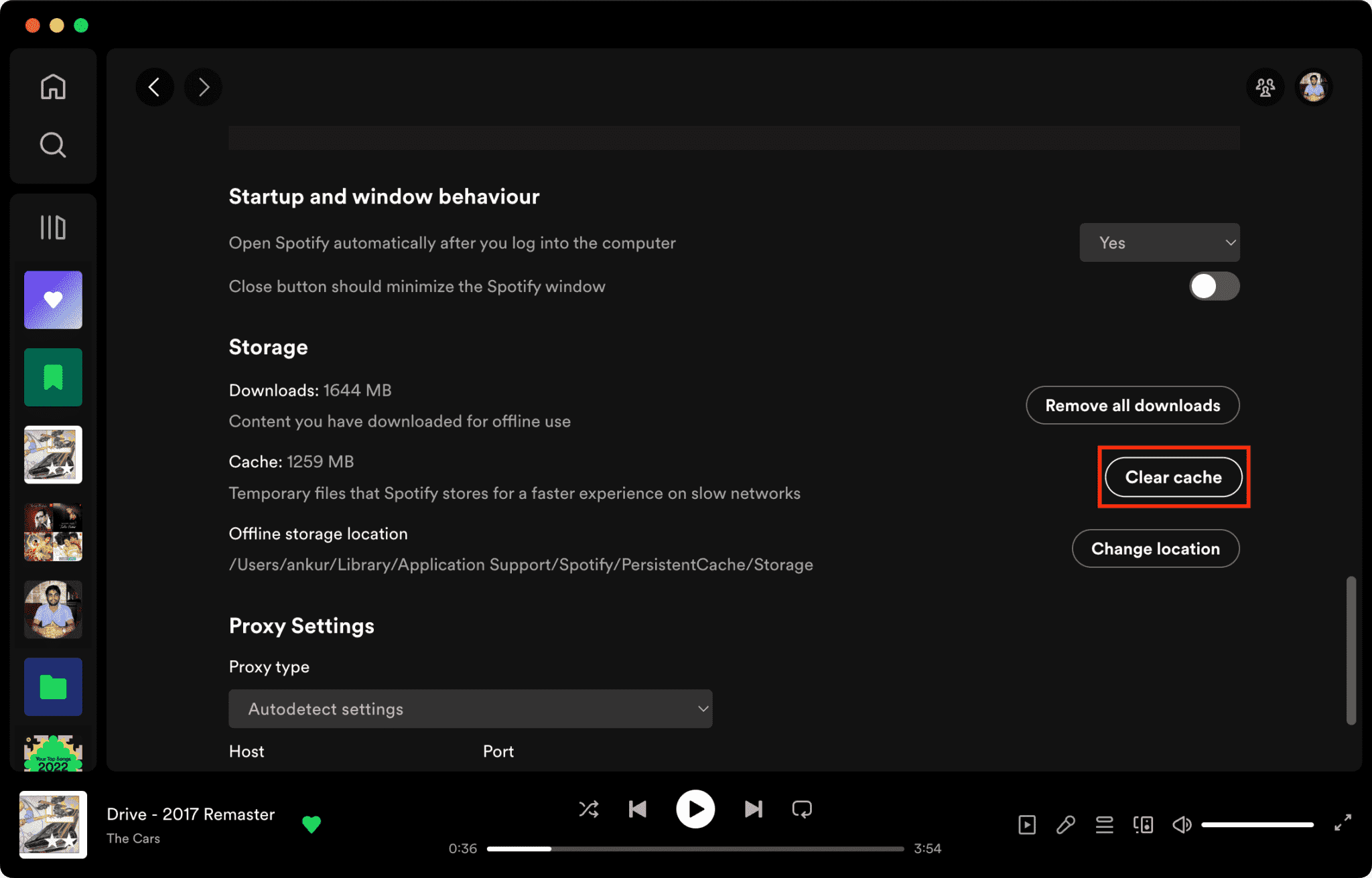
Fix 3. Clear Spotify Cache
Corrupted cache files are one major reason why Spotify is not responding.
How to Clear Spotify Cache on Mac/Windows/iPhone/Android >>>>
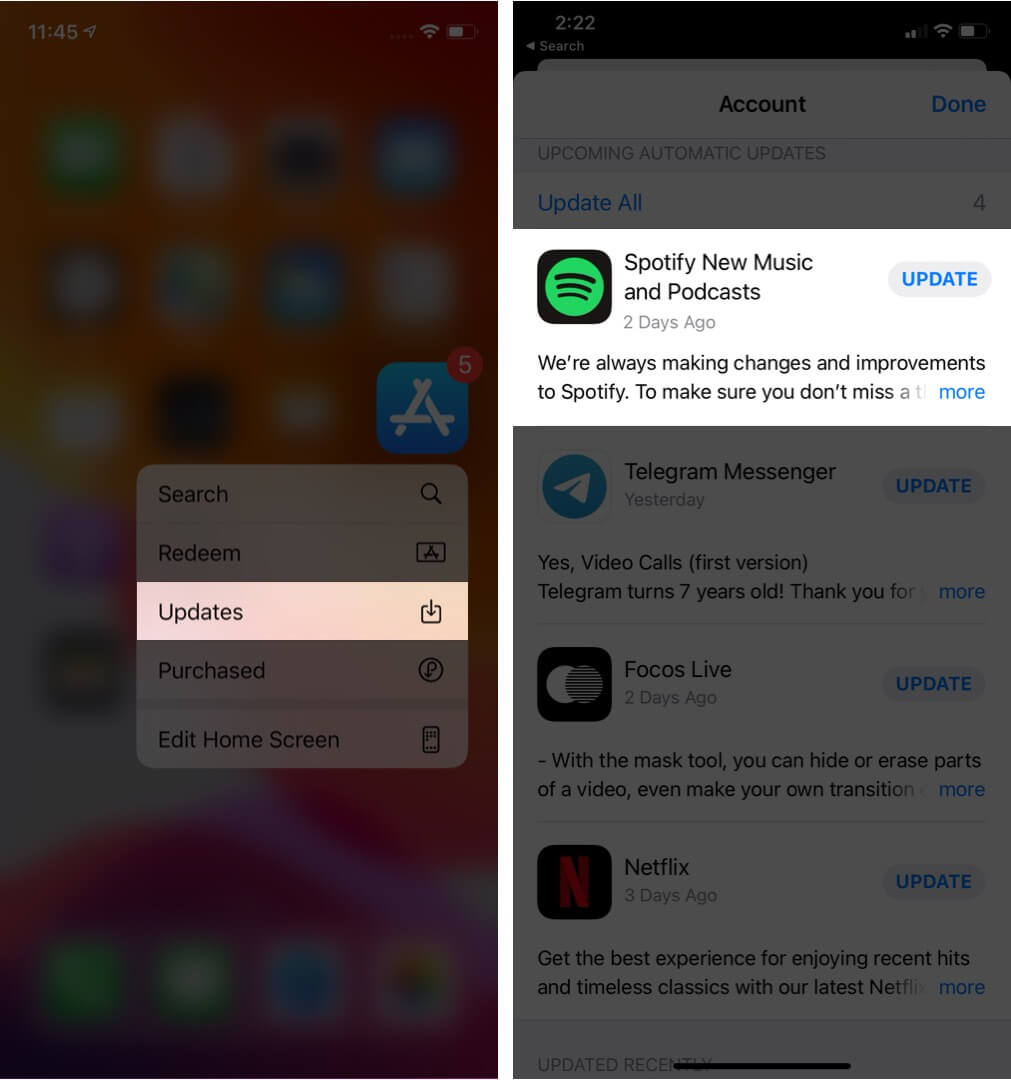
Fix 4. Update Spotify App
Installing the latest Spotify version may fix known software bugs.
Fix 5. Restart Your Device
Rebooting your computer or phone can refresh system resources.
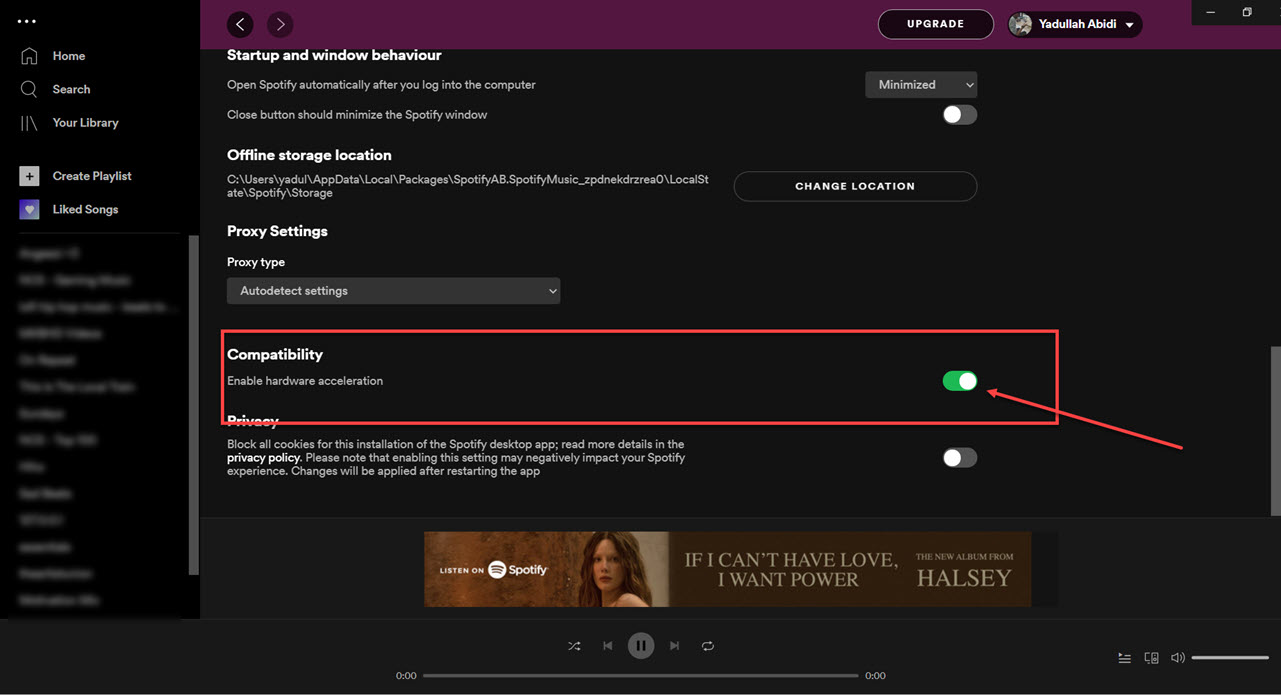
Fix 6. Disable Hardware Acceleration
You can disable Hardware Acceleration. This sometimes fixes freezing problems.
Fix 7. Check Spotify Server Status
Global Spotify outages occasionally affect playback and login services.
Part 3. Best Way to Avoid Spotify Playback Problems
Many users assume downloaded Spotify songs will always work offline, but downloaded songs remain protected by DRM, which means music only works inside the streaming app. Downloads cannot be transferred freely. If you frequently encounter the "Spotify is not responding" issue, one popular tool is DumpMedia Spotify Music Converter. This software allows users to convert Spotify music into local audio formats for more flexible offline playback. Even if the Spotify app is not working on your device, you can play Spotify songs offline on another music player immediately.
🏆Key Features of DumpMedia Spotify Music Converter
- Download Spotify music to MP3, WAV, FLAC, and AAC
- Remove Spotify DRM protection*
- Keep original sound quality
- Batch download playlists and albums
- Fast conversion speed
- Preserve song metadata and ID3 tags
- Support offline playback on any device
For users frustrated by Spotify app instability, local music playback often feels much more reliable.
Convert Spotify to MP3 Step by Step
Step 1. Download and install DumpMedia Spotify Music Converter on your Mac/PC. Launch it, and you will see the interface. Use your Spotify Premium/Free account to log in.
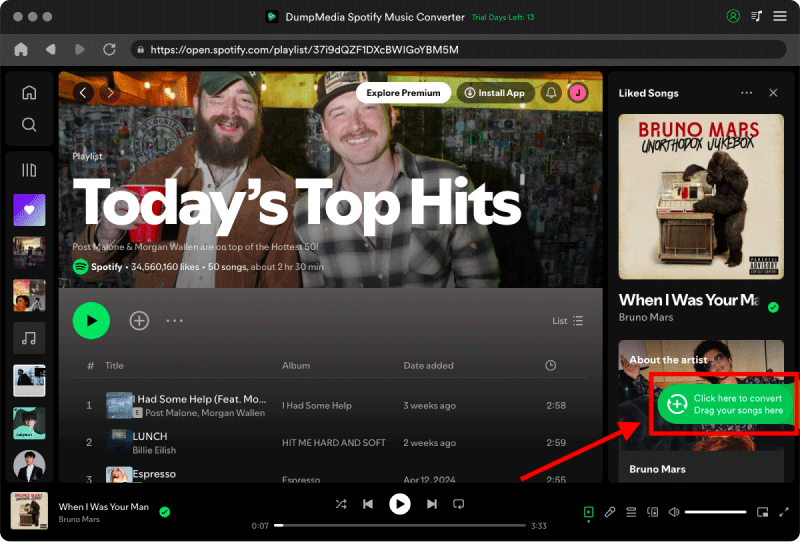
Step 2. Find the playlist, album, or specific song you want to convert. You can drag a single song onto the "+" icon on the right side of the screen. Alternatively, open an entire playlist/album and click the "Add to Convert" icon to load the entire list into the converter.
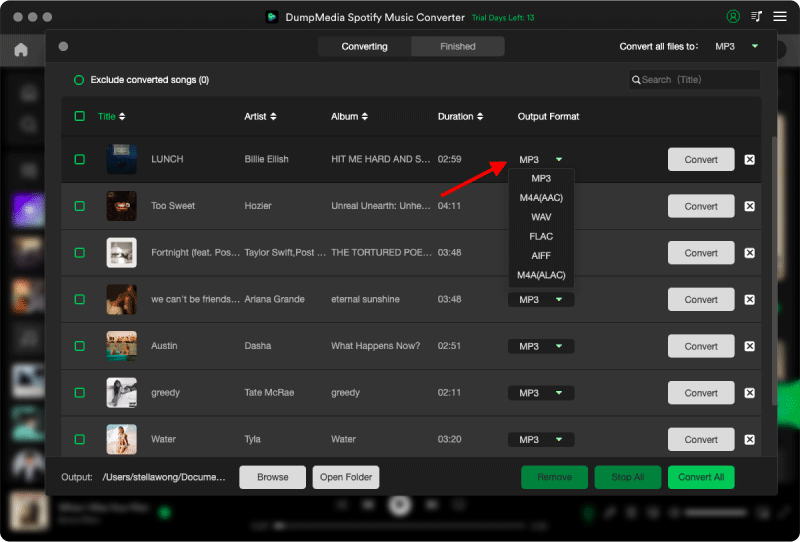
Step 3. Select MP3 (most compatible). Also, you can change the bitrate or the samplerate. For the best balance, choose 320kbps.
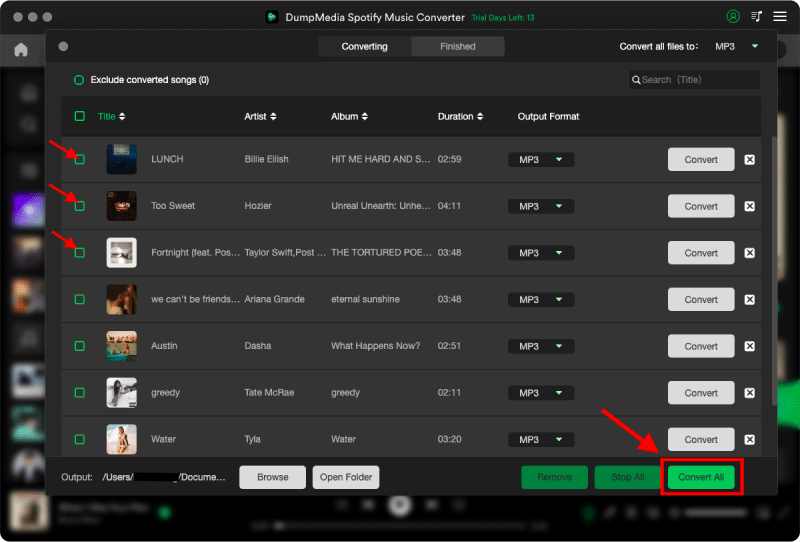
Step 4. As the settings are completed, users can process the conversion by hitting the "Convert" icon. Then DumpMedia will download Spotify songs to MP3 within seconds with its super-fast speed.
Part 4. FAQs
Why is Spotify not responding?
Spotify may stop responding because of internet issues, corrupted cache files, outdated software, or server problems.
Why does Spotify keep freezing?
Spotify freezing problems are often related to cache corruption or hardware acceleration conflicts.
Why is Spotify crashing on my phone?
Mobile Spotify crashes may be caused by low storage space, outdated app versions, or software conflicts.
Why is Spotify offline mode not working?
Offline playback still depends on Spotify authorization and app stability.
Is DumpMedia Spotify Music Converter safe?
Yes. It is designed for Spotify music conversion and local playback management.
Note: Streaming platforms have their own rules and monitoring systems. As a third-party tool, DumpMedia Spotify Music Converter is also subject to their restrictions, which may affect usage in certain cases. Spotify may take action if it detects activity that violates its Terms of Service; this is entirely at Spotify’s discretion.
Part 5. Conclusion
The "Spotify is not responding" issue can be caused by internet instability, corrupted cache files, outdated software, or Spotify app problems. Although many temporary fixes can help restore playback, Spotify streaming still depends heavily on app stability and online verification. For users who want more stable offline listening, DumpMedia Spotify Music Converter provides a practical way to convert Spotify songs into local MP3 files for flexible playback across different devices.
*DumpMedia works by decrypting and downloading Spotify songs into DRM-free files, allowing you to obtain a clean, unrestricted copy of your library for any device. Its functionality does not include the DRM removal of local audio files.