


How to Cast Spotify to TV: Stream Music on Smart TV, Chromecast, and More
While listening to Spotify with headphones is convenient, many people prefer enjoying their favorite music through a larger speaker system or television. If you want to cast Spotify to TV, there are several ways to do it depending on your device.
However, many users are unsure about the correct setup process or encounter problems when trying to connect Spotify with their television. This guide explains everything you need to know, including how Spotify casting works, different connection methods, troubleshooting solutions, and an alternative way to enjoy Spotify music on TV without connection limitations.
Contents Guide Part 1. What You Need to Know About Casting Spotify to Your TV?Part 2. How to Cast Spotify Music to TV Using Different Methods?Part 3. How to Connect Spotify to Popular TV Devices?Part 4. Why Spotify Won’t Cast to TV and How to Fix It?Part 5. Play Spotify Music on TV Without Casting RestrictionsPart 6. FAQsPart 7. Conclusion
Part 1. What You Need to Know About Casting Spotify to Your TV?
Spotify casting allows you to send music playback from your phone, tablet, or computer to a compatible television or connected device. Instead of playing songs through your mobile device speakers, your TV or external sound system becomes the audio output.
When you cast Spotify to TV, your smartphone usually works as a remote controller rather than directly transferring every audio file. This means you can control playback, change songs, adjust volume, and manage playlists while Spotify runs on your TV or connected device.
Part 2. How to Cast Spotify Music to TV Using Different Methods?
How to cast Spotify to TV? There are several technologies that make Spotify casting possible:
Method 1: Stream Spotify on TV Using Spotify Connect
Spotify Connect is one of the simplest ways to connect Spotify with a compatible TV. It is Spotify’s built-in feature that allows compatible devices to communicate directly with the Spotify service. Many Smart TVs, speakers, gaming consoles, and streaming devices support Spotify Connect.
Follow these steps:
- Open the Spotify app on your phone or tablet.
- Start playing any song.
- Tap the Device icon at the bottom of the screen.
- Select your TV or connected device.
- Wait for the connection to complete.
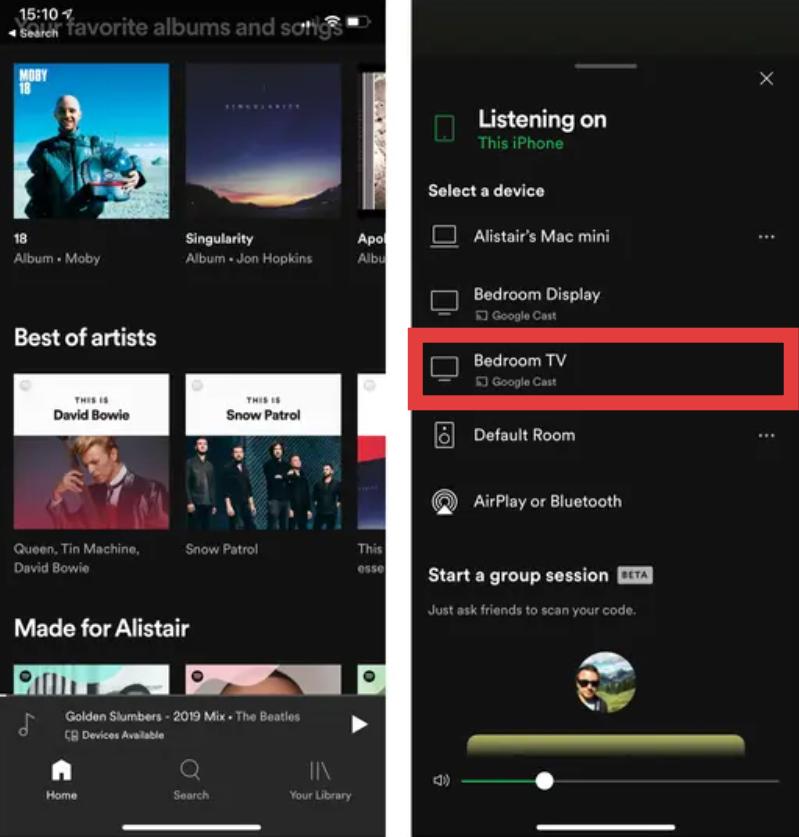
Once connected, your TV will start playing the music while your phone controls playback.
Method 2: Play Spotify on TV with Chromecast
Google Chromecast is another popular way to cast Spotify to TV. If you have a Chromecast device connected to your TV, you can use the Spotify app on your smartphone to send music directly to your television. Many users search for Spotify Chromecast solutions because Chromecast works with various TV brands and provides a simple wireless connection.
Before starting, make sure:
- Your Chromecast device is connected to your TV.
- Your phone and Chromecast are connected to the same Wi-Fi network.
- The Spotify app is updated.
Here's an example of how to cast to a TV with Chromecast:
- Open Spotify.
- Play a song or playlist.
- Tap the device icon.
- Choose your Chromecast-enabled TV.
- Wait for Spotify to connect.
After the connection is established, you can control your music directly from your phone. This method is ideal if your TV does not have a built-in Spotify app but supports Chromecast.
Method 3: Play Spotify on TV with a Smart TV App
Many modern televisions have a built-in Spotify Smart TV app. Popular brands such as Samsung, Apple, Sony, and Android TV models allow users to install Spotify directly.
To use this option:
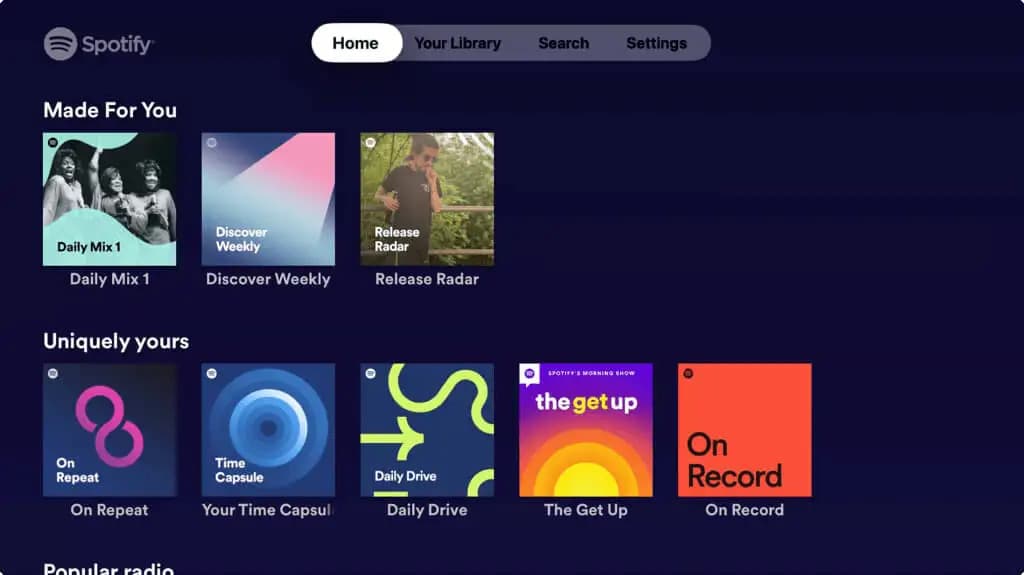
- Open your TV’s app store.
- Search for Spotify.
- Install the Spotify app.
- Sign in to your account.
- Start listening.
Related Article: How to Play Spotify on Apple TV?
This method allows you to cast Spotify to TV without needing a phone after setup. However, some older TVs may not support the latest Spotify app versions. In this situation, using Chromecast, AirPlay, or another streaming device may be a better option.
Method 4: Play Spotify on TV Using Apple AirPlay
Apple users can use AirPlay to send Spotify audio from an iPhone, iPad, or Mac to compatible Apple TVs and smart televisions. This method is especially useful for people searching for Spotify AirPlay to TV because it integrates smoothly with Apple devices.
To use AirPlay:
- Make sure your iPhone and TV are connected to the same Wi-Fi network.
- Open Spotify.
- Start playing music.
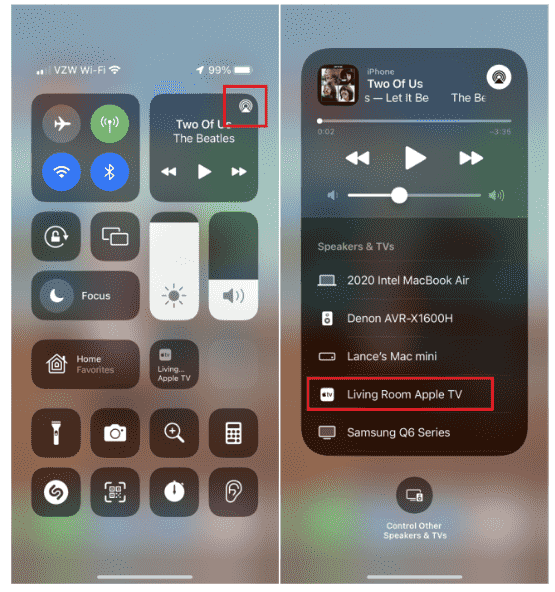
- Open the AirPlay menu.
- Select your Apple TV or AirPlay-compatible television.
Part 3. How to Connect Spotify to Popular TV Devices?
Different televisions and streaming devices have different ways to connect with Spotify. Whether you use a Samsung Smart TV, Roku, Amazon Fire TV, Android TV, or Apple TV, you can usually enjoy Spotify with only a few setup steps.
Understanding the specific connection method for your device can make it easier to cast Spotify to TV without interruptions.
Samsung Smart TV
Samsung Smart TVs are among the most popular devices for Spotify users. Many newer Samsung models support the Spotify app directly, allowing you to listen without connecting another device.
To use Spotify on Samsung TV:
- Open the Samsung Smart Hub.
- Search for the Spotify app.
- Install and launch Spotify.
- Log in with your Spotify account.
- Start playing your favorite songs.
Roku TV
Roku devices support Spotify playback through the Spotify app and screen-casting features.
To set up Spotify on Roku:
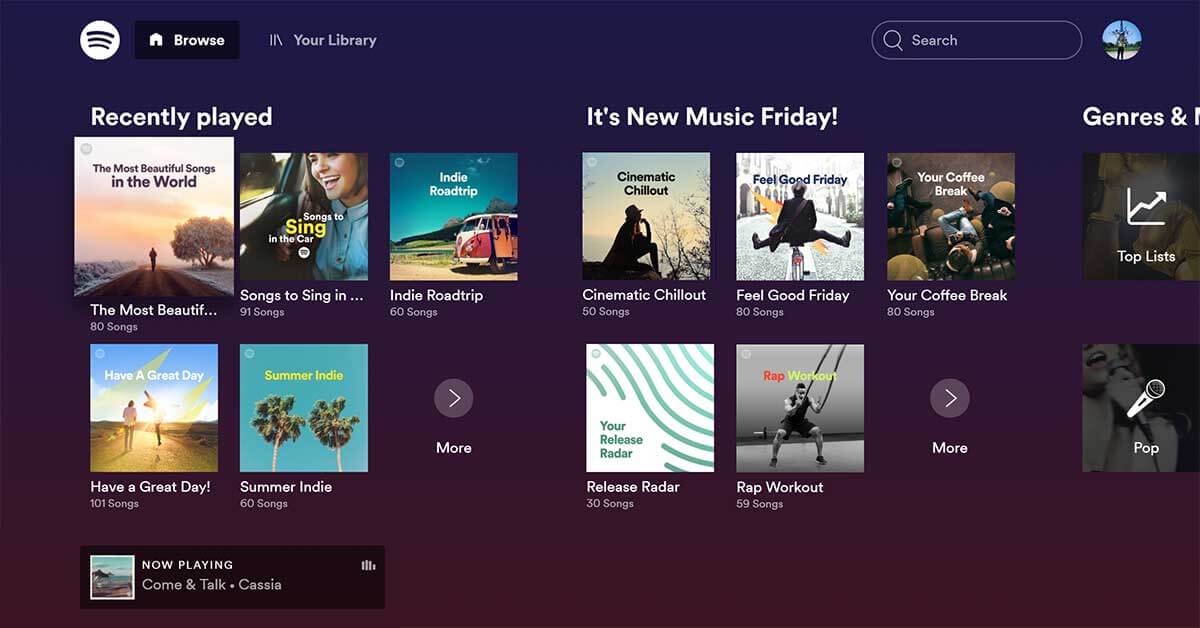
- Open the Roku Channel Store.
- Search for Spotify.
- Add the Spotify channel.
- Sign in to your account.
Amazon Fire TV
Amazon Fire TV users can install Spotify directly from the Amazon Appstore.
- Open Amazon Fire TV Apps.
- Search for Spotify.
- Download and install the app.
- Sign in.
- Start streaming.
Fire TV also works with Alexa voice commands, allowing you to control Spotify playback using voice instructions.
Android TV
Many Android TV devices support Spotify through the Google Play Store. This makes Android TV one of the easiest platforms for users who want to stream Spotify music to TV.
- Open Google Play Store on your Android TV.
- Search for Spotify.
- Install the application.
- Log in.
Part 4. Why Spotify Won’t Cast to TV and How to Fix It?
Although Spotify casting is usually simple, some users encounter connection problems. If you cannot cast Spotify to TV, the problem may come from network settings, outdated apps, or device compatibility issues.
Here are the most common solutions.
Fix 1: Check Your Wi-Fi Connection
The most common reason Spotify cannot connect to a TV is that both devices are not connected to the same network. If your TV appears unavailable in Spotify’s device list, reconnect both devices to Wi-Fi and try again.
Fix 2: Restart Spotify and Your TV
Temporary software errors can prevent Spotify from detecting your television. Try closing and opening Spotify on your TV. A simple restart often solves temporary casting problems.
Fix 3: Update Spotify App
An outdated Spotify version may cause compatibility problems with newer TV systems. Keeping both Spotify and your TV firmware updated improves connection stability.
Fix 4: Check Device Compatibility
Not every TV supports every Spotify casting method. Checking your TV’s supported features can save time when troubleshooting.
Part 5. Play Spotify Music on TV Without Casting Restrictions
Although Spotify casting is convenient, it still depends on stable internet connection, supported TV devices, and Spotify app availability. Some users prefer a more flexible solution that allows them to keep their music files and play them anywhere.
DumpMedia Spotify Music Converter provides an alternative way to enjoy Spotify music beyond traditional casting limitations. With DumpMedia Spotify Music Converter, users can convert Spotify songs, albums, and playlists into common audio formats, including MP3, WAV, FLAC, and M4A. After conversion, you can transfer Spotify music to a USB drive and play it on compatible TVs.
👍Why Choose DumpMedia Spotify Music Converter:
- ✔️Access Full Music Library from Built-In Spotify Web Player
- ✔️Enjoy Swift Conversions with 35x Faster Speeds
- ✔️Preserve Metadata Info and ID3 Tags
- ✔️Keep the Original Audio Quality
- ✔️100% Clean. No Risk in Using
- ✔️Free Updates & Technical Support
How to Use DumpMedia Spotify Music Converter
Step 1. Download and install DumpMedia Spotify Music Converter on your Mac/PC. Launch it, and you will see the interface. Use your Spotify Premium/Free account to log in.
Step 2. Search for Spotify songs, playlists, or albums. Simply click "Add to Convert" to add them to the conversion list.
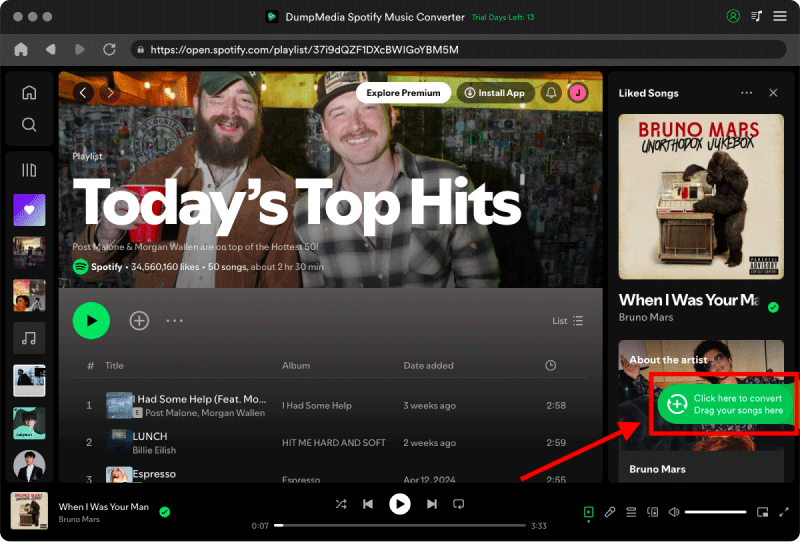
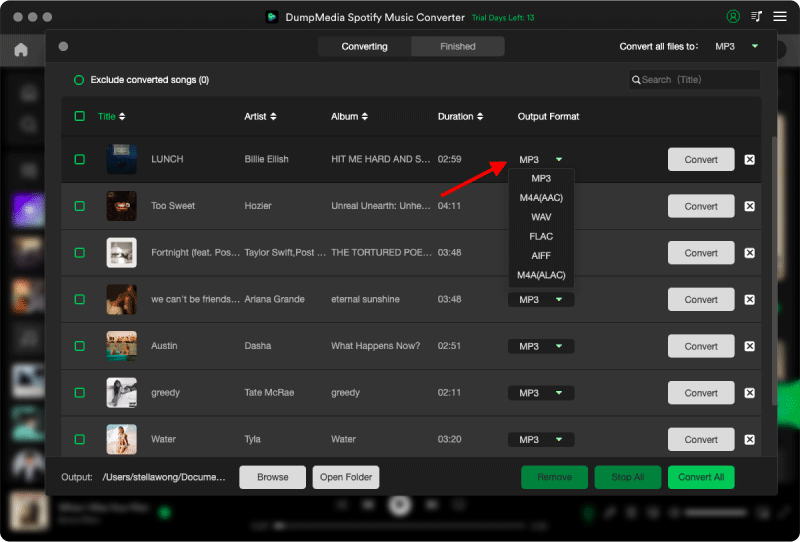
Step 3. After DumpMedia automatically parses songs, the format is set to MP3 by default on the conversion interface. If you want to change, click the "MP3" dropdown menu and choose one. Also, you can change the bitrate or the samplerate. For the best balance, choose 320kbps.
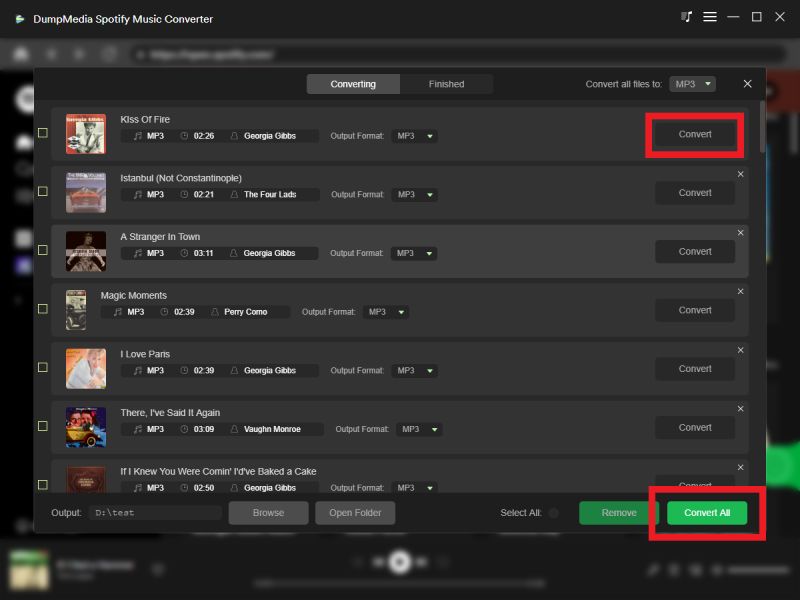
Step 4. As the settings are completed, users can process the conversion by hitting the "Convert" icon. Then DumpMedia will download Spotify songs to MP3 within seconds with its super-fast speed.
Part 6. FAQs
How do I cast Spotify to my TV?
To cast Spotify to TV, open Spotify on your phone, tap the device icon, and select your compatible TV or streaming device. You can use Spotify Connect, Chromecast, AirPlay, or a Smart TV app depending on your setup.
Why can't Spotify find my TV?
If Spotify cannot detect your TV, check your Wi-Fi connection, make sure both devices are on the same network, update Spotify, and restart your devices.
Can I play Spotify music on TV without internet?
Spotify normally requires an internet connection for streaming. However, using tools like DumpMedia Spotify Music Converter allows you to save Spotify music as standard audio files and play them offline on compatible devices.
Part 7. Conclusion
Learning how to cast Spotify to TV allows you to enjoy your favorite playlists with better sound quality and a bigger screen experience. For users who want more freedom and fewer playback restrictions, DumpMedia Spotify Music Converter offers another practical option. By converting Spotify music into widely supported formats, you can enjoy your favorite tracks on TVs, media players, and other devices without relying entirely on Spotify casting features.