


How to Play Spotify in the Background (Full Guide)
Have you ever wanted to enjoy your favorite tunes on Spotify while multitasking on your device? Perhaps you've tried playing a playlist or podcast, only to find that the audio stops as soon as you switch to another app or lock your screen. Fret not, as we've got you covered! In this in-depth guide, we will unveil the key techniques and tricks to help you play Spotify in background environments like a pro.
Whether you're using Spotify on your smartphone, tablet, or computer, we'll provide you with a full spectrum of methods to ensure uninterrupted musical bliss.
Get ready to elevate your Spotify experience and make the most out of your favorite tracks, playlists, and podcasts, all while having the freedom to browse, work, or relax on your device. Let's dive in and unlock the secret to get Spotify to play in the background, unleashing a whole new level of convenience and enjoyment!

Contents Guide Part 1: How to Keep Spotify Playing in Background (Phones & Computers)Part 2: Spotify Not Playing in Background: How to Fix the IssuePart 3: Best Method to Play Spotify Songs in the BackgroundPart 4: Conclusion
Part 1: How to Keep Spotify Playing in Background (Phones & Computers)
Playing Spotify in the background allows you to enjoy your favorite music, podcasts, or playlists without interruptions while you perform other tasks on your phone or computer. In this section, we will explore various methods to keep Spotify playing in the background on both mobile devices and computers.
Mobile Devices (Phones & Tablets):
Android Devices:
- Launch the Spotify app on your Android device and start playing your desired content.
- Swipe down from the top of the screen to access the notification panel, and you should see the Spotify notification.
- Expand the notification panel and tap on the playback controls to reveal more options.
- Look for the "Keep Spotify playing" option or a similar setting and enable it. This will allow Spotify to continue playing in the background while you use other apps or lock your screen.
iOS Devices (iPhone & iPad):
- Open the Spotify app on your iOS device and start playing the desired content.
- Swipe up from the bottom of the screen to access the Control Center.
- In the Control Center, locate the playback controls and tap on the play button to resume playback.
- Now you can switch to other apps or lock your device, and Spotify will continue playing in the background.
Computers:
Windows:
- Open Spotify on your Windows computer and start playing your preferred music.
- Minimize the Spotify window by clicking the minimize button, or use the Alt+Tab keyboard shortcut to switch to another application.
- Spotify will continue playing in the background while you work on other tasks or use different applications.
Mac:
- Launch Spotify on your Mac and begin playing your desired content.
- Press the Command+H keyboard shortcut to hide the Spotify window.
- Spotify will keep playing in the background while you navigate to other apps or perform tasks on your Mac.
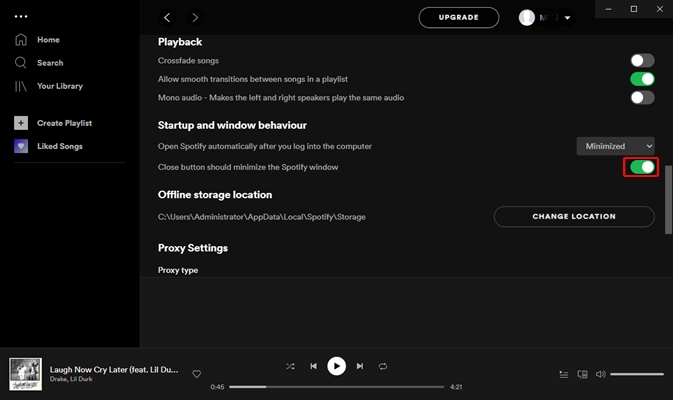
By following these methods, you can ensure that Spotify continues playing in the background on your mobile devices and computers. Now you can enjoy your favorite music or podcasts while browsing the web, replying to emails, or engaging in any other activity without interruption. In the next section, we will delve deeper into additional tips and tricks to enhance your background listening experience on Spotify.
Part 2: Spotify Not Playing in Background: How to Fix the Issue
While playing Spotify in the background is usually a seamless experience, there are instances where it may not work as expected. In this section, we will address common issues and provide troubleshooting steps to fix Spotify not playing in the background on mobile devices and computers.
Mobile Devices:
Check App Settings:
- Open the Spotify app on your device and go to the settings menu.
- Look for the "Playback" or "Background Playback" option.
- Ensure that the setting is enabled to allow Spotify to play in the background.
Clear App Cache:
- If Spotify still doesn't play in the background, try clearing the app cache.
- Go to your device's settings, find the Apps or Application Manager section, and locate Spotify.
- Tap on Spotify and select the option to clear the cache.
- Relaunch Spotify and check if it plays in the background now.
Reinstall Spotify:
- If the issue persists, you can try uninstalling and reinstalling the Spotify app.
- Delete the Spotify app from your device, then visit your app store and reinstall it.
- Sign in to your Spotify account and check if the background playback feature works.
Computers:
Check Audio Settings:
- Ensure that the audio settings on your computer are properly configured.
- Go to the sound settings and make sure the output device is set correctly.
- Verify that the volume is not muted or too low.
Update Spotify:
- Make sure you have the latest version of Spotify installed on your computer.
- Check for updates in the app settings or visit the official Spotify website to download and install the latest version.
Restart Spotify and the Computer:
- Close the Spotify application and restart it.
- Additionally, restart your computer to refresh the system and eliminate any temporary glitches.
Disable Power Saving Settings:
- Some power-saving settings on your computer may interfere with background playback.
- Adjust the power settings to prevent your computer from entering sleep or idle mode while Spotify is running.
By following these troubleshooting steps, you should be able to resolve most issues related to Spotify not playing in the background. If the problem persists, you can reach out to Spotify support for further assistance.
Playing Spotify in the background enhances your music listening experience by allowing you to multitask while enjoying your favorite content. By following the methods outlined in Part 1, you can easily keep Spotify playing in the background on your mobile devices and computers.
In the rare event that you encounter issues, the troubleshooting steps discussed in Part 2 will help you overcome them and get back to uninterrupted background playback. With these tips and tricks, you can now make the most of your Spotify subscription and seamlessly enjoy music, podcasts, and playlists while staying productive or engaged in other activities.
Part 3: Best Method to Play Spotify Songs in the Background
While the previous sections have covered native methods to play Spotify in the background, there is an alternative solution that provides additional flexibility and features. One of the best methods to play Spotify songs in the background is by using the DumpMedia Spotify Music Converter.
DumpMedia Spotify Music Converter is a powerful tool that allows you to download and convert Spotify songs, playlists, albums, and podcasts to various audio formats, such as MP3, FLAC, WAV, and more. By converting Spotify content to local files, you can bypass the limitations of streaming and enjoy your favorite tracks in the background without relying on an active internet connection.
Here's how you can use DumpMedia Spotify Music Converter to play Spotify songs in the background:
- Download and Install DumpMedia Spotify Music Converter:
- Visit the DumpMedia website and download the Spotify Music Converter software.
- Follow the on-screen instructions to install it on your computer.
- Open the DumpMedia Spotify Music Converter application on your computer.
- Add Spotify Songs or Playlists:
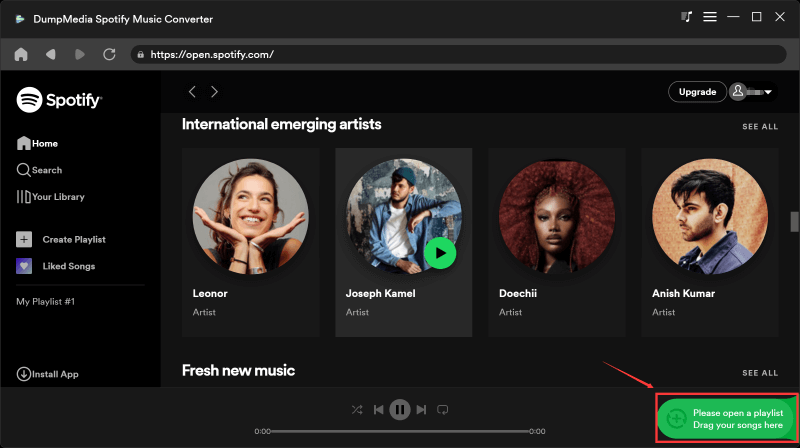
- Go back to DumpMedia Spotify Music Converter and click on the "Add Files" button.
- Paste the copied Spotify link into the input box and import the songs or playlists.
- Choose Your Desired Output Format and Optimum Settings:
- Select the output format for your converted Spotify files. MP3 is a widely compatible format.
- Customize other settings, such as output quality and destination folder, according to your preferences.
- Start Conversion:
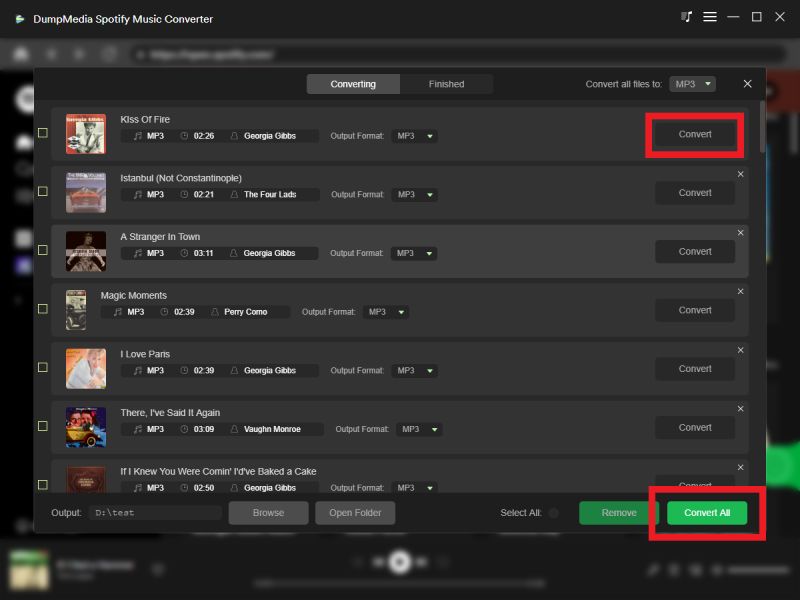
- Click the "Convert" icon to start the conversion process. DumpMedia Spotify Music Converter will convert the Spotify songs or playlists to the selected format and save them to your computer.
- Transfer and Play:
- Once the conversion is complete, you can transfer the converted Spotify files to your mobile device or any music player.
- Now, you can play the converted Spotify songs in the background without any limitations or interruptions.
DumpMedia Spotify Music Converter provides a convenient way to enjoy Spotify songs in the background by converting them into local files. This method ensures a seamless listening experience, even when offline or when other apps are in use.
With DumpMedia Spotify Music Converter, you can create your personal music library and have full control over your Spotify content, enabling you to play your favorite songs in the background whenever and wherever you want.
Part 4: Conclusion
In this comprehensive guide, we have explored various methods to play Spotify in the background on both mobile devices and computers. We discussed the native options available on Android, iOS, Windows, and Mac platforms, providing step-by-step instructions to ensure uninterrupted playback while multitasking.
However, we also introduced an alternative solution that goes beyond the limitations of streaming: DumpMedia Spotify Music Converter. This powerful tool allows you to download and convert Spotify songs, playlists, albums, and podcasts to local files in popular audio formats like MP3. By using DumpMedia Spotify Music Converter, you can enjoy your favorite Spotify content in the background without relying on an internet connection.
DumpMedia Spotify Music Converter provides several advantages over native methods. It allows you to build your personal music library, offers flexibility in choosing output formats and quality settings, and eliminates interruptions caused by network issues. With DumpMedia Spotify Music Converter, you can take full control of your Spotify experience and enjoy your favorite tracks anytime, anywhere.