


How to Share a Spotify Playlist on Mobile and Desktop
Whether you've created the perfect workout mix, a road trip soundtrack, or a collection of your favorite songs, you may be wondering how to share a Spotify playlist with others. Fortunately, Spotify offers several ways to share playlists. In this guide, you'll learn how to share Spotify music on iPhone, Android, desktop, and the web, troubleshoot common sharing issues, and discover a more flexible way to enjoy shared music offline.
Contents Guide Part 1: Can You Share a Spotify Playlist?Part 2: How to Share Spotify Playlists on Mobile/Desktop?Part 3: Different Ways to Share a Spotify PlaylistPart 4: Why Can't I Share My Spotify Playlist?Part 5: Share Spotify Playlists with More FlexibilityPart 6: FAQsPart 7: Final Thoughts
Part 1: Can You Share a Spotify Playlist?
Yes. Spotify allows users to share both their own playlists and many public playlists created by others.
You can share a playlist through:
- A playlist link
- Spotify Codes (QR-style codes)
- Text messages
- X (formerly Twitter)
- Messenger and other chat apps
Anyone with the playlist link can open it. However, whether they can listen to every song depends on their Spotify account and regional music availability.
Part 2: How to Share Spotify Playlists on Mobile/Desktop?
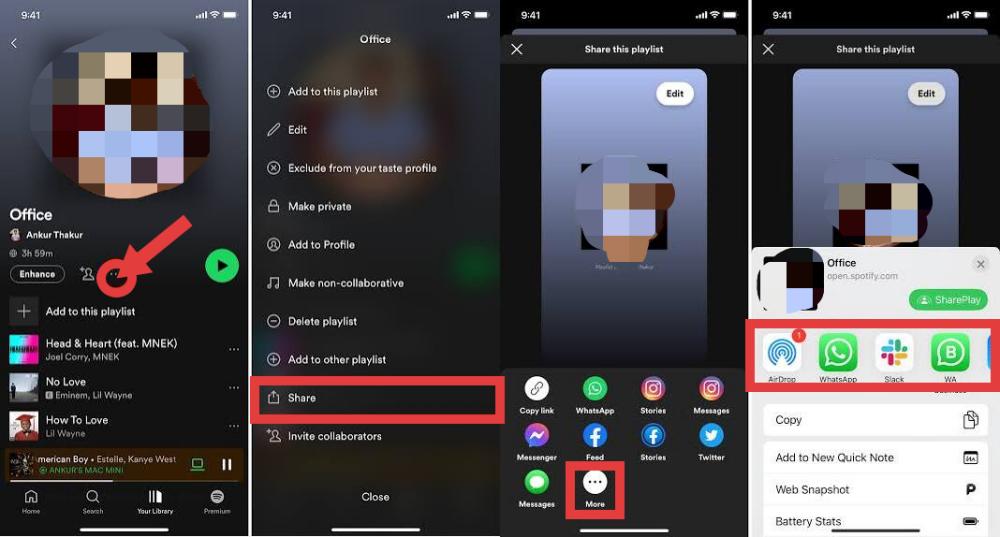
Share Spotify Playlists on iPhone
If you're using Spotify on an iPhone or Android device, follow these steps.
- Open the Spotify app.
- Tap Your Library.
- Select the playlist you want to share.
- Tap the three-dot menu.
- Choose Share.
- Select one of the available sharing options or tap Copy Link.
You can now send the playlist through Messages, Mail, AirDrop, or social media apps.
Share Spotify Playlists on Android
- Open Spotify.
- Select your playlist.
- Tap the three-dot icon.
- Choose Share.
- Select an app or copy the playlist link.
If you're looking for how to share a Spotify playlist from your phone, this is the quickest method.
Share Spotify Playlists on Desktop
How to share a Spotify playlist with friends? You can also share playlists from Spotify on Windows, Mac, or the web player.
- Open Spotify.
- Navigate to your playlist.
- Click the three-dot menu.
- Choose Share.
- Select Copy Playlist Link.
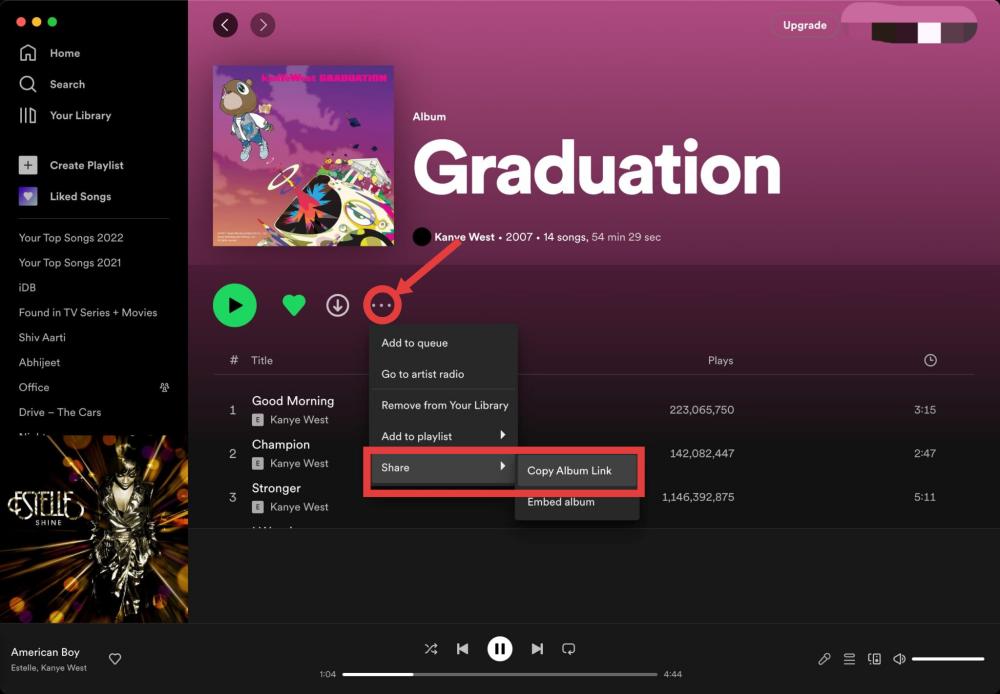
Paste the copied link into an email, document, or messaging app to share it with others.
Part 3: Different Ways to Share a Spotify Playlist
Spotify provides several sharing options depending on how you want others to access your music.
Share with Spotify Codes
Spotify Codes are scannable images that allow users to open playlists instantly. Spotify Codes are especially useful for sharing music in person.
How to share a Spotify playlist with codes:
- Open the playlist.
- Tap Share.
- Display the Spotify Code.
- Have another user scan it with the Spotify app.
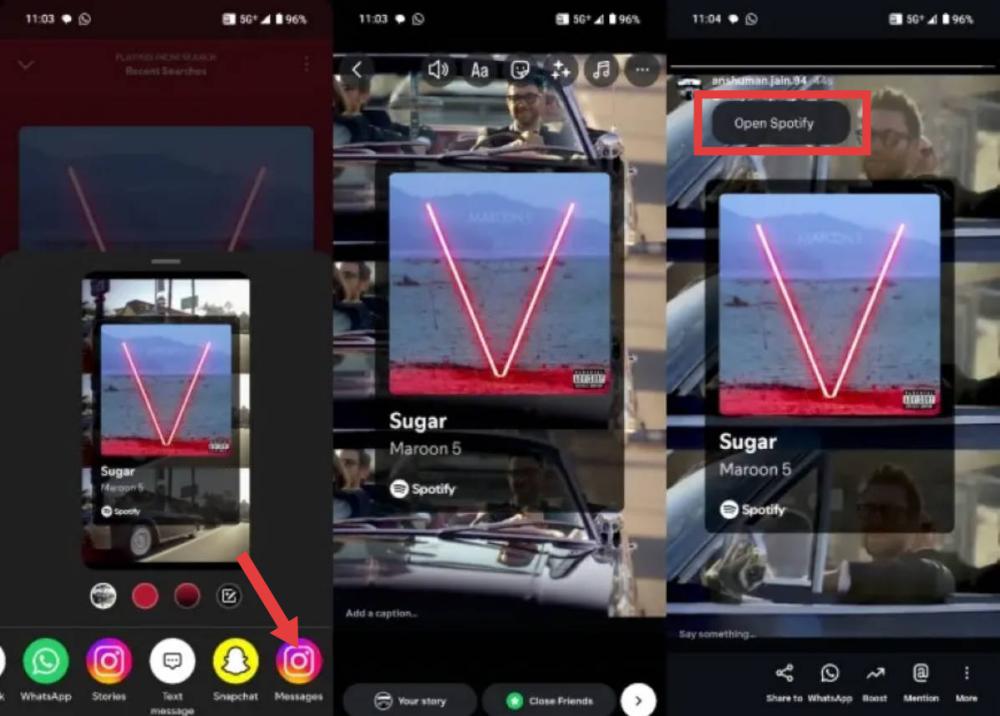
Share on Social Media
Spotify supports direct sharing to several social platforms. Sharing your playlists on social media is a great way to recommend music to friends and followers.
Popular options include:
- Instagram Stories
- Snapchat
- X
Related Article: How to Add Spotify to Instagram Story as Background Music
Part 4: Why Can't I Share My Spotify Playlist?
If you're having trouble sharing your playlist, here are several common reasons.
Your Playlist Is Private
Private playlists aren't visible to other users. Make sure the playlist is set to Public before sharing.
Poor Internet Connection
Spotify requires an internet connection to generate and share playlist links. Check your Wi-Fi or mobile data if sharing isn't working.
Outdated Spotify App
Older versions of Spotify may contain bugs that affect sharing features. Update the app to the latest version.
Playlist Has Been Deleted
If a playlist has been deleted or removed from your library, its sharing link will no longer work.
Temporary Spotify Issues
Occasionally, Spotify's servers may experience temporary issues that affect playlist sharing. Waiting a few minutes and trying again often resolves the problem.
Part 5: Share Spotify Playlists with More Flexibility
Sharing a Spotify playlist is convenient, but recipients generally need access to Spotify to stream the songs. Playback may also be affected by regional availability, subscription type, or internet connectivity. If you'd like more flexibility for personal offline listening and managing your music library, DumpMedia Spotify Music Converter can help.
With DumpMedia, you can convert Spotify songs, albums, and playlists to MP3, WAV, FLAC, AAC, and other popular formats. This allows music to be stored locally and played across various devices. Even if the Spotify app is not working on your device, you can play Spotify songs offline on another music player immediately.
🏆Why Choose DumpMedia Spotify Music Converter
- Built-in Spotify player - to directly log into your Spotify library and choose all songs you like.
- Original sound quality retained - keep a better quality status to save Spotify's original music effects.
- Keep ID3 Tags and metadata information - extract music files with original ID3 tags as well as metadata information.
- Batch playlist downloading speed - ensure ultra-fast playlist downloading speed, which can accelerate faster and facilitate higher music download efficiency.
- Customize output settings - to choose your favorite bitrate and sample rate based on your needs.
This is especially useful if you want to keep your playlists accessible without depending entirely on streaming.
Share Spotify Playlists Using DumpMedia
Step 1. Download and install DumpMedia Spotify Music Converter on your Mac/PC. Launch it, and you will see the interface. Use your Spotify Premium/Free account to log in.
Step 2. Search for Spotify songs, playlists, or albums. Simply click "Add to Convert" to add them to the conversion list.
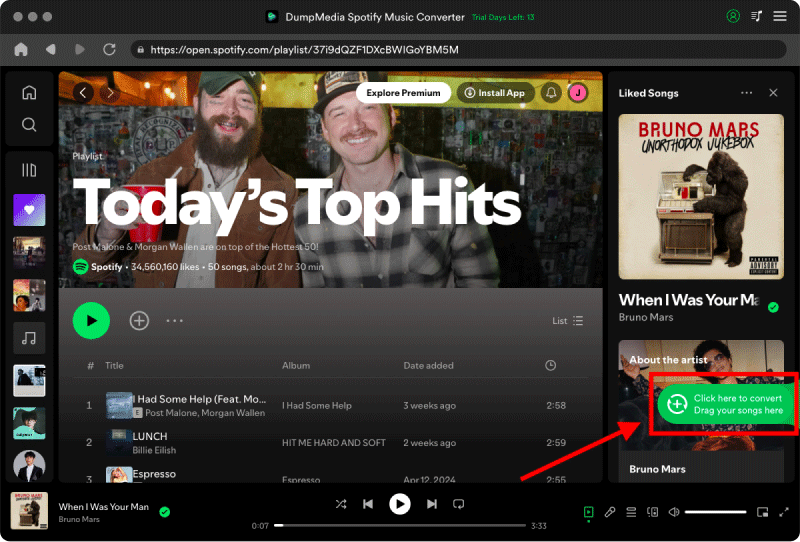
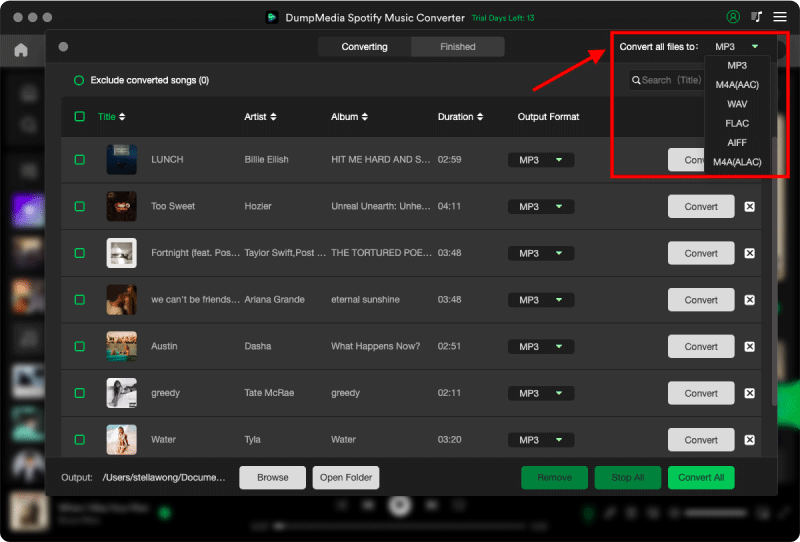
Step 3. After DumpMedia automatically parses songs, the format is set to MP3 by default on the conversion interface. If you want to change, click the "MP3" dropdown menu and choose one. Also, you can change the bitrate or the samplerate. For the best balance, choose 320kbps.
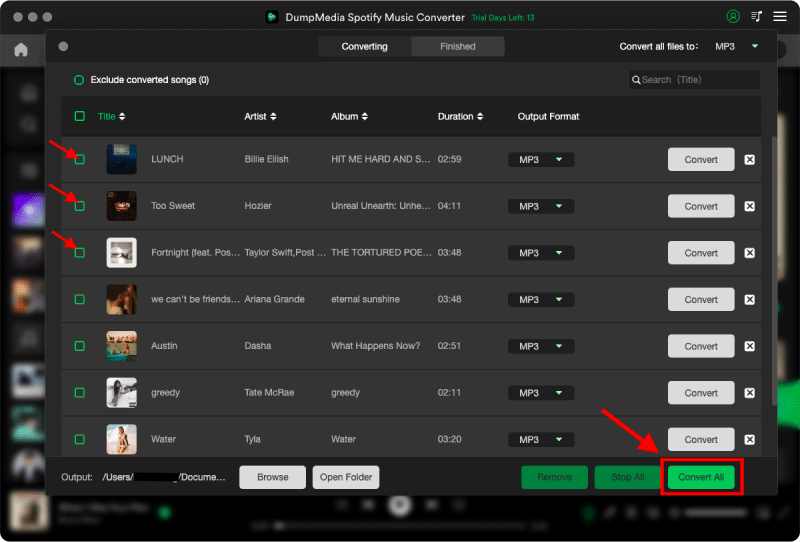
Step 4. As the settings are completed, users can process the conversion by hitting the "Convert" icon. Then DumpMedia will download Spotify playlists to MP3 within seconds with its super-fast speed.
These simple steps can improve the experience for anyone you share your playlist with. You can now share music in various ways.
Part 6: FAQs
How do I share a Spotify playlist?
Open the playlist, tap or click the three-dot menu, choose Share, and select a sharing option or copy the playlist link.
Can someone listen to my Spotify playlist without Spotify Premium?
Yes. Free Spotify users can usually open shared playlists, although playback may include advertisements and some mobile playback limitations depending on Spotify's current policies.
Can I share a private Spotify playlist?
Private playlists cannot be accessed by others. To share one, change its visibility to Public first.
Why can't my friend open my playlist?
The playlist may be private, deleted, unavailable in their region, or the shared link may be incorrect.
Part 7: Final Thoughts
Learning how to share a Spotify playlist is simple once you know the available options. For users who also want more flexibility in managing their personal offline music library, DumpMedia Spotify Music Converter offers an efficient way to convert Spotify playlists into widely supported audio formats while preserving high-quality sound and metadata.