


How to Add Your Own Music to Apple Music (2026 Guide)
Many users want to import their personal music collection, such as MP3 files, downloaded tracks, or old CDs, into Apple Music for easier access across devices. While Apple Music does allow you to add local files, the process isn’t always straightforward. You may run into syncing issues, unsupported formats, or limitations when trying to manage your music later. In this guide, you’ll learn how to add your own music to Apple Music step by step and how to keep full control over your music library.
Contents Guide Part 1: Why You Can’t Always Add Music to Apple MusicPart 2: Add Your Own Music to Apple Music on Windows (iTunes)Part 3: Add Your Own Music to Apple Music on MacPart 4: What Happens After You Add Music to Apple Music?Part 5: Best Solution to Manage Your Music FreelyPart 6: FAQPart 7: Conclusion
Part 1: Why You Can’t Always Add Music to Apple Music
Before diving into how to add your own music to Apple Music, it’s important to understand why the process sometimes fails.
Common issues include:
- Unsupported file formats (Apple Music prefers MP3, AAC, ALAC)
- iCloud Music Library sync errors
- Duplicate or missing tracks after syncing
- File size or metadata problems
Even if you successfully add your own music to Apple Music, managing those files later can still be restrictive.
Part 2: Add Your Own Music to Apple Music on Windows (iTunes)
How to add your own music to Apple Music? If you’re using a Windows PC, you'll need iTunes to add your music.
Follow the steps:
- Open iTunes and go to File > Add File to Library
- Select the music files you want to import
- Click Open to add them to your library
- Enable Sync Library in settings
- Wait for your music to upload to iCloud
Once completed, your songs should appear across all devices using the same Apple ID.
Part 3: Add Your Own Music to Apple Music on Mac
On macOS (Catalina or later), iTunes is replaced by the Apple Music app. Here is how to add your own music to Apple Music on Mac.
- Open the Apple Music app
- Drag and drop your music files into the library
- Go to Music > Settings > General
- Enable Sync Library
- Wait for syncing to complete
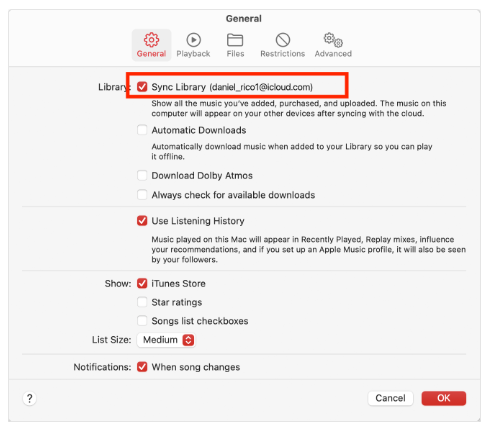
This is the easiest way to add your own music to Apple Music on Mac.
Part 4: What Happens After You Add Music to Apple Music?
After you successfully learn how to add your own music to Apple Music, your files are stored in your iCloud Music Library and accessible across Apple devices.
However, there are still limitations. Even after you add your own music to Apple Music, you may notice:
- ❌ You can’t easily export songs
- ❌ Files are tied to Apple’s ecosystem
- ❌ Metadata may be changed automatically
- ❌ Some tracks may become unavailable
Adding music is easy, but controlling it is not. This is where many users face a second problem.
Part 5: Best Solution to Manage Your Music Freely
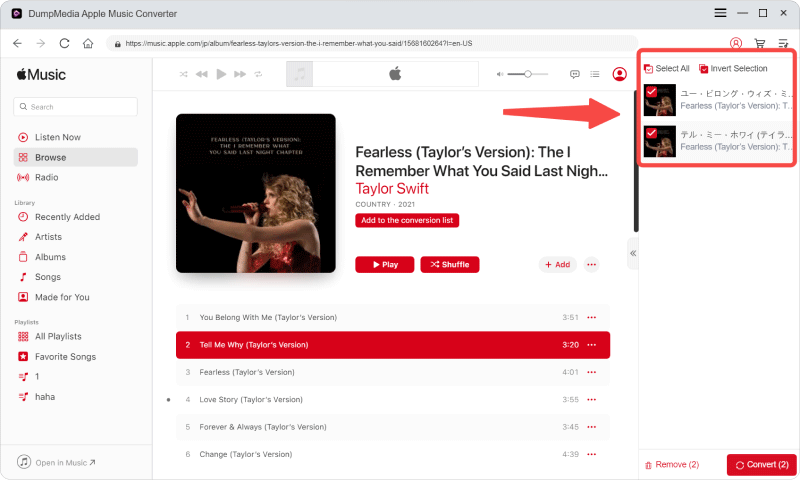
If your goal is not just to add music but also to manage and keep it without restrictions, you’ll need a different approach. Tools like DumpMedia Apple Music Converter let you convert Apple Music songs to MP3, WAV, or FLAC. After that, you can keep your music permanently and transfer files to any device. This complements what you learned about how to add your own music to Apple Music, giving you full flexibility over your library.
How to Use DumpMedia Apple Music Converter (A Complete Guide) >>>
Part 6: FAQ
1. Why can’t I add my own music to Apple Music?
This usually happens due to unsupported formats, syncing issues, or iCloud Music Library problems. Make sure your files are in MP3, AAC, or ALAC format and that Sync Library is enabled.
2. Does Apple Music support MP3 files?
Yes, Apple Music supports MP3 files. You can easily import them when learning how to add your own music to Apple Music.
3. Can I export songs from Apple Music?
No, Apple Music does not allow exporting protected songs. This is one of the main limitations users face.
4. What is the best way to manage Apple Music files?
If you want more flexibility, using tools that convert and store music as local files is the best solution.
Part 7: Conclusion
Learning how to add your own music to Apple Music is a great way to organize your personal music library and access it across devices. However, adding music is only part of the process. If you want full control, such as converting, exporting, or permanently keeping your music, you’ll need additional tools and strategies beyond Apple Music itself. Combining Apple Music with the right tools gives you both convenience and freedom.