


How to Keep Music Playing on YouTube with Effective Way
YouTube is a popular platform for streaming music, but one common frustration is how to keep music playing on YouTube while you navigate away from the video or lock your device. Fortunately, there are several methods to ensure your tunes keep playing without interruption.
Whether you're using a mobile device or a desktop computer, this guide will help you maintain an uninterrupted music experience on YouTube.
Contents Guide Part 3. Convert YouTube Music Songs to Play in The BackgroundPart 4. FAQs about How to Keep Music Playing on YouTube
Part 1. Why YouTube Music Stops Playing
Before diving into solutions, it's helpful to understand why music might stop playing on YouTube:
- Browser or App Restrictions: Many browsers and the YouTube app are designed to pause background audio when you switch tabs or apps to save resources and prevent interruptions.
- Lock Screen Issues: On mobile devices, YouTube often pauses music when the screen locks to conserve battery life.
- Subscription Limitations: Free YouTube accounts typically cannot play music in the background while using other apps or locking the screen.
Part 2. Solutions for Keeping Music Playing on YouTube
Here’s how to keep your YouTube music playing seamlessly:
1. Using YouTube Premium
The easiest and most effective way to keep music playing on YouTube is to subscribe to YouTube Premium. This paid service offers several benefits:
- Background Play: YouTube Premium allows you to continue playing audio while using other apps or when your screen is off.
- Offline Downloads: Save your favorite tracks and playlists for offline listening.
- Ad-Free Experience: Enjoy uninterrupted music without ads.
2. Using a Mobile Web Browser
For those who prefer not to subscribe to YouTube Premium, a workaround involves using a mobile web browser:
- Open YouTube in Your Browser: Use a mobile web browser such as Chrome or Firefox.
- Request Desktop Site: Tap the three-dot menu in the browser and select “Request Desktop Site.” This will load the desktop version of YouTube.
- Play Your Music: Start playing your desired music.
- Switch to Another App or Lock Your Screen: The music should continue playing in the background.
3. Utilizing Picture-in-Picture Mode
Another solution for mobile devices is using Picture-in-Picture (PiP) mode:
- Enable PiP: On Android devices, you can enable Picture-in-Picture mode in your settings.
- Play YouTube Music: Start playing a video in the YouTube app.
- Activate PiP Mode: Press the home button, and the video will shrink to a small window that floats over other apps.
- Continue Using Other Apps: Your music will keep playing while you multitask.
4. Third-Party Apps
There are third-party apps designed to help you keep YouTube music playing:
- YouTube Music Apps: Some apps and services specialize in providing a continuous music experience, including background play and offline listening.
- Browser Extensions: On desktop browsers, extensions like "Enhancer for YouTube" can provide additional functionality for continuous playback.
5. Desktop Workarounds
If you’re using a desktop computer, you can use these methods to keep music playing:
- Background Tab: Simply leave the YouTube tab open and switch to other tabs or applications. As long as the YouTube tab remains active, audio should continue playing.
- Media Player Extensions: Use extensions or applications that allow background media playback, which can help maintain audio even when switching tabs.
Part 3. Convert YouTube Music Songs to Play in The Background
As mentioned earlier, you can keep music playing on YouTube by converting it to MP3 files. This process can be tricky due to DRM protections on YouTube Music. However, using a specialized music converter can simplify the task. We recommend DumpMedia YouTube Music Converter for this purpose.
This tool enables you to download songs, playlists, albums, and music videos from YouTube at speeds up to ten times faster than average. It also converts streaming music into popular, open-source formats like MP3, WAV, FLAC, and M4A, ensuring that your files are compatible with almost any device or media player.
Here are some features of using DumpMedia YouTube Music Converter:
- Versatile Download Options: Effortlessly download a variety of file types, including MP4 formats for songs, playlists, albums, and music videos.
- ID3 Tag Metadata Preservation: Retain complete ID3 tag metadata, including title, artist, album, and genre information.
- 24/7 Technical Support: Access round-the-clock technical support for prompt and professional assistance.
- User-Friendly Experience: Benefit from a sleek, intuitive design that ensures an excellent user experience.
- Money-Back Guarantee: Enjoy peace of mind with a money-back guarantee if you encounter any technical issues.
Here is a guide about how to use the program:
Step 1. Install and Sign In: Download and install DumpMedia YouTube Music Converter on your computer. After installation, sign in to your YouTube Music account within the software.
Step 2.Select Music: Browse your YouTube Music library and choose the songs or playlists you want to convert.
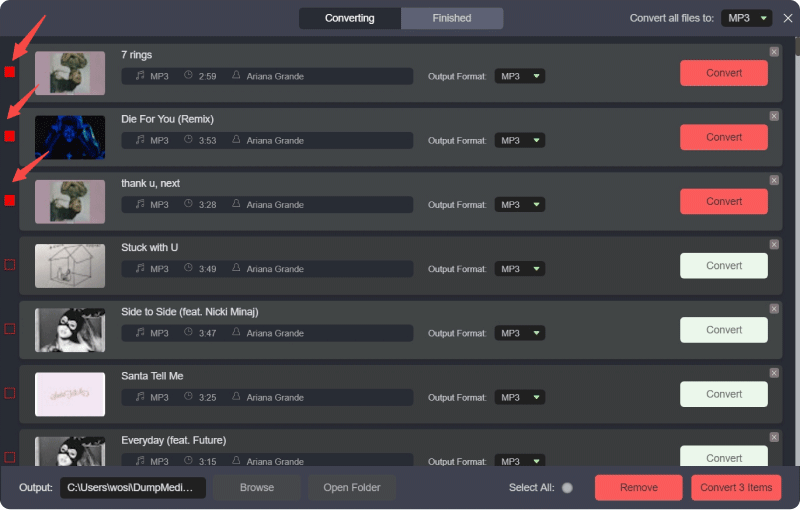
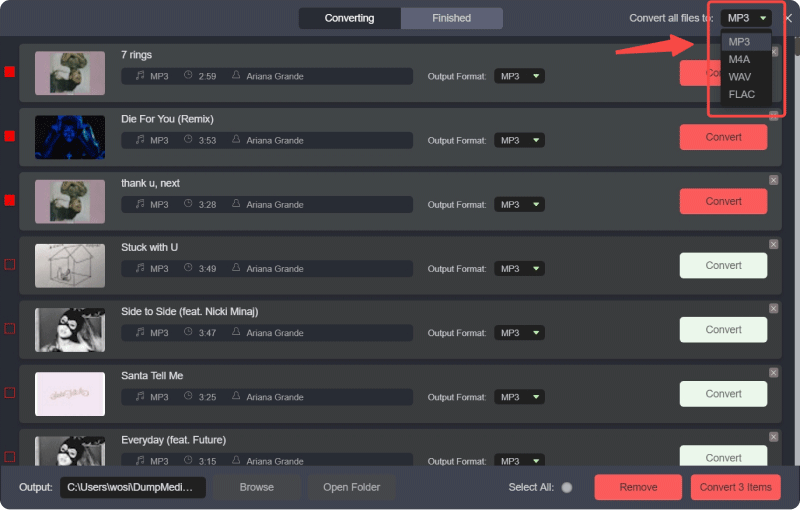
Step 3. Customize Output: Pick your preferred output format likes WAV and adjust settings like bitrate and sample rate to match your needs.
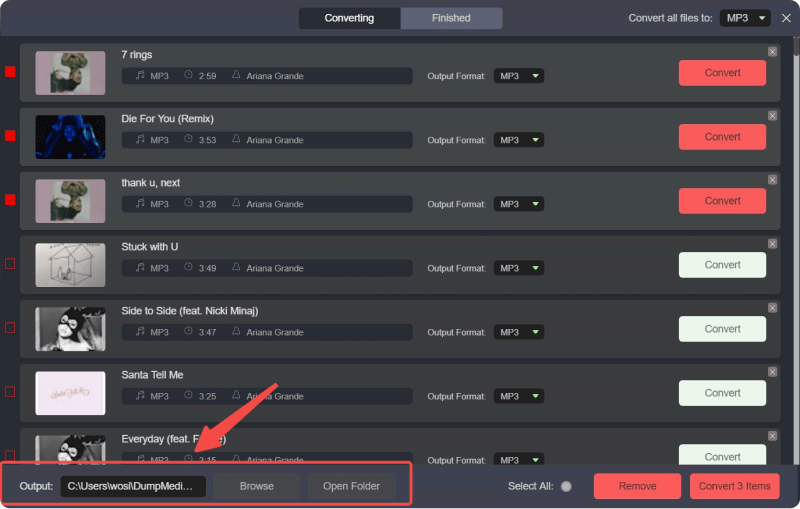
Step 4. Choose Output Folder: Select a folder on your computer where you want the converted files to be saved.
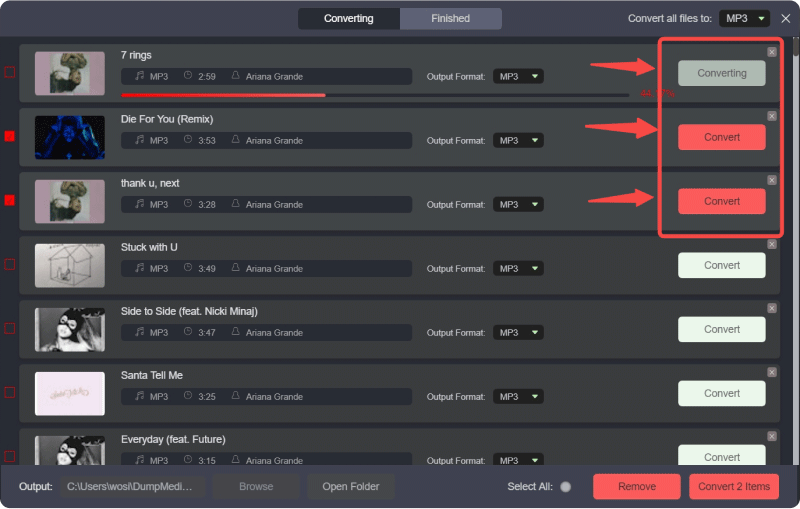
Step 5. Convert: Click the "Convert" button to begin the conversion process. The software will quickly convert your YouTube music to high-quality MP3 files. Once finished, you can find your converted files in the output folder you selected.
Part 4. FAQs about How to Keep Music Playing on YouTube
Q1. Can I use YouTube Music to play songs in the background?
Yes, with YouTube Music and a YouTube Premium subscription, you can play music in the background while using other apps or when your screen is off.
Q2. What should I do if YouTube music keeps pausing unexpectedly?
Ensure that your internet connection is stable. Also, check for any background apps or settings that might be interrupting playback. Updating the app or restarting your device can sometimes help resolve issues.
Q3. Can I keep music playing on YouTube while using other apps?
On mobile devices, you can use apps like YouTube Premium to play music in the background while using other apps. Without Premium, YouTube usually stops playing when you switch apps.
Part 5. Conclusion
Keeping music playing on YouTube can be essential for a smooth listening experience. Whether you choose to subscribe to YouTube Premium, use a mobile browser workaround, or rely on Picture-in-Picture mode, there are effective solutions to ensure your music continues uninterrupted.
For desktop users, simple workarounds can also help maintain playback. With these tips, you can enjoy your favorite tunes without hassle, regardless of your device or platform.
By implementing these strategies, you can maximize your YouTube music experience and keep the rhythm going wherever you are.