


How to Transfer YouTube Music to Spotify: Complete Guide
If you’ve been using YouTube Music but are considering moving to Spotify, one important concern is how to move your playlists without losing your music collection. Manually recreating playlists can take a long time, especially if you’ve spent years building them. Fortunately, several tools and methods make it possible to transfer YouTube Music to Spotify efficiently. In this guide, we’ll explore practical ways to migrate your music library using desktop software and online tools.
Contents Guide Part 1. Overview: YouTube Music vs. SpotifyPart 2. Convert YouTube Music to Spotify on Windows/MacPart 3. Transfer YouTube Music Playlist to Spotify OnlinePart 4. FAQsPart 5. Conclusion
Part 1. Overview: YouTube Music vs. Spotify
Before learning how to transfer YouTube Music to Spotify, it’s helpful to understand the differences between the two streaming platforms. While both services provide access to vast music libraries, they focus on slightly different user experiences.
Audio Quality
One key difference is audio quality. Spotify offers high-quality streaming options and continues to develop advanced audio features for premium users. YouTube Music also provides good streaming quality, but its strength lies more in the diversity of content rather than purely audio-focused features. Because the platform is integrated with YouTube, users can easily access live performances, remixes, covers, and unofficial uploads that might not appear in traditional music catalogs.
Pricing and Subscription Plans
Both platforms provide free and premium tiers. Spotify’s free plan includes ads and some playback restrictions, while YouTube Music’s free version also includes ads and limits background playback on mobile devices. Premium subscriptions remove these restrictions and provide additional features such as offline downloads and ad-free listening.
- Read our in-depth comparison to see the difference between Spotify Free vs. Premium.
Music Discovery and Recommendation
Spotify is widely known for its algorithm-driven playlists such as Discover Weekly and Daily Mixes, which help users find new songs based on listening habits. YouTube Music, on the other hand, benefits from YouTube’s recommendation system and large video library, offering a mix of official songs and video-based content.
Device Compatibility and Ecosystem Integration
Spotify integrates with a wide range of devices, including smart speakers, gaming consoles, and car systems. YouTube Music integrates closely with Google services and Android devices. Because of these differences, some listeners decide to transfer YouTube Music to Spotify in order to take advantage of Spotify’s ecosystem and playlist discovery tools.
Part 2. Convert YouTube Music to Spotify on Windows/Mac
One of the most reliable methods to transfer YouTube Music to Spotify is using desktop software that allows you to download YouTube Music tracks and upload them to Spotify. A powerful solution for this process is DumpMedia Any Music Converter, which works on both Windows and macOS.
This tool allows users to download songs or playlists from YouTube Music and convert them into common audio formats compatible with Spotify. After downloading the files, they can be added to Spotify’s local library.
More Amazing Features of DumpMedia
- ⭐Integration with YouTube Music Web Player
- ⭐Work for Both YouTube Music Premium and Free Users
- ⭐Convert Music to MP3/AAC/WAV/FLAC/ALAC/AIFF
- ⭐Offer up to 35x Faster Conversion Speed
- ⭐Allow You to Customize Output Settings
- ⭐Preserve All Metadata Info
- ⭐100% Clean. No Risk in Using
Convert YouTube Music to Spotify with DumpMedia
Step 1. Download and install DumpMedia Any Music Converter on your Mac/Windows.
Step 2. Launch it, and you will see the interface. Use your YouTube Music Premium/Free account to log in. Browse the YouTube Music library to access any song to download for streaming offline. Only by dragging and dropping them to the conversion list (the plus button), all the songs contained will be added to get ready to process the conversion.
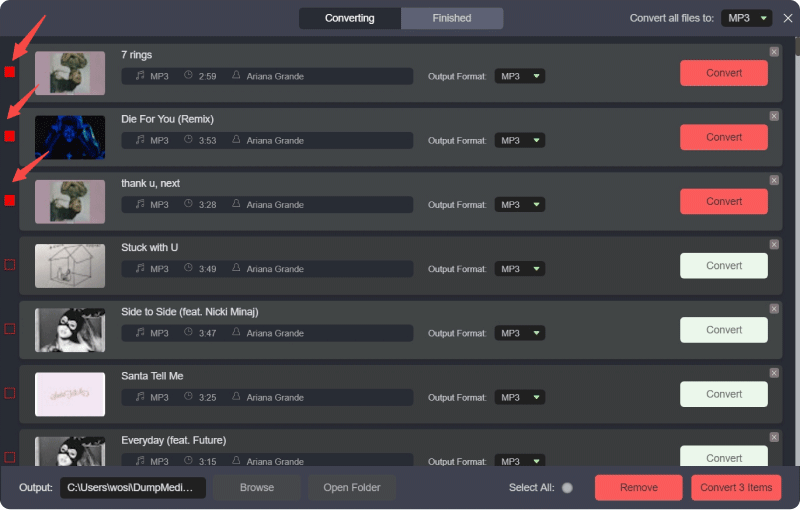
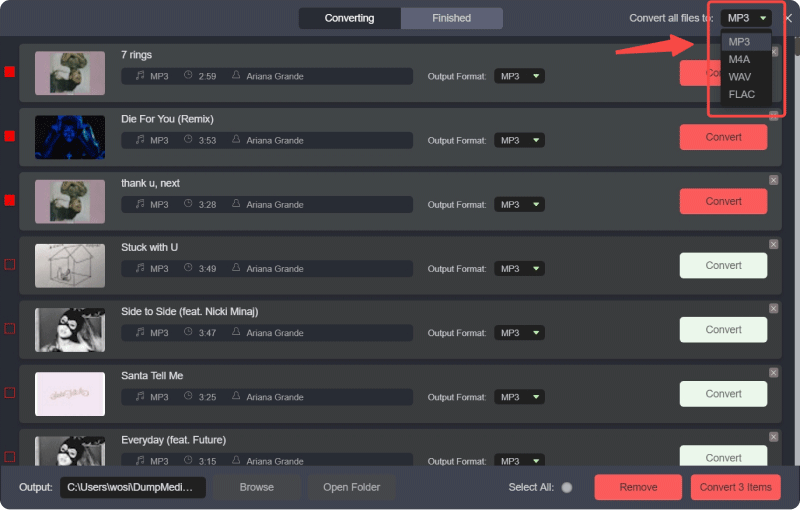
Step 3. On the conversion interface, you can choose output format as MP3, and set Sample Rate or Bitrate on Preference. Also choose a folder where the music files will be saved.
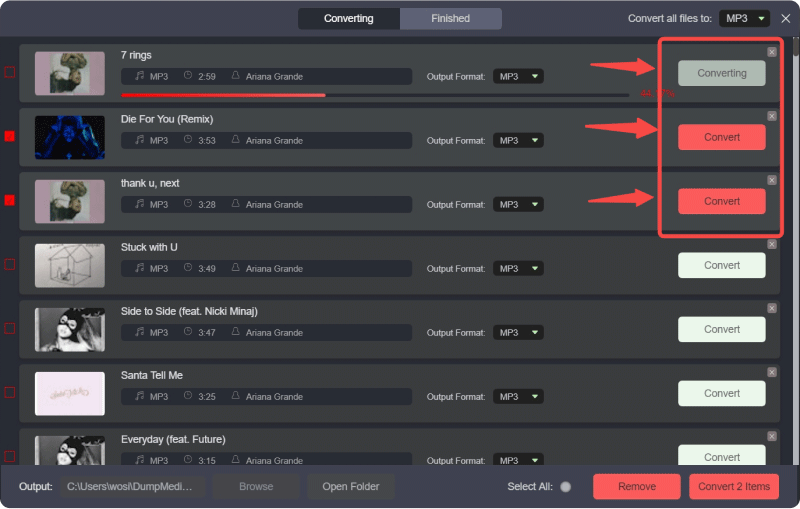
Step 4. In the final step, click on the "Convert All" button to start converting all YouTube Music songs to MP3 online.
Step 5. Open Spotify on your computer and go to the Settings menu. Enable the Local Files option so Spotify can detect music stored on your device. Then choose the folder where DumpMedia saved the downloaded tracks.
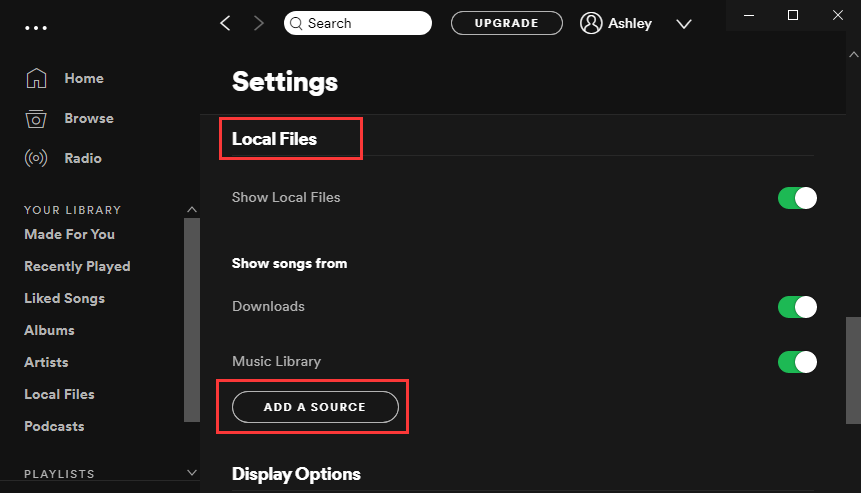
Step 6. Spotify will scan the folder and add those songs to your local library. Once the tracks appear, you can create a new playlist and include them just like any other Spotify songs.
This method allows you to successfully transfer YouTube Music to Spotify while keeping control over your music files.
Additional Tip: Playlist Transfer Feature
DumpMedia Any Music Converter also includes a Playlist Transfer feature designed to simplify the migration process. Instead of downloading and adding each song individually, this feature can help recreate playlists automatically between platforms.
By connecting your accounts and selecting the playlist you want to migrate, DumpMedia can rebuild the playlist structure on Spotify. For users with large music libraries, this is one of the most efficient ways to transfer YouTube Music to Spotify without spending hours organizing songs manually.

Part 3. Transfer YouTube Music Playlist to Spotify Online
If you prefer not to install software on your computer, another way to transfer YouTube Music to Spotify is by using an online playlist migration tool. One popular service is TuneMyMusic, which allows users to move playlists between different streaming platforms through a web browser.
Step-by-Step Guide
Step 1. To start, open the TuneMyMusic website and click the option to begin a new transfer. Select YouTube Music as the source platform and log in to your account so the tool can access your playlists.
Step 2. Once your playlists are loaded, choose the playlist you want to move. The service will analyze the track list and prepare the songs for matching with Spotify’s catalog.
Step 3. Next, select Spotify as the destination platform and authorize the connection.
Step 4. After confirming the transfer, TuneMyMusic will automatically search for corresponding tracks on Spotify and recreate the playlist.
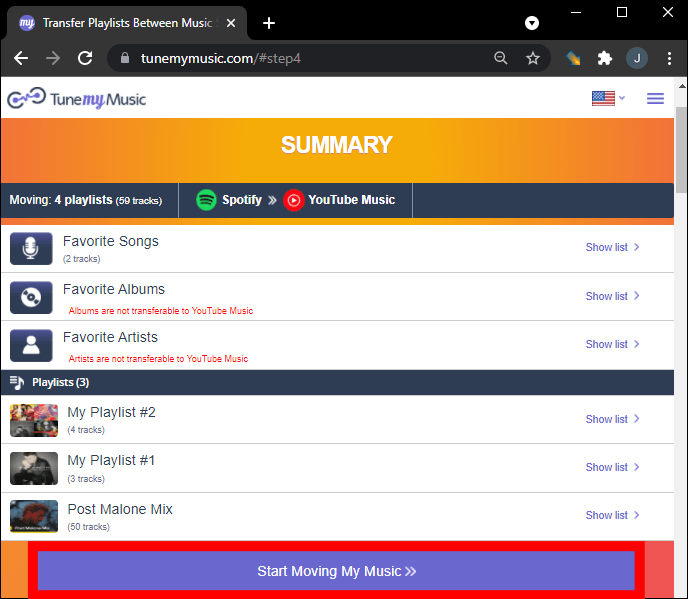
Step 5. When the process is complete, you can open Spotify and see the newly created playlist in your library.
Online tools like TuneMyMusic provide a convenient solution for users who want to transfer YouTube Music to Spotify quickly without installing desktop software. However, free versions may have limitations on playlist size or the number of transfers.
Part 4. FAQs
Can I transfer YouTube Music to Spotify directly?
No. Streaming services usually do not allow direct playlist transfers between platforms. You need third-party tools such as DumpMedia or TuneMyMusic to complete the process.
Will all songs transfer successfully?
Most songs will transfer correctly because both platforms have large music catalogs. However, occasionally some tracks may not be available on Spotify, which means they cannot be matched during the transfer.
Is it possible to transfer entire playlists?
Yes. Many tools support full playlist migration. DumpMedia’s Playlist Transfer feature and online services like TuneMyMusic can both recreate playlists on Spotify.
Is it safe to use playlist transfer tools?
Reputable tools use secure authentication systems to connect to your streaming accounts. Always choose trusted services when attempting to transfer YouTube Music to Spotify.
Part 5. Conclusion
Switching music streaming platforms doesn’t mean you have to lose your favorite playlists. With the right tools, it is entirely possible to transfer YouTube Music to Spotify without rebuilding your music library manually.
Desktop software like DumpMedia Any Music Converter provides a powerful solution by allowing users to download songs from YouTube Music and upload them to Spotify as local files. Its Playlist Transfer feature can further simplify the process for large music collections. Meanwhile, online services such as TuneMyMusic offer a convenient browser-based alternative for quickly migrating playlists.