


How to Import a Song into GarageBand on Mac or iOS
If you're trying to import a song into GarageBand, you may encounter some challenges, especially if the song is from Apple Music. Due to Apple's Digital Rights Management (DRM), songs downloaded from Apple Music are often greyed out and cannot be used in third-party applications like GarageBand. So, how to import a song into GarageBand ? Don’t worry, this guide will show you how to easily overcome this issue and import any song into GarageBand on your Mac or iOS device. Whether you’re working on music production or simply want to add a favorite track to your project, we’ll walk you through the process.
Contents Guide Part 1. Can I Add Apple Music Songs to GarageBand?Part 2. How to Download Apple Music Songs for GarageBand?Part 3. How to Add Apple Music Songs to Garageband?Part 4. FAQPart 5. Summary
Part 1. Can I Add Apple Music Songs to GarageBand?
How to import a song into GarageBand? While GarageBand is an amazing platform for music creation, it doesn’t support Apple Music’s DRM-protected files. That’s where DumpMedia Apple Music Converter comes in. This powerful tool removes DRM protection from Apple Music songs, allowing you to convert your favorite tracks to common formats like MP3, M4A, or WAV. Once converted, you can easily import the song into GarageBand for editing or mixing.
Whether you’re trying to add a track for a podcast, remix, or just need some background music, DumpMedia Apple Music Converter ensures that you have access to your music, DRM-free, ready for any project in GarageBand.
Part 2. How to Download Apple Music Songs for GarageBand?
How to import a song into GarageBand? If you're trying to use Apple Music songs in GarageBand, the key is to first remove the DRM protection. Without doing so, you’ll be unable to export the music from the official Apple Music app for use in any other application. Here’s where
DumpMedia Apple Music Convertercomes in. This powerful tool allows you to:
- Remove DRM protection from Apple Music tracks, making them DRM-free and playable in other applications.
- Convert Apple Music songs to standard audio formats like MP3, M4A, WAV, or FLAC—formats that are fully compatible with GarageBand.
- Maintain high-quality audio output, ensuring your music sounds great when imported into GarageBand.
How Does DumpMedia Apple Music Converter Work?
Step 1. Download and Install the DumpMedia Apple Music Converter on your Mac or Windows PC.
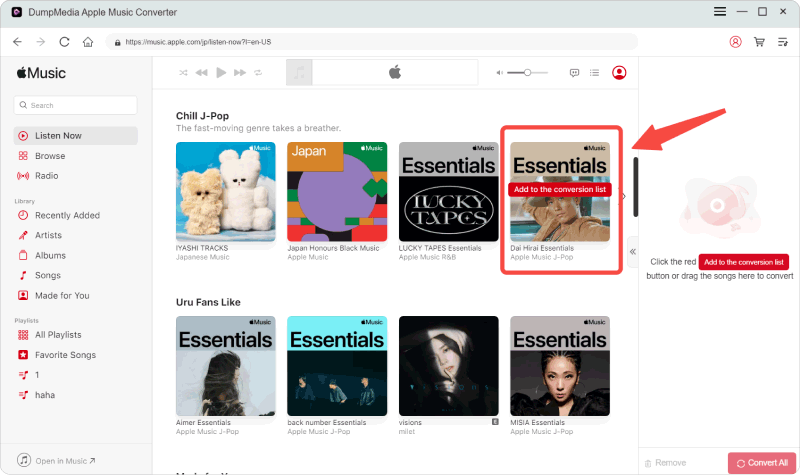
Step 2. Log in to Apple Music within the Apple Music Converter (this is where your DRM-protected music resides). Choose the songs you want to download. The software allows you to select multiple songs or entire playlists at once.
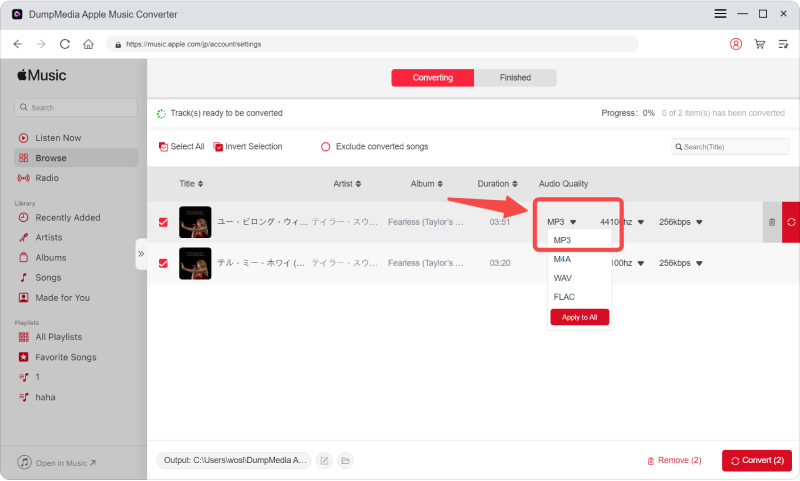
Step 3. Choose the output format and quality.
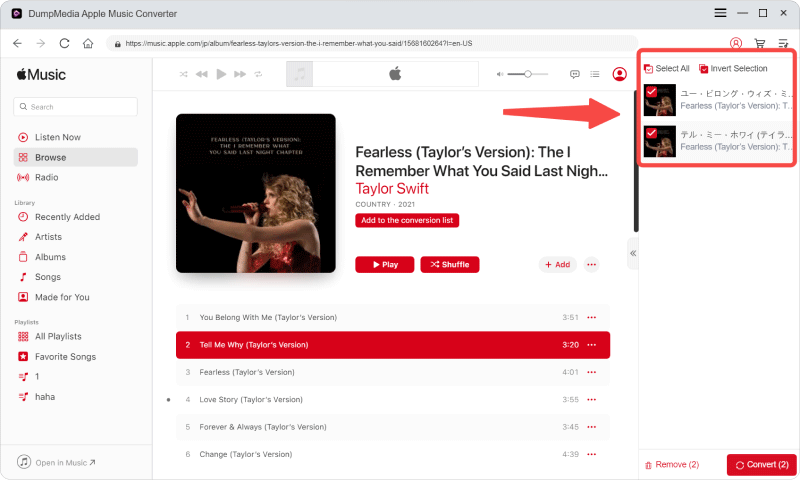
Step 4. Click Convert to remove the DRM protection and convert the songs to a format that can be directly used in GarageBand.
With DumpMedia Apple Music Converter, you don’t need to worry about losing song quality. The software ensures that the converted songs are preserved in their original quality, so you can enjoy the best sound when importing them into your GarageBand project.
Why You Need DumpMedia Apple Music Converter
Without DumpMedia Apple Music Converter, Apple Music’s DRM protection would prevent you from freely using the music you’ve downloaded. GarageBand, like many other programs, cannot handle DRM-protected files. Using this converter tool will help you avoid any hassles and give you full control over your music, whether for mixing, editing, or integrating into your projects.
This is a one-time solution that ensures Apple Music songs are converted to widely-supported formats (MP3, M4A, WAV, etc.), allowing you to use your favorite tracks in GarageBand whenever you like, without restrictions.
Part 3. How to Add Apple Music Songs to Garageband?
How to import a song into GarageBand? Once you’ve successfully downloaded and converted your Apple Music song to a compatible format like MP3, M4A, or WAV using DumpMedia Apple Music Converter, the next step is to import the song into GarageBand on your Mac. Follow these easy steps:
On Mac
Step 1. Open GarageBand on your Mac.
Step 2. Create a New Project or open an existing project. If you’re starting fresh, you can choose a template that suits your project type, such as “Music Production” or “Podcast”.
Step 3. Click on File > Import or simply drag and drop the converted song into the GarageBand workspace.
Step 4. Locate the Converted Song on your Mac. Navigate to the folder where you saved the converted track (it could be in your “Music” or a custom folder).
Step 5. Drag the Song into Your Project: Once you locate the song, drag it directly into the timeline of your project. The track will automatically be added to the project, ready for editing, mixing, or further production.
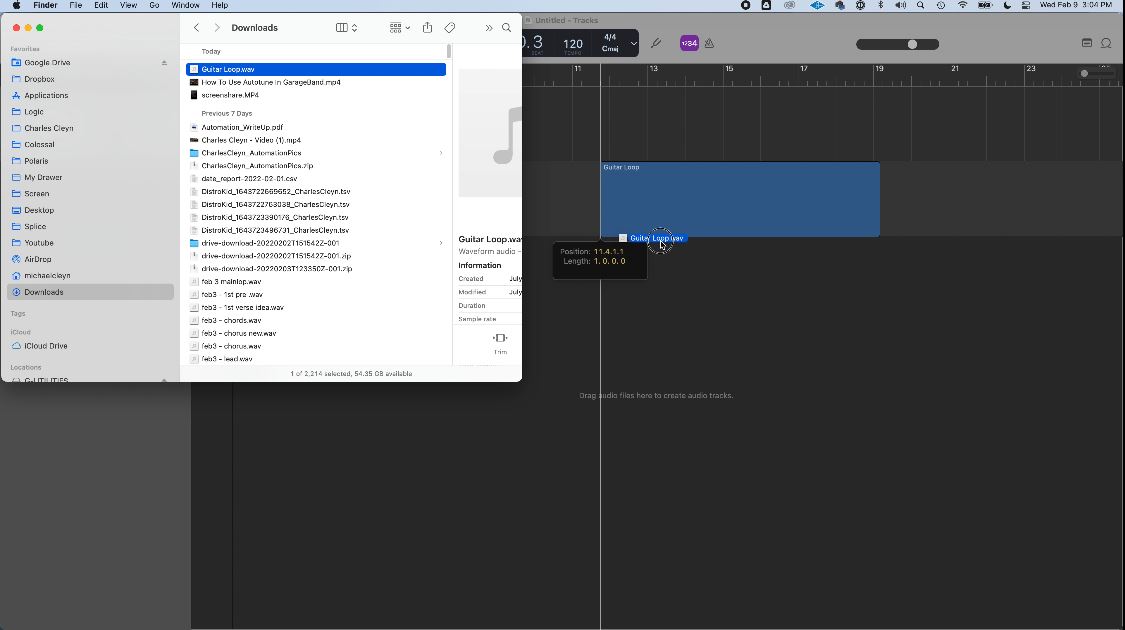
Step 6. Edit the Song: You can now adjust the track’s volume, apply effects, or use it as part of a larger music project.
On iOS
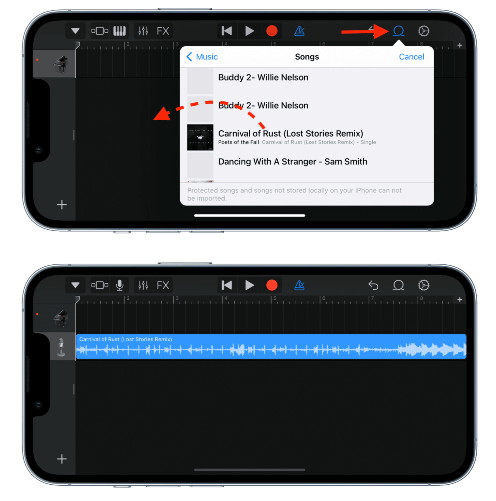
How to import a song into GarageBand on iPhone? If you want to use GarageBand on your iOS device to edit or mix your Apple Music tracks, the process is slightly different but still straightforward. Here’s how to import your DRM-free songs into GarageBand for iPhone or iPad:
Step 1. Launch the app on your iPhone or iPad. Choose the type of project you want to create (for example, “Song” or “Beat”). You’ll be directed to the main editing screen once the project is created.
Step 2. On your iPhone or iPad, open the Files app where you saved the converted Apple Music song. If you used iCloud Drive or a similar cloud storage service, you can access the song directly from the Files app. If you transferred the file via AirDrop or through a direct USB connection, it should also appear in the Files app.
Step 3. In GarageBand, tap the “Loops” icon (the small looped circle) at the top-right of the screen. In the pop-up, select “Browse”, and locate your converted Apple Music song within the Files app.
Step 4. Once located, drag the song into the project’s timeline in GarageBand.
Step 5. You can now manipulate the song, add effects, or arrange it alongside other tracks in your project.
Part 4. FAQ
Can I directly import Apple Music songs into GarageBand?
No, you cannot import Apple Music songs directly into GarageBand because they are protected by DRM. You will need to remove DRM using a tool like DumpMedia Apple Music Converter to convert the song to MP3 or other formats.
How can I download Apple Music songs for GarageBand?
To use a song in GarageBand, you must first download it to your device. If the song is from Apple Music, use DumpMedia Apple Music Converter to remove the DRM and download the song in MP3 format.
Is it legal to remove DRM from Apple Music songs?
Removing DRM for personal use is generally acceptable. However, redistributing the files or using them commercially without permission is a violation of copyright laws.
Can I add any song to GarageBand?
Yes, as long as the song is in a compatible format such as MP3, M4A, or WAV, you can import it into GarageBand. For DRM-protected songs, you will need to convert them first.
Part 5. Summary
How to import a song into GarageBand? In conclusion, adding songs to GarageBand can be tricky when dealing with DRM-protected tracks from Apple Music. However, using DumpMedia Apple Music Converter removes this barrier, allowing you to import your favorite tracks into GarageBand for mixing and editing. Follow our step-by-step guide to easily convert your music and get started with your creative project today.
Get DumpMedia Apple Music Converter now and start importing your favorite Apple Music songs into GarageBand without restrictions!