


How to Turn Off Viewer Discretion on YouTube Music?
Many YouTube Music users often encounter the viewer discretion warning, which prevents them from immediately accessing certain songs or playlists. If you’re wondering how to turn off viewer discretion on YouTube Music, this guide will cover all the causes, solutions, and even alternatives to enjoy uninterrupted listening. Whether it’s age restrictions, parental controls, or app settings, we’ll help you regain full control of your music experience. Plus, if you want to avoid any interruptions while listening offline, we’ll introduce a reliable solution.
Contents Guide Part 1. What Does Viewer Discretion Mean on YouTube Music?Part 2. How to Disable Viewer Discretion on YouTube Music?Part 3. How to Listen to YouTube Music Offline Without Playback Interruptions?Part 4. Frequently Asked QuestionsPart 5. Summary
Part 1. What Does Viewer Discretion Mean on YouTube Music?
Viewer discretion is a warning message displayed on YouTube Music when a track contains age-restricted or sensitive content. This can include explicit lyrics, controversial topics, or content flagged by content owners. When you encounter this warning, playback may be paused, or you may need to verify your age to continue listening.
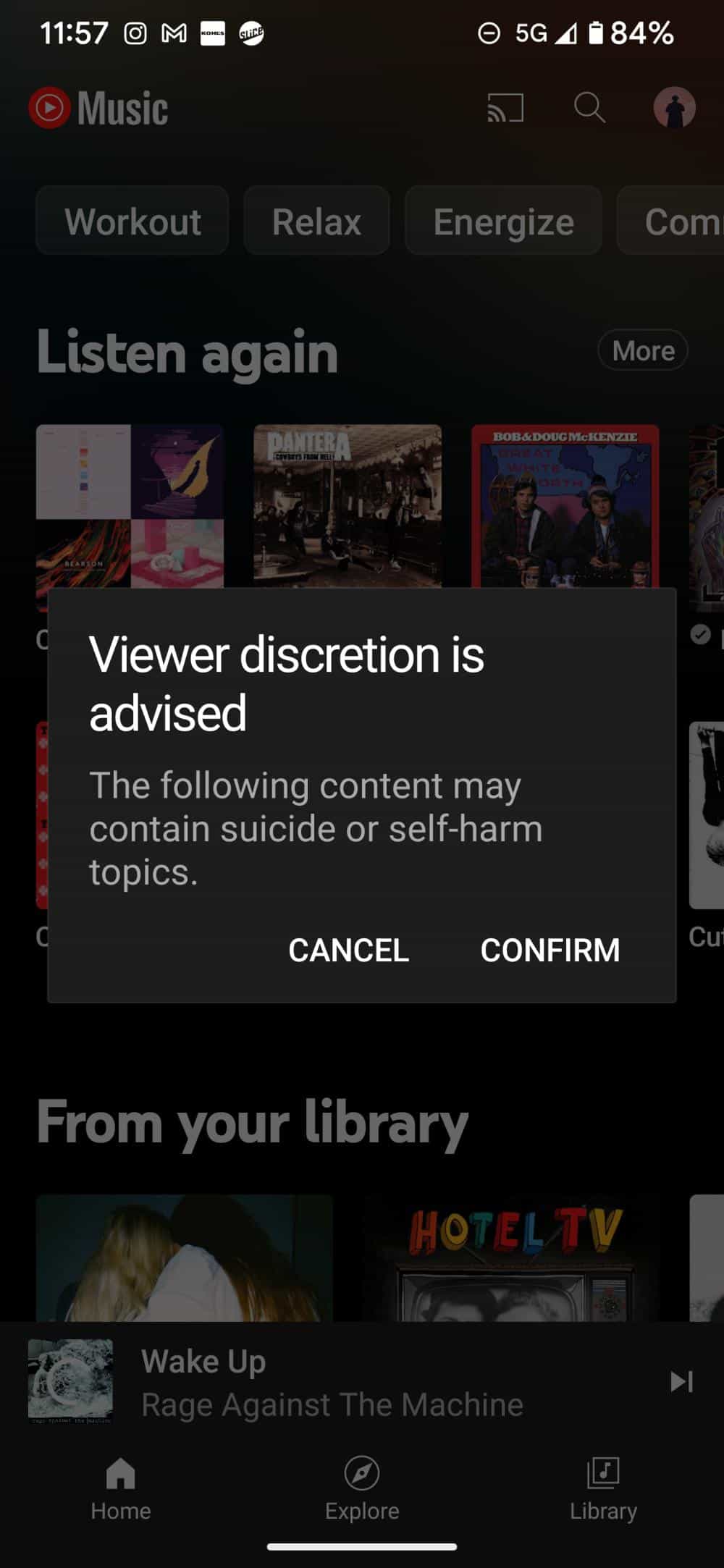
Understanding why YouTube Music shows viewer discretion warnings is the first step in learning how to turn off viewer discretion on YouTube Music.
Part 2. How to Disable Viewer Discretion on YouTube Music?
How to turn off viewer discretion on YouTube Music? Unluckily, there is currently no official setting within the YouTube Music app or website to disable the "Viewer Discretion Advised" pop-up. However, some users have turned to community-driven workarounds. Here are several methods:
Disable Restricted Mode
- Open the YouTube Music app.
- Tap your profile picture in the top right corner.
- Select Settings.
- Tap General.
- Locate Restricted Mode and toggle the switch to the Off position.
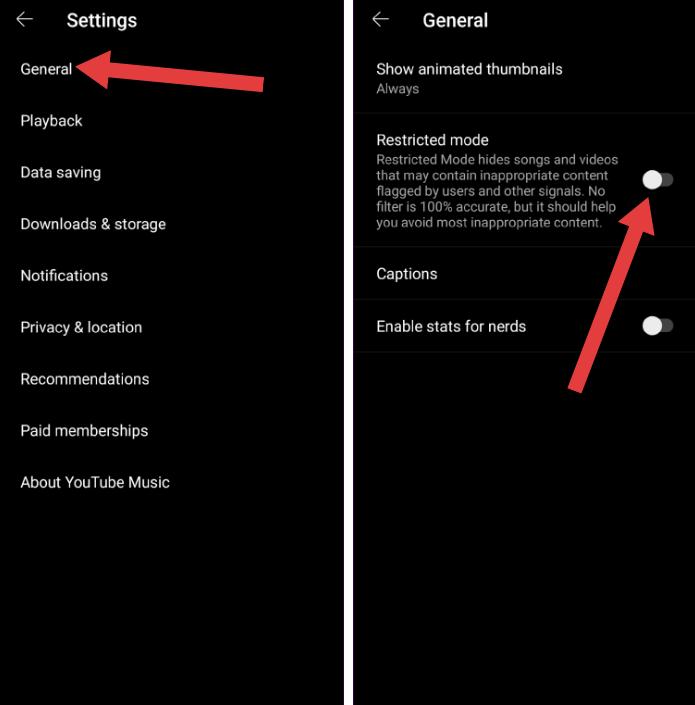
While disabling Restricted Mode (via Settings > General > Restricted Mode) helps hide mature content from your recommendations, it does not remove the manual confirmation required for specific songs or videos that have been flagged with a "Viewer Discretion" notice.
Verify Your Age
Update your Google account to confirm your age. Verified accounts typically bypass viewer discretion warnings.
Update YouTube Music
An outdated app may not reflect your account changes. Ensure your YouTube Music app is the latest version.
Change Google Account Settings
Check your parental control settings. For family accounts, ask the administrator to adjust restrictions.
By following these methods, most users can successfully turn off viewer discretion on YouTube Music.
Part 3. How to Listen to YouTube Music Offline Without Playback Interruptions?
If YouTube Music keeps showing viewer discretion warnings or other interruptions, a convenient alternative is to download your favorite songs for offline listening. DumpMedia YouTube Music Converter allows you to save YouTube Music tracks locally in popular formats like MP3, WAV, and FLAC.
It’s a professional tool designed specifically for YouTube Music users to download songs and enjoy them anytime, without worrying about restrictions or warnings. Even if the YouTube Music app is not working on your device, you can play YouTube Music songs offline on another music player immediately.
🏆Key Capabilities of DumpMedia YouTube Music Converter
- 🎵Integration with YouTube Music web player
- 🎵Preserve original metadata (artist, album, etc.)
- 🎵High-speed batch conversion
- 🎵Keep original sound quality
- 🎵Compatible with both Windows and Mac
Convert YouTube Music to MP3 Step by Step
Step 1. Download and install the software on your computer. It works with both Windows and Mac. The interface is user-friendly, making it easy for beginners.
Step 2. Open the built‑in YouTube Music web player inside DumpMedia and log in with your YouTube Music account. Browse YouTube Music and drag the songs, albums, or playlists you want to download into the converter.
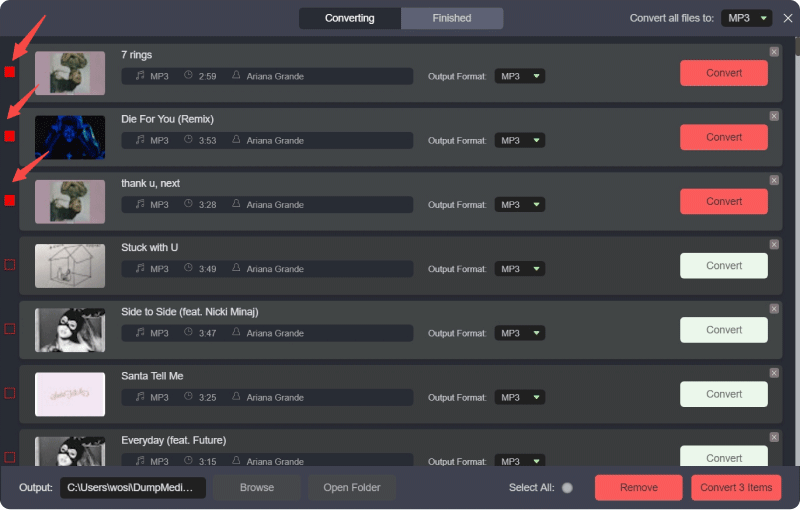
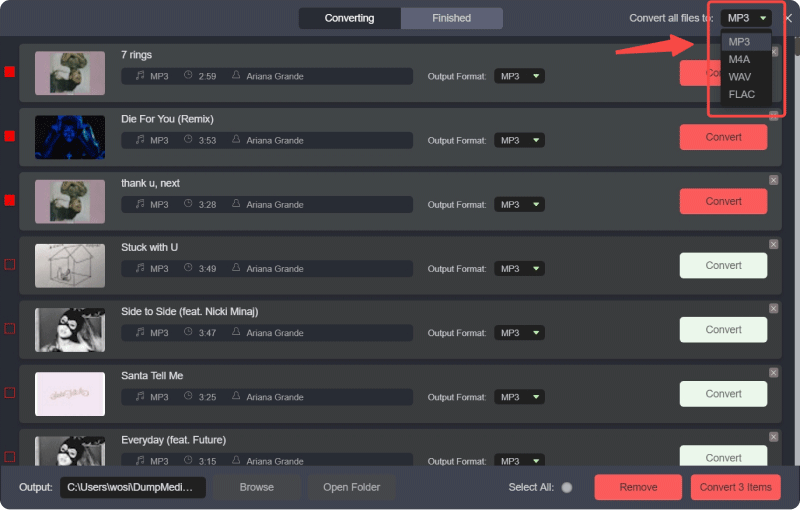
Step 3. Select MP3 (most compatible). Also, you can change the bitrate or the samplerate. For the best balance, choose 320kbps.
Step 4. As the settings are completed, users can process the conversion by hitting the "Convert" icon. Then DumpMedia will download YouTube Music songs to MP3 within seconds with its super-fast speed.
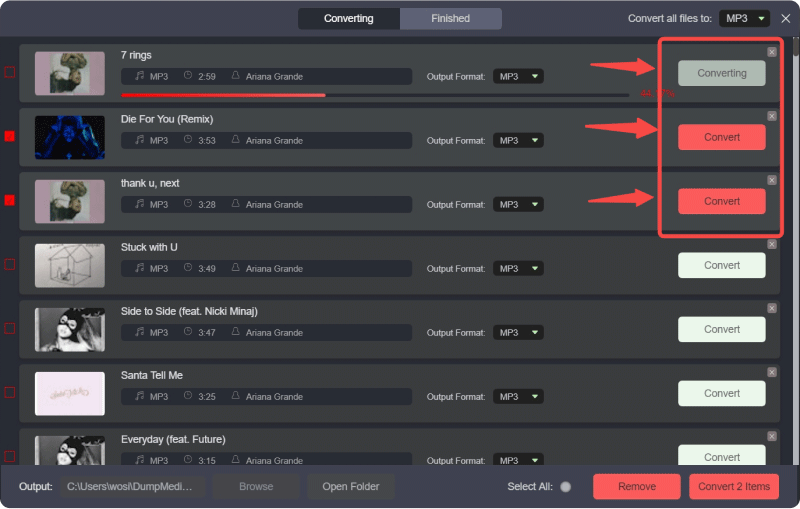
With these downloaded songs, you no longer have to worry about viewer discretion warnings, restricted mode, or age verification. Enjoy uninterrupted music anytime.
Part 4. Frequently Asked Questions
Q1. Can I completely turn off viewer discretion on YouTube Music?
Yes, by disabling Restricted Mode, verifying your age, and adjusting account settings, most warnings can be removed.
Q2. Why is Restricted Mode locked on YouTube Music?
Family accounts, school accounts, or device policies can lock Restricted Mode, preventing changes.
Q3. Does age verification remove viewer discretion warnings?
Yes, verifying your age usually allows access to age-restricted tracks.
Q4. Why do some songs still show restrictions after turning off Restricted Mode?
Content owner settings or regional restrictions may still block certain tracks.
Q5. Is viewer discretion the same as Restricted Mode?
Viewer discretion warnings appear due to content restrictions, while Restricted Mode is a setting that filters flagged content.
Q6. Can I listen to downloaded YouTube Music songs offline?
Absolutely. Using DumpMedia YouTube Music Converter, you can download and play songs offline without warnings.
Part 5. Summary
By following the steps above, you can easily learn how to turn off viewer discretion on YouTube Music and enjoy an uninterrupted music experience. For a seamless offline experience, DumpMedia YouTube Music Converter is your go-to tool to download and play YouTube Music without restrictions.