


How to Put Music on a Flash Drive from YouTube: Easy Guide 2026
Many users wonder how to put music on a flash drive from YouTube for offline listening, car stereos, or portable music collections. While copying files to a USB drive is easy, the main challenge is obtaining music files from YouTube Music in a compatible format. This guide will show you the complete process.
Contents Guide Part 1. Can You Put YouTube Music on a Flash Drive?Part 2. What You Need Before Transferring Music to a Flash Drive?Part 3. How to Download MP3 Music from YouTube?Part 4. How to Put YouTube Music on a Flash Drive?Part 5. FAQsPart 6. Conclusion
Part 1. Can You Put YouTube Music on a Flash Drive?
Users save YouTube music to USB drives for various reasons:
- Car stereo playback: Most car stereos support MP3 or WAV from a flash drive.
- Offline listening: Enjoy music without an internet connection.
- Backup collections: Keep a personal music library independent of streaming services.
- Portable storage: Play music on multiple devices easily.
These scenarios explain why the question how to put music on a flash drive from YouTube remains popular.
Luckily, you can put music on a flash drive from YouTube, but you first need downloadable music files. Simply streaming from YouTube does not allow offline storage. The process typically involves:
- Downloading the music from YouTube Music
- Converting it to a compatible audio format
- Transferring the files to your flash drive
Understanding these steps is key to answering how to put music on a flash drive from YouTube effectively.
Part 2. What You Need Before Transferring Music to a Flash Drive?
How to put music on a flash drive from YouTube? Before you can transfer YouTube music, prepare the following:
- A USB flash drive with sufficient space
- A computer (Windows or Mac)
- Downloaded music files in a supported format (MP3, WAV, FLAC)
- Optional: music management software for organizing tracks
Having these items ready simplifies the transfer process and ensures compatibility.
Part 3. How to Download MP3 Music from YouTube?
How to put music on a flash drive from YouTube? To transfer YouTube music to USB, you first need the audio files. One efficient way to do this is with DumpMedia YouTube Music Converter, which allows you to convert YouTube Music songs into MP3, WAV, FLAC, and other formats that can be played on MP3 players, phones, car stereos, or other devices. Even if the YouTube Music app is not working on your device, you can listen to YouTube Music offline on another music player immediately.
🏆Why Choose DumpMedia YouTube Music Converter
- Built-in YouTube Music player - to directly log into your YouTube Music library and choose all songs you like.
- Original sound quality retained - keep a better quality status to save original music effects.
- Keep ID3 Tags and metadata information - extract music files with original ID3 tags as well as metadata information.
- Batch playlist downloading speed - ensure ultra-fast playlist downloading speed, which can accelerate faster and facilitate higher music download efficiency.
- Customize output settings - to choose your favorite bitrate and sample rate based on your needs.
For anyone wondering how to put music on a flash drive from YouTube, DumpMedia makes the process simple and reliable. This approach is faster and more reliable than manual recording or third-party sites.
How to Download YouTube Music with DumpMedia
Step 1. Download and install DumpMedia YouTube Music Converter on your Mac/PC. Launch it, and you will see the interface. Use your YouTube Music Premium/Free account to log in.
Step 2. Search for YouTube Music songs, playlists, or albums. Simply click "Add to Convert" to add them to the conversion list.
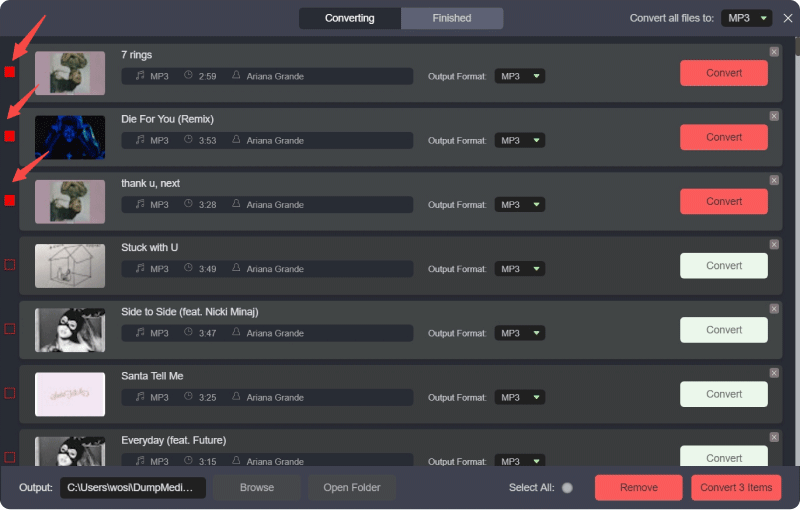
Step 3. Select MP3 or another compatible format for your USB drive. Also, you can change the bitrate or the samplerate. For the best balance, choose 320kbps.
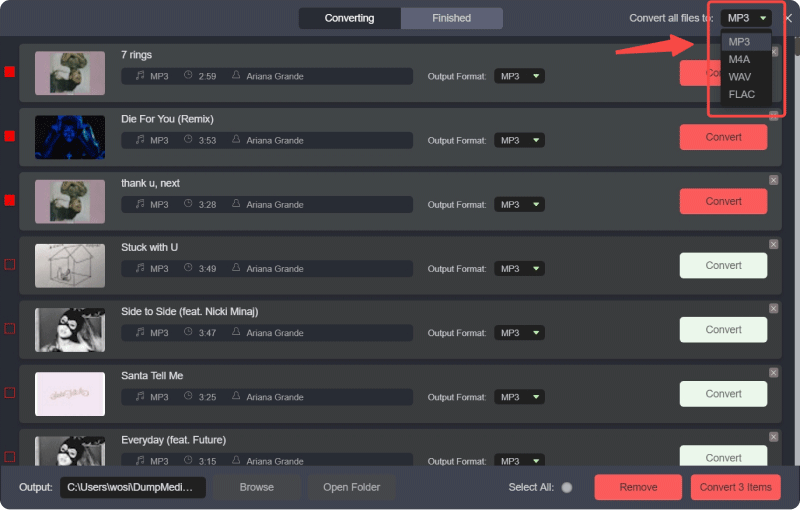
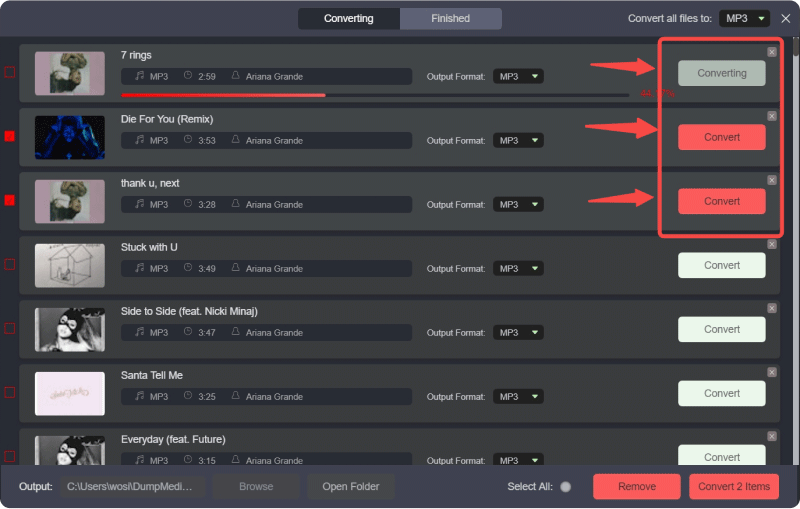
Step 4. Click Convert and wait for the software to download and save the music locally.
Part 4. How to Put YouTube Music on a Flash Drive?
How to put music on a flash drive from YouTube? Once the music is downloaded, transferring to a flash drive is straightforward:
Transfer YouTube Music to USB on Windows
- Plug your USB drive into an available port. Press Win + E on your keyboard.
- In the left sidebar, click "This PC" and double-click your USB drive under "Devices and drives."
- Open a second File Explorer window with your converted music folder.
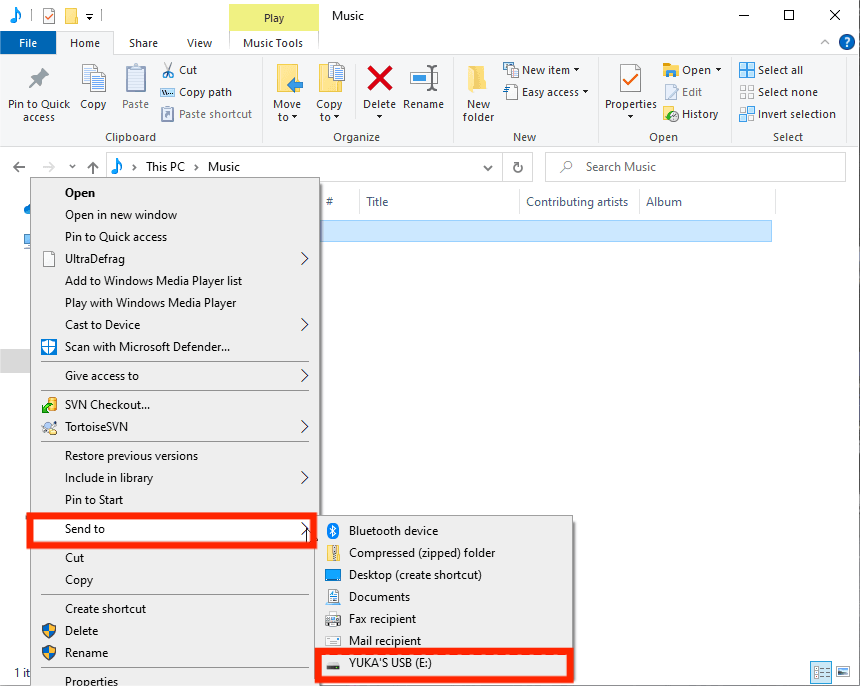
- Select the files or folders you want to transfer. Right-click the files and choose Send to save YouTube music to a flash drive.
- Once the progress bar finishes, go to the taskbar (bottom right), click the "Safely Remove Hardware" icon (or right-click the USB drive in File Explorer and select Eject), then unplug the drive.
Transfer YouTube Music to USB on Mac
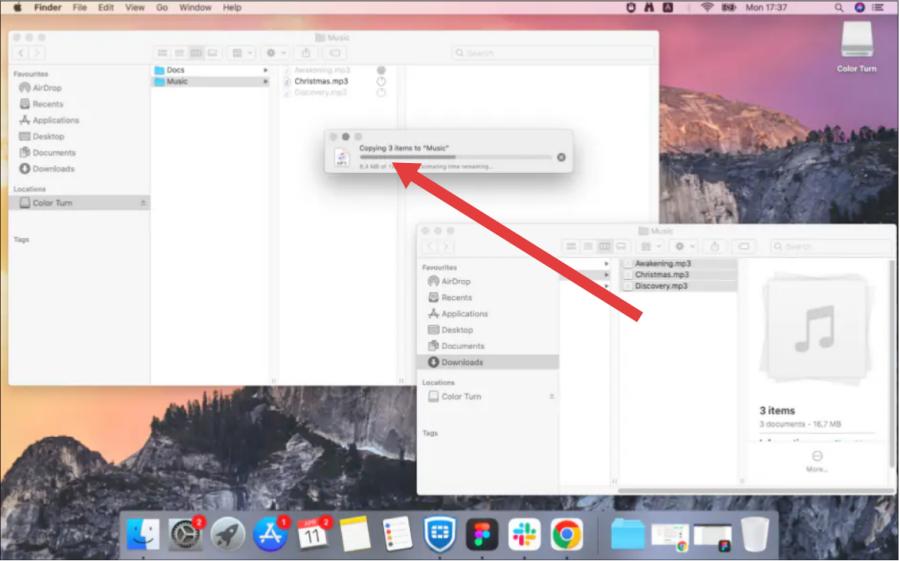
- Plug your USB drive into a port. It will appear on your desktop or in the sidebar of Finder.
- Open a new window and navigate to where your music files are stored.
- Select the music files or folders. Drag and drop them onto the USB drive icon in the Finder sidebar.
- Click the "Eject" (upward arrow) icon next to the USB drive's name in the Finder sidebar. Once it disappears, it is safe to remove the drive.
Part 5. FAQs
Can I put YouTube Music on a USB drive?
Yes, by first downloading the songs using a tool like DumpMedia YouTube Music Converter, you can transfer them to any USB flash drive.
What are the best audio formats for USB playback?
To ensure compatibility with most devices, use one of these formats:
- MP3: Most widely supported, excellent balance of quality and size
- WAV: Uncompressed, high quality, larger file size
- FLAC: Lossless, preserves original quality, slightly larger
- AAC: Good quality, commonly used in Apple devices
Choosing the right format ensures smooth playback on car stereos, speakers, or other devices.
How much music fits on a USB drive?
It depends on the capacity and audio format. MP3 files take less space than WAV or FLAC.
Do I need YouTube Premium?
No. DumpMedia allows downloading YouTube Music tracks without requiring a YouTube Premium subscription.
Part 6. Conclusion
For users wondering how to put music on a flash drive from YouTube, the key step is to convert the files to a compatible format for USB playback. Using DumpMedia ensures a simple, reliable process and lets you enjoy your favorite YouTube Music tracks offline on any device. By following these steps, you can build a portable music library and listen to your songs anywhere, without depending on internet connectivity.