


Whether you own a Google Home, Google Nest Mini, Nest Audio, or another Google-powered smart speaker, integrating YouTube Music allows you to enjoy hands-free music streaming through simple voice commands. If you've been searching for how to play YouTube Music on Google Home, this guide will walk you through the setup process, explain common issues, and show alternative ways to enjoy your favorite music across multiple devices.
Contents Guide Part 1. Can You Play YouTube Music on Google Home?Part 2. How to Connect YouTube Music to Google Home?Part 3. How to Cast YouTube Music to Google Home?Part 4. Why Is YouTube Music Not Playing on Google Home?Part 5. Best Way to Enjoy YouTube Music on Multiple DevicesPart 6. Frequently Asked QuestionsPart 7. Summary
Absolutely. Google Home devices are designed to work seamlessly with YouTube Music. Once connected, you can play songs by voice command, control playback hands-free, and use multi-room audio features.
Google Home supports both free and Premium YouTube Music accounts, although Premium subscribers enjoy additional features such as ad-free listening and on-demand playback.
If you're wondering how to play YouTube Music on Google Home, the first step is making sure your accounts are properly connected. Before starting the setup process, make sure you have the following:
Step 1. Launch the Google Home app on your mobile device. Locate and tap the Settings option.
Step 2. Under Services, find and select Music. Choose YouTube Music from the list of available music services. Sign in with your Google account if prompted.
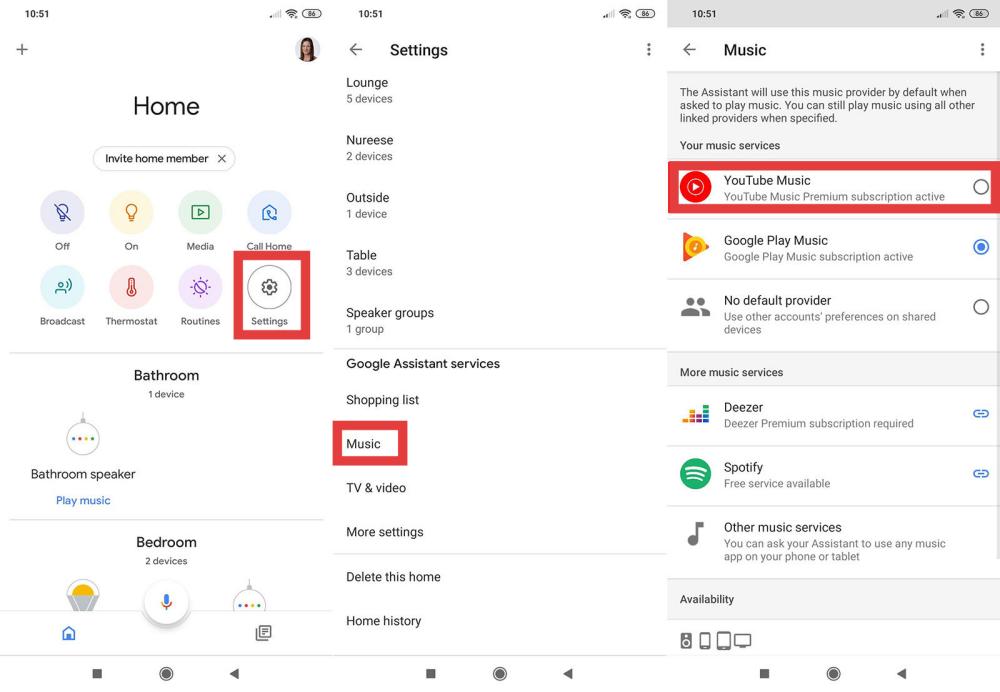
Step 3. Select YouTube Music as your default service. This allows Google Home to automatically use YouTube Music whenever you ask it to play music.
Step 4. Try saying: "Hey Google, play some music." If setup is successful, Google Home will begin streaming music from YouTube Music.
How to play YouTube Music on Google Home? Once everything is connected, you can control playback entirely through voice commands. Here are some useful examples:
Learning these commands makes it much easier to enjoy YouTube Music through your smart speaker.
Voice commands aren't the only way to enjoy YouTube Music. You can also cast audio directly from your phone.
This method is ideal when you want more control over song selection.
Sometimes users encounter playback issues. If you've followed the setup process but still can't figure out how to play YouTube Music on Google Home, try these troubleshooting solutions.
Ensure your Google account and YouTube Music account are connected properly.
Weak or unstable Wi-Fi connections can interrupt streaming. Restart your router if necessary.
An outdated app can cause connection problems. Install the latest version.
Unplug the speaker for about 30 seconds and reconnect it.
Some YouTube Music features may require a Premium subscription depending on your region and playback request.
Many users searching for how to play YouTube Music on Google Home eventually want more freedom beyond a single smart speaker. For example, you may want to transfer songs to USB drives or play music on MP3 players. DumpMedia YouTube Music Converter helps users save YouTube Music tracks into commonly used audio formats for personal listening.
With DumpMedia, you can easily convert YouTube Music songs into MP3, WAV, FLAC, and other formats. Even if YouTube Music is not connecting on the Google Home app, you can play YouTube Music songs offline on another MP3 player immediately. For users who want more control over how and where they listen to music, converting tracks can provide additional flexibility beyond streaming-only environments.
Step 1. Download and install DumpMedia YouTube Music Converter on your Mac/PC. Launch it, and you will see the interface. Use your YouTube Music account to log in.
Step 2. Find the playlist, album, or specific song you want to convert. You can drag a single song onto the "+" icon on the right side of the screen. Alternatively, open an entire playlist/album and click the "Add to Convert" icon to load the entire list into the converter.
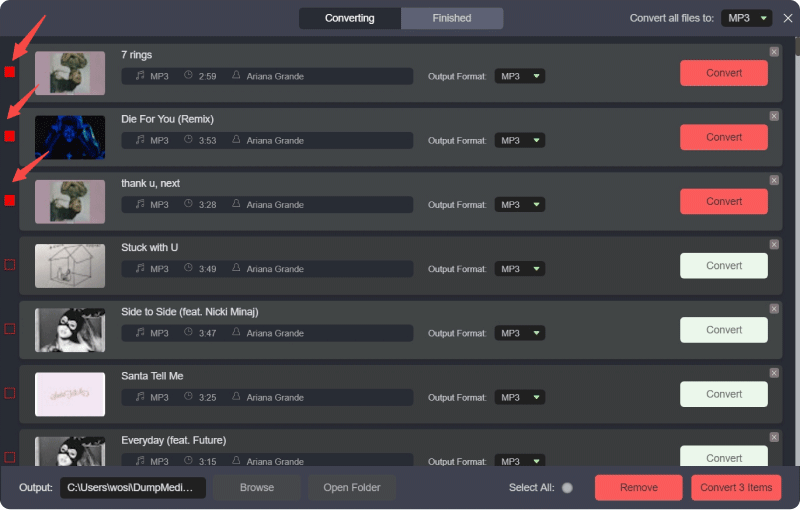
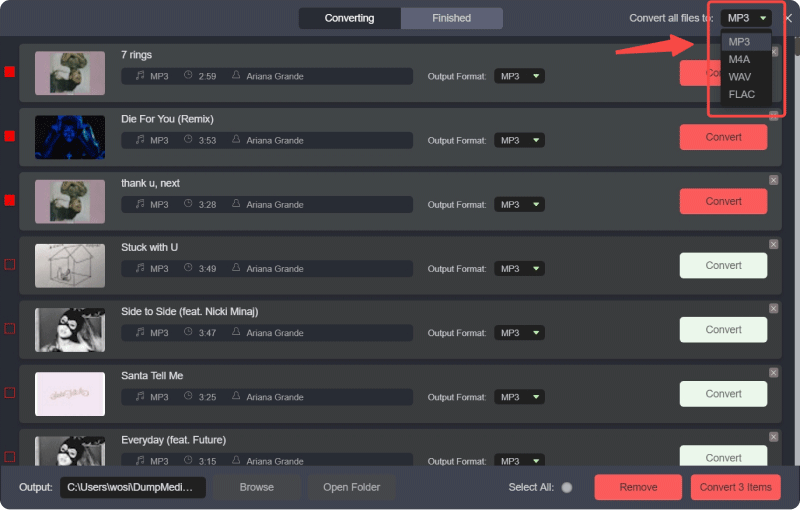
Step 3. Select MP3 (most compatible). Also, you can change the bitrate or the samplerate. For the best balance, choose 320kbps.
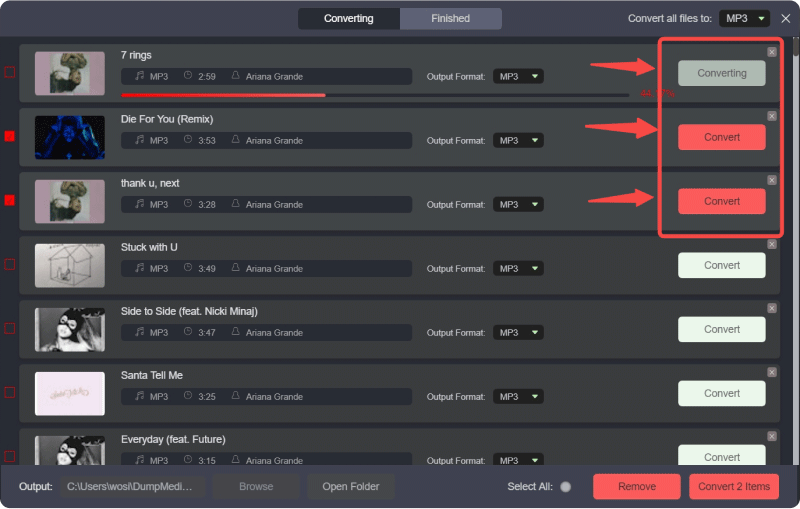
Step 4. As the settings are completed, users can process the conversion by hitting the "Convert" icon. Then DumpMedia will convert YouTube Music songs to MP3 within seconds with its super-fast speed.
Can Google Home play YouTube Music for free?
Yes. Google Home supports YouTube Music Free, although playback options may be more limited than with Premium.
How do I connect YouTube Music to Google Home?
Open the Google Home app, go to Settings > Music, and link your YouTube Music account.
Why won't Google Home play YouTube Music?
Common causes include account-linking issues, Wi-Fi problems, outdated apps, or subscription limitations.
Does YouTube Music Premium improve Google Home playback?
Yes. Premium users receive ad-free listening and greater control over playback requests.
Can Google Home play downloaded YouTube Music?
Not directly. Google Home primarily relies on streaming rather than local offline files.
What's the easiest way to play YouTube Music on Google Home?
The easiest method is linking YouTube Music in the Google Home app and using voice commands such as "Hey Google, play music."
If you've been wondering how to play YouTube Music on Google Home, the process is surprisingly simple. By linking your YouTube Music account through the Google Home app and setting it as your default music service, you can enjoy hands-free music playback with just a few voice commands.
For users who want even greater flexibility, offline access, and multi-device compatibility, tools like DumpMedia YouTube Music Converter can help create a more versatile listening experience beyond traditional streaming limitations.


