


How to Transfer Amazon Music to Spotify [3 Solutions]
Streaming platforms offer vast music libraries, but users often switch services to seek better features. If you are moving from Amazon Music to Spotify, the biggest hurdle is transferring your carefully curated playlists without the tedious task of manual rebuilding. This guide compares both platforms and explores the most efficient ways to help you transfer Amazon Music to Spotify without rebuilding playlists from scratch.
Contents Guide Part 1. Overview: Amazon Music vs. SpotifyPart 2. Transfer Amazon Music Playlist to Spotify on Windows/MacPart 3. Transfer Amazon Music Playlist to Spotify OnlinePart 4. Transfer Amazon Music Playlist to Spotify iOS/AndroidPart 5. FAQsPart 6. Conclusion
Part 1. Overview: Amazon Music vs. Spotify
Both Amazon Music and Spotify offer extensive music libraries and convenient streaming experiences, but they differ in several important ways that influence user preferences.
Pricing and Subscription Plans
Amazon Music offers several subscription tiers, including a free version, Amazon Music Prime for Amazon Prime members, and Amazon Music Unlimited. Spotify also offers both free and premium plans. Spotify’s free tier includes advertisements and limited playback features, while Spotify Premium provides ad-free listening, offline downloads, and unlimited skips.
- Read our in-depth comparison to see the difference between Spotify Free vs. Premium.
Audio Quality
Amazon Music is known for offering high-resolution audio options through Amazon Music Unlimited, which includes HD and Ultra HD tracks. Spotify also provides high-quality streaming and is widely recognized for its consistent playback performance across devices. For many listeners, both platforms deliver excellent sound quality, although Amazon Music focuses more heavily on high-resolution audio options.
Features and Music Discovery Tools
Spotify is widely praised for its advanced recommendation system and algorithm-driven playlists such as Discover Weekly and Daily Mix. These personalized playlists help users discover new music based on listening habits. Amazon Music provides curated playlists and voice integration with Amazon Alexa, making it especially convenient for smart home environments.
Device Compatibility and Ecosystem Integration
Amazon Music integrates deeply with Amazon devices such as Echo speakers, while Spotify works seamlessly with a wide range of third-party devices, including smart TVs, gaming consoles, and car systems. Because of these differences, many listeners decide to transfer Amazon Music to Spotify to take advantage of Spotify’s discovery features and broader device compatibility.
Part 2. Transfer Amazon Music Playlist to Spotify on Windows/Mac
One of the most reliable ways to transfer Amazon Music to Spotify is by using desktop software that includes playlist migration features. A recommended solution is DumpMedia Any Music Converter, which works on both Windows and macOS. This software includes a Playlist Transfer feature designed to help users migrate playlists between streaming platforms quickly and efficiently.
DumpMedia Any Music Converter allows users to connect their music accounts and automatically recreate playlists on the destination platform. Instead of manually searching for each track, the program scans your playlist, matches songs between services, and builds the playlist again on Spotify. This approach saves a significant amount of time, especially for users who maintain large music libraries.
Step-by-Step Guide
Step 1. Download and install DumpMedia Any Music Converter on your Windows or Mac computer. Launch the program after installation.
Step 2. Once your library loads, navigate to the Playlist Transfer section of the program.
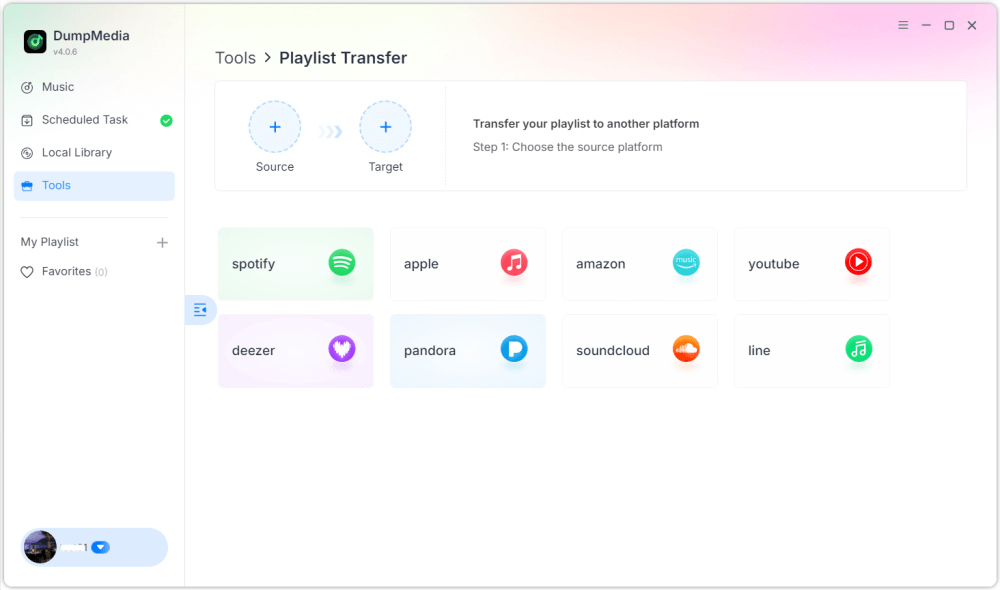
Step 3. Choose Amazon Music as a source.
Step 4. Select Spotify as a destination.
Step 5. Select what to transfer, we support your favorite songs, artists, albums, and your curated playlists.
Step 6. Click Convert to start the transfer.
Step 7. The transfer is finished. Click "Go to Spotify". Your playlist should now appear with matched songs.
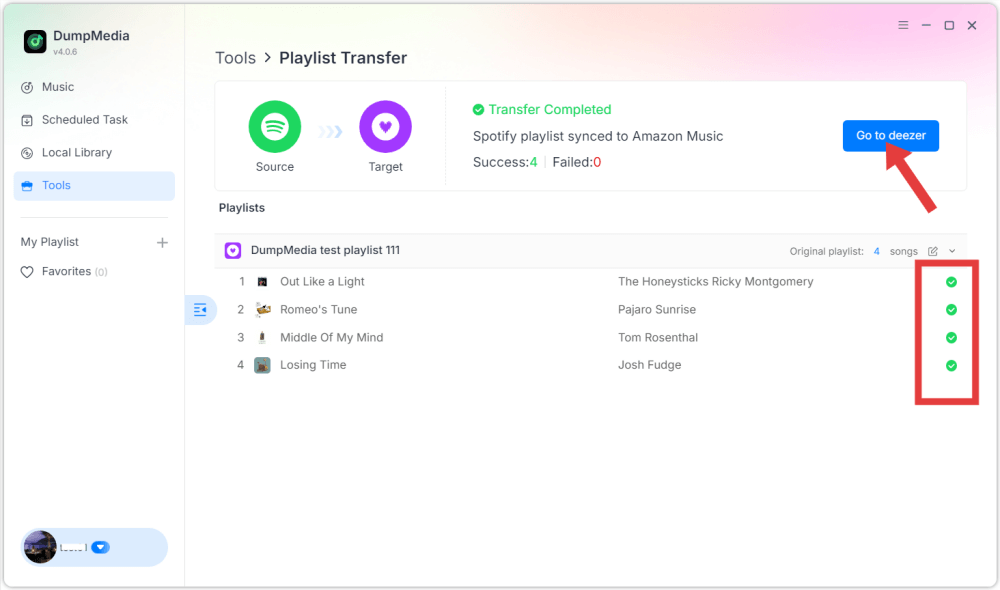
Using this method, users can efficiently transfer Amazon Music to Spotify while preserving playlist order and track information.
Part 3. Transfer Amazon Music Playlist to Spotify Online
Another convenient way to transfer Amazon Music to Spotify is by using an online playlist migration service. One widely used tool is TuneMyMusic, which works directly in a web browser and requires no installation. Online tools are especially useful for users who want a quick solution without installing additional software.
Step-by-Step Guide
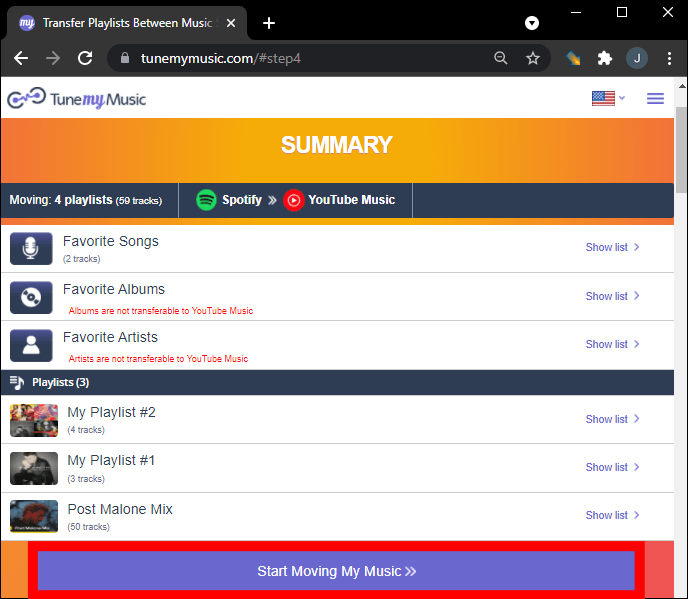
Step 1. To begin, visit the TuneMyMusic website and start a new transfer process. Choose Amazon Music as the source platform and sign in to your account so the service can access your playlists.
Step 2. After connecting your account, the platform will display your available playlists. Select the playlist you want to migrate and proceed to the next step.
Step 3. Next, choose Spotify as the destination platform and log in to authorize the connection. TuneMyMusic will then analyze your playlist and attempt to match each track with Spotify’s catalog.
Step 4. Once the process finishes, the playlist will be recreated automatically in your Spotify library. This makes it easy to transfer Amazon Music to Spotify without needing technical skills.
Although online tools are convenient, they sometimes have limitations such as transfer limits or slower performance for large playlists. For users with extensive libraries, desktop tools may provide a more stable solution.
Part 4. Transfer Amazon Music Playlist to Spotify iOS/Android
If you prefer using your smartphone to manage music libraries, several mobile apps can also help you transfer Amazon Music to Spotify. These apps allow users to migrate playlists directly from their mobile devices. One popular mobile solution is FreeYourMusic, which works on both iOS and Android devices. The app supports multiple streaming platforms and provides a simple interface for transferring playlists.
Step-by-Step Guide
Step 1. After installing the app, open it and select Amazon Music as the source platform. Sign in to your account so the app can access your playlists.
Step 2. Then choose Spotify as the destination platform and authorize the connection.
Step 3. Next, select the playlist you want to move and start the transfer. The application will automatically search for matching tracks in Spotify’s catalog and recreate the playlist.
Mobile apps like FreeYourMusic provide a convenient way to transfer Amazon Music to Spotify directly from a smartphone, especially for users who prefer not to use a computer.
Part 5. FAQs
Will every song transfer successfully?
In most cases, the majority of tracks will transfer correctly. However, some songs may not appear if they are unavailable on the destination platform.
How long does the transfer process take?
The time required depends on the number of songs in your playlist and the tool used. Small playlists may transfer within minutes, while larger libraries can take longer.
Is it safe to use playlist transfer tools?
Reputable tools use secure authentication systems that allow access to playlists without exposing personal information. It is important to use trusted services when attempting to transfer Amazon Music to Spotify.
Part 6. Conclusion
Switching music streaming platforms does not mean losing your favorite playlists. With the help of modern playlist migration tools, it is now possible to transfer Amazon Music songs to Spotify quickly and efficiently. By choosing the right method, you can successfully transfer Amazon Music to Spotify and continue enjoying your favorite music collection on one of the world’s most popular streaming platforms without rebuilding your playlists manually.