


How to Screenshot on Dell with Three Methods
Taking screenshots is a handy skill for capturing important information, sharing details, or troubleshooting issues. If you own a Dell laptop or desktop, you might be wondering, “How can I screenshot on Dell?” Luckily, Dell devices make it easy with several built-in methods. In this article, we'll explore two straightforward techniques to help you master taking screenshots on your Dell computer.
Contents Guide Part 1. Screenshot on Dell Using the Print Screen KeyPart 2. Screenshot on Dell Using Snipping Tool or Snip & SketchPart 3. Screenshot on Dell Using Third-Party ToolPart 4. Conclusion
Part 1. Screenshot on Dell Using the Print Screen Key
One of the simplest ways to take a screenshot on a Dell computer is by using the Print Screen (PrtScn) key on your keyboard. This method captures the entire screen and saves it to your clipboard, allowing you to paste it into any application that supports image pasting. Here’s how you can do it:
Step 1. Locate the Print Screen Key
On most Dell keyboards, you'll find the Print Screen key labeled as “PrtScn” or a similar abbreviation. It is usually located in the top row of the keyboard, often near the F12 key.
Step 2. Capture the Entire Screen
- Press the PrtScn This action captures the entire screen and copies it to your clipboard.
- Open an image editing program like Microsoft Paint or any document editor (e.g., Microsoft Word).
- Press Ctrl + V to paste the screenshot. You can then save the image by selecting File > Save As.
Step 3. Capture Only the Active Window
- Click on the window you want to capture to make it the active window.
- Press Alt + PrtScn. This captures only the currently active window and copies it to your clipboard.
- Paste the screenshot into an image editor or document editor using Ctrl + V, then save it.
Part 2. Screenshot on Dell Using Snipping Tool or Snip & Sketch
For more control over your screenshots, Dell computers come with built-in tools like Snipping Tool (available in older versions of Windows) or Snip & Sketch (introduced in Windows 10 and later). These tools offer more options, such as capturing specific areas or adding annotations. Here's how to use them:
Using Snipping Tool
Step 1. Open Snipping Tool
Type “Snipping Tool” in the Windows search bar and select it from the search results.
Step 2. Create a New Snip
Click on New to start a new screenshot.
Choose the type of snip you want: Free-form, Rectangular, Window, or Full-screen.
Drag your cursor to select the area you want to capture.
Step 3. Save Your Screenshot
Once the screenshot is captured, it will appear in the Snipping Tool window.
Click File > Save As to save your screenshot to your desired location.
Using Snip & Sketch
Step 1. Open Snip & Sketch
Type “Snip & Sketch” in the Windows search bar and open the app.
Step 2. Start a New Snip
- Click on New in the top-left corner of the Snip & Sketch window.
- Choose between Rectangular Clip, Freeform Clip, Window Clip, or Fullscreen Clip.
- Capture the area or window you need.
Step 4. Edit and Save
- After capturing, use the editing tools in Snip & Sketch to annotate or crop your screenshot.
- Click theSave As icon or File > Save As to store your screenshot.
Part 3. Screenshot on Dell Using Third-Party Tool
In addition to the above two methods, you can also choose to use third-party tools. Generally speaking, third-party tools have more complete functions. We recommend DumpMedia Screen Recorder, which is a professional screenshot tool. In addition to the screenshot tool, it also has screen recording, audio recording, and webcam recording functions.
Free Download Intel Mac M-Series Mac Free Download
Key Features of the Screenshot Function:
- Customizable Capture Area: Select the "Custom Size" option to define the specific area of your screen you want to capture. Simply click and drag to outline your desired region, and release to finalize.
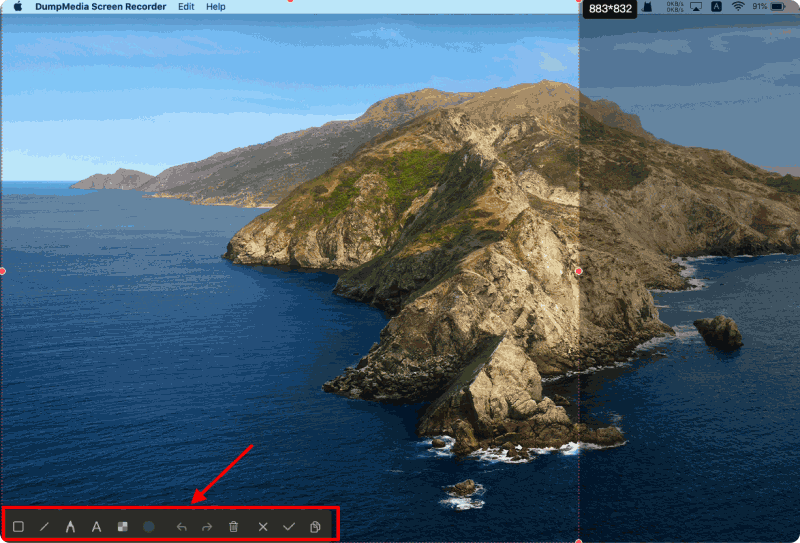
- Instant Editing Tools: Once you capture the screen, a panel with various editing tools appears. Enhance your screenshots with options such as lines, circles, rectangles, arrows, and text annotations.
- Save and Copy Options: After capturing, you can finalize and automatically save your screenshot to your computer. Alternatively, you can copy the image to your clipboard for quick pasting into other applications, or discard and retake if needed.
Getting Started with Screen Capture: A Step-by-Step Guide
Step 1. Download and Install the Program
Free Download Intel Mac M-Series Mac Free Download
- Click the download button to obtain the software.
- Follow the installation prompts to set it up on your computer at no cost.
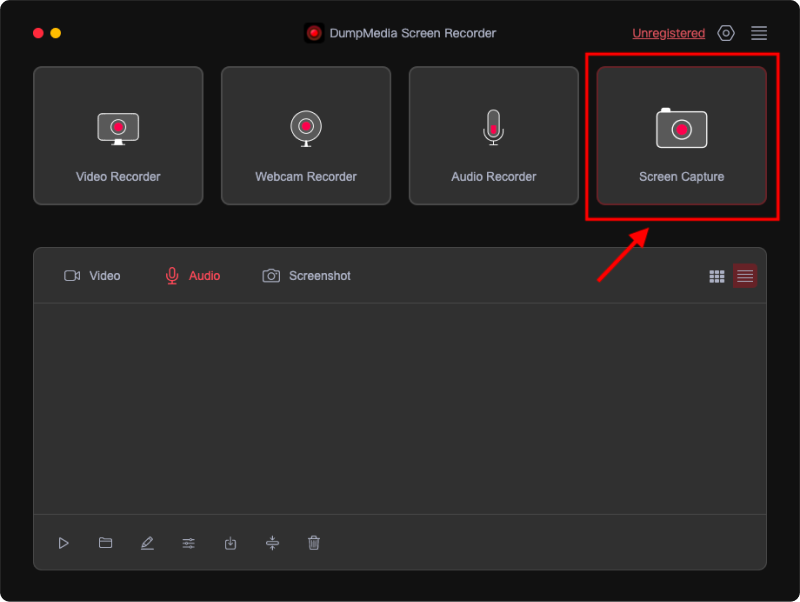
Step 2. Open the Program and Choose Capture Option
- Launch the installed application.
- Navigate to and select the screen capture feature.
Step 3. Define Custom Capture Area
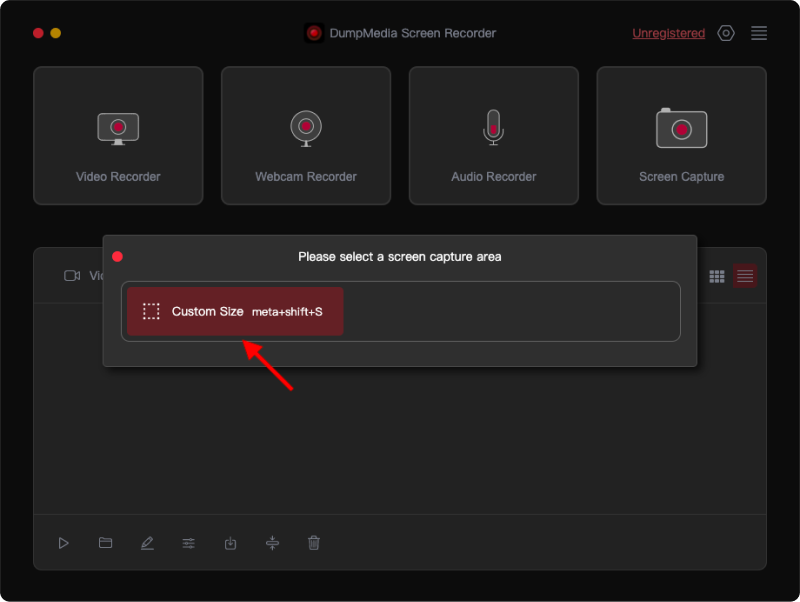
- Opt for the "Custom Size" setting.
- Click and hold the left mouse button to drag and outline the area you want to capture.
- Release the button to display a panel with editing tools.
Step 4. Finalize and Save Your Screenshot
- Click the check mark to complete the capture, which will be saved to your computer automatically.
- To copy the screenshot to your clipboard while saving it, press the Copy button.
- If you wish to discard the current screenshot and start over, select the Cancel button.
Step 5. Edit Your Screenshots
- Utilize the toolbar's annotation tools to enhance your screenshots.
- Available tools include lines, circles, rectangles, triangles, arrows, text, brushes, and erasers.
Part 4. Conclusion
Taking screenshots on your Dell computer is easy with several available methods similar with taking screenshots on HP. You can use the Print Screen key for quick, full-screen captures, or opt for Snipping Tool and Snip & Sketch for more control and annotation options. Each method offers a unique way to capture and manage your screen content, depending on your needs.
For those seeking additional features, third-party tools like DumpMedia Screen Recorder provide advanced functionalities, including customizable capture areas and instant editing options. Mastering these methods ensures you can efficiently capture, edit, and share important information, making your Dell computer a versatile tool for various tasks.