


How to Transfer Spotify Music to YouTube: Full Guide for All Devices
Moving your playlists between streaming platforms is a common need, especially when switching apps or consolidating your music library. If you want to transfer Spotify music to YouTube, the good news is that modern transfer tools make the process seamless across web, desktop, and mobile. This guide will walk you step-by-step through every method. With support for Spotify and YouTube on all major devices, you can migrate your playlists effortlessly and keep your music accessible wherever you listen.
Contents Guide Part 1. Transfer Spotify Playlist to YouTube OnlinePart 2. Transfer Spotify Playlist to YouTube on Windows/MacPart 3. Transfer Spotify Playlist to YouTube on iOSPart 4. Transfer Spotify Playlist to YouTube on AndroidPart 5. FAQsPart 6. To Sum It All
Part 1. Transfer Spotify Playlist to YouTube Online
If you want the quickest way to transfer Spotify music to YouTube without installing software, an online playlist-syncing tool is the most convenient option. One widely used solution is TuneMyMusic, a browser-based service that supports direct playlist migration between major streaming platforms.
How TuneMyMusic works online:
- Open TuneMyMusic in your browser.
- Choose Spotify as the source platform and log in.
- Select the playlist you want to move.
- Choose YouTube as the destination.
- Confirm the track list and start the transfer.
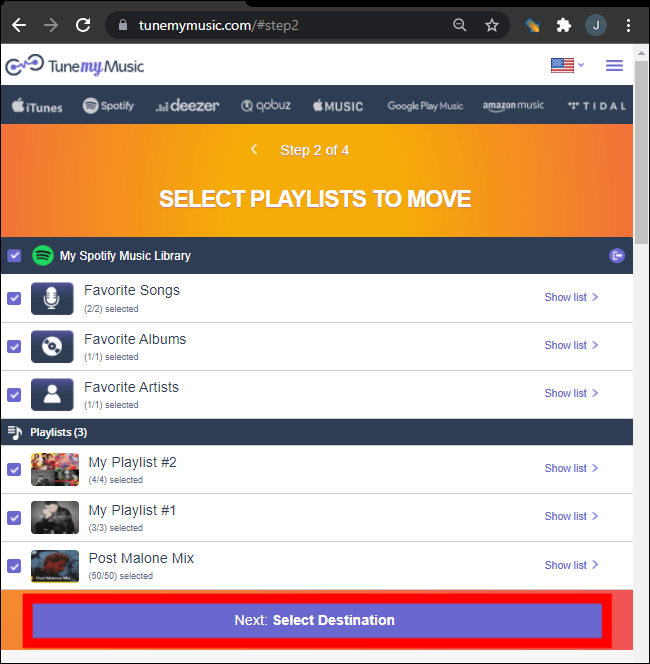
This method is fast, cross-platform, and does not require local installation. It’s ideal for users who simply want to transfer spotify music to youtube in the most frictionless way possible.
Part 2. Transfer Spotify Playlist to YouTube on Windows/Mac
For desktop users seeking more control, higher conversion stability, and automated playlist handling, DumpMedia Any Music Converter provides a dedicated Playlist Transfer module. It is especially advantageous for users who regularly transfer Spotify music to YouTube in bulk or who need predictable and repeatable playlist mapping.
Key advantages of the Playlist Transfer feature:
- Supports bulk playlist migration
- Handles metadata, cover art, and track ordering
- Provides robust matching logic to minimize mismatched tracks
- Works on both Windows and macOS
How to use it:
Step 1. Open Any Music Converter. Choose Tools > Playlist Transfer.

Step 2. Select Spotify as a source.
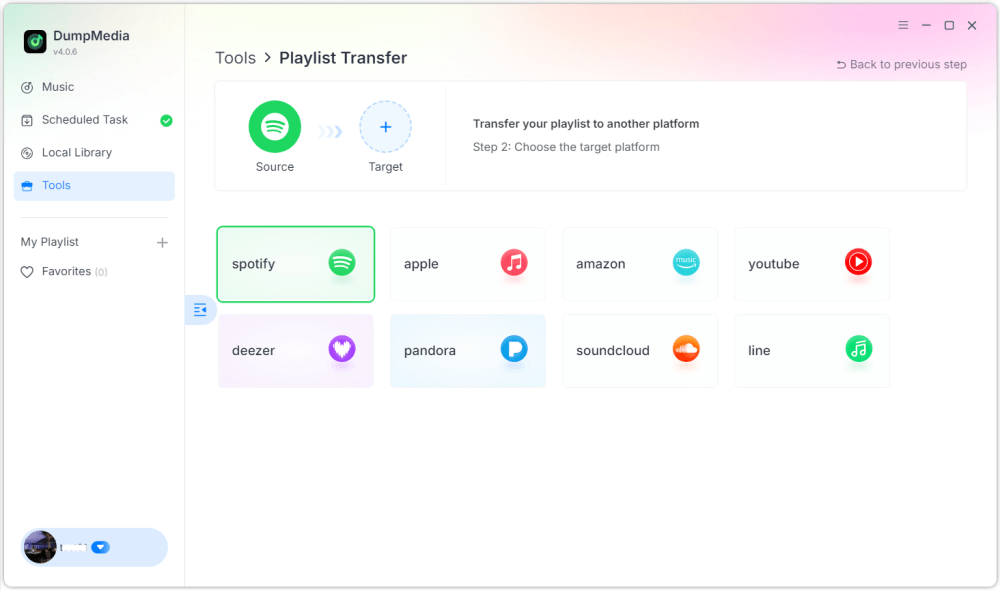
Step 3. Select YouTube Music as a destination.
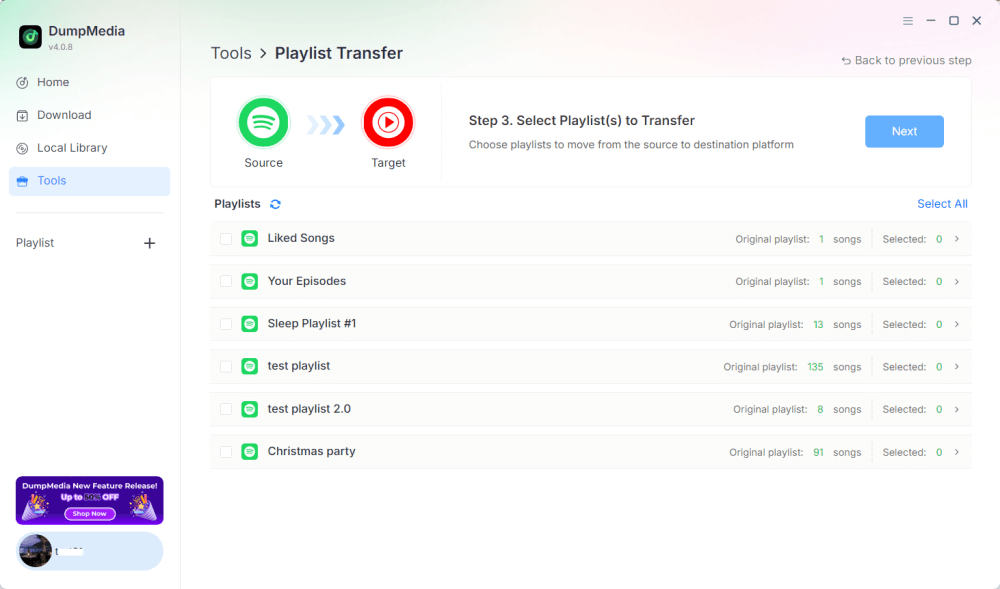
Step 4. Select what to transfer, we support your favorite songs, artists, albums, and your curated playlists.
Step 5. Click Convert to start the transfer.
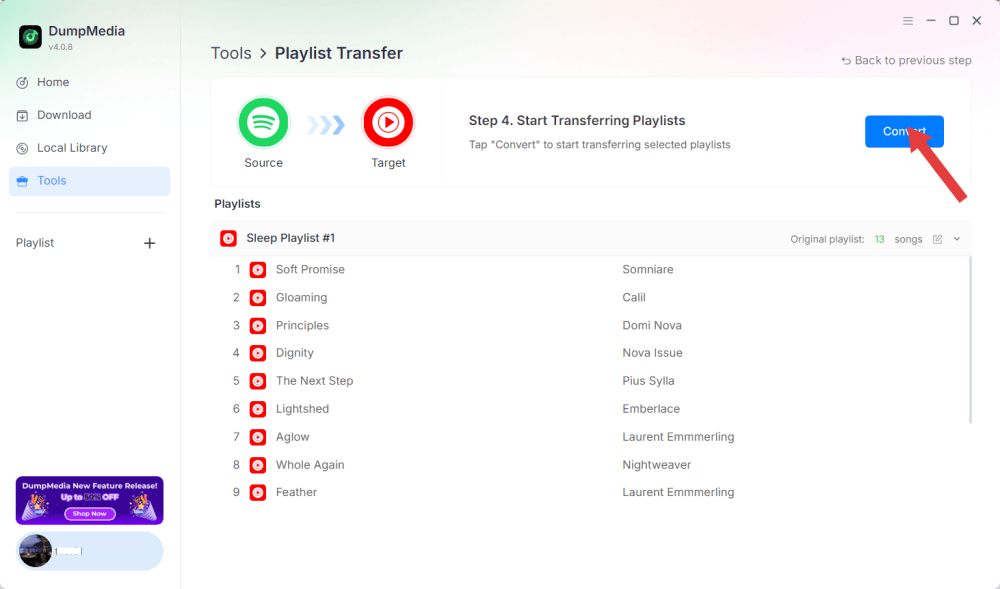
Step 6. The transfer is finished. Click "Go to YouTube Music". Your playlists have been moved to a new service, and you can start enjoying a new playlist on YouTube Music.
Because all operations run locally, this solution is more stable than browser-based tools, perfect for users who frequently need to transfer spotify music to youtube for multiple playlists or large libraries.
Part 3. Transfer Spotify Playlist to YouTube on iOS
If you’re using an iPhone or iPad and want to transfer spotify music to youtube, a mobile-optimized migration tool such as SongShift is a proven option. It is designed specifically for Apple ecosystems and offers intuitive playlist-mapping workflows.
How SongShift works:
- Install SongShift from the App Store.
- Connect your Spotify account.
- Connect your YouTube account.
- Create a new Shift task and choose the Spotify playlist as the source.
- Set YouTube as the destination and confirm the track matches.
- Execute the transfer.
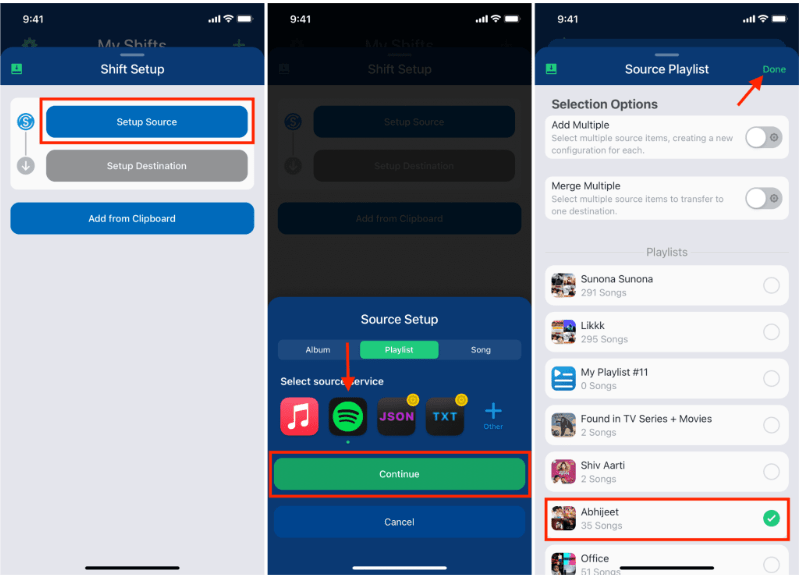
SongShift’s strength lies in iOS-native UI interactions, making the task of transfer Spotify music to YouTube smooth for users who primarily work on mobile devices.
Part 4. Transfer Spotify Playlist to YouTube on Android
On Android devices, the easiest way to transfer Spotify music to YouTube is with Soundiiz Mobile Web, which works well inside mobile browsers and supports Android-friendly interfaces.
Steps for Soundiiz Mobile Web:
- Open the Soundiiz website in your Android browser.
- Log into your Spotify account.
- Pick the playlist you want to move.
- Select YouTube as the target service.
- Confirm and start the synchronization.
This workflow is convenient for users who do not want to install extra apps yet still need a straightforward way to transfer Spotify music to YouTube while on the go.
Part 5. FAQs
1. Will playlist order remain the same when I transfer Spotify music to YouTube?
Most tools try to maintain order, but exact preservation depends on track availability and recognition accuracy.
2. Are all Spotify tracks available on YouTube?
Not always. Copyright differences, regional restrictions, and unavailable songs may cause gaps.
3. Do these tools require access to my accounts?
Yes. They need authorization to read your Spotify playlists and add them to your YouTube library. Reputable tools use secure OAuth authentication.
4. How long does it take to transfer Spotify playlists to YouTube?
It depends on playlist size, small playlists complete within seconds; large libraries may take several minutes.
Part 6. To Sum It All
Finding the best method to transfer Spotify music to YouTube depends on your workflow and device. With the right tool, you can effortlessly transfer Spotify playlists to YouTube and maintain musical continuity across platforms.