


How to Transfer Apple Music to Spotify: Complete Guide
Digital loyalty is fluid. As music enthusiasts seek better cross-platform compatibility and fresh discovery algorithms, many are making the leap from Apple Music to Spotify. However, the biggest barrier to switching isn't the subscription fee, it's the fear of losing a decade’s worth of music history. Fortunately, several tools now make it possible to transfer Apple Music to Spotify automatically. In this guide, we’ll explore the most effective methods to transfer Apple Music songs to Spotify across different devices.
Contents Guide Part 1. Transfer Apple Music Playlist to Spotify on Windows/MacPart 2. Transfer Apple Music Playlist to Spotify OnlinePart 3. Transfer Apple Music Playlist to Spotify on iOS/AndroidPart 4. FAQsPart 5. To Sum It All
Part 1. Transfer Apple Music Playlist to Spotify on Windows/Mac
One of the most reliable ways to transfer Apple Music to Spotify is by using a dedicated desktop tool that offers advanced playlist migration features. A highly recommended option is DumpMedia Any Music Converter, which includes a powerful Playlist Transfer function.
DumpMedia Any Music Converter is a professional desktop application designed to manage and convert music across platforms. It works on both Windows and macOS. With its built-in Playlist Transfer feature, users can efficiently transfer Apple Music to Spotify while preserving playlist structure and song metadata.
Key Features
- Playlist Transfer Function: DumpMedia allows you to move entire playlists instead of transferring songs individually. This saves significant time when dealing with large music collections.
- Batch Playlist Migration: You can select multiple playlists and transfer them simultaneously, making it easier to manage large libraries.
- Stable Desktop Performance: Since DumpMedia operates locally on your computer, it provides a more stable transfer process than many browser-based tools.
- Smart Song Matching: The software automatically identifies corresponding songs in Spotify’s catalog, ensuring the transferred playlist contains the correct tracks.
- Metadata Preservation: Song titles, artist names, albums, and playlist order remain intact during the transfer process.
Step-by-Step Guide
Step 1. First, download DumpMedia Any Music Converter from the official website. Install the program on your Windows or Mac computer and launch it. Open the application and choose Tools > Playlist Transfer.
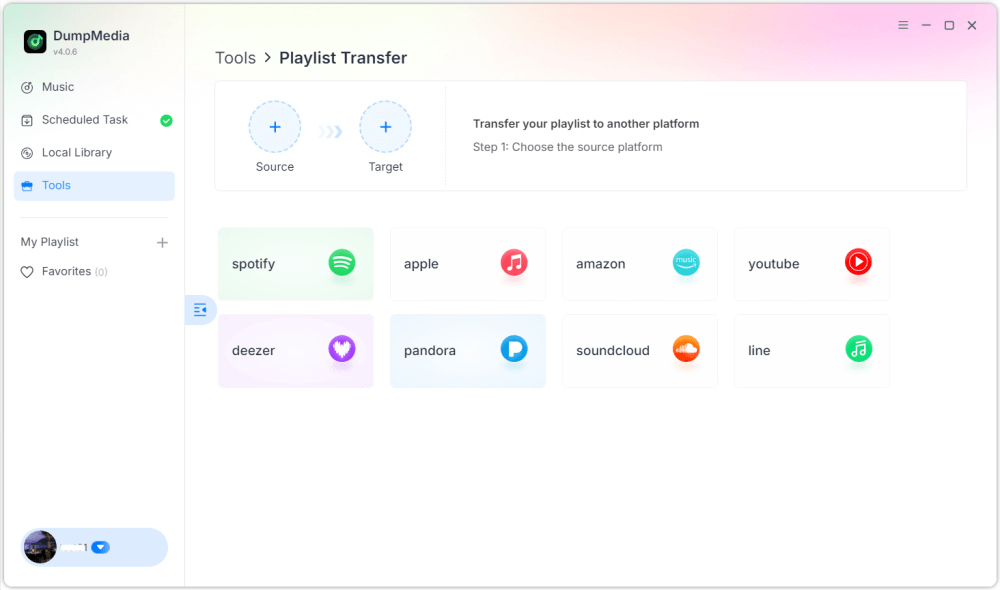
Step 2. Select Apple Music as a source. Then select Spotify as the target platform.
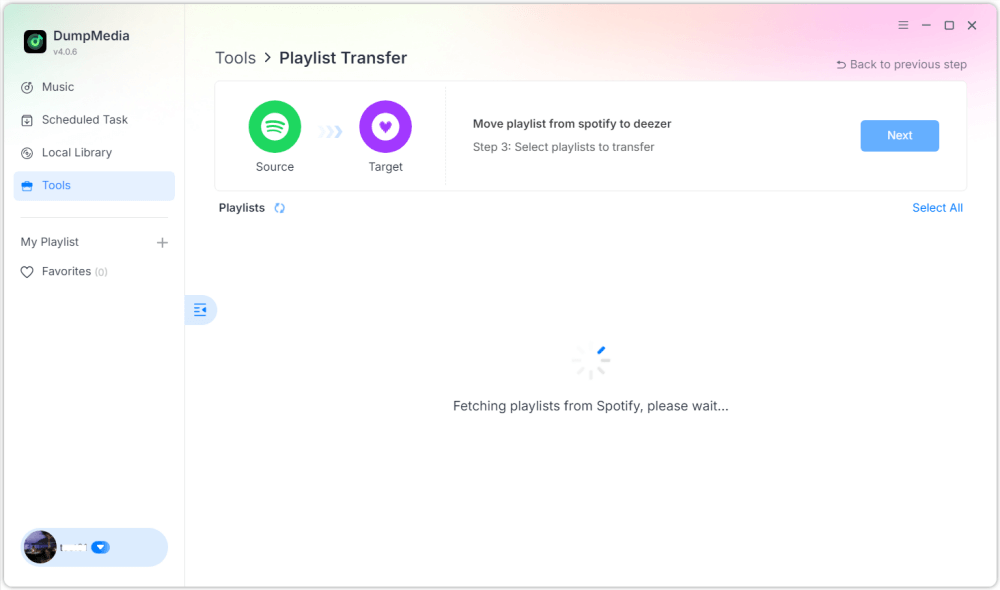
Step 3. Find the playlists you want to transfer from Apple Music to Spotify, and select all the playlists you want to move.
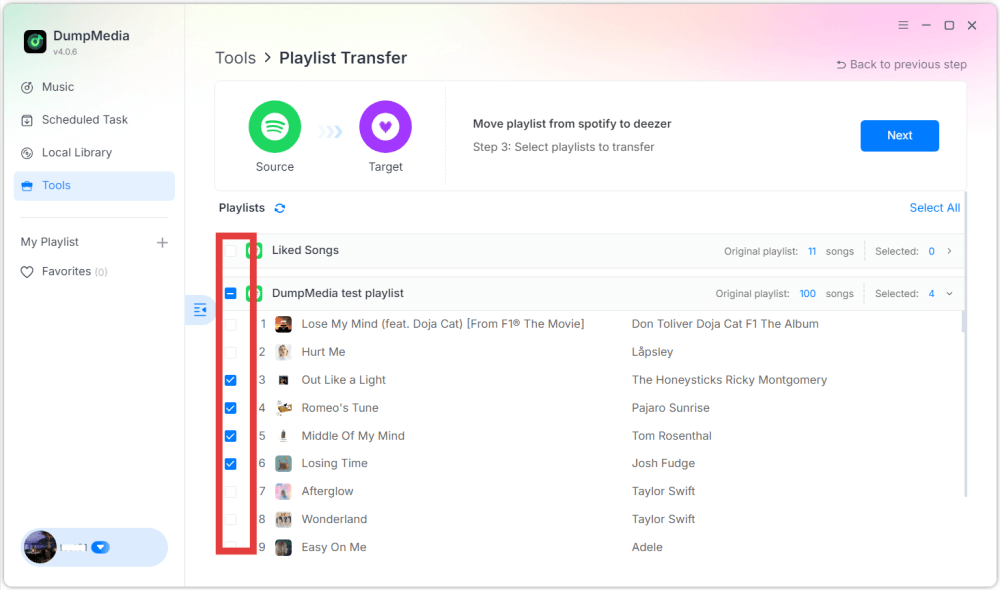
Step 4. Click the Convert button to begin migrating the playlist. DumpMedia will recreate the playlist automatically on Spotify.
Step 5. The transfer is finished. Click "Go to Spotify". Your playlists have been moved to a new service, and you can start enjoying your new music streaming service.
Using this desktop method is one of the most efficient ways to transfer Apple Music to Spotify, especially if you have multiple playlists or a large music library.
Part 2. Transfer Apple Music Playlist to Spotify Online
If you prefer not to install additional software, an online playlist transfer tool can also help you transfer Apple Music to Spotify quickly. One popular option is Soundiiz. Soundiiz is a cloud-based playlist management platform that allows users to transfer playlists between many music streaming services. Because it runs entirely in a browser, it works on almost any device.
Key Features
- Web-based interface with no installation required
- Supports many music streaming platforms
- Playlist conversion tools
- Batch playlist management
Steps to Transfer Apple Music to Spotify with Soundiiz
Step 1. Visit the Soundiiz website and sign up for an account. Log in to your Apple Music account and grant Soundiiz permission to access your playlists.
Step 2. Next, connect your Spotify account.
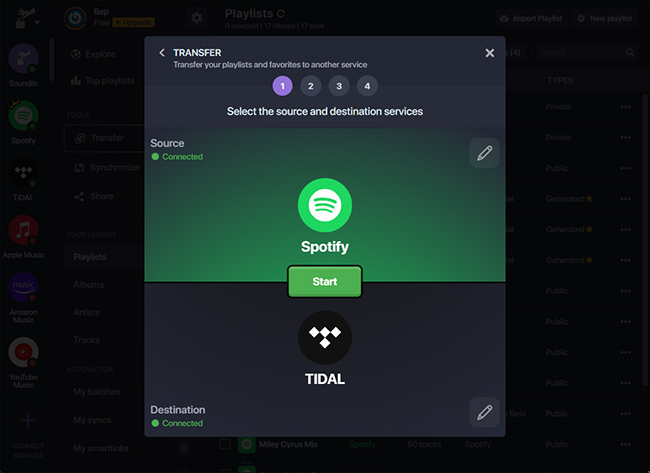
Step 3. Browse your Apple Music playlists and select the one you want to transfer. Click Convert and choose Spotify as the destination platform.
Step 4. Soundiiz will begin matching songs and recreating the playlist in Spotify.
Online tools like Soundiiz are a convenient option for users who want to transfer Apple Music songs to Spotify without installing desktop software. However, they may have limitations such as transfer limits or slower processing for large playlists.
Part 3. Transfer Apple Music Playlist to Spotify on iOS/Android
If you prefer managing your playlists directly from a smartphone, several mobile apps can help you transfer Apple Music to Spotify easily. Two of the most widely used apps are FreeYourMusic and SongShift.
Using FreeYourMusic (iOS & Android)
FreeYourMusic is a cross-platform music transfer tool available on both iOS and Android devices. It allows users to move playlists between different streaming services directly from their phones.
- Install the FreeYourMusic app from the App Store or Google Play.
- Open the app and select Apple Music as the source platform.
- Sign in to your Apple Music account.
- Choose Spotify as the destination platform.
- Select the playlist you want to migrate.
- Tap Transfer to start the process.
Within minutes, your playlist should appear in Spotify.
Using SongShift (iOS Only)
SongShift is another popular mobile app designed specifically for iOS users. It allows quick playlist transfers between multiple music services.
- Download SongShift from the App Store.
- Connect your Apple Music and Spotify accounts.
- Tap Create Shift.
- Select Apple Music as the source and Spotify as the destination.
- Choose the playlist you want to transfer.
- Start the transfer process.
Using mobile apps is an excellent option if you want to transfer Apple Music to Spotify directly from your phone without using a computer.
Part 4. FAQs
1. Can I transfer Apple Music to Spotify for free?
Some tools offer free playlist transfers with limitations, such as a maximum number of songs. Paid versions usually allow unlimited transfers and faster processing.
2. Will every song transfer successfully?
Most songs will transfer correctly, but occasionally some tracks may not appear if they are unavailable on the destination platform.
3. How long does the transfer take?
The time required depends on playlist size. Smaller playlists may transfer in a few minutes, while larger ones can take longer.
4. Is it safe to use playlist transfer tools?
Reputable tools use secure authentication methods to connect to your music accounts. Always choose trusted software when you transfer Apple Music to Spotify.
Part 5. To Sum It All
Switching music streaming platforms no longer means losing your carefully curated playlists. With modern playlist migration tools, it’s now easier than ever to transfer Apple Music to Spotify without rebuilding your music library manually. By choosing the method that best fits your device and playlist size, you can successfully transfer Apple Music songs to Spotify and continue enjoying your favorite songs seamlessly on your new streaming platform.