


How to Use DumpMedia Spotify Playlist Backup
Managing your Spotify playlists can be challenging when you want to keep a backup of your carefully organized music collections. DumpMedia Spotify Playlist Backup provides a convenient way to back up your Spotify playlists, export playlist information to CSV files, and restore playlists to your Spotify account.
This guide explains how to connect your Spotify account, select playlists, export backup files, restore playlists, manage backup history, and customize the output folder. It also includes troubleshooting suggestions to help you handle common issues.
Contents Guide Part 1. Install and Register DumpMedia Any Music ConverterPart 2. How to Connect Your Spotify AccountPart 3. How to Select a Spotify PlaylistPart 4. Common Issues and TroubleshootingFrequently Asked Questions
Part 1. Install and Register DumpMedia Any Music Converter
Step 1: Download and Install DumpMedia Any Music Converter
DumpMedia Any Music Converter is supported on Mac and Windows devices currently. You can download the installation package from its product page or simply by clicking the download button provided here.
Step 2: Launch DumpMedia Any Music Converter
After installation, open DumpMedia Any Music Converter on your computer. You will see a clean and intuitive interface designed to make conversion simple, even for first-time users.
Tip: Make sure you're connected to the internet for the best experience.
Step 3: Register and Activate Any Music Converter
Launch DumpMedia Any Music Converter. Click the "login in" button or profile icon in the bottom left corner. Enter the email address and password. Click "Sign in" to complete the registration.
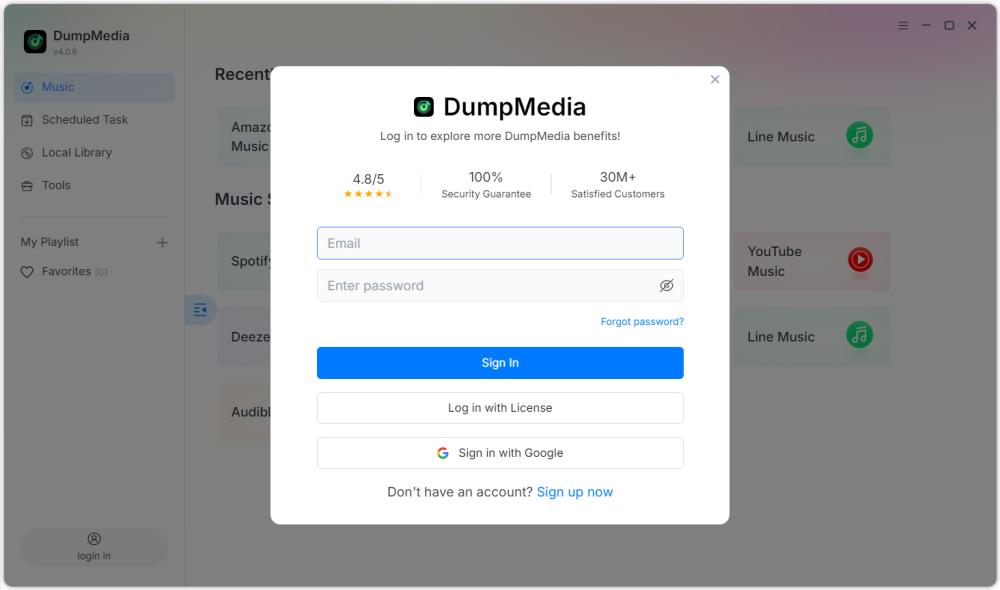
Tip: Unlock Spotify Playlist Backup by visiting the product page and buying the plan. Choose a subscription plan that fits your needs, and don't hesitate to contact our customer service team to ask about exclusive discounts.
Part 2. How to Connect Your Spotify Account
Before selecting a playlist, you need to connect your Spotify account to DumpMedia Spotify Playlist Backup.
Tip: Please note that Spotify Playlist Backup is sold as a standalone item and is not included in any standard Music Converter subscription plans.
Step 1: Launch DumpMedia Spotify Playlist Backup
Open Any Music Converter. Choose Tools > Spotify Playlist Backup.
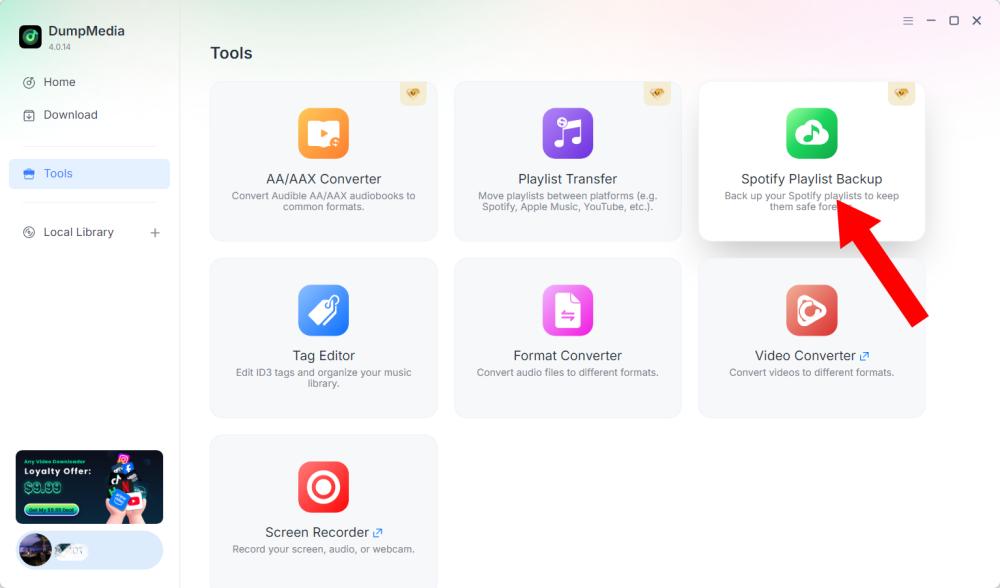
Step 2: Click "Connect to Spotify"
Find and click the Connect to Spotify button in the software interface. The application will automatically redirect you to the built-in Spotify player.
Step 3: Connect Your Spotify Account
When the Spotify player opens inside the software, follow the available prompts to connect your Spotify account. Complete the connection process before proceeding to playlist management. Once your Spotify account is connected successfully, you can access your available playlists and select the operation you need.
Tip: If the connection does not proceed as expected, check your internet connection and confirm that the Spotify player has opened correctly.
Part 3. How to Select a Spotify Playlist
After connecting your Spotify account, you can select the playlist you want to back up or restore.
Step 1: Access Your Playlists
Open the playlist section in DumpMedia Spotify Playlist Backup after connecting your Spotify account. Your available playlists should be displayed in the interface.
Step 2: Choose a Playlist
Choose the playlist carefully, especially if you have multiple playlists with similar names.
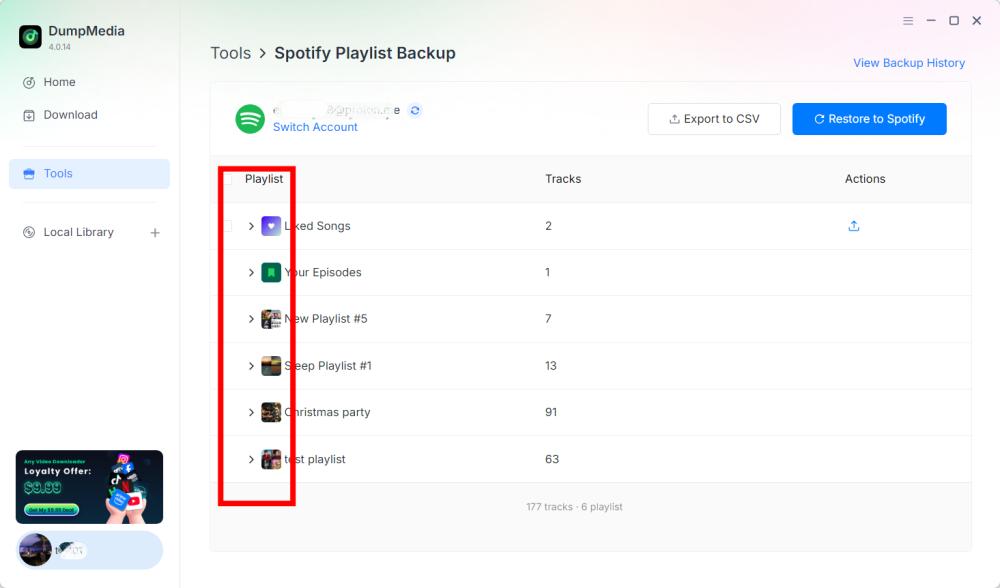
Step 3: Select an Operation
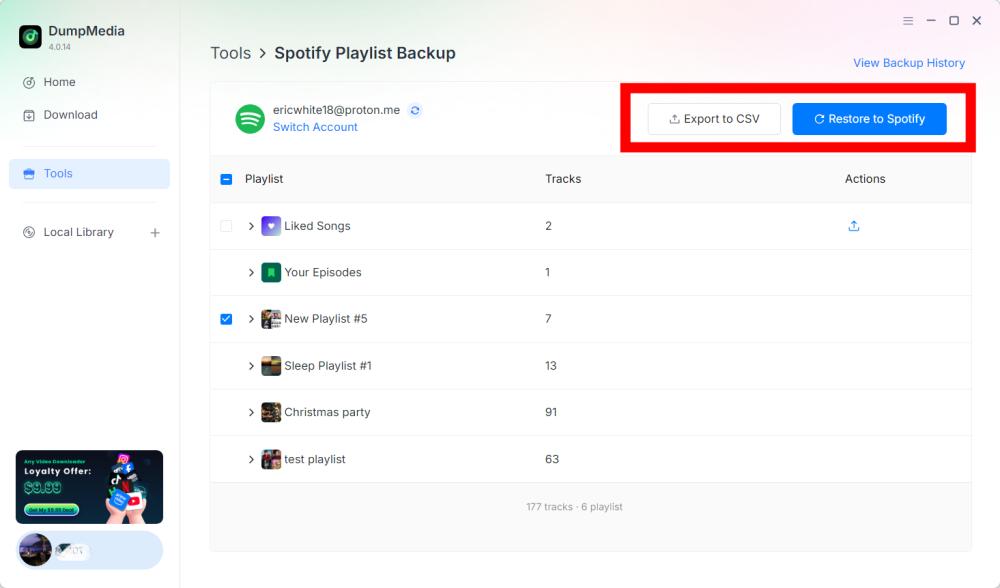
After selecting a playlist, choose the corresponding operation according to your requirements. The available operations include Export to CSV and Restore to Spotify.
- Export to CSV: Exporting a playlist to CSV allows you to save playlist information in a file that can be opened and reviewed using spreadsheet applications such as Microsoft Excel.
- Restore to Spotify: DumpMedia Spotify Playlist Backup supports playlist restoration through the Restore to Spotify option.
Step 4: Check the Exported File
DumpMedia Spotify Playlist Backup saves backup files in its default folder. You can change this location through the Preferences menu. After the export is complete, locate the generated CSV file. You can open the file using a compatible spreadsheet application to review its contents.
Important: The specific fields included in the CSV file should be confirmed according to the current version of DumpMedia Spotify Playlist Backup.
Step 5: Check Your Spotify Account
If you choose Restore to Spotify, open Spotify and check whether the playlist has been restored successfully.
Note: Restoration results may depend on the backup data, Spotify account connection, and the software's current restoration capabilities. The exact handling of unavailable or changed tracks requires confirmation from the product documentation.
Step 6: View Backup History
DumpMedia Spotify Playlist Backup includes a View Backup History option that allows you to review your backup records. Find View Backup History in the top-right corner of the software interface. Click the option to open the backup history section.
Part 4. Common Issues and Troubleshooting
The following troubleshooting suggestions address general issues that may occur during account connection, playlist operations, or file management. They are not confirmed product-specific error codes or official fixes.
Unable to Connect to Spotify
Suggested solutions:
- Check your internet connection.
- Close and reopen DumpMedia Spotify Playlist Backup.
- Click Connect to Spotify again.
- Complete the connection process in the built-in Spotify player.
If the issue continues, record the exact error message and contact DumpMedia Support (support@dumpmedia.com).
Playlists Are Not Displayed
Suggested solutions:
- Confirm that the Spotify account is connected.
- Reopen the playlist section.
- Restart the software and try again.
- Check whether the issue affects all playlists or only a specific playlist.
If the problem persists, provide the affected playlist details and any available error information to Support.
- Click the menu in the top right of the program and choose "Send feedback."
- Describe your issue and write down your license key in the text box.
- Finally, please check the "Attach the log file" box before submitting.
Export to CSV Does Not Complete
Suggested solutions:
- Confirm that the Spotify account is connected.
- Try exporting the playlist again.
- Check the configured output folder in Preferences.
- Verify that the destination folder is accessible.
- Test the export with another playlist if possible.
If the export continues to fail, save the error message and contact customer support.
Restore to Spotify Does Not Work
Suggested solutions:
- Reconnect your Spotify account.
- Check that you selected the correct playlist or backup record.
- Try the restoration process again.
- Open Spotify and check whether the playlist was partially restored.
- Contact DumpMedia Support if the issue continues.
Do not assume that repeatedly restoring the same backup is safe in every situation. Check the resulting playlist before attempting additional restoration operations.
Frequently Asked Questions
Q1. How do I connect my Spotify account to DumpMedia Spotify Playlist Backup?
Click Connect to Spotify. The software will automatically open the built-in Spotify player, where you can connect your Spotify account.
Q2. Can I export Spotify playlists to CSV?
Yes. After connecting your Spotify account and selecting a playlist, choose Export to CSV to create a backup file.
Q3. Can I restore a playlist to Spotify?
Yes. DumpMedia Spotify Playlist Backup provides a Restore to Spotify option for supported restoration operations.
Q4. Where are my backup files saved?
Backup files are saved in the default output folder. You can check or change the location by opening the top-right menu, selecting Preferences, and locating Output Folder.
Q5. How can I view previous backup records?
Click View Backup History in the top-right corner of the software to review available backup history.
Q6. What should I do if Spotify cannot connect?
Check your internet connection, and reopen the software. If the problem persists, contact DumpMedia Support with the error details.
Q7. What should I do if my playlist is missing?
Confirm that your Spotify account is connected, restart the software, and check the playlist section again. If the playlist remains unavailable, contact Support.
Q8. Can I restore a backup to a different Spotify account?
This feature is not yet available in the current version, but please stay tuned for future updates.