


So speichern Sie iMovie-Videos als MP4 (Anleitung für macOS-Benutzer)
Wenn Sie macOS verwenden, iMovie ist eines der einfachsten Tools für die grundlegende Videobearbeitung. Viele Nutzer haben jedoch Schwierigkeiten beim Exportieren ihrer Projekte als MP4-Dateien. In manchen Fällen wird das exportierte Video als MOV-Datei gespeichert, ist zu groß oder lässt sich nicht abspielen. WinDownloads oder Uploads auf bestimmte Plattformen. Dieser Leitfaden erklärt Wie man iMovie als MP4 speichert und wie man Kompatibilitätsprobleme behebt DumpMedia. Tauchen wir ein.
InhaltsverzeichnisTeil 1. Kann iMovie MP4 exportieren?Teil 2. iMovie direkt als MP4 speichern (Integrierte Methode)Teil 3. iMovie-Video in MP4 konvertieren mit DumpMedia (Alternativer Weg)Teil 4. Häufig gestellte Fragen Teil 5. Fazit
Teil 1. Kann iMovie MP4 exportieren?
Die kurze Antwort lautet: Ja, aber nicht immer. iMovie kann zwar MP4-Dateien exportieren, das Endergebnis hängt jedoch stark von den gewählten Codec-Einstellungen ab: Die Verwendung des H.264-Codecs führt in der Regel zu einer MP4-Datei, während die Auswahl von Apple ProRes oder HEVC häufig einen MOV-Container erzeugt.
Diese Nuance führt häufig zu Verwirrung, da selbst Dateien mit der Dateiendung ".mp4" eine Kodierung enthalten können, die von bestimmten Geräten, insbesondere von solchen mit dieser Endung, nicht unterstützt wird. WinBei älteren PCs oder Fernsehern kann das Format nicht erkannt werden. Daher glauben viele Nutzer fälschlicherweise, iMovie exportiere MP4-Dateien nicht korrekt, obwohl das Problem tatsächlich am beim Exportvorgang ausgewählten Codec liegt.
Teil 2. iMovie direkt als MP4 speichern (Integrierte Methode)
Wenn Sie lernen möchten, wie Sie iMovie-Videos mithilfe der integrierten Exportfunktion als MP4 speichern, finden Sie in diesem Abschnitt eine detaillierte Anleitung. Obwohl iMovie manchmal MOV-Dateien oder inkompatible MP4-Videos erzeugt, erhöht die Verwendung der korrekten Exporteinstellungen die Wahrscheinlichkeit, eine einwandfreie MP4-Datei zu erhalten, erheblich.
Nachfolgend finden Sie die genaue Schritt-für-Schritt-Anleitung.
Schritt 1. Starten Sie iMovie auf Ihrem macOS-Gerät und öffnen Sie das Projekt, das Sie exportieren möchten. Stellen Sie sicher, dass alle Medienclips vollständig gerendert oder analysiert wurden, da unvollständige Medien zu Exportfehlern oder unerwarteten Dateiformaten führen können.
Schritt 2. Klicken Sie in der oberen rechten Ecke der iMovie-Oberfläche auf das Symbol „Teilen“ (Exportieren).
Schritt 3. Wählen Sie im Popup-Menü „Datei“. Dadurch können Sie Codec, Auflösung und Komprimierungseinstellungen manuell festlegen, was sich direkt darauf auswirkt, ob iMovie als MP4 oder MOV exportiert.
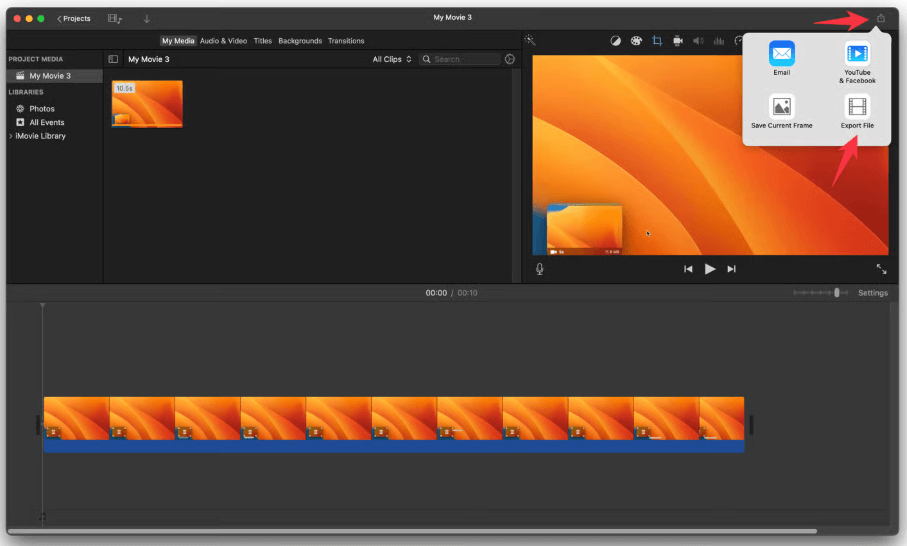
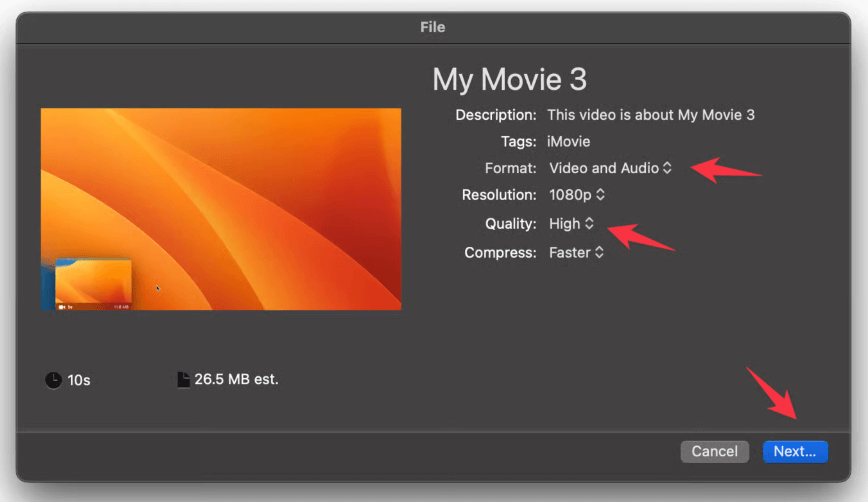
Schritt 4. Um sicherzustellen, dass iMovie eine MP4-Datei anstelle einer MOV-Datei exportiert, achten Sie genau auf die folgenden Optionen: Format, Auflösung, Qualität und andere Exporteinstellungen.
Schritt 5. Wie speichere ich iMovie als MP4? Klicken Sie auf Weiter, benennen Sie Ihre Datei und wählen Sie den Zielordner aus.
Schritt 6. iMovie beginnt mit dem Export des Videos. Der Exportbalken in der oberen rechten Ecke zeigt den Fortschritt an.
Häufige Probleme beim MP4-Export aus iMovie
1: Warum exportiert iMovie MOV anstatt MP4?
Dies geschieht, wenn Ihre Timeline Formate enthält, die eine MOV-Ausgabe auslösen.
2: Die MP4-Datei ist zu groß
Die H.264-Kodierung von Mac kann zu sehr großen Dateien führen.
3: Warum lässt sich mein Video nicht abspielen? Windows?
Unterschiedliche MP4-Dateien verwenden unterschiedliche Kodierungsparameter; manche Player lehnen sie ab.
4: Exportfehler aufgrund inkompatibler Clips
Gemischte HEVC/Proxy-Medien führen häufig zu Problemen beim Export.
Teil 3. iMovie-Video in MP4 konvertieren mit DumpMedia (Alternativer Weg)
iMovie bietet zwar eine integrierte Exportfunktion, erzeugt aber nicht immer eine vollständig kompatible MP4-Datei. Viele Benutzer befolgen die korrekten Schritte in iMovie und stoßen dennoch auf folgende Probleme:
- iMovie exportiert MOV statt MP4
- MP4-Dateien, die nicht abgespielt werden können auf Windows
- iMovie-Videos, die nicht auf YouTube, Instagram oder TikTok hochgeladen werden können
- Dateien, die zu groß sind, insbesondere in 4K
- Exportfehler aufgrund von Codec-Konflikten (ProRes, HEVC, variable Bildrate usw.).
Deshalb benötigt man zum zuverlässigen Speichern von iMovie-Dateien als MP4 oft ein zusätzliches Konvertierungstool, insbesondere für Nutzer, die eine stabile, universelle MP4-Ausgabe zum Teilen, Übertragen, Bearbeiten oder Hochladen benötigen. Hier kommt das Tool ins Spiel. DumpMedia Video Converter wird unentbehrlich.
Kostenloser Download Kostenloser Download
Warum du ... brauchst DumpMedia Video Converter
- MOV-zu-MP4-Konvertierung: Die Konvertierung von MOV-Dateien in MP4 gewährleistet universelle Kompatibilität auf allen Plattformen und Geräten.
- Volle Kontrolle: Erhalten Sie die volle Kontrolle über die technischen Parameter, einschließlich der Auswahl des Encoders, der Auflösung und der Bitrateneinstellungen.
- Komprimierung: Große Videodateien lassen sich durch intelligente Komprimierung effizient verkleinern, ohne die visuelle Klarheit zu beeinträchtigen.
- Gerätekompatibilität: Wiedergabefehler beseitigen auf WinWindows und Android werden durch die Neukodierung von Dateien in ein Standardformat unterstützt.
- Leistung: Erleben Sie blitzschnelle Verarbeitungsgeschwindigkeiten, die einen nahtlosen Übergang ohne Qualitätsverlust ermöglichen.
Anleitung von DumpMedia Video Converter
Wie speichere ich iMovie-Videos als MP4? Befolgen Sie diese Schritte, um iMovie-Videos in kompatible MP4-Dateien zu konvertieren.
Schritt 1:. Herunterladen und installieren DumpMedia Videokonverter. Er funktioniert sowohl unter macOS als auch unter Windows. Windows.
Kostenloser Download Kostenloser Download
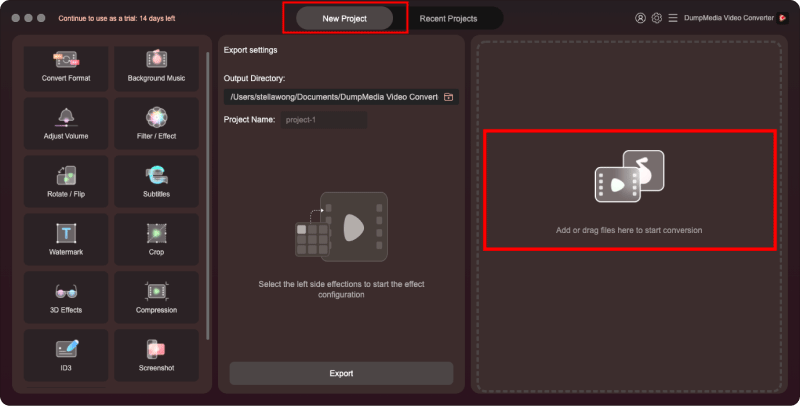
Schritt 2. Ziehen Sie die exportierte MOV- oder MP4-Datei in das Programm.
Schritt 3. Wählen Sie MP4 als Ausgabeformat.
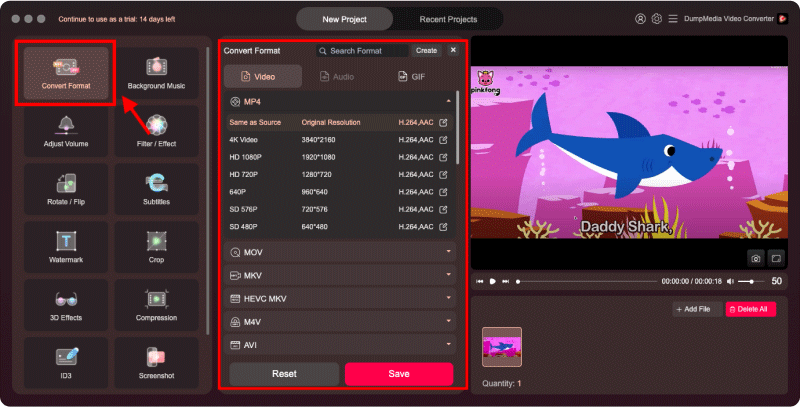
Schritt 4. Klicken Sie auf „Konvertieren“. Sie erhalten eine vollständig kompatible MP4-Datei, die Sie bearbeiten, teilen oder hochladen können.
Teil 4. Häufig gestellte Fragen
1. Warum exportiert iMovie kein MP4?
iMovie exportiert MP4 nur bei Verwendung des H.264-Codecs. Wenn Ihr Projekt ProRes- oder HEVC-Elemente verwendet, kann iMovie stattdessen eine MOV-Datei ausgeben.
2. Wie konvertiere ich MOV-Dateien von iMovie in MP4?
Exportieren Sie Ihre Datei aus iMovie und verwenden Sie dann DumpMedia Videokonverter zur Umwandlung von MOV in MP4 mit voller Kompatibilität.
Kostenloser Download Kostenloser Download
3. Warum geht das nicht? WinKann ich meine iMovie MP4-Datei abspielen?
Einige MP4-Dateien verwenden immer noch Codecs oder Bitrateneinstellungen, die mit nicht kompatibel sind WinDows Media Player. Verwenden Sie DumpMedia Videokonverter zur Umwandlung der MP4-Datei in ein universell unterstütztes Format.
4. Ist MOV besser als MP4?
MOV bietet unter macOS eine höhere Qualität, ist aber weniger kompatibel. MP4 bietet die beste geräteübergreifende Kompatibilität und eignet sich daher ideal zum Hochladen und Teilen.
Teil 5. Fazit
Das Speichern von iMovie-Videos im MP4-Format ist unerlässlich für alle, die ein universell kompatibles Videoformat zum Teilen, Hochladen oder Abspielen auf verschiedenen Geräten benötigen. Zwar bietet iMovie eine integrierte MP4-Exportoption, diese erzeugt jedoch nicht immer eine vollständig standardisierte MP4-Datei.
Wenn die Exportbeschränkungen von iMovie zu einem Hindernis werden, DumpMedia Der Video Converter bietet die zuverlässigste Lösung. Er garantiert echtes MP4-Material, behebt Kompatibilitätsprobleme, reduziert die Dateigröße und ermöglicht die volle Kontrolle über die Codierungseinstellungen – etwas, das iMovie nicht kann. Wenn Ihnen Konsistenz, Kompatibilität und stets hochwertiges MP4-Material wichtig sind, ist die Kombination von iMovie mit dem Video Converter die optimale Lösung. DumpMedia Der Videokonverter bietet den effektivsten Workflow.