


Warum funktioniert Apple Music nicht? Lösungen im Jahr 2026
Apple Music ist eine der beliebtesten Musikstreaming-Plattformen, aber viele Nutzer suchen häufig nach Antworten auf die Frage: „Warum funktioniert meine Apple Music nicht? Ob Apple Music keine Songs abspielt, Offline-Downloads nicht funktionieren oder die App ständig abstürzt – diese Probleme können das Hörerlebnis erheblich beeinträchtigen. In diesem Leitfaden erklären wir die häufigsten Ursachen für Funktionsstörungen von Apple Music und zeigen Ihnen praktische Lösungen zur Behebung von Wiedergabeproblemen auf iPhone und Mac. WinDows und andere Geräte.
Inhaltsverzeichnis Teil 1. Warum funktioniert Apple Music nicht mehr? Teil 2. Wie behebe ich das Problem mit Apple Music? Teil 3. So bleibt Apple Music dauerhaft offline nutzbar – Ausführliche Informationen zu BDMV-Dateien Teil 4. Zusammenfassung
Teil 1. Warum funktioniert Apple Music nicht mehr?
Falls Sie sich fragen „Warum funktioniert mein Apple Music nicht?“, gibt es mehrere mögliche Ursachen für dieses Problem.
Schlechte Internetverbindung
Viele Nutzer, die nach „Warum funktioniert mein Apple Music nicht?“ suchen, stellen fest, dass Netzwerkprobleme die Ursache sind. Apple Music benötigt eine stabile Internetverbindung. Schwaches WLAN oder instabile mobile Daten können dazu führen, dass Songs nicht geladen werden, die Wiedergabe unterbrochen wird oder Pufferprobleme auftreten. Auch die Apple Music-Playlists werden dann nicht mehr geräteübergreifend aktualisiert.
Probleme mit dem Apple Music Server
Manchmal kommt es bei Apple Music selbst zu vorübergehenden Serverausfällen. Während dieser Zeiträume werden möglicherweise keine Lieder auf Ihrem Gerät abgespielt.
Abgelaufenes Abonnement
Für Apple Music ist ein aktives Abonnement zum Streamen und zur Offline-Wiedergabe erforderlich. Wenn Ihr Abonnement abläuft, können heruntergeladene Titel verloren gehen und die Offline-Wiedergabe funktioniert möglicherweise nicht mehr.
DRM-Einschränkungen
Die Songs von Apple Music sind durch DRM (Digital Rights Management) geschützt , was den Zugriff und die Wiedergabe heruntergeladener Dateien einschränkt. Aufgrund von DRM funktionieren die Songs nur innerhalb der Apple Music App. Dies ist ein Hauptgrund dafür, dass Nutzer immer wieder fragen: „Warum funktioniert meine Apple Music App nicht?“, wenn sie offline hören.
App-Bugs und Cache-Probleme
Veraltete Apps oder beschädigte Cache-Dateien können ebenfalls Wiedergabeprobleme bei Apple Music verursachen. Die App kann sich während der Wiedergabe unerwartet schließen.
Geräteautorisierungsprobleme
Apple Music-Konten sind mit Apple-IDs und autorisierten Geräten verknüpft. Schlägt die Autorisierung fehl, können Nutzer den Zugriff auf ihre Musikbibliothek verlieren.
Teil 2. Wie behebt man Probleme mit Apple Music?
Falls Sie Probleme mit der Apple Music-Wiedergabe haben, versuchen Sie die folgenden Lösungen.
Starten Sie die Apple Music App neu Re
Ein Neustart der Apple Music App ist die Standardlösung bei Synchronisierungsfehlern, eingefrorenen Bildschirmen oder Wiedergabestörungen.
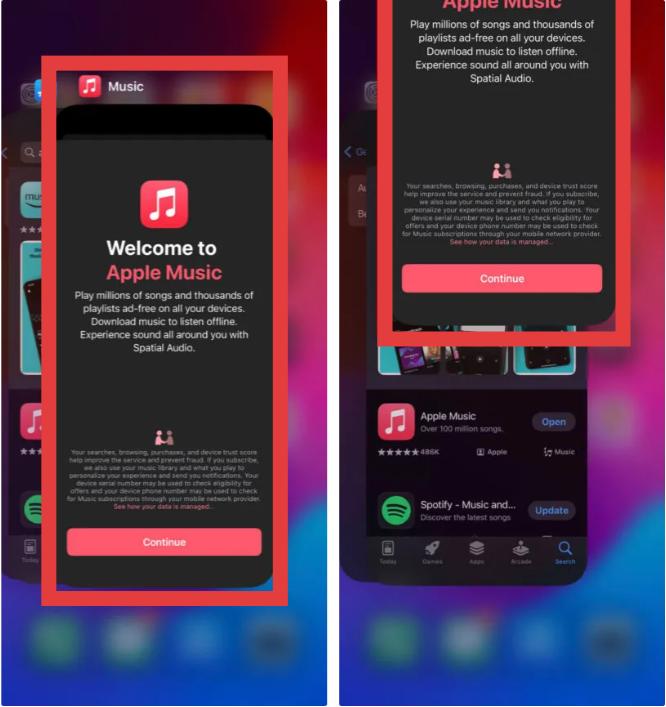
Auf iOS: Wischen Sie vom unteren Bildschirmrand nach oben zur Mitte und halten Sie den Finger gedrückt, bis die App-Übersicht erscheint. Wischen Sie auf der Apple Music-Vorschaukarte nach oben, um die App zu schließen. Kehren Sie zum Home-Bildschirm zurück und tippen Sie auf das Musik-Symbol, um die App neu zu starten.
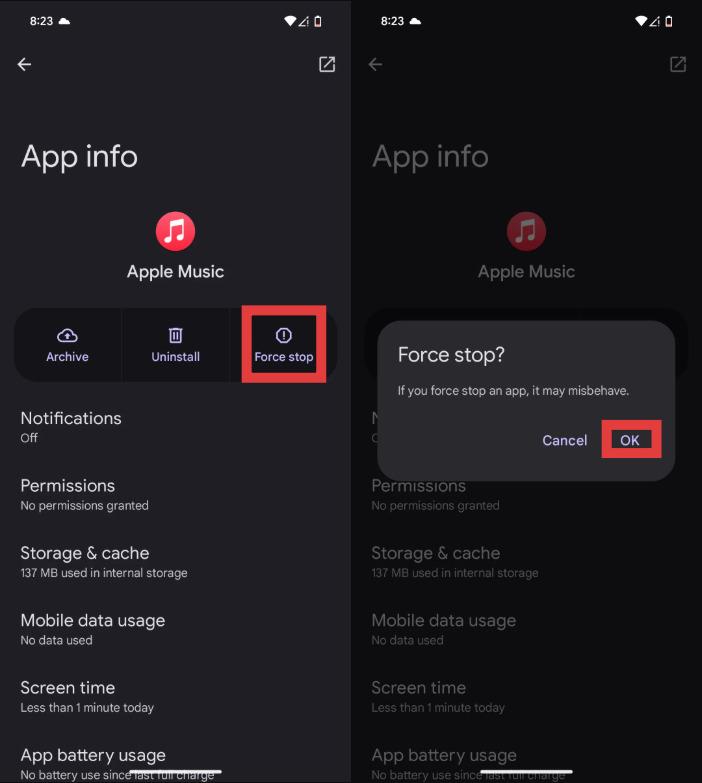
Auf Android: Gehen Sie zu Einstellungen > Apps > Apple Music und tippen Sie auf Stopp erzwingen. Dadurch werden alle Hintergrundprozesse beendet. Öffnen Sie Apple Music anschließend erneut über die App-Übersicht.
Unter macOS: Wählen Sie das Apple Music-Fenster aus und drücken Sie Befehl (⌘) + Q. Öffnen Sie es anschließend erneut über das Dock.
On WinDow Jones (10/11): Drücken Sie Strg + Umschalt + Esc. Suchen Sie Apple Music im Tab „Prozesse“. Klicken Sie mit der rechten Maustaste darauf und wählen Sie „Task beenden“.
Prüfe deine Internetverbindung
Falls Sie sich wundern, warum Apple Music beim Streamen nicht funktioniert, liegt das oft an einer instabilen Internetverbindung. Wechseln Sie auf Ihrem Gerät zwischen WLAN und mobilen Daten, um zu testen, ob Netzwerkprobleme die Wiedergabe beeinträchtigen.
Aktualisieren Sie iOS oder macOS
Veraltete Softwareversionen können Kompatibilitätsprobleme mit Apple Music verursachen. Durch ein Systemupdate lassen sich Probleme beheben, wenn Apple Music nicht ordnungsgemäß funktioniert.

Melde dich erneut mit deiner Apple-ID an.
Manchmal schlägt die Verifizierung des Apple Music-Kontos fehl. Das Ab- und erneute Anmelden bei Ihrer Apple-ID kann Probleme im Zusammenhang mit der Offline-Wiedergabe und der Musiksynchronisierung beheben.
Musikbibliothek neu synchronisieren
Wenn Wiedergabelisten oder heruntergeladene Songs verschwinden, fragen sich Nutzer möglicherweise: „Warum funktioniert Apple Music nicht?“, obwohl das Problem eigentlich ein Fehler bei der Mediathek-Synchronisierung ist. Deaktivieren und aktivieren Sie die Mediathek-Synchronisierung in den Einstellungen, um Ihre Musikdatenbank zu aktualisieren.
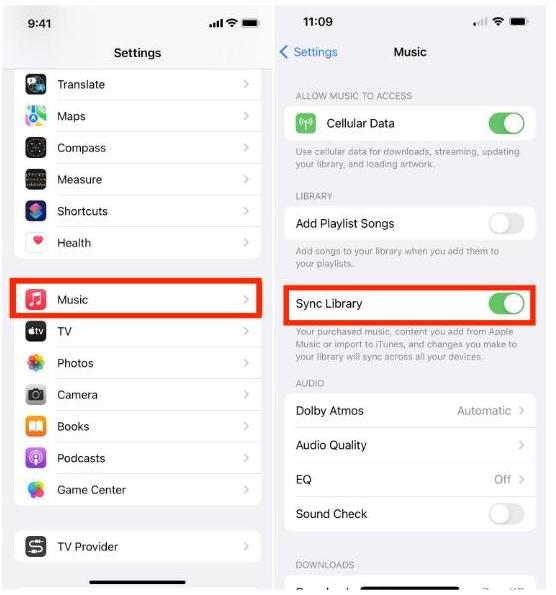
Auf iOS: Öffnen Sie „Einstellungen“ > „Apps“ > „Musik“. Aktivieren Sie die Synchronisierung der Mediathek.
Auf Android: Tippen Sie oben rechts auf das Dreipunkt-Menü (⋮) und wählen Sie „Einstellungen“. Suchen Sie „Bibliothek synchronisieren“, deaktivieren Sie die Option und aktivieren Sie sie anschließend wieder.
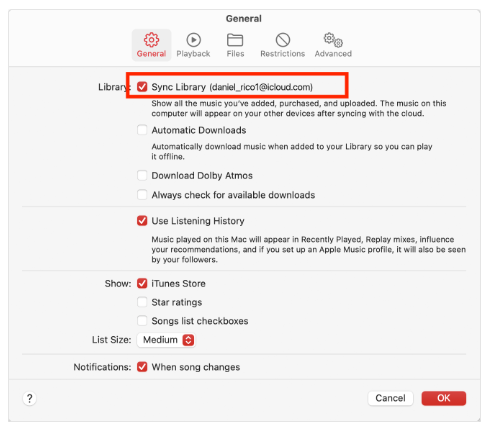
Unter macOS: Öffnen Sie die Musik-App. Gehen Sie zu Musik > Einstellungen > Allgemein und deaktivieren Sie die Option „Mediathek synchronisieren“. Klicken Sie auf OK und aktivieren Sie sie anschließend wieder.
On WinDow Jones (10/11): Klicken Sie unten in der Seitenleiste auf Ihren Profilnamen/Ihr Profilsymbol. Gehen Sie zu Einstellungen > Allgemein. Deaktivieren Sie die Synchronisierung der Bibliothek und aktivieren Sie sie anschließend wieder.
Offline-Songs erneut herunterladen
Beschädigte Downloads sind ein weiterer Grund, warum Apple Music offline nicht funktioniert. Das Entfernen und erneute Herunterladen von Titeln kann die Wiedergabefunktion wiederherstellen.
Cache leeren und Gerät neu starten
Zwischengespeicherte Daten und temporäre Dateien können die Apple Music App beeinträchtigen. Das Löschen des Caches und ein Neustart des Geräts können Wiedergabeprobleme oft beheben.
Teil 3. Die beste Methode, Apple Music dauerhaft offline nutzbar zu halten
Eine der größten Frustrationen für Nutzer ist, wenn die Offline-Wiedergabe plötzlich nicht mehr funktioniert. Viele suchen nach „Warum funktioniert mein Apple Music nicht offline?“, nachdem sie festgestellt haben, dass heruntergeladene Songs ohne Internetverbindung nicht mehr abgespielt werden können. Dies liegt meist daran, dass Offline-Downloads von Apple Music weiterhin auf DRM-Verifizierung und Abonnementauthentifizierung angewiesen sind. Für Nutzer, die eine stabilere Offline-Wiedergabe wünschen, bietet sich die lokale Speicherung von Musik an. MP3 Die Wiedergabe ist oft eine zuverlässigere Lösung.
Um wiederkehrende Wiedergabeprobleme mit Apple Music zu vermeiden, konvertieren viele Nutzer ihre Apple-Music-Songs in lokale Audiodateien. Eines der besten Tools dafür ist DumpMedia Apple MusikkonverterDieser professionelle Konverter hilft Benutzern Konvertieren Sie Apple Music in MP3 und speichern Sie sie für die stabile Offline-Wiedergabe, ohne sich vollständig auf die Apple Music App verlassen zu müssen.
Kostenloser Download Kostenloser Download
🏆Hauptmerkmale von DumpMedia Apple Musikkonverter
- 🎶Lade Apple Music herunter MP3WAV, FLAC und AAC
- ????Apple Music DRM-Schutz entfernen*
- 🎶Originale Klangqualität beibehalten
- 🎶Playlists und Alben im Stapel herunterladen
- 🎶Schnelle Konvertierungsgeschwindigkeit
- 🎶Metadaten und ID3-Tags der Songs beibehalten
- 🎶Unterstützt die Offline-Wiedergabe auf jedem Gerät
Für Nutzer, die immer wieder fragen: „Warum funktioniert mein Apple Music nicht?“, lokale MP3 Die Konvertierung bietet eine langfristige Wiedergabelösung.
So konvertieren Sie Apple Music für die stabile Offline-Wiedergabe
Schritt 1: Laden Sie DumpMedia Installieren Sie den Apple Music Converter auf Ihrem Mac/PC. Starten Sie das Programm, und die Benutzeroberfläche wird angezeigt. Melden Sie sich mit Ihrem Apple Music-Konto an.
Kostenloser Download Kostenloser Download
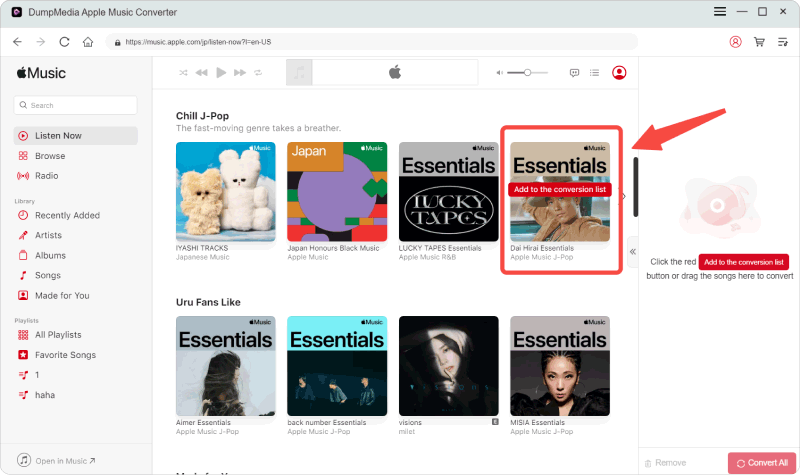
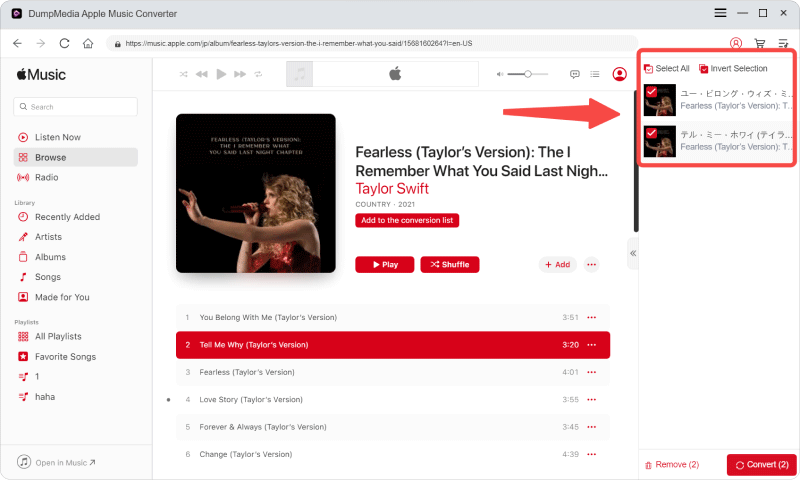
Schritt 2. Suchen Sie die Playlist, das Album oder den gewünschten Song, den Sie konvertieren möchten. Sie können einen einzelnen Song auf das „+“-Symbol rechts auf dem Bildschirm ziehen. Alternativ können Sie eine ganze Playlist/ein ganzes Album öffnen und auf das Symbol „Zum Konvertieren hinzufügen“ klicken, um die gesamte Liste in den Konverter zu laden.
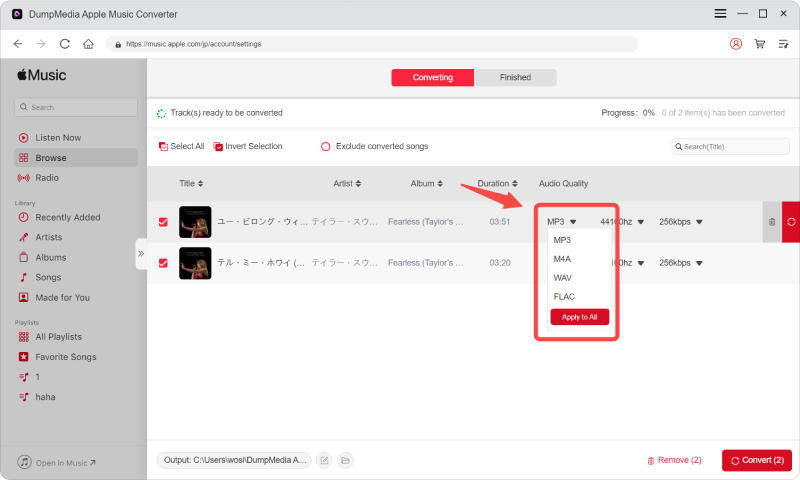
Schritt 3: Auswählen MP3 (Am besten kompatibel). Sie können auch die Bitrate oder die Abtastrate ändern. Für ein optimales Verhältnis wählen Sie 320 kbps.
Schritt 4: Sobald die Einstellungen abgeschlossen sind, können Benutzer die Konvertierung durch Klicken auf das Symbol „Konvertieren“ durchführen. Dann DumpMedia wird Apple Music-Songs konvertieren in MP3 innerhalb von Sekunden dank seiner superschnellen Geschwindigkeit.
Nach der Konvertierung können Ihre Songs offline abgespielt werden, ohne dass es zu Verifizierungsproblemen mit Apple Music kommt.
Teil 4. Häufig gestellte Fragen
Warum funktioniert mein Apple Music nicht?
Probleme mit Apple Music können durch Internetprobleme, Ablauf des Abonnements, DRM-Beschränkungen oder App-Bugs verursacht werden.
Warum sind meine Apple Music-Songs ausgegraut?
Ausgegraute Lieder deuten in der Regel auf Lizenz- oder Synchronisationsprobleme hin.
Warum kann ich heruntergeladene Apple Music-Songs nicht abspielen?
Auch Offline-Downloads erfordern eine Kontoverifizierung und DRM-Authentifizierung.
Kann ich Apple Music-Songs für immer behalten?
Offizielle Downloads verfallen mit dem Abonnement. Konvertierte lokale Dateien können dauerhaft gespeichert werden.
Is DumpMedia Sicherer Apple Music Converter?
Ja. Es ist für die Apple Music-Konvertierung und die Offline-Wiedergabeverwaltung konzipiert.
Teil 4. Zusammenfassung
Wenn Sie sich immer wieder fragen „Warum funktioniert Apple Music nicht?“, liegt das Problem häufig an DRM-Beschränkungen, der Abonnementverifizierung, App-Abhängigkeiten oder der Internetverbindung. Für Nutzer, die zuverlässiger offline Musik hören möchten, DumpMedia Der Apple Music Converter bietet eine praktische Möglichkeit, Apple Music-Songs in dauerhafte lokale Dateien umzuwandeln. MP3 Dateien. Durch den Wegfall von Wiedergabebeschränkungen und App-Abhängigkeiten können Nutzer Apple Music flexibler auf verschiedenen Geräten und in Offline-Umgebungen genießen.
Kostenloser Download Kostenloser Download
*DumpMedia Das Programm entschlüsselt und lädt Apple Music-Titel in DRM-freie Dateien herunter, sodass Sie eine saubere, uneingeschränkte Kopie Ihrer Musikbibliothek für jedes Gerät erhalten. Lokale Audiodateien können jedoch nicht vom DRM-Schutz befreit werden.