


Hur bränner man en CD från iTunes eller Apple Music?
Att bränna en CD från iTunes brukade vara enkelt, men saker och ting förändrades när Apple introducerade äpple MusicMånga användare kämpar nu med hur man bränna CD från iTunes eller Apple Music, eftersom de flesta strömmande spår är skyddade av DRM och inte kan brännas direkt. Om du försöker bränna Apple Music-låtar, även de som lagts till i iTunes-appen, kommer du alltid att få ett felmeddelande.
Den här guiden förklarar varför du inte kan bränna Apple Music-spår direkt, hur du bränner en CD med DRM-fria filer och hur DumpMedia Apple Music Converter hjälper dig att konvertera Apple Music-spår till CD-kompatibla format.
Innehållsguide Del 1. Varför du inte kan bränna Apple Music- eller iTunes-spår direktDel 2. Konvertera Apple Music-spår till DRM-fria MP3/WAVDel 3. Bränn konverterade Apple Music- eller iTunes-låtarDel 4. Vanliga frågorDel 5. Sammanfattning
Del 1. Varför du inte kan bränna Apple Music- eller iTunes-spår direkt
Även om iTunes fortfarande tillåter CD-bränning, är inte all musik i iTunes brännbar. Den största begränsningen kommer från Apple Music.
Apple Music-låtar är skyddade av DRM
När du lägger till Apple Music-låtar i iTunes krypteras filerna fortfarande av FairPlay DRM. DRM hindrar användare från att:
- kopiera låtar
- bränna spår till en CD
- överföra filer till andra enheter
- spela dem utanför Apples ekosystem
Även om låtarna dyker upp i iTunes-biblioteket förblir de låsta strömmande filer, inte äkta nedladdningsbart ljud.
Apple Music-filer är inte riktiga ljudfiler
Apple Music-spår streamas och cachas, de laddas inte ner som MP3, AAC, WAV eller något annat brännbart format.
Del 2. Konvertera Apple Music-spår till DRM-fria MP3/WAV
Hur bränner man en CD från iTunes eller Apple Music? För att göra detta måste du konvertera dessa spår till DRM-fria filer. MP3 eller WAV-filer först. DumpMedia Apple Music Converter låter dig:
- ta bort Apple Music DRM
- konvertera Apple Music-låtar till MP3, WAV, AAC eller FLAC
- bevara ID3-taggar och originalljudkvalitet
- exportera filer helt kompatibla med CD-bränningsprogram
Gratis nedladdning Gratis nedladdning
Konvertera Apple Music-låtar till MP3
Hur bränner man en CD från iTunes eller Apple Music? Här är stegen för att konvertera Apple Music-spår till MP3 by DumpMedia Apple Music Converter:
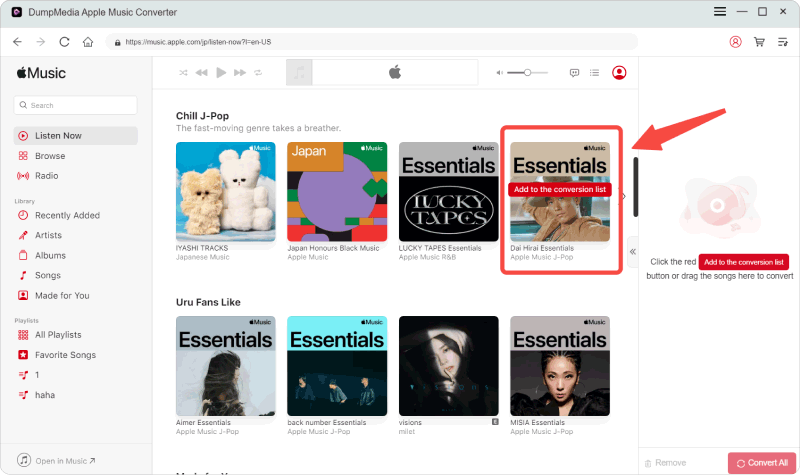
Steg 1. Ladda ned och installera DumpMedia Apple Music Converter. PC- och Mac-versioner finns tillgängliga. Öppna DumpMediaoch gå sedan till fliken Bibliotek. Välj de låtar du vill konvertera från ditt Apple Music Library.
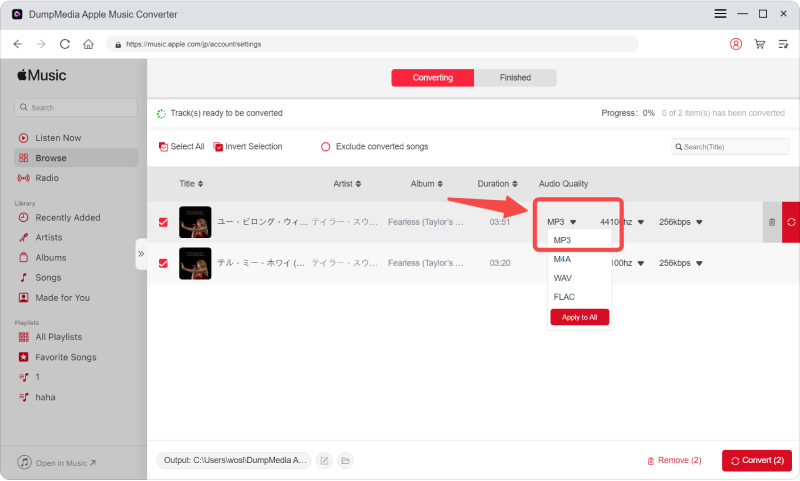
Steg 2. Välja MP3 som utgångsformat.
Steg 3. Klicka på Konvertera för att bearbeta filerna. Dina musikfiler kommer att exporteras som MP3.
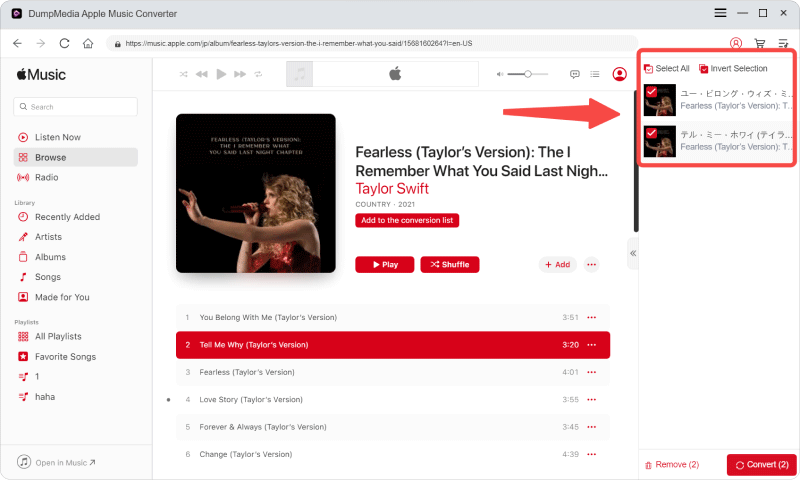
Nu är din musik redo för CD-bränning.
Del 3. Bränn konverterade Apple Music- eller iTunes-låtar
Hur bränner man en CD från iTunes eller Apple Music? När du har konverterat dina Apple Music-spår till DRM-fria spår MP3 eller WAV-filer med hjälp av DumpMedia Apple Music Converter kan du börja bränna spellistan till en CD.
Steg 1. Öppna iTunes/Apple Music-appen. Gå till Arkiv > Lägg till i biblioteket.
Steg 2. Importera MP3/WAV-filer konverterade av DumpMedia.
Steg 3. Gå till Arkiv > Ny > Spellista. Namnge spellistan. Dra dina konverterade låtar till spellistan.
Steg 4. Sätt i en tom CD-skiva i datorn. Högerklicka på spellistan.
Steg 5. Välj Bränn spellista till skiva. Välj Ljud-CD och andra bränningsinställningar.
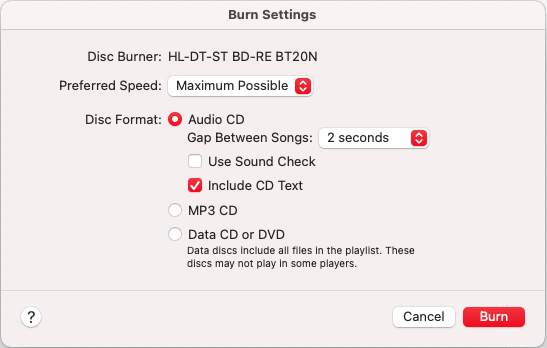
Steg 6. Klicka på Bränn för att slutföra din CD.
Del 4. Vanliga frågor
1. Kan jag bränna Apple Music-låtar direkt till en CD?
Nej. Apple Music-spår har DRM-skydd och iTunes blockerar CD-bränning. Du måste först konvertera dem med ett verktyg som DumpMedia Apple Music Converter.
Gratis nedladdning Gratis nedladdning
2. Behöver jag en Premium Apple Music-prenumeration?
Ja. Du behöver kunna ladda ner Apple Music-låtar innan du konverterar dem.
3. Vilka format stöds för att bränna CD-skivor?
Standardformat för CD-bränning inkluderar: MP3, WAV och AIFF. DumpMedia export i MP3 och WAV, båda perfekta för att skapa CD-skivor.
4. Är det lagligt att konvertera Apple Music-låtar?
Konvertering för personligt bruk offline är generellt acceptabelt. Distribuera eller dela inte kopior.
Del 5. Sammanfattning
Hur bränner man en CD från iTunes eller Apple Music? Det är inte längre enkelt eftersom Apple Music-spår är skyddade av DRM. Men med DumpMedia Med Apple Music Converter kan du enkelt konvertera Apple Music-låtar till DRM-fria MP3 eller WAV-filer, importera dem till iTunes och bränn din CD utan fel.

30% rabatt >>>