


Fungerar inte Apple Music-familjedelning? 10 lösningar som faktiskt fungerar
Apple Music Family Sharing är ett bekvämt sätt för upp till sex familjemedlemmar att njuta av en Apple Music Family-prenumeration samtidigt som de behåller sina egna personliga bibliotek, spellistor och rekommendationer. Funktionen fungerar dock inte alltid som förväntat. Lyckligtvis är de flesta problem med familjedelning enkla att åtgärda. I den här guiden förklarar vi de vanligaste orsakerna till att Apple Music Family Sharing inte fungerar, visar dig hur du konfigurerar familjedelning korrekt och går igenom tio beprövade lösningar som kan få alla att lyssna igen.
Innehållsguide Del 1. Varför fungerar inte Apple Music via Familjedelning? Del 2. Hur konfigurerar man Apple Music Familjedelning korrekt? Del 3. 10 sätt att åtgärda problemet med att Apple Music inte fungerar via Familjedelning Del 4. Varför kan mina familjemedlemmar inte komma åt Apple Music? Del 5. Njut av Apple Music offline utan begränsningar för Familjedelning Del 6. Vanliga frågor Del 7. Slutsats
Del 1. Varför fungerar inte Apple Music via familjedelning?
Innan man provar olika lösningar är det bra att förstå vad som orsakar problemet.
Vanliga orsaker inkluderar:
- Din Apple Music-prenumeration är inte en familjeplan.
- Familjedelning har inte konfigurerats korrekt.
- Familjemedlemmar är inloggade med olika Apple ID-er.
- Enheterna är inställda på olika länder eller regioner.
- Synkronisera biblioteket är inaktiverat.
- Apple Music-appen är föråldrad.
- Tillfälliga nätverks- eller Apple-serverproblem.
Att identifiera grundorsaken gör det mycket enklare att lösa problemet med att Apple Music Family Sharing inte fungerar.
Del 2. Hur konfigurerar man Apple Music-familjedelning korrekt?
Många delningsproblem uppstår eftersom Familjedelning inte har konfigurerats helt. Följ dessa steg för att konfigurera det korrekt.
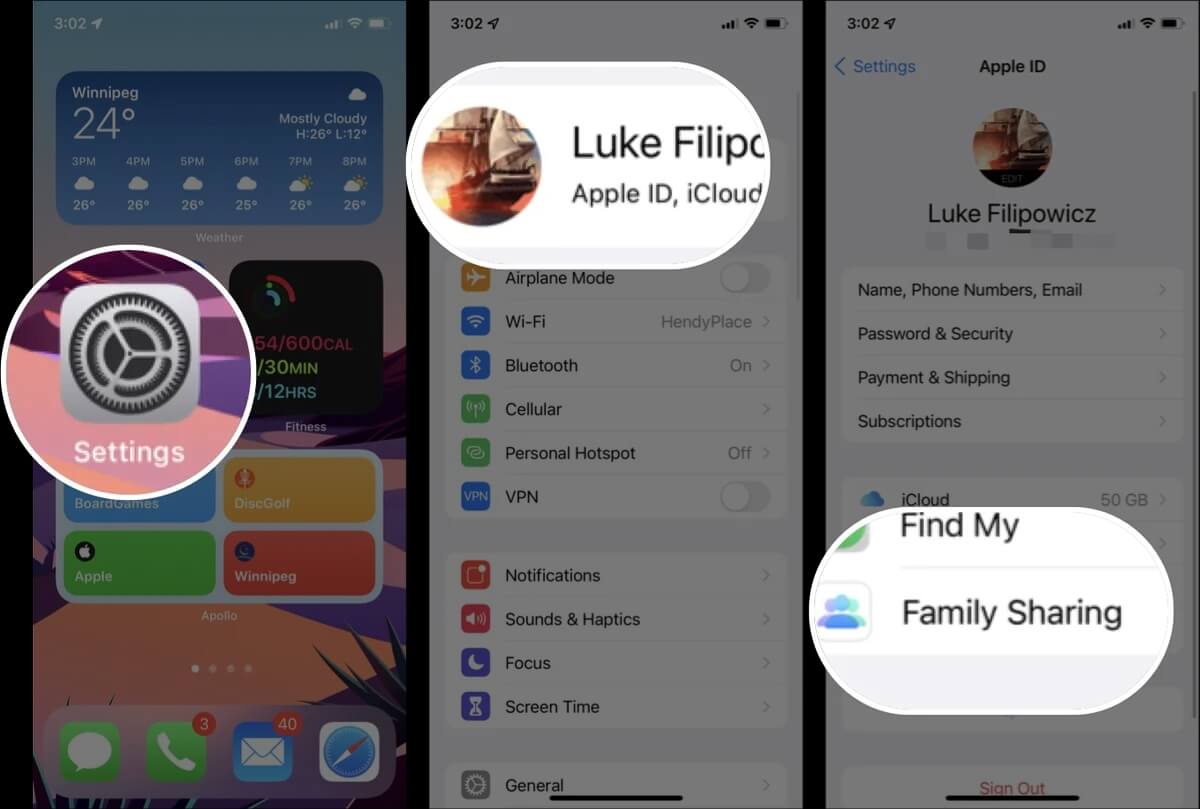
Steg 1: Skapa en familjegrupp
- Öppna Inställningar på din iPhone eller iPad
- Tryck på ditt Apple-ID.
- Välj Familj (eller Familjedelning på vissa versioner av iOS).
- Tryck på Konfigurera din familj.
- Följ instruktionerna på skärmen.
Steg 2: Prenumerera på Apple Music Family Plan
Familjedelning fungerar bara med en Apple Music Family-prenumeration. Kontrollera din prenumeration genom att gå till: Inställningar > Apple-ID > Prenumerationer.
Steg 3: Bjud in familjemedlemmar
Efter att du skapat din familjegrupp:
- Öppna Familjeinställningar.
- Tryck på Lägg till medlem.
- Skicka inbjudningar med dina familjemedlemmars Apple-ID:n.
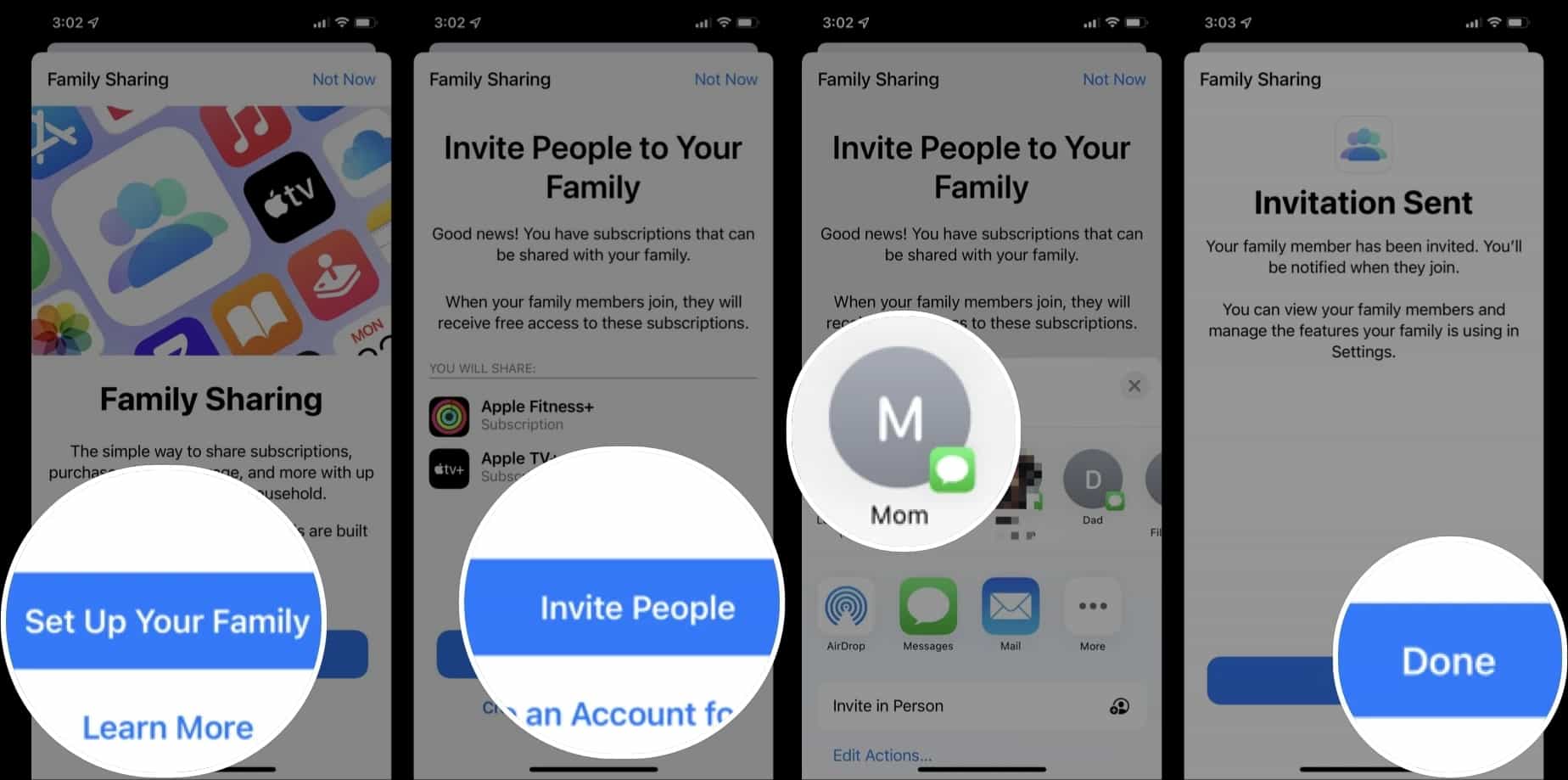
Varje inbjudan måste accepteras innan Apple Music kan delas.
Steg 4: Verifiera Apple-ID:n
Att använda ett annat konto är en av de vanligaste orsakerna till att Apple Music Family Sharing inte fungerar. Varje familjemedlem bör logga in med rätt Apple-ID som är kopplat till familjedelningsinbjudan.
Del 3. 10 sätt att fixa Apple Music som inte fungerar via familjedelning
Om Familjedelning redan är konfigurerat kan du prova dessa felsökningsmetoder.
Åtgärd 1: Bekräfta att du har ett Apple Music-familjeabonnemang
Endast Apple Music Family-prenumerationen har stöd för familjedelning. Om du använder ett individuellt eller studentabonnemang måste du uppgradera.
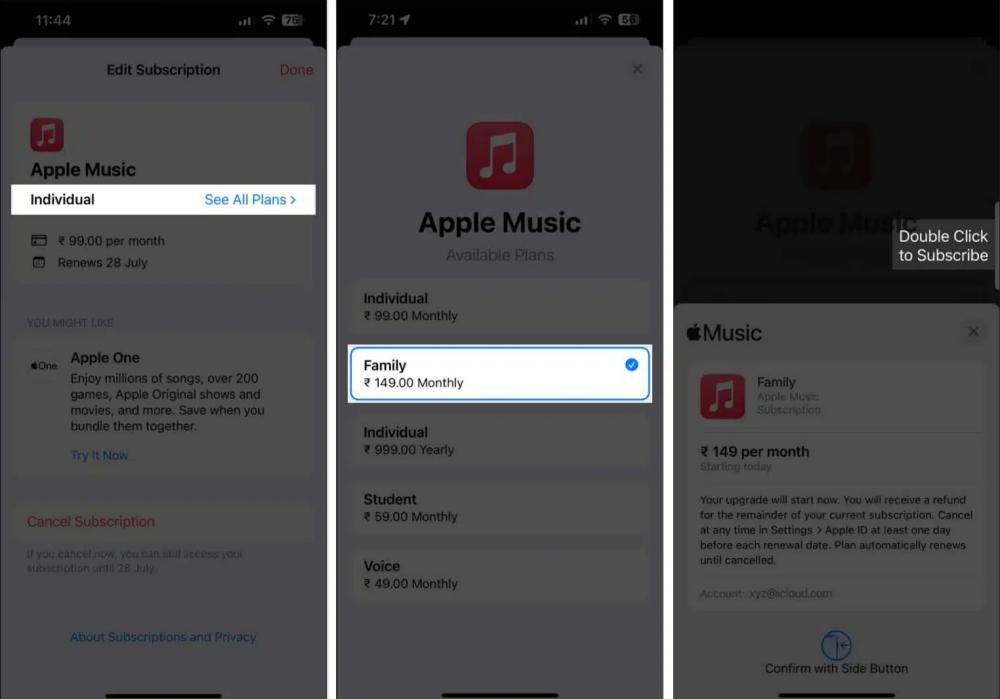
Relaterad artikel: Hur man byter från individuell till familjemässig konfiguration på Apple Music
Åtgärd 2: Kontrollera inställningarna för familjedelning
Hur åtgärdar man om Apple Music Family Sharing inte fungerar? Du bör kontrollera att alla avsedda medlemmar visas i din familjegrupp. Om någon saknas, skicka en ny inbjudan.
Åtgärd 3: Se till att alla använder samma land eller region
Apple kräver att alla medlemmar i Familjedelning använder samma Apple-ID i landet eller regionen. Om konton är registrerade i olika länder kanske delade prenumerationer inte fungerar.
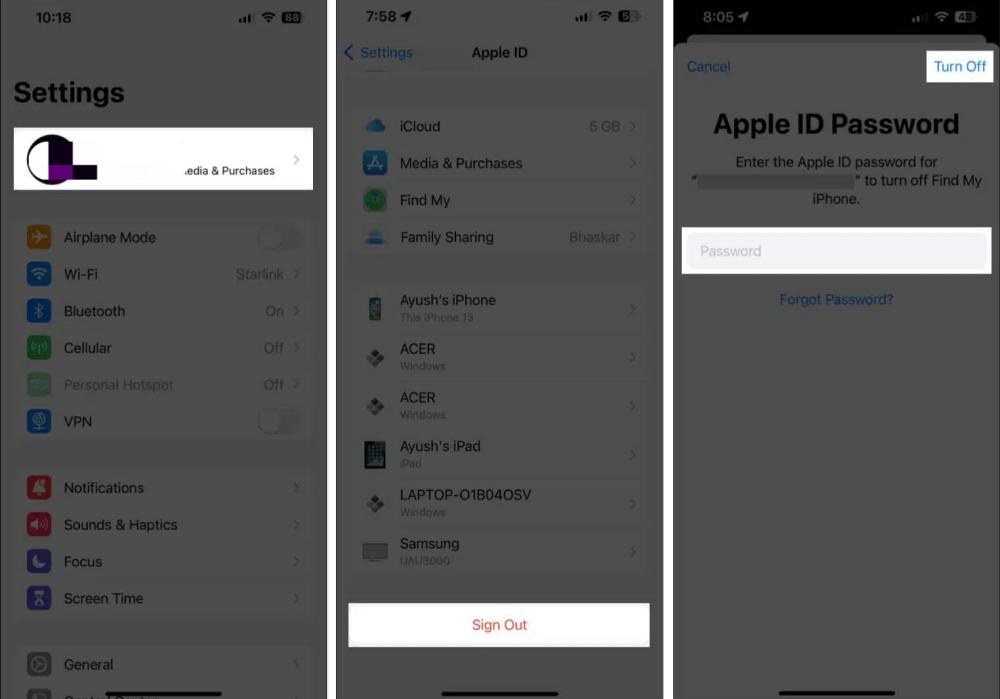
Fix 4: Logga ut och logga in igen
Att uppdatera ditt Apple-ID löser ofta synkroniseringsproblem.
- Öppna Inställningar.
- Tryck på ditt Apple-ID.
- Logga ut.
- Starta om enheten.
- Logga in igen.
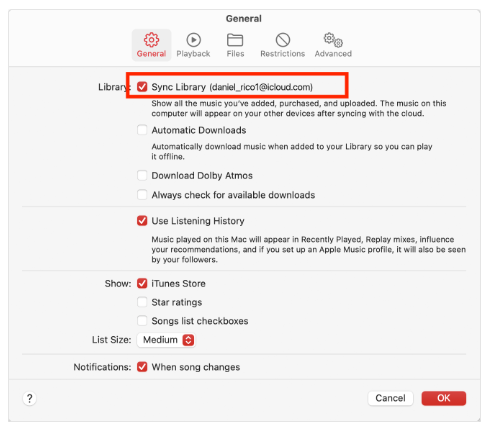
Åtgärd 5: Aktivera synkronisering av bibliotek
Synkroniseringsbibliotek krävs för att Apple Music-innehåll ska förbli synkroniserat.
- På mobilen: Gå till Inställningar > Musik och se till att Synkronisera bibliotek är PÅ. Om det redan var påslaget kan du prova att avaktivera det, vänta några sekunder och sedan slå på det igen för att starta en ny skanning.
- På skrivbordet: Öppna Musik-appen, gå till Inställningar (eller Inställningar) > Allmänt och se till att Synkronisera bibliotek är markerat.
Åtgärd 6: Uppdatera Apple Music
Att köra en föråldrad version av iOS, macOS eller Apple Music-appen kan orsaka kompatibilitetsproblem. Hur åtgärdar man att Apple Music Familjedelning inte fungerar? Installera de senaste tillgängliga uppdateringarna på alla enheter.
Åtgärd 7: Starta om alla enheter
Ibland kan en enkel omstart uppdatera Apple Music-tjänsterna och lösa tillfälliga problem. Starta om både arrangörens enhet och den berörda familjemedlemmens enhet.
Åtgärd 8: Ta bort och lägg till familjemedlemmen igen
Om någon fortfarande inte kan komma åt Apple Music:
- Ta bort dem från Familjedelning.
- Vänta några minuter.
- Skicka en ny inbjudan.
Detta löser ofta problem relaterade till inbjudningar.
Åtgärd 9: Kontrollera skärmtidsbegränsningar
Inställningar för skärmtid kan blockera vissa Apple-tjänster.
Gå till: Inställningar > Skärmtid > Innehålls- och sekretessbegränsningar
Se till att Apple Music inte är begränsad.
Åtgärd 10: Kontakta Apple-supporten
Om ingen av ovanstående metoder fungerar kan ditt konto ha ett fakturerings- eller serverrelaterat problem som kräver hjälp från Apple-supporten.
Del 4. Varför kan inte mina familjemedlemmar komma åt Apple Music?
Om familjemedlemmar fortfarande inte kan använda Apple Music, kontrollera om det finns dessa vanliga problem.
- Inbjudan har inte accepterats: Den inbjudna medlemmen måste acceptera inbjudan till Familjedelning innan den får åtkomst.
- Felaktigt Apple-ID: Många användare loggar av misstag in med ett annat Apple-ID än det som fick inbjudan.
- Prenumerationen har gått ut: Om familjeprenumerationen har löpt ut eller betalningen misslyckas kommer Apple Music-åtkomsten att stängas av för alla.
- Enhetskompatibilitet: Äldre versioner av iOS, iPadOS, macOS eller Apple Music-appen kanske inte har fullt stöd för nyare Familjedelningsfunktioner.
- Internetanslutning: Apple Music kräver en aktiv internetanslutning för att verifiera prenumerationer och synkronisera information om Familjedelning.
Del 5. Njut av Apple Music offline utan begränsningar för familjedelning
Familjedelning är en praktisk funktion, men den är beroende av Apple-ID:n, prenumerationsstatus, internetåtkomst och korrekt synkronisering. Om dessa krav inte uppfylls kan användare tillfälligt förlora åtkomsten till sitt musikbibliotek. För användare som vill ha större flexibilitet i att hantera sin personliga musiksamling offline, DumpMedia Apple Music Converter erbjuder en alternativ lösning. Med DumpMedia, Du kan konvertera Apple Music-låtar till MP3, WAV, FLAC eller AAC. Detta gör det enklare att organisera och njuta av din musiksamling på flera enheter.
Gratis nedladdning Gratis nedladdning
🏆Varför använda DumpMedia Apple Music Converter
- Batchkonvertera Apple Music-spellistor, album och låtar.
- Spara enkelt Apple Music-spår med originalkvalitet upp till 320 kbps och 48 kHz.
- Bevara ID3-taggar, albumomslag, artistnamn och metadata.
Dela Apple Music med alla som använder DumpMedia
Steg 1: Ladda ned och installera DumpMedia Apple Music Converter på din Mac/PC. Starta programmet så ser du gränssnittet. Använd ditt Apple Music-konto för att logga in.
Gratis nedladdning Gratis nedladdning
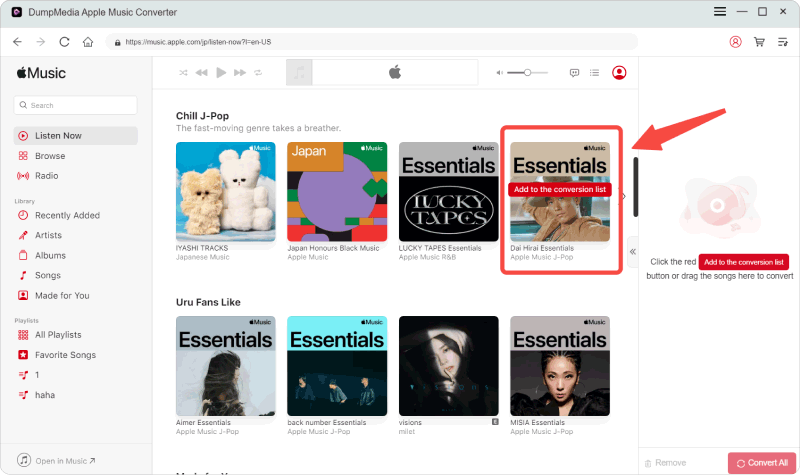
Steg 2: Sök efter låtar, spellistor och album du gillar. Klicka på knappen "Lägg till i konvertering" för att starta analysprocessen. Efter analyseringen visas de valda låtarna i konverteringslistan på höger sida av gränssnittet.
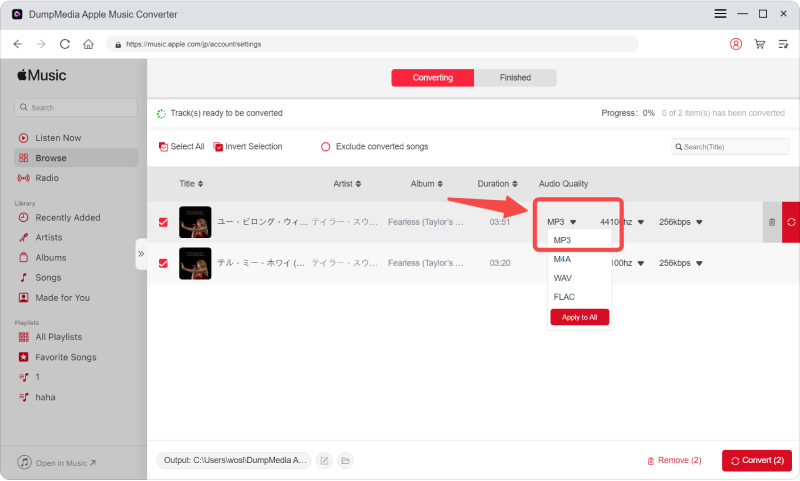
Steg 3: Nu kan du enkelt välja MP3 som utdataformat från rullgardinsmenyn. Dessutom kan du anpassa utdatabithastigheten och samplingsfrekvensen baserat på dina önskemål.
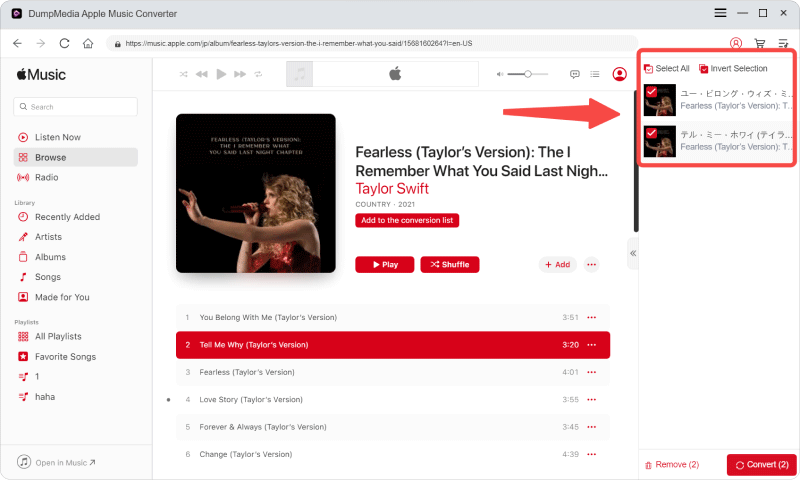
Steg 4: När inställningarna är klara kan användarna genomföra konverteringen genom att trycka på ikonen "Konvertera". DumpMedia kommer att ladda ner Apple Music till MP3 inom några sekunder med sin supersnabba hastighet.
När låtarna har konverterats kan de spelas upp på kompatibla enheter som datorer, USB-minnen, MP3 spelare och bilstereosystem. Du kan också dela dem med vem som helst.
Del 6. Vanliga frågor
Hur återställer jag Apple Music Familjedelning?
Du kan ta bort den berörda familjemedlemmen från din familjegrupp, starta om dina enheter och sedan skicka en ny inbjudan. Kontrollera också att alla är inloggade med rätt Apple-ID.
Varför kan inte min familjemedlem komma åt Apple Music?
De kanske inte har accepterat inbjudan till Familjedelning, använder fel Apple-ID, eller så är din Familjeprenumeration inte längre aktiv.
Behöver alla ett Apple-ID?
Ja. Varje medlem i Familjedelning måste ha ett eget Apple-ID för att gå med i familjegruppen och få tillgång till delade Apple Music-förmåner.
Hur lång tid tar det för Familjedelning att aktiveras?
I de flesta fall är åtkomst tillgänglig omedelbart efter att inbjudan har accepterats. Ibland kan synkroniseringen ta flera minuter.
Hur många personer kan använda Apple Music Familjedelning?
En Apple Music Family-prenumeration stöder upp till sex familjemedlemmar, inklusive organisatören.
Del 7. Slutsats
Att Apple Music Familjedelning inte fungerar kan vara frustrerande, men genom att följa felsökningsstegen i den här guiden kan du lösa de flesta problem med Familjedelning och återställa åtkomsten för alla i hushållet. Om du också letar efter större flexibilitet i hanteringen av ditt personliga musikbibliotek offline, DumpMedia Apple Music Converter erbjuder ett effektivt sätt att konvertera Apple Music-spår till ljudformat som stöds av många, samtidigt som högkvalitativt ljud och metadata bevaras för personlig offline-uppspelning.