


Hur man bränner en CD från SpotifyLadda ner och bränn Spotify Spellistor
Om du försöker bränna CD från Spotify, kommer du snabbt att upptäcka att Spotify tillåter inte direkt CD-bränning, inte ens med en Premium abonnemang. Spotifys nedladdade låtar är krypterade och begränsade till uppspelning endast inom Spotify app. På grund av detta DRM-skydd kan användare inte exportera låtar som MP3 filer eller importera dem till CD-bränningsprogram.
Lösningen är att först konvertera Spotify spår till ett CD-kompatibelt ljudformat med hjälp av en pålitlig Spotify konverterare och använd sedan ett skivbränningsprogram för att skapa din CD. Den här guiden guidar dig genom hela processen, inklusive rekommenderade format, detaljerade bränningssteg och viktiga tips för bästa ljudresultat.
Innehållsguide Kan man bränna en CD från Spotify Direkt?Steg 1: Konvertera Spotify Låtar före bränning (med hjälp av DumpMedia)Steg 2: Bränn Spotify Låtar till CD (detaljerad guide)Vanliga frågorSlutsats
Kan man bränna en CD från Spotify Direkt?
Därför att Spotifys ljudfiler använder ett krypterat Ogg Vorbis-format och är skyddade av DRM (Digital Rights Management), varken gratis- eller premiumanvändare kan bränna låtar direkt till en CD med hjälp av Spotify programmet, eftersom traditionell bränningsprogramvara inte kan känna igen dessa skyddade cachade data.
Att bränna CD från Spotifymåste du först ladda ner och konvertera Spotify spellista med hjälp av ett konverteringsverktyg från tredje part till vanliga förlustfria ljudformat som MP3, WAV eller FLAC, vilket tar bort plattformsbegränsningarna. När formatkonverteringen är klar kan du importera dessa vanliga ljudfiler till Windows Media Player, iTunes eller annan professionell bränningsprogramvara, och slutligen bränna dem permanent på en fysisk skiva för gratis lyssning på bilstereo eller traditionella spelare.
Steg 1: Konvertera Spotify Låtar före bränning (med hjälp av DumpMedia)
Det viktigaste steget i att lära sig att bränna CD från Spotify konverterar låtarna till ett brännbart format. DumpMedia Spotify Music Converter används ofta eftersom det stöder MP3, WAV, FLAC och andra CD-kompatibla format samtidigt som metadata bibehålls.
Gratis nedladdning Gratis nedladdning
Key Feature
- Ta bort DRM från Spotify låtar och spellistor säkert
- Konvertera Spotify låtar till MP3, M4A, AAC, WAV, etc.
- Ladda ner spellistor, album eller hela ditt bibliotek i batch
- Bevara hög ljudkvalitet och ID3-taggar
- Njut av din musik på vilken enhet som helst utan prenumerationsbegränsningar
Hur man konverterar Spotify Låtar med DumpMedia
Steg 1. Installera och starta DumpMedia Spotify Music Converter. Öppen Spotify och välj den låt du vill bränna till en CD.
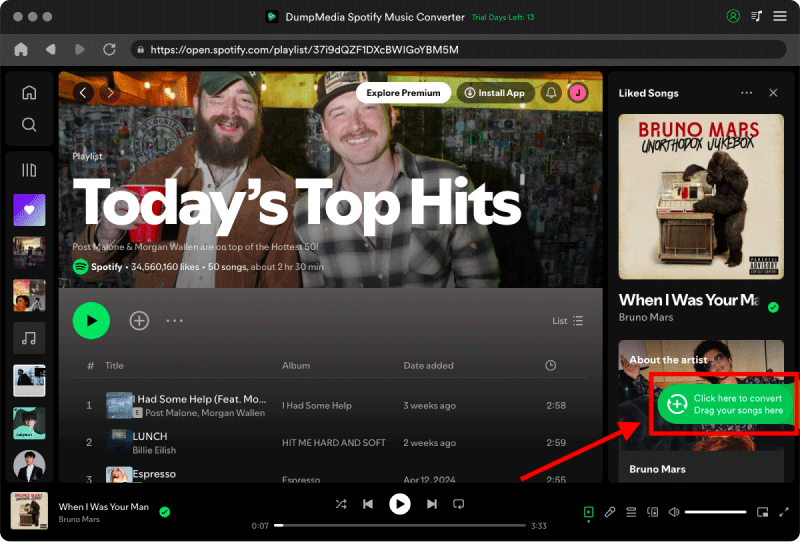
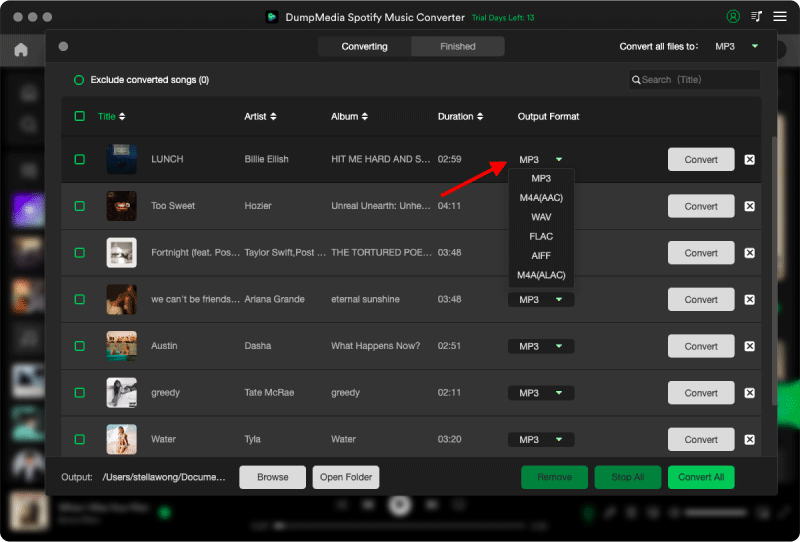
Steg 2. Välj ett utdataformat: WAV (bäst för ljud-CD)/MP3 (bäst för MP3 CD)/FLAC (arkivformat av hög kvalitet)
Steg 3. Klicka på "Konvertera" för att ladda ner din Spotify låtar.
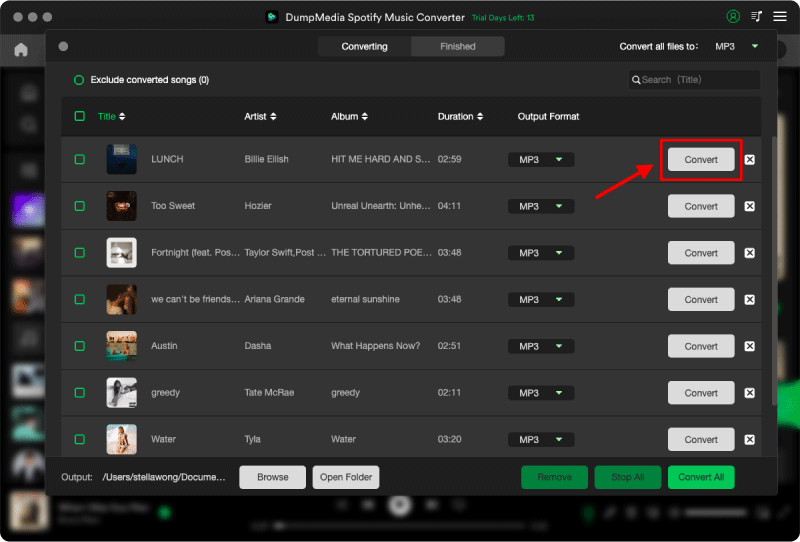
När de är konverterade är dina filer redo att brännas till CD.
Steg 2: Bränn Spotify Låtar till CD (detaljerad guide)
Nu när din Spotify När spår konverteras kan du välja mellan tre vanliga bränningsmetoder:
Metod 1: Bränn CD från Spotify Använda Musik-appen (macOS)
Steg 1. Öppna Apple Music. Gå till Arkiv > Nytt > Spellista. Dra din konverterade Spotify låtar i spellistan.
Steg 2. Sätt i en tom CD-R eller CD-RW. Högerklicka på spellistan och välj Bränn spellista till skiva.
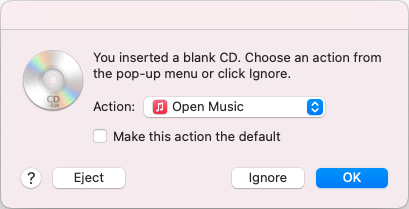
Steg 3. Välj bränningsinställningar: Ljud-CD (standard-CD för alla CD-spelare)/MP3 CD (endast för MP3-kompatibla spelare)/Välj önskad hastighet: 8x för färre bränningsfel
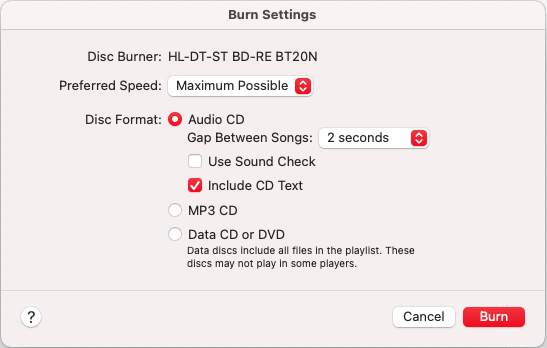
Steg 4. Klicka på Bränn.
Metod 2: Bränn CD från Spotify Använda Windows mediaspelare
Steg 1. Öppet Windows Media Player. Klicka på fliken Bränn. Sätt i en tom CD.
Steg 2. Dra din konverterade Spotify filer till bränningslistan.
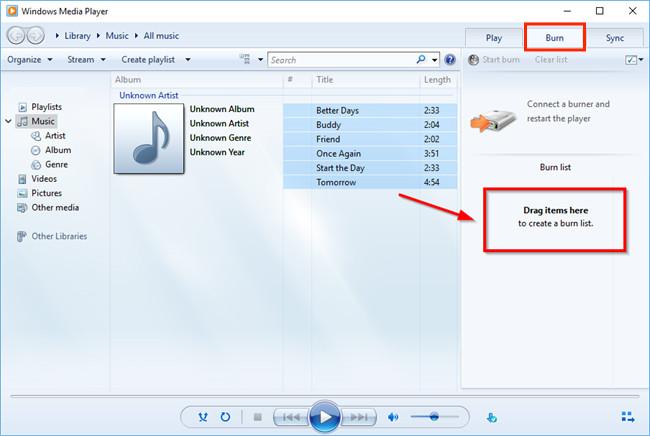
Steg 3. Välj bränntyp: Ljud-CD (för bilstereo och CD-spelare)/Data-CD (MP3 CD för moderna spelare)
Steg 4. Klicka på Starta bränning.
Windows Media Player är idealisk för Windows-användare eftersom det är inbyggt och inte kräver extra programvara.
Metod 3: Bränn CD från Spotify Använda Mac Finder
Finder stöder grundläggande CD-bränning utan iTunes/musikappen.
Steg 1. Skapa en mapp som innehåller din konverterade Spotify låtar. Sätt i en tom CD.
Steg 2. Högerklicka på mappen och välj Bränn till skiva.
Steg 3. Välj bränningshastighet. Bekräfta bränning.
Den här metoden är enkel, men den skapar inte traditionella ljud-CD-skivor, utan data-CD-skivor. För bilstereo och äldre spelare, använd Apple Music-appen.
Vanliga frågor
Är det lagligt att bränna CD från Spotify?
Bränna CD-skivor från Spotify Musik är endast tillåten för personligt, privat bruk. Det är strängt förbjudet att dela, sälja eller ladda upp brända CD-skivor.
Kan jag bränna CD från Spotify utan att konvertera låtarna?
Nej. Konvertering krävs eftersom Spotifys filer är krypterade och inkompatibla med CD-brännare.
Vilket format ska jag använda för att bränna Spotify låtar till CD?
Använd WAV för ljud-CD-skivor, eller MP3 för MP3 CD-skivor.
Varför säger iTunes att vissa låtar inte kan brännas?
Troligtvis är filerna fortfarande DRM-skyddade eller i fel format.
Hur många Spotify Får låtar plats på en CD?
- Ljud-CD: ~80 minuter (~20 låtar).
- MP3 CD: upp till 700 MB (~100–200 låtar).
Slutsats
Även om du inte kan bränna CD direkt från Spotify på grund av DRM-begränsningar blir processen enkel när du konverterar din Spotify spellistor till vanliga ljudformat. DumpMedia Spotify Music Converter låter dig ladda ner dina låtar som MP3 eller WAV-filer, vilket gör dem helt kompatibla med CD-bränningsverktyg som iTunes, WinDows Media Player och Finder.
Genom att följa stegen ovan kan du bränna CD-skivor från Spotify, skapa ljudskivor för din bil- eller hemstereo och bevara dina favoritspellistor offline utan begränsningar.