


Hur man överför Apple Music till Spotify (3 arbetsmetoder)
Om du letar efter hur du överför Apple Music till Spotify, försöker du förmodligen flytta dina spellistor, låtar eller hela musikbiblioteket utan att förlora din samling. Många användare inser dock snabbt något frustrerande: Apple Music-låtar överförs inte direkt till SpotifyDen här guiden visar dig exakt varför och, ännu viktigare, hur du löser det med hjälp av tre arbetsmetoder.
Innehållsguide Kan du överföra Apple Music till Spotify Direkt?Metod 1: Konvertera Apple Music och ladda upp till Spotify (Bästa metoden)Metod 2: Överför Apple Music till Spotify on Windows och MacMetod 3: Överför Apple Music till Spotify på mobilenVanliga frågorSlutsats
Kan du överföra Apple Music till Spotify Direkt?
Det korta svaret är nej, du kan inte överföra Apple Music direkt till SpotifyÄven om du laddat ner låtar från Apple Music är de inte vanliga ljudfiler som Spotify kan känna igen.
Varför Apple Music inte kan överföras till Spotify
Den främsta anledningen är DRM (Digital Rights Management) skydd. Apple Music-spår är krypterade och låsta till Apples ekosystem. Så de nedladdade filerna är inte tillgängliga som vanligt. MP3 filer. Spotifystöder å andra sidan bara lokala ljudfiler (MP3, WAV, AAC). Det betyder att du inte bara kan exportera Apple Music-låtar och importera dem till SpotifyDetta är det största hindret när man lär sig att överföra Apple Music till Spotify.
Metod 1: Konvertera Apple Music och ladda upp till Spotify (Bästa metoden)
Hur man överför Apple Music till SpotifyOm du vill ha en 100% fungerande och stabil lösning, bör du konvertera Apple Music-låtar till standardformat och sedan ladda upp dem till SpotifyGenom att använda ett verktyg som DumpMedia Apple Music Converter, kan du kringgå DRM-begränsningar* helt genom att konvertera Apple Music-spellistor till högkvalitativa MP3, WAV- eller AAC-filer. Den här metoden låter dig lagra spåren lokalt och importera dem direkt till Spotify som lokala filer, vilket säkerställer att ditt bibliotek förblir intakt och funktionellt över olika plattformar samtidigt som den ursprungliga ljudkvaliteten bibehålls.
Gratis nedladdning Gratis nedladdning
Mer funktioner
- Behåll musiken permanent
- Ladda ner hela spellistor i omgångar
- Bevara ID3-taggar (artist, album, titel)
- Njut av högkvalitativt ljud
Steg-för-steg-guide
Hur man överför Apple Music till SpotifyHär är de enkla guiderna för att använda detta DumpMedia Apple Music Converter.
Steg 1: Ladda ner och installera programvaran på din dator. Den fungerar med båda Windows och Mac. Gränssnittet är användarvänligt, vilket gör det enkelt för nybörjare.
Gratis nedladdning Gratis nedladdning
Steg 2: Öppna den inbyggda Apple Music-webbspelaren inuti DumpMedia och logga in med ditt Apple Music-konto. Bläddra bland Apple Music och dra de låtar, album eller spellistor du vill ladda ner till konverteraren.
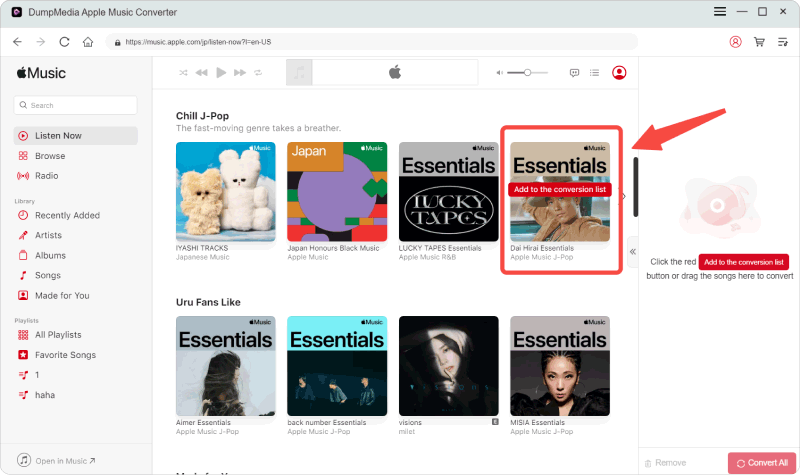
Steg 3: I inställningspanelen väljer du MP3 som utdataformat för att möjliggöra en MP3 nedladdning av dina valda låtar.
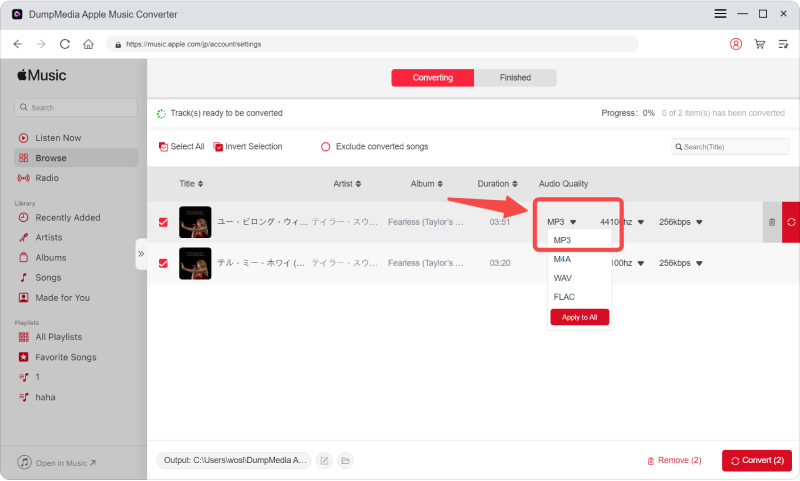
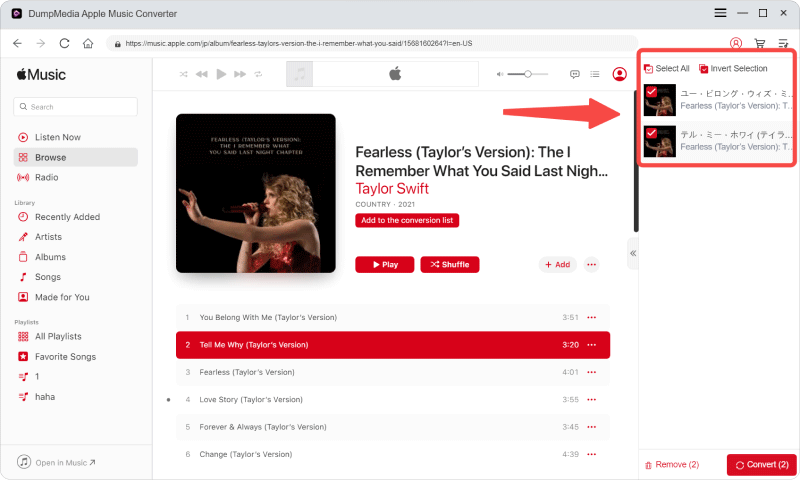
Steg 4: Klicka på "Konvertera" och vänta tills processen är klar.
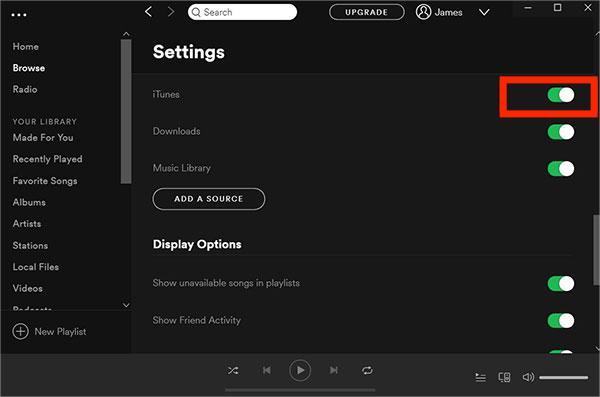
Steg 5: Öppet SpotifyGå till Inställningar → Lokala filer. Aktivera "Visa lokala filer". Lägg till din konverterade musikmapp.
Om du menar allvar med hur man överför Apple Music till Spotify, detta är den mest pålitliga lösningen.
Metod 2: Överför Apple Music till Spotify on Windows och Mac
Ett annat sätt att lösa hur man överför Apple Music till Spotify använder verktyg för överföring av spellistor. Alla Music Converters inkluderar en Överföring av spellista funktion som kan matcha låtar mellan plattformar. Den här metoden kopplar direkt samman Apple Music och Spotify konton och överför spellistor automatiskt.
Steg-för-steg-guide
Steg 1: Öppet DumpMedia Valfri musikkonverterare på din dator. Du kommer att se ett rent och intuitivt gränssnitt utformat för att göra konverteringen enkel, även för förstagångsanvändare.
Steg 2: Välj Verktyg > Överför spellista.

Steg 3: Välj Apple Music som källa.
Steg 4: Välja Spotify som plattformen dit du vill flytta din spellista.
Steg 5: Hitta de spellistor du vill överföra från Apple Music till Spotify och markera alla spellistor du vill flytta.
Steg 6: Starta migreringsprocessen. Verktyget matchar och överför låtar automatiskt. Klicka på "Gå till" SpotifyDina spellistor har flyttats till en ny tjänst och du kan börja njuta av din nya musikstreamingtjänst.
Fördelar
- Snabbt och automatiserat
- Ingen filkonvertering behövs
- Lätt för nybörjare
Nackdelar
- Matchningen är inte alltid korrekt
- Vissa låtar kan saknas
- Beror på Spotify tillgänglighet
Metod 3: Överför Apple Music till Spotify på mobilen
Hur man överför Apple Music till Spotify använder du en mobil enhet? För dig som föredrar en mobilorienterad strategi är det ett bekvämt sätt att överföra spellistor direkt från din smartphone att använda dedikerade appar. Populära verktyg som SongShift, FreeYourMusic och Soundiiz förenklar processen genom att ansluta till båda dina musiktjänster samtidigt. När de väl är länkade skannar och matchar dessa appar låtar över olika plattformar, vilket automatiskt återskapar hela ditt bibliotek i Spotify utan behov av en dator.
Steg-för-steg-guide
Steg 1: Ladda ner SongShift från iOS App Store. Gå till Inställningar > Musik på din iPhone och se till att Synkronisera bibliotek är PÅ.
Steg 2: Öppna SongShift och tryck på knappen "Anslut musiktjänster" (eller kugghjulsikonen för inställningar). Hitta Apple Music i listan, tryck på Anslut och auktorisera appen för åtkomst till ditt bibliotek.
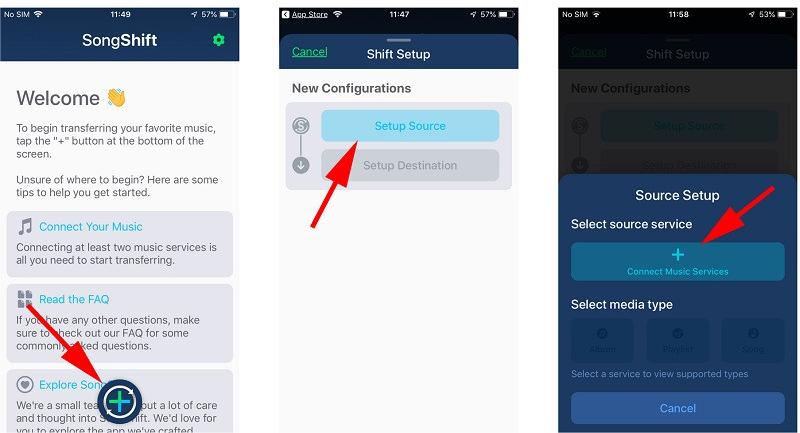
Steg 3: Upprepa detta för Spotify, loggar in och godkänner behörigheterna.
Steg 4: Tryck på plusikonen "+" (plus) högst upp på huvudskärmen för att starta ett nytt "Skift".
Steg 5: Tryck på Konfigurera källa och välj Apple Music. Välj medietyp (vanligtvis spellista) och välj den/de specifika spellista(or) du vill flytta.
Steg 6: Tryck på Konfigurera destination och välj Spotify.
Steg 7: Klicka på "Jag är klar" för att låta appen börja bearbeta.
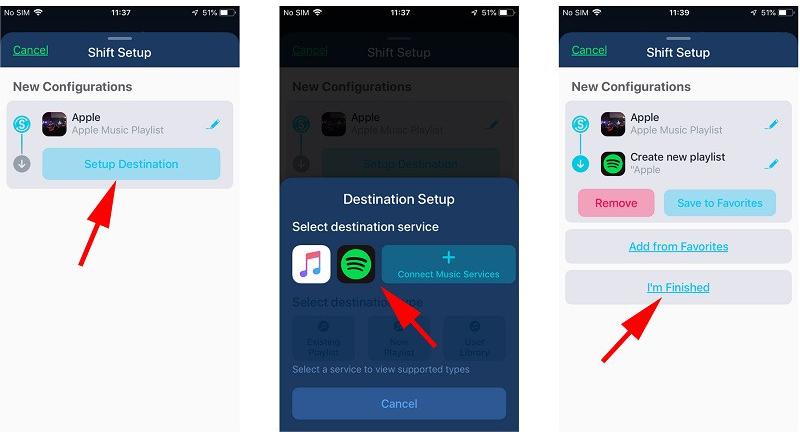
Steg 8: När du är nöjd trycker du på Bekräfta matchningar. Låtarna kommer nu att visas i din Spotify bibliotek.
Fördelar
- Slutför musiköverföringar utan att behöva en dator
- Ett enkelt steg-för-steg-gränssnitt
- Gör att du kan åtgärda felaktigheter manuellt innan överföringen slutförs
Nackdelar
- Kan inte överföra DRM-ljud
- Matchningsnoggrannheten varierar
- Vissa funktioner kräver betalning
Vanliga frågor
1. Kan jag överföra Apple Music till Spotify gratis?
Ja, men gratisverktyg har ofta begränsningar och kanske inte överför alla låtar.
2. Varför misslyckas det med att överföra låtar?
Apple Music-spår är DRM-skyddade och kan inte nås direkt.
3. Kan Spotify importera lokala filer?
Ja, Spotify låter dig importera och spela upp lokalt MP3 filer.
Slutsats
Sammanfattningsvis, om du letar efter hur du överför Apple Music till Spotify, det är viktigt att förstå att det inte finns någon direkt väg på grund av DRM-begränsningar. Även om verktyg för överföring av spellistor och mobilappar erbjuder snabba lösningar, har de ofta begränsningar som saknade spår eller felaktig matchning. Den mest pålitliga och kompletta metoden är att konvertera Apple Music till standardformat och ladda upp dem till Spotify, vilket garanterar full kontroll och noll dataförlust. Genom att välja rätt metod kan du framgångsrikt flytta ditt musikbibliotek och njuta av en sömlös lyssningsupplevelse på Spotify utan begränsningar.
Gratis nedladdning Gratis nedladdning
*DumpMedia fungerar genom att dekryptera och ladda ner Apple Music-låtar till DRM-fria filer, vilket gör att du kan få en ren, obegränsad kopia av ditt bibliotek för vilken enhet som helst. Dess funktionalitet inkluderar inte konvertering av lokala ljudfiler.

30% rabatt >>>