


Hur man tar bort en spellista på Apple Music [2026 Guide]
Apple Music makes it easy to organize your music library by creating playlists for different moods, occasions, or genres. Over time, however, your library can become cluttered with playlists you no longer need. If you're wondering how to delete a playlist on Apple Music, you've come to the right place. In this guide, we'll explain how to remove playlists from Apple Music across different devices, answer common questions, and show you how to preserve your favorite Apple Music tracks before deleting playlists.
Innehållsguide Part 1. What Happens When You Delete an Apple Music Playlist?Part 2. How to Delete an Apple Music Playlist?Part 3. Can You Recover a Deleted Apple Music Playlist?Part 4. Keep Your Apple Music Songs Before Deleting PlaylistsPart 5. FAQs About Deleting Apple Music PlaylistsDel 6. Slutliga tankar
Part 1. What Happens When You Delete an Apple Music Playlist?
Before learning how to delete a playlist on Apple Music, it's important to understand exactly what gets removed.
Here's what happens after deleting a playlist:
- The playlist disappears from your Apple Music library.
- Songs are not deleted from Apple Music's catalog.
- Songs you've added individually remain in your library.
- Downloaded copies associated only with that playlist may also be removed from your device.
If the playlist was created by Apple Music editors or another user, deleting it simply removes it from your account. You can usually search for it again later if it's still available.
Part 2. How to Delete an Apple Music Playlist?
Delete an Apple Music Playlist on iPhone and iPad
If you primarily listen to music on your iPhone or iPad, deleting playlists is straightforward. Follow these steps to delete a playlist on Apple Music:
- Starta Apple Music-appen på din iPhone eller iPad.
- Tap Library at the bottom of the screen.
- Tap Playlists and open the playlist you want to remove.
- Tap the three-dot (•••) menu near the top-right corner.
- Choose Delete from Library or Delete Playlist, then confirm your decision.
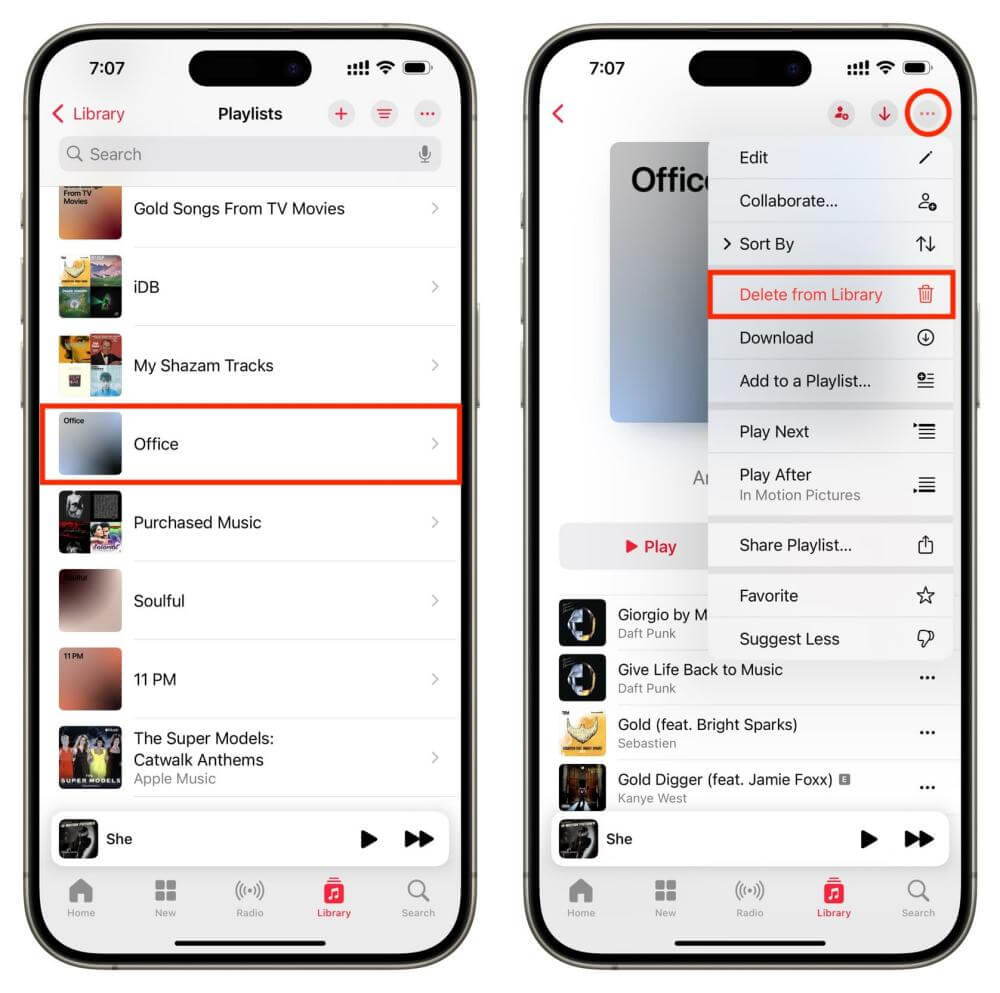
Once completed, the playlist will disappear from your account.
Delete an Apple Music Playlist on Android
To delete a playlist on Apple Music for Android:
- Starta Apple Music-appen på din Android-telefon eller surfplatta.
- Tap Library at the bottom of the screen.
- Choose Playlists to display your saved playlists.
- Tap the playlist you want to remove.
- Tryck på menyn med tre punkter i det övre högra hörnet.
- Select Delete from Library, then confirm your choice.
Delete a Playlist on Apple Music on Mac
If you use Apple Music on your Mac, managing playlists is even more convenient thanks to the larger interface. The process is slightly different from the mobile app, but it only takes a few clicks.
Here's how to delete a playlist on Apple Music using a Mac:
- Launch the Music app on your Mac.
- In the left sidebar, click Playlists under the Library section.
- Browse your playlists and select the one you'd like to remove.
- Right-click the playlist name, or click the three-dot menu beside it.
- Choose Delete from Library.
- Click Delete Playlist when prompted.
The playlist will immediately disappear from your library across all devices connected to the same Apple ID after iCloud Music Library syncs.
Delete a Playlist on Apple Music on Windows
- Go to the Apple Music app on your Windows enhet.
- Select a playlist in the sidebar.
- Select the More button for the playlist (on the right), then choose Delete From Library.
- Välj Ta bort för att bekräfta.
Part 3. Can You Recover a Deleted Apple Music Playlist?
One of the most common questions after learning how to delete a playlist on Apple Music is whether deleted playlists can be restored. The answer depends on the situation.
If You Accidentally Deleted a Playlist
If you removed a playlist by mistake, you may still have a chance to recover it. Some users can restore playlists by:
- Recovering a previous Apple Music library backup.
- Återställa en iCloud Music Library backup (if available).
- Re-adding an Apple-curated playlist through Search.
- Contacting Apple Support in rare cases involving synchronization issues.
Unfortunately, if you permanently deleted a playlist that you created yourself and no backup exists, Apple Music usually cannot restore it.
Part 4. Keep Your Apple Music Songs Before Deleting Playlists
Learning how to delete a playlist on Apple Music helps you keep your library organized, but what if there's music in that playlist you'd like to keep forever? Although deleting a playlist doesn't immediately remove songs from Apple Music, your access to those tracks still depends on an active Apple Music subscription. If you säga upp din Apple Music-prenumeration or a song is removed from the Apple Music catalog, you may no longer be able to play it.
For users who want permanent access to their favorite music, saving playlists as local audio files is a practical solution. This is where DumpMedia Apple Music Converter becomes useful. With DumpMedia, Du kan konvertera Apple Music-låtar, album och spellistor till MP3, WAV, AAC, and other popular formats. This allows music to be transferred to USB drives, MP3 players, SD cards, or other devices. Now you can create a permanent backup of playlists you've spent years building without an Apple Music subscription.
Gratis nedladdning Gratis nedladdning
🏆Varför välja DumpMedia Apple Music Converter
- Inbyggd Spotify Spelaren - för att logga direkt in i ditt Apple Music-bibliotek och välja alla låtar du gillar.
- Original ljudkvalitet bibehållen - behåll en bättre kvalitetsstatus för att spara originalmusikeffekter.
- Behåll ID3-taggar och metadatainformation - extrahera musikfiler med original ID3-taggar samt metadatainformation.
- Hastigheten för nedladdning av spellistor i batch - säkerställa ultrasnabb nedladdningshastighet för spellistor, vilket kan accelerera snabbare och underlätta högre effektivitet i nedladdningen av musik.
- Anpassa utgångsinställningarna - att välja din favoritbitrate och samplingsfrekvens baserat på dina behov.
How to Save Apple Music Before Deleting a Playlist
Before following the steps on how to delete a playlist on Apple Music, you can back up your favorite songs using DumpMedia.
Steg 1. DumpMedia Apple Music Converter supports Windows och Mac. Välj rätt version och ladda ner den från nedladdningsknappen ovan till din dator.
Gratis nedladdning Gratis nedladdning
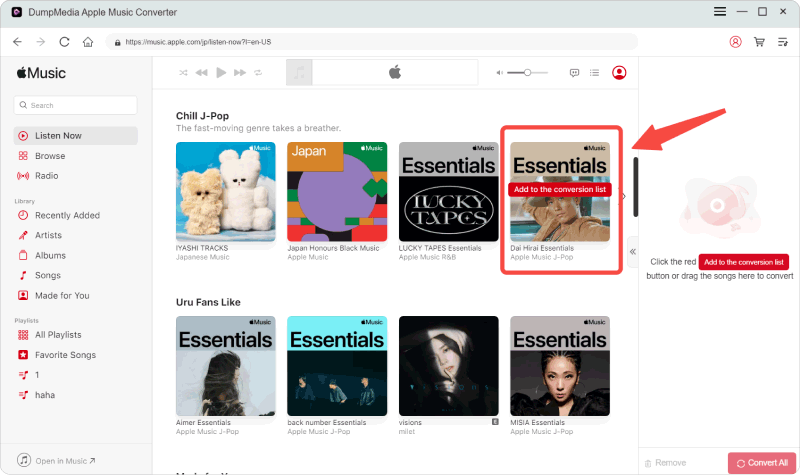
Steg 2. In the built-in Apple Music web player, log in to your Apple Music account and choose the songs you need to play offline. After that, drag and drop the playlist to the conversion button (a plus icon).
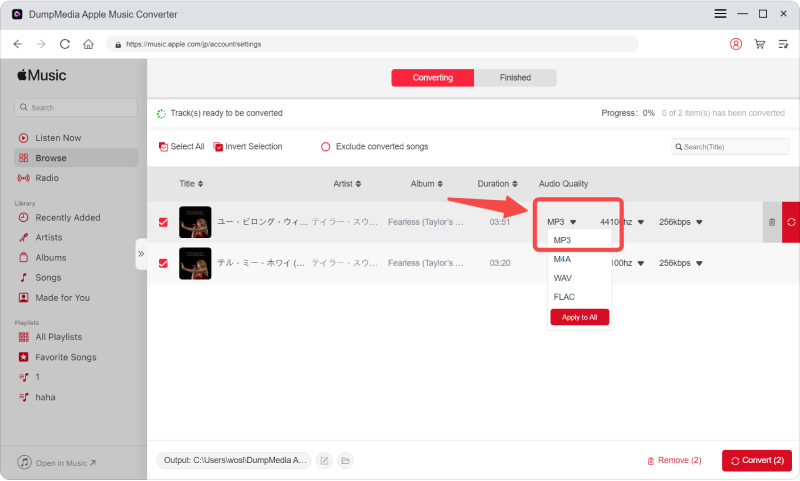
Steg 3. Välj önskat utdataformat.
Steg 4. After all the settings are done, start downloading the selected playlist by pressing the Convert button. This converter uses advanced technology, so you will have a fast and smooth conversion, but it may also depend on your internet speed.
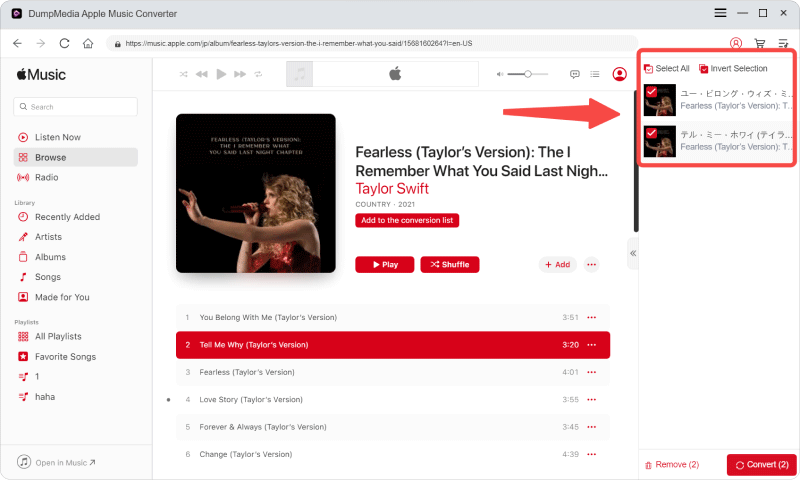
After the conversion is complete, you can safely organize or remove playlists from Apple Music while keeping your downloaded music accessible at any time.
Part 5. FAQs About Deleting Apple Music Playlists
1. Does deleting a playlist delete the songs?
No. Deleting a playlist only removes the playlist itself. Songs that have been added to your Apple Music library separately will remain in your library.
However, if a song only existed in that playlist and wasn't saved elsewhere, you'll need to search for it again in Apple Music.
2. Can I recover a deleted Apple Music playlist?
Sometimes. If the playlist was created by Apple Music, you can usually search for it and add it back to your library.
If you created the playlist yourself and permanently deleted it without a backup, recovery may not be possible. This is why many users choose to save their favorite songs locally before making major changes.
3. Will deleting a playlist cancel my Apple Music subscription?
No. Deleting a playlist only affects your music library. Your Apple Music subscription will remain active until you cancel it separately through your Apple ID subscription settings.
4. Can I keep my Apple Music songs after canceling my subscription?
Downloaded songs within the Apple Music app become unavailable once your subscription ends. If you'd like to keep your favorite tracks permanently, you can download and convert them beforehand using DumpMedia Apple Music Converter, allowing you to play them offline without relying on an active subscription.
Del 6. Slutliga tankar
Now you know how to delete a playlist on Apple Music. However, if you're planning to clean up your library, switch accounts, or cancel your Apple Music subscription, it's worth thinking ahead. Since streaming content depends on an active subscription, backing up the music you care about can help you avoid losing access in the future.
DumpMedia Apple Music Converter offers an easy way to save your favorite Apple Music songs and playlists as local files in formats like MP3, FLAC, WAV, and M4A. With batch conversion, preserved ID3 tags, and high-speed performance, it's an excellent companion for Apple Music users who want greater control over their music collection.

30% rabatt >>>