


Hoe converteer ik YouTube naar Apple Music?
Veel mensen die graag naar YouTube Music luisteren , willen hun favoriete nummers of afspeellijsten wellicht overzetten naar Apple Music vanwege de samengestelde afspeellijsten, de naadloze integratie met Apple-apparaten en de mogelijkheid om offline te luisteren. Het probleem is echter dat YouTube Music en Apple Music niet standaard met elkaar synchroniseren. Dit roept de vraag op: hoe kun je YouTube efficiënt naar Apple Music converteren zonder je samengestelde afspeellijsten te verliezen? Deze handleiding behandelt de beste methoden om YouTube Music naar Apple Music te converteren, geeft handige tips voor het overzetten van afspeellijsten en beantwoordt veelgestelde vragen.
Inhoudsopgave Deel 1. Kan ik YouTube-muziek rechtstreeks naar Apple Music converteren?Deel 2. YouTube-muziek converteren naar Apple Music op Windows/MacDeel 3. Veelgestelde vragenDeel 4. Om het allemaal samen te vatten
Deel 1. Kan ik YouTube-muziek rechtstreeks naar Apple Music converteren?
Helaas is er geen directe manier om je YouTube Music-bibliotheek over te zetten of te synchroniseren met Apple Music. Beide platforms gebruiken verschillende ecosystemen en DRM-beveiliging, wat een eenvoudige overdracht verhindert. Hoewel je handmatig afspeellijsten kunt aanmaken door naar nummers te zoeken in Apple Music, is deze methode tijdrovend, vooral als je honderden nummers hebt.
Gelukkig kunnen professionele tools zoals DumpMedia Any Music Converter kan YouTube-muziek converteren naar Apple Music door nummers van YouTube te downloaden en te importeren in Apple Music, waarbij de geluidskwaliteit en metadata behouden blijven.
Deel 2. YouTube-muziek converteren naar Apple Music op Windows/Mac
De meest betrouwbare methode om YouTube-video's naar Apple Music te converteren is met behulp van desktopsoftware. Een van de beste beschikbare tools is... DumpMedia Elke muziekconverterwaarmee gebruikers nummers en afspeellijsten van YouTube Music kunnen downloaden, converteren naar formaten die compatibel zijn met Apple Music, en zelfs afspeellijsten direct kunnen overzetten.
Gratis downloaden Gratis downloaden
Hieronder staan de belangrijkste kenmerken:
- Ondersteuning voor meerdere platforms: in plaats van te schakelen tussen afzonderlijke apps, integreert deze tool ondersteuning voor verschillende grote streamingdiensten, zoals SpotifyApple Music, YouTube Music en meer.
- Veelzijdige uitvoerformaten: DumpMedia biedt een breed scala aan compatibele formaten om ervoor te zorgen dat bestanden op vrijwel elk apparaat werken (MP3 spelers, smartphones, autoradio's, enz.): MP3, M4A, WAV, FLAC, AIFF en AAC.
- Verliesvrije kwaliteit: Ondersteunt 100% Behoud van de oorspronkelijke audiokwaliteit, doorgaans tot 320 kbps voor MP3s.
- Batchconversie: Hiermee kunt u complete afspeellijsten of albums aan een wachtrij toevoegen voor gelijktijdige verwerking.
- Slim metadatabeheer: behoud van ID3-tags: essentiële metadata, waaronder artiest, album, titel, jaar en albumhoes, worden automatisch bewaard.
- Ingebouwde webspelers: DumpMedia Het bevat doorgaans een ingebouwde webplayer voor elke service. Dit betekent dat u niet de Spotify of als je de Apple Music desktop-app hebt geïnstalleerd, kun je rechtstreeks binnen de app door nummers bladeren en ze selecteren. DumpMedia interface.
Hoe converteer ik YouTube naar Apple Music?
Stap 1. Install DumpMedia Elke muziekconverter op uw WinOp een Windows- of Mac-computer. Open het programma en selecteer YouTube Music.
Gratis downloaden Gratis downloaden
Stap 2. Zoek direct naar de nummers, afspeellijsten of albums die je naar Apple Music wilt overzetten. Sleep ze vervolgens naar de "+" knop en voeg ze toe aan de lijst met items die je wilt converteren.
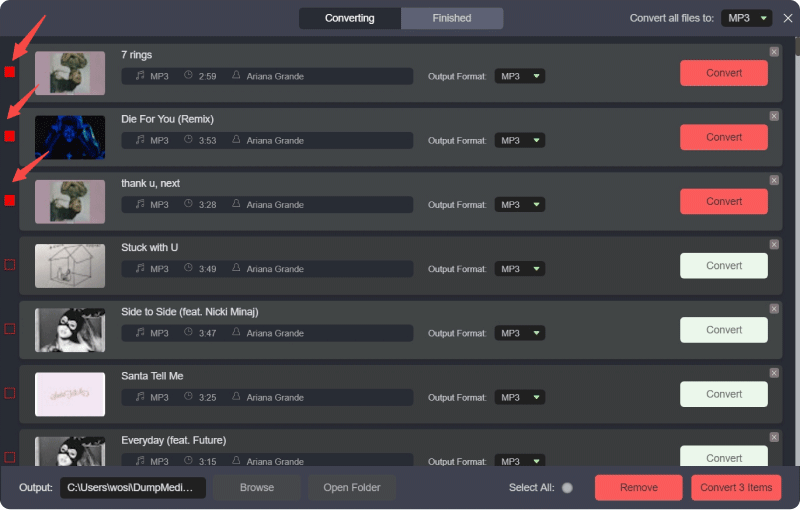
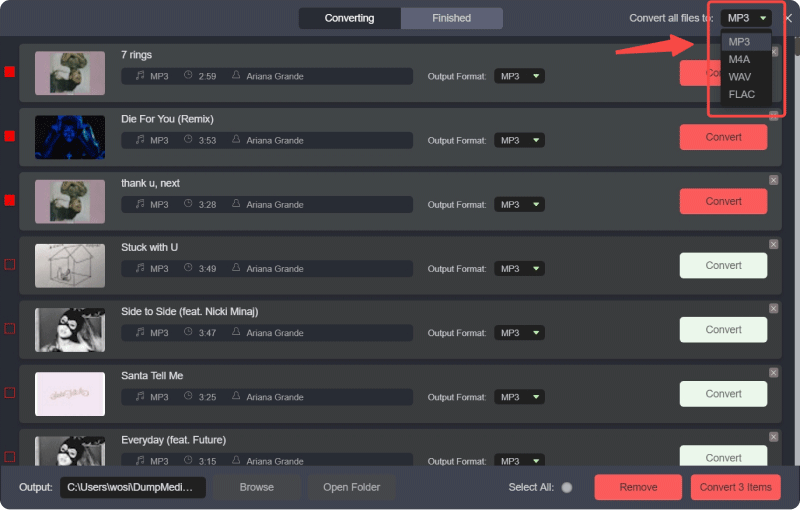
Stap 3. Klik op het paneel 'Opmaak' om te kiezen. MP3 als uitvoerformaat. Andere resterende uitvoerparameterinstellingen kunnen ook naar wens worden gewijzigd.
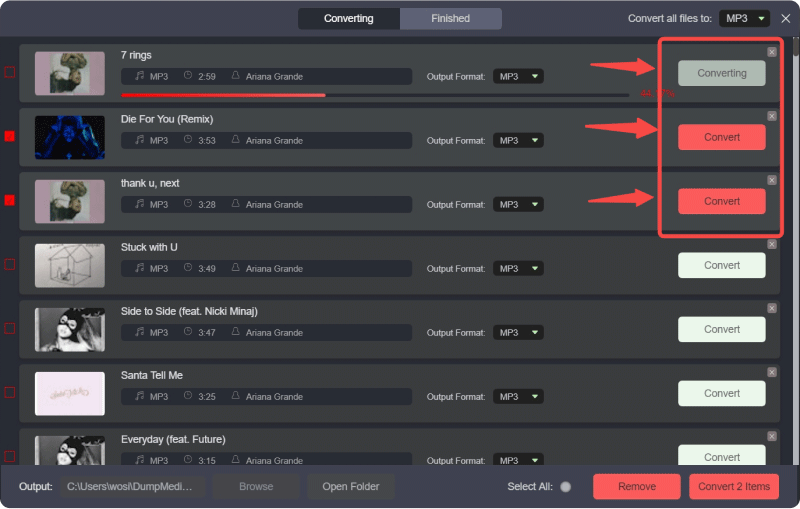
Stap 4. Vervolgens kunt u op de knop "Alles converteren" klikken om de bestanden in bulk lokaal op te slaan.
Stap 5. Open de Apple Music-app op Windows of Mac.
Stap 6. Ga naar Bestand > Toevoegen aan bibliotheek (of sleep de bestanden naar de bibliotheek).
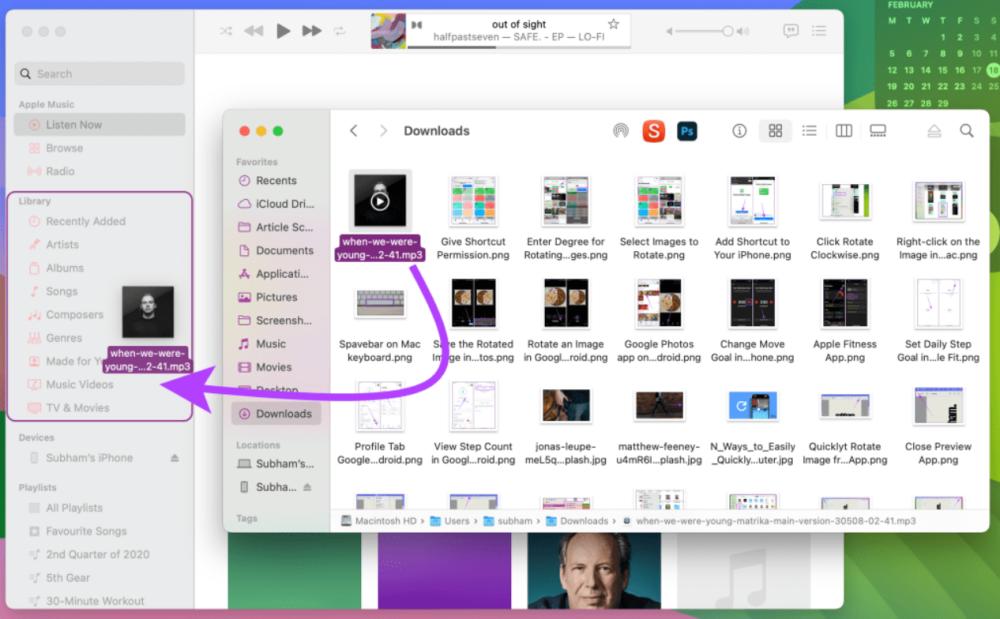
Stap 7. Wacht tot Apple Music de bestanden heeft verwerkt. Je YouTube Music-nummers maken nu deel uit van je Apple Music-bibliotheek.
Door deze stappen te volgen, kunt u YouTube-muziek succesvol converteren naar Apple Music zonder elk nummer handmatig te hoeven zoeken en downloaden.
Extra tip: Verplaats complete afspeellijsten met DumpMedia
DumpMedia Any Music Converter bevat ook een functie voor het overzetten van afspeellijsten. Met deze tool kun je complete afspeellijsten van YouTube Music naar Apple Music migreren.
Stap 1. Open Any Music Converter. Kies Tools > Playlist Transfer.

Stap 2. Selecteer YouTube Music als bron.
Stap 3. Selecteer Apple Music als bestemming.
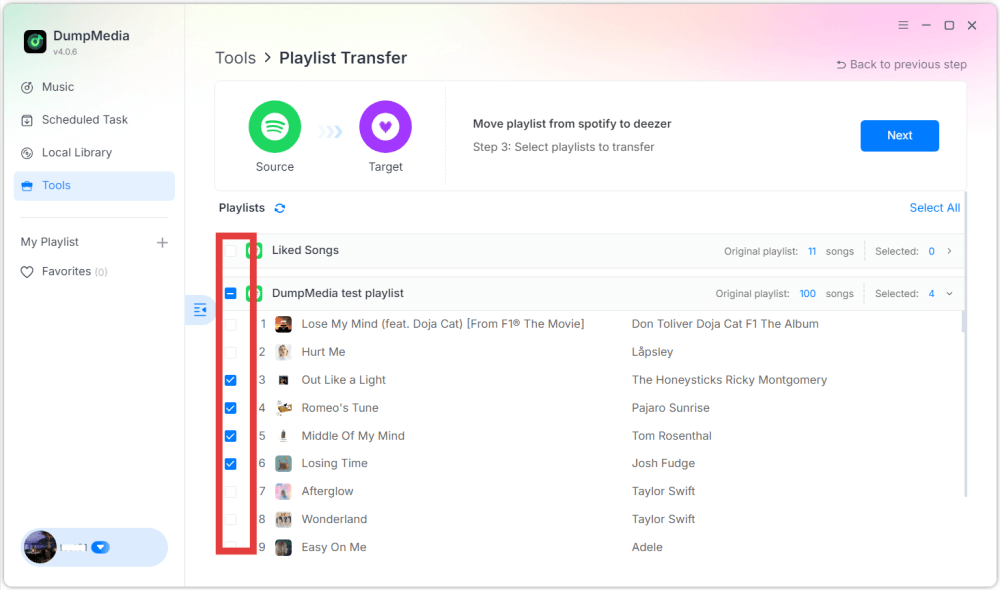
Stap 4. Selecteer wat je wilt overzetten. We ondersteunen je favoriete nummers, artiesten, albums en je samengestelde afspeellijsten.
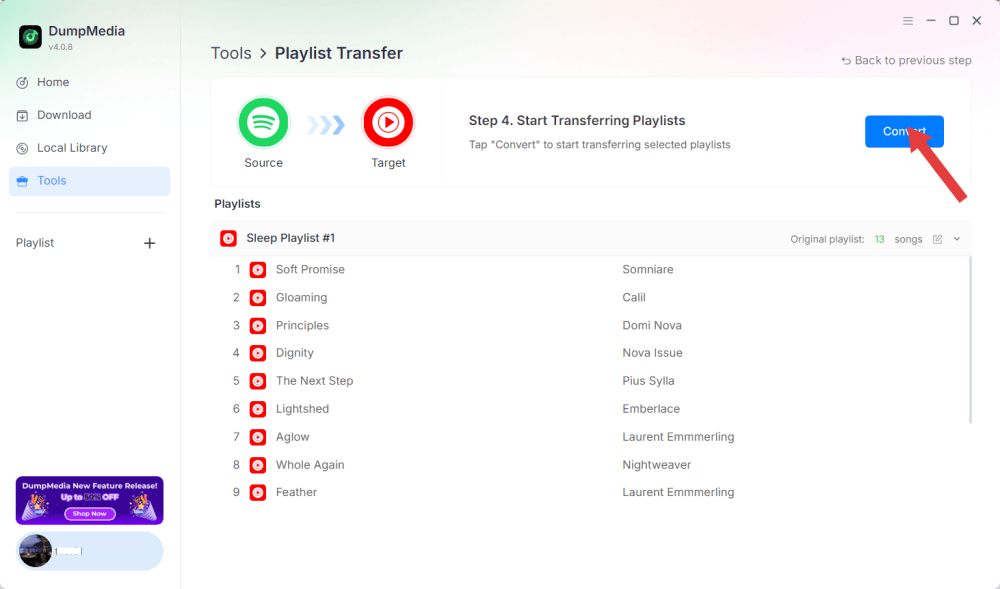
Stap 5. Klik op Converteren om de overdracht te starten.
Stap 6. De overdracht is voltooid. Klik op 'Ga naar Apple Music'. Je afspeellijsten zijn overgezet naar een nieuwe service en je kunt nu genieten van een nieuwe afspeellijst in Apple Music.
Deel 3. Veelgestelde vragen
1. Kan ik YouTube gratis converteren naar Apple Music?
Ja, met behulp van hulpmiddelen zoals DumpMedia Met Any Music Converter kun je YouTube Music-nummers downloaden en importeren in Apple Music. DumpMedia Biedt een gratis proefperiode aan; voor alle functies is mogelijk een betaalde licentie vereist.
2. Blijft de geluidskwaliteit van het nummer behouden tijdens de conversie?
DumpMedia Hiermee kunt u uitvoerformaten en bitrates selecteren, zodat de gedownloade bestanden een hoge audiokwaliteit behouden.
3. Kan ik complete afspeellijsten overzetten?
Ja. Met behulp van de functie 'Afspeellijst overzetten' in DumpMediaJe kunt complete YouTube Music-afspeellijsten naar Apple Music overzetten zonder dat de volgorde van de nummers of de metadata verloren gaan.
4. Is het veilig om te gebruiken? DumpMedia Voor YouTube Music-downloads?
Ja. DumpMedia Het programma werkt lokaal op uw computer, waardoor uw gegevens en accounts veilig blijven. Het interfereert niet met de servers van Apple Music of YouTube Music.
Deel 4. Om het allemaal samen te vatten
Hoewel YouTube Music en Apple Music niet rechtstreeks met elkaar geïntegreerd zijn, kunt u YouTube-content toch efficiënt naar Apple Music converteren. DumpMedia Any Music Converter. Door nummers te downloaden, te uploaden naar Apple Music of de functie 'Playlist Transfer' te gebruiken, kunt u al uw favoriete nummers overzichtelijk in uw Apple Music-bibliotheek bewaren.