


Cómo transferir Spotify Música en YouTube: Guía completa para todos los dispositivos
Mover tus listas de reproducción entre plataformas de streaming es una necesidad común, especialmente al cambiar de aplicación o consolidar tu biblioteca de música. Si quieres... bancaria Spotify música a YouTubeLa buena noticia es que las herramientas de transferencia modernas facilitan el proceso en la web, el escritorio y los dispositivos móviles. Esta guía te guiará paso a paso por cada método. Compatible con Spotify y YouTube en todos los dispositivos principales, puedes migrar tus listas de reproducción sin esfuerzo y mantener tu música accesible dondequiera que la escuches.
Guía de contenido Parte 1. Transferencia Spotify Lista de reproducción para YouTube en líneaParte 2. Transferencia Spotify Lista de reproducción de YouTube en WinDows/MacParte 3. Transferencia Spotify Lista de reproducción de YouTube en iOSParte 4. Transferencia Spotify Lista de reproducción de YouTube en AndroidParte 5. Preguntas frecuentesParte 6. Para resumirlo todo
Parte 1. Transferencia Spotify Lista de reproducción para YouTube en línea
Si desea la forma más rápida de transferir Spotify Para subir música a YouTube sin instalar software, la opción más práctica es una herramienta de sincronización de listas de reproducción en línea. Una solución muy utilizada es TuneMyMusic, un servicio basado en navegador que permite la migración directa de listas de reproducción entre las principales plataformas de streaming.
Cómo funciona TuneMyMusic en línea:
- Abra TuneMyMusic en su navegador.
- Elija Spotify como plataforma de origen e iniciar sesión.
- Seleccione la lista de reproducción que desea mover.
- Elija YouTube como el destino.
- Confirme la lista de pistas e inicie la transferencia.
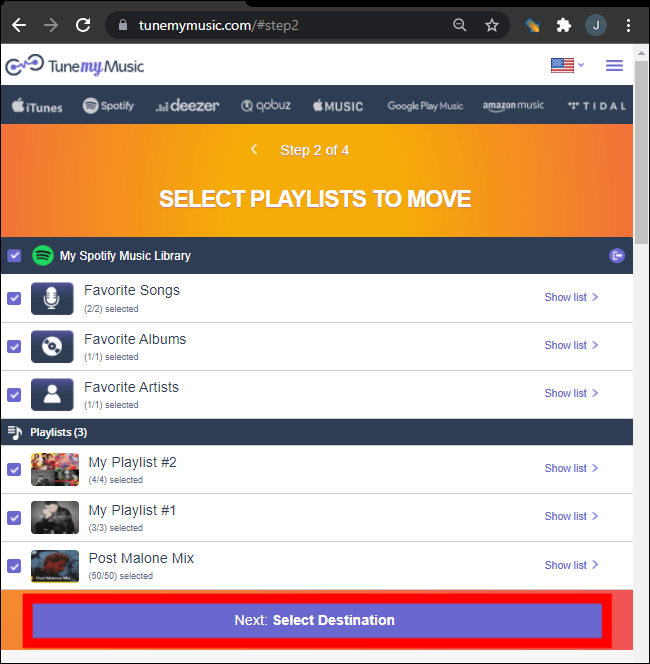
Este método es rápido, multiplataforma y no requiere instalación local. Es ideal para quienes simplemente desean transferir música de Spotify a YouTube de la forma más sencilla posible.
Parte 2. Transferencia Spotify Lista de reproducción de YouTube en WinDows/Mac
Para usuarios de escritorio que buscan más control, mayor estabilidad de conversión y manejo automatizado de listas de reproducción, DumpMedia Cualquier convertidor de música Proporciona un módulo dedicado para la transferencia de listas de reproducción. Resulta especialmente ventajoso para los usuarios que transfieren regularmente... Spotify música a YouTube de forma masiva o quienes necesitan una asignación de listas de reproducción predecible y repetible.
Descarga gratuita Descarga gratuita
Ventajas principales de la función de transferencia de listas de reproducción:
- Admite migración masiva de listas de reproducción
- Maneja metadatos, carátulas y orden de pistas.
- Proporciona una lógica de coincidencia robusta para minimizar las pistas no coincidentes
- Funciona en ambos Windows y macOS
Cómo usarlo:
Paso 1. Abra cualquier convertidor de música. Elija Herramientas > Transferencia de listas de reproducción.

Paso 2: Seleccionar Spotify como fuente.
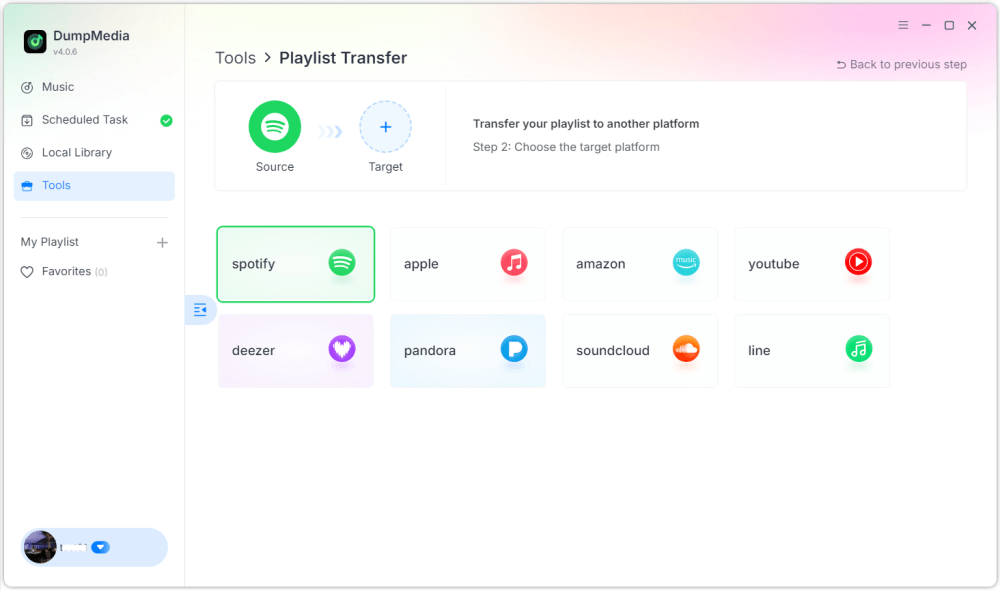
Paso 3. Seleccione YouTube Music como destino.
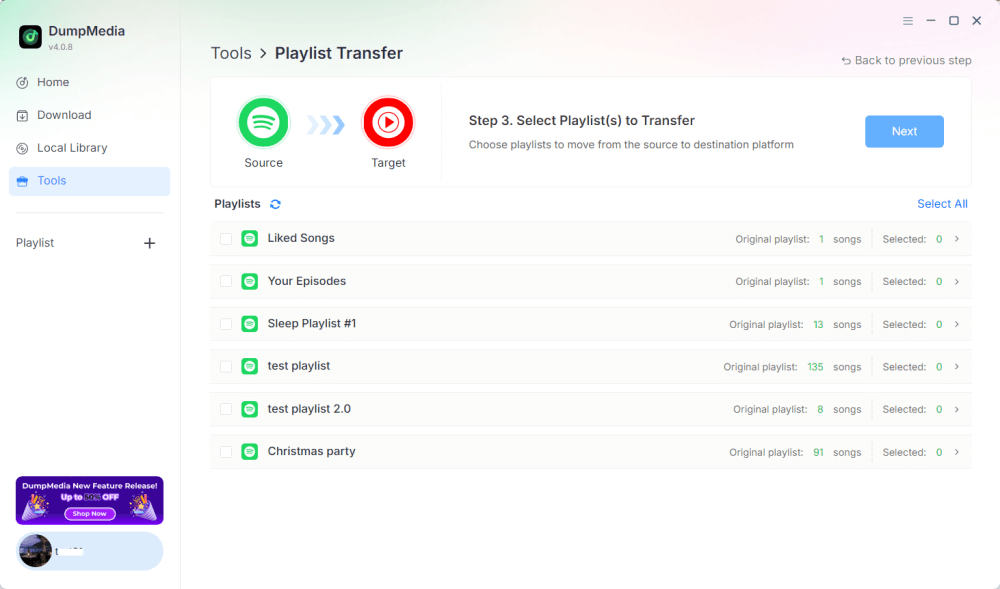
Paso 4. Selecciona qué transferir; admitimos tus canciones, artistas, álbumes favoritos y tus listas de reproducción personalizadas.
Paso 5. Haga clic en Convertir para iniciar la transferencia.
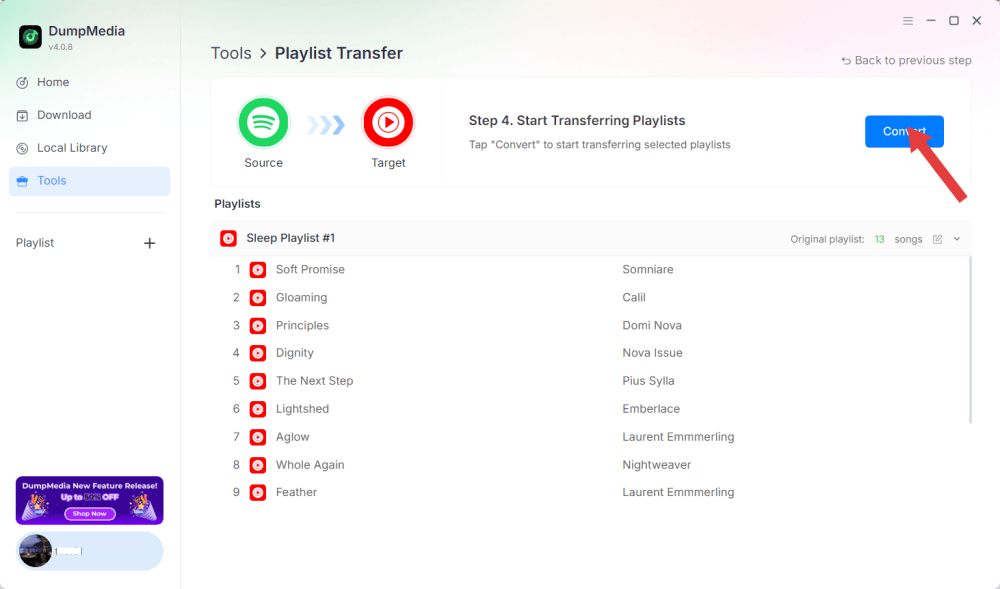
Paso 6. La transferencia ha finalizado. Haz clic en "Ir a YouTube Music". Tus listas de reproducción se han transferido a un nuevo servicio y ya puedes disfrutar de una nueva lista de reproducción en YouTube Music.
Debido a que todas las operaciones se ejecutan localmente, esta solución es más estable que las herramientas basadas en navegador, perfecta para usuarios que con frecuencia necesitan transferir música de Spotify a YouTube para múltiples listas de reproducción o bibliotecas grandes.
Parte 3. Transferencia Spotify Lista de reproducción de YouTube en iOS
Si usas un iPhone o iPad y quieres transferir música de Spotify a YouTube, una herramienta de migración optimizada para móviles como SongShift es una opción de eficacia comprobada. Está diseñada específicamente para los ecosistemas de Apple y ofrece flujos de trabajo intuitivos para la asignación de listas de reproducción.
Cómo funciona SongShift:
- Instale SongShift desde la App Store.
- Conecte su Spotify cuenta.
- Conecta tu cuenta de YouTube.
- Cree una nueva tarea de Turno y elija la Spotify lista de reproducción como fuente.
- Establezca YouTube como destino y confirme que las pistas coinciden.
- Ejecutar la transferencia.
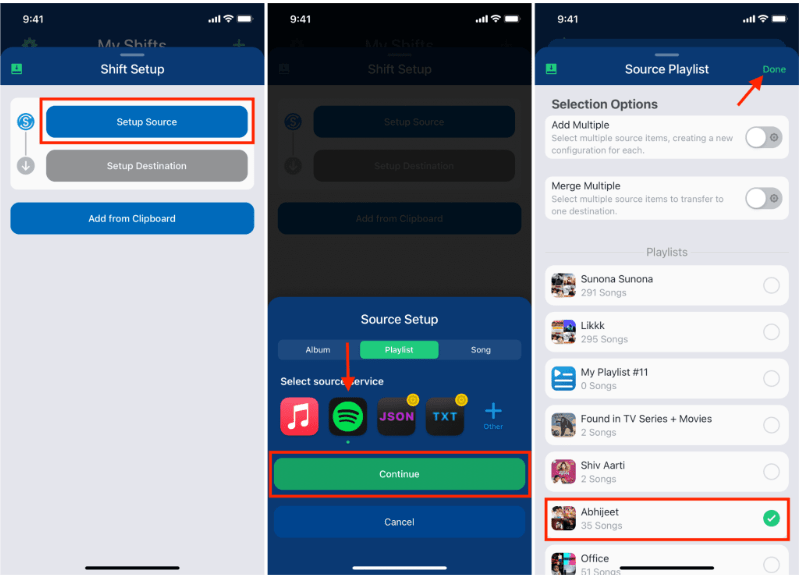
La fortaleza de SongShift reside en las interacciones de la interfaz de usuario nativa de iOS, lo que facilita la tarea de transferencia Spotify Música para YouTube fluida para usuarios que trabajan principalmente en dispositivos móviles.
Parte 4. Transferencia Spotify Lista de reproducción de YouTube en Android
En dispositivos Android, la forma más sencilla de transferir Spotify La música de YouTube se puede descargar con Soundiiz Mobile Web, que funciona bien en navegadores móviles y admite interfaces compatibles con Android.
Pasos para Soundiiz Mobile Web:
- Abra el sitio web de Soundiiz en su navegador Android.
- Inicie sesión en su Spotify cuenta.
- Selecciona la lista de reproducción que deseas mover.
- Seleccione YouTube como servicio de destino.
- Confirmar e iniciar la sincronización.
Este flujo de trabajo es conveniente para los usuarios que no desean instalar aplicaciones adicionales pero aún necesitan una forma sencilla de transferir Spotify Música a YouTube mientras estás en movimiento.
Parte 5. Preguntas frecuentes
1. ¿El orden de la lista de reproducción seguirá siendo el mismo cuando transfiera? Spotify ¿Música a YouTube?
La mayoría de las herramientas intentan mantener el orden, pero la conservación exacta depende de la disponibilidad de la pista y de la precisión del reconocimiento.
2. ¿Están todos? Spotify ¿Pistas disponibles en YouTube?
No siempre. Las diferencias de derechos de autor, las restricciones regionales y la falta de disponibilidad de canciones pueden causar lagunas.
3. ¿Estas herramientas requieren acceso a mis cuentas?
Sí. Necesitan autorización para leer tu Spotify Listas de reproducción y agrégalas a tu biblioteca de YouTube. Herramientas confiables utilizan autenticación OAuth segura.
4. ¿Cuánto tiempo tarda la transferencia? Spotify ¿Listas de reproducción para YouTube?
Depende del tamaño de la lista de reproducción: las listas de reproducción pequeñas se completan en segundos; las bibliotecas grandes pueden tardar varios minutos.
Parte 6. Para resumirlo todo
Encontrar el mejor método para transferir Spotify Música a YouTube depende de tu flujo de trabajo y dispositivo. Con la herramienta adecuada, puedes transferir fácilmente Spotify listas de reproducción a YouTube y mantener la continuidad musical en todas las plataformas.