


Cómo transferir música de Apple a Spotify: Guía completa
La fidelidad digital es fluida. A medida que los entusiastas de la música buscan una mejor compatibilidad entre plataformas y nuevos algoritmos de descubrimiento, muchos están dando el salto. Apple Music a SpotifySin embargo, la mayor barrera para cambiar no es la cuota de suscripción, sino el miedo a perder una década de historia musical. Afortunadamente, varias herramientas ahora permiten... transferir Apple Music a Spotify automáticamente. En esta guía, exploraremos los métodos más efectivos para transferir canciones de Apple Music a Spotify a través de diferentes dispositivos.
Guía de contenido Parte 1. Transferir lista de reproducción de Apple Music a Spotify on WinDows/MacParte 2. Transferir lista de reproducción de Apple Music a Spotify OnlineParte 3. Transferir lista de reproducción de Apple Music a Spotify en iOS/AndroidParte 4. Preguntas frecuentesParte 5. Para resumirlo todo
Parte 1. Transferir lista de reproducción de Apple Music a Spotify on WinDows/Mac
Una de las formas más confiables de transferir Apple Music a Spotify Se utiliza una herramienta de escritorio dedicada que ofrece funciones avanzadas de migración de listas de reproducción. Una opción muy recomendable es DumpMedia Cualquier convertidor de música, que incluye una potente función de transferencia de listas de reproducción.
Descarga gratuita Descarga gratuita
DumpMedia Any Music Converter es una aplicación de escritorio profesional diseñada para gestionar y convertir música en diferentes plataformas. Funciona en ambos... WinWindows y macOS. Con su función integrada de transferencia de listas de reproducción, los usuarios pueden transferir Apple Music de forma eficiente a... Spotify conservando la estructura de la lista de reproducción y los metadatos de la canción.
Características Principales
- Función de transferencia de lista de reproducción: DumpMedia Permite mover listas de reproducción completas en lugar de transferir canciones individualmente. Esto ahorra mucho tiempo al gestionar grandes colecciones de música.
- Migración de listas de reproducción por lotes: puede seleccionar varias listas de reproducción y transferirlas simultáneamente, lo que facilita la administración de bibliotecas grandes.
- Rendimiento estable del escritorio: desde DumpMedia funciona localmente en su computadora y proporciona un proceso de transferencia más estable que muchas herramientas basadas en navegador.
- Coincidencia inteligente de canciones: el software identifica automáticamente las canciones correspondientes en Spotifycatálogo de , lo que garantiza que la lista de reproducción transferida contenga las pistas correctas.
- Preservación de metadatos: los títulos de las canciones, los nombres de los artistas, los álbumes y el orden de las listas de reproducción permanecen intactos durante el proceso de transferencia.
Guía paso por paso
Paso 1: Primero, descargar DumpMedia Cualquier convertidor de música del sitio web oficial. Instala el programa en tu... WinWindows o una computadora Mac y ejecútelo. Abra la aplicación y elija Herramientas > Transferencia de lista de reproducción.
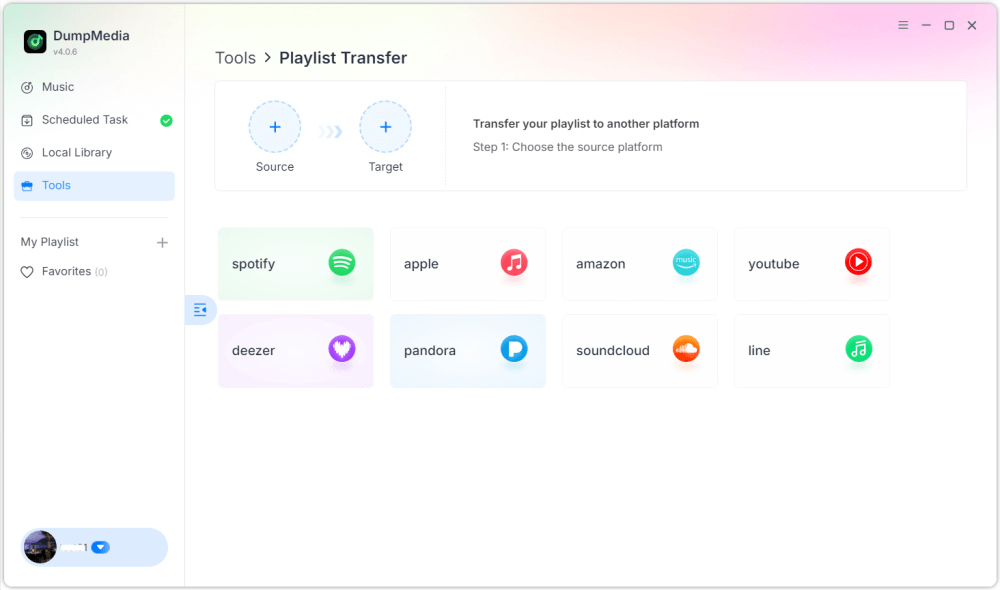
Paso 2: Selecciona Apple Music como fuente. Luego selecciona Spotify como plataforma de destino.
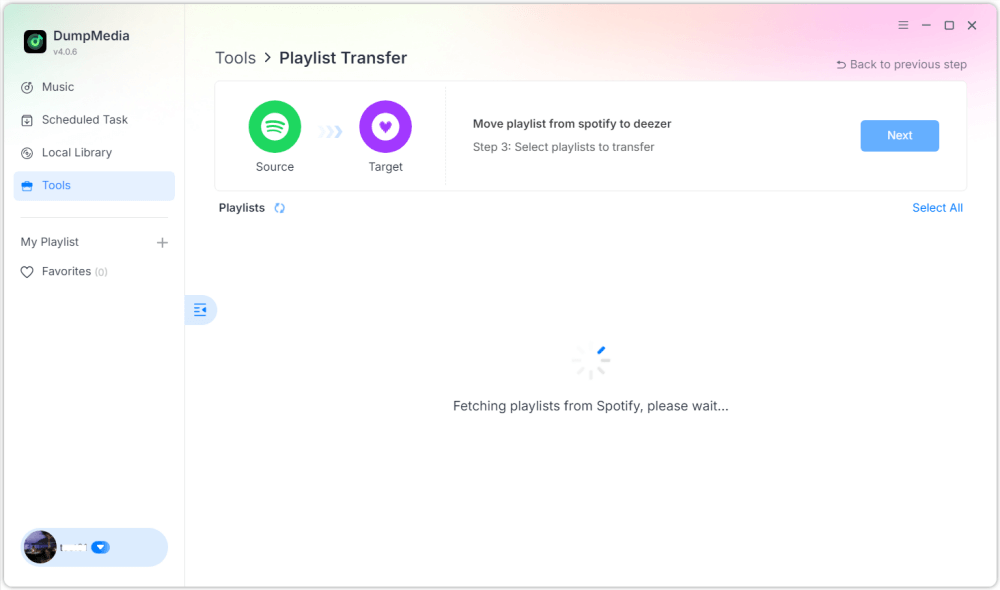
Paso 3: Encuentra las listas de reproducción que deseas transferir de Apple Music a Spotifyy seleccione todas las listas de reproducción que desee mover.
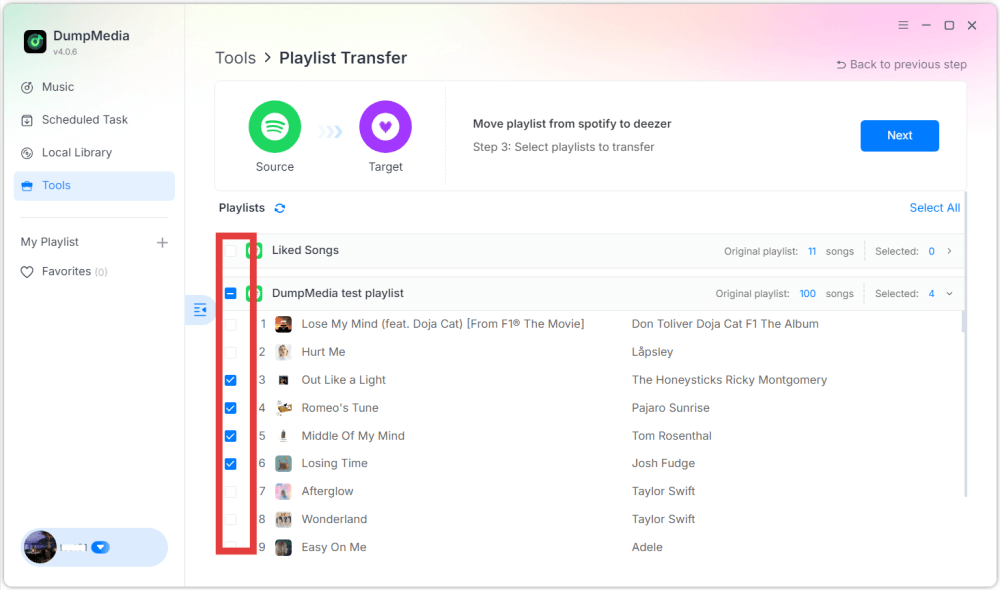
Paso 4: Haga clic en el botón Convertir para comenzar a migrar la lista de reproducción. DumpMedia recreará la lista de reproducción automáticamente en Spotify.
Paso 5: La transferencia ha finalizado. Haga clic en "Ir a". Spotify"Tus listas de reproducción se han trasladado a un nuevo servicio y puedes comenzar a disfrutar de tu nuevo servicio de transmisión de música.
Usar este método de escritorio es una de las formas más eficientes de transferir Apple Music a Spotify, especialmente si tienes varias listas de reproducción o una biblioteca de música grande.
Parte 2. Transferir lista de reproducción de Apple Music a Spotify Online
Si prefiere no instalar software adicional, una herramienta de transferencia de listas de reproducción en línea también puede ayudarlo a transferir Apple Music a Spotify Rápidamente. Una opción popular es Soundiiz. Soundiiz es una plataforma de gestión de listas de reproducción en la nube que permite a los usuarios transferir listas de reproducción entre diversos servicios de streaming de música. Al ejecutarse completamente en un navegador, funciona en casi cualquier dispositivo.
Características principales
- Interfaz basada en web que no requiere instalación
- Admite muchas plataformas de transmisión de música.
- Herramientas de conversión de listas de reproducción
- Gestión de listas de reproducción por lotes
Pasos para transferir Apple Music a Spotify con Soundiiz
Paso 1. Visita el sitio web de Soundiiz y crea una cuenta. Inicia sesión en tu cuenta de Apple Music y otorga a Soundiiz permiso para acceder a tus listas de reproducción.
Paso 2: A continuación, conecte su Spotify cuenta.
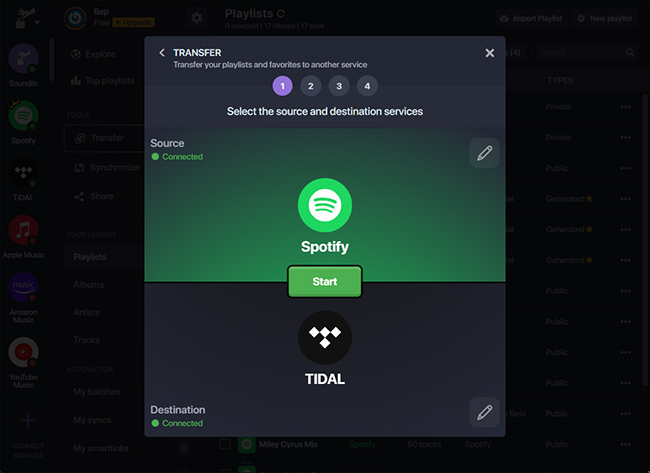
Paso 3: Explora tus listas de reproducción de Apple Music y selecciona la que quieras transferir. Haz clic en Convertir y elige Spotify como plataforma de destino.
Paso 4: Soundiiz comenzará a combinar canciones y a recrear la lista de reproducción en Spotify.
Las herramientas en línea como Soundiiz son una opción conveniente para los usuarios que desean transferir canciones de Apple Music a Spotify Sin necesidad de instalar software de escritorio. Sin embargo, pueden tener limitaciones, como límites de transferencia o un procesamiento más lento para listas de reproducción grandes.
Parte 3. Transferir lista de reproducción de Apple Music a Spotify en iOS/Android
Si prefieres administrar tus listas de reproducción directamente desde un teléfono inteligente, existen varias aplicaciones móviles que pueden ayudarte a transferir Apple Music a Spotify Fácilmente. Dos de las aplicaciones más utilizadas son FreeYourMusic y SongShift.
Usando FreeYourMusic (iOS y Android)
FreeYourMusic es una herramienta de transferencia de música multiplataforma disponible para dispositivos iOS y Android. Permite a los usuarios transferir listas de reproducción entre diferentes servicios de streaming directamente desde sus teléfonos.
- Instale la aplicación FreeYourMusic desde la App Store o Google Play.
- Abra la aplicación y seleccione Apple Music como plataforma de origen.
- Inicia sesión en tu cuenta de Apple Music.
- Elija Spotify como plataforma de destino.
- Seleccione la lista de reproducción que desea migrar.
- Toque Transferir para iniciar el proceso.
En cuestión de minutos, tu lista de reproducción debería aparecer en Spotify.
Uso de SongShift (solo iOS)
SongShift es otra aplicación móvil popular diseñada específicamente para usuarios de iOS. Permite transferir listas de reproducción rápidamente entre múltiples servicios de música.
- Descargue SongShift desde la App Store.
- Conecta tu Apple Music y Spotify cuentas.
- Toque Crear turno.
- Seleccione Apple Music como fuente y Spotify como el destino.
- Elige la lista de reproducción que deseas transferir.
- Iniciar el proceso de transferencia.
Usar aplicaciones móviles es una excelente opción si quieres transferir Apple Music a Spotify directamente desde tu teléfono sin usar una computadora.
Parte 4. Preguntas frecuentes
1. ¿Puedo transferir Apple Music a? Spotify ¿gratis?
Algunas herramientas ofrecen transferencias de listas de reproducción gratuitas con limitaciones, como un número máximo de canciones. Las versiones de pago suelen permitir transferencias ilimitadas y un procesamiento más rápido.
2. ¿Se transferirán todas las canciones con éxito?
La mayoría de las canciones se transferirán correctamente, pero ocasionalmente algunas pistas pueden no aparecer si no están disponibles en la plataforma de destino.
3. ¿Cuánto tiempo tarda la transferencia?
El tiempo necesario depende del tamaño de la lista de reproducción. Las listas más pequeñas pueden tardar unos minutos en transferirse, mientras que las más grandes pueden tardar más.
4. ¿Es seguro utilizar herramientas de transferencia de listas de reproducción?
Las herramientas confiables utilizan métodos de autenticación seguros para conectarse a tus cuentas de música. Elige siempre un software confiable al transferir Apple Music a... Spotify.
Parte 5. Para resumirlo todo
Cambiar de plataforma de streaming de música ya no significa perder tus listas de reproducción cuidadosamente seleccionadas. Con las modernas herramientas de migración de listas de reproducción, ahora es más fácil que nunca transferir Apple Music a... Spotify Sin necesidad de reconstruir tu biblioteca de música manualmente. Al elegir el método que mejor se adapte a tu dispositivo y al tamaño de tu lista de reproducción, podrás transferir canciones de Apple Music a... Spotify y continúa disfrutando de tus canciones favoritas sin problemas en tu nueva plataforma de streaming.