


Instrucciones de uso DumpMedia Spotify Copia de seguridad de la lista de reproducción
Administrando su Spotify Las listas de reproducción pueden resultar complicadas cuando se quiere mantener una copia de seguridad de las colecciones de música cuidadosamente organizadas. DumpMedia Spotify La copia de seguridad de listas de reproducción proporciona una forma conveniente de hacer una copia de seguridad de su Spotify listas de reproducción, exportar información de listas de reproducción a archivos CSV y restaurar listas de reproducción en su Spotify cuenta.
Esta guía explica cómo conectar su Spotify Puedes crear una cuenta, seleccionar listas de reproducción, exportar archivos de copia de seguridad, restaurar listas de reproducción, administrar el historial de copias de seguridad y personalizar la carpeta de salida. También incluye sugerencias para solucionar problemas comunes.
Guía de contenido Parte 1. Instalar y registrar DumpMedia Cualquier convertidor de músicaParte 2. Cómo conectar su Spotify CuentaParte 3. Cómo seleccionar un Spotify Lista de reproducciónParte 4. Problemas comunes y solución de problemasPreguntas frecuentes
Parte 1. Instalar y registrar DumpMedia Cualquier convertidor de música
Paso 1: descargar e instalar DumpMedia Cualquier convertidor de música
DumpMedia Cualquier convertidor de música es compatible con Mac y WinDispositivos Dows actualmente. Puede descargar el paquete de instalación desde la página del producto o simplemente haciendo clic en el botón de descarga que aparece aquí.
Descarga gratuita Descarga gratuita
Paso 2: Lanzamiento DumpMedia Cualquier convertidor de música
Después de la instalación, abra DumpMedia Con cualquier convertidor de música en tu ordenador, verás una interfaz clara e intuitiva, diseñada para simplificar la conversión, incluso para usuarios principiantes.
Consejo: Asegúrate de estar conectado a internet para disfrutar de la mejor experiencia.
Paso 3: Registre y active Any Music Converter.
Lanza DumpMedia Convertidor de música. Haz clic en el botón "Iniciar sesión" o en el icono de perfil en la esquina inferior izquierda. Introduce tu correo electrónico y contraseña. Haz clic en "Iniciar sesión" para completar el registro.
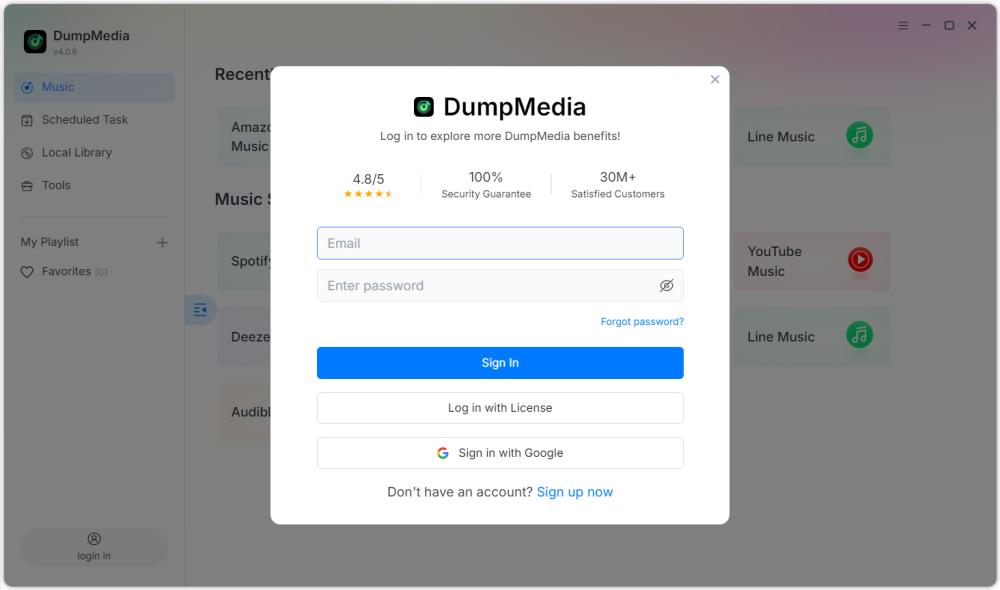
Consejo: Desbloquear Spotify Copia de seguridad de la lista de reproducción por visitando la página del producto y al adquirir el plan. Elija un plan de suscripción que se ajuste a sus necesidades y no dude en ponerse en contacto con nuestro equipo de atención al cliente para consultar sobre descuentos exclusivos.
Parte 2. Cómo conectar su Spotify Cuenta
Antes de seleccionar una lista de reproducción, debe conectar su Spotify cuenta para DumpMedia Spotify Copia de seguridad de la lista de reproducción.
Consejo: Tenga en cuenta que Spotify La función de copia de seguridad de listas de reproducción se vende como un producto independiente y no está incluida en ningún plan de suscripción estándar de Music Converter.
Paso 1: Lanzamiento DumpMedia Spotify Copia de seguridad de la lista de reproducción
Abre cualquier convertidor de música. Elige Herramientas > Spotify Copia de seguridad de la lista de reproducción.
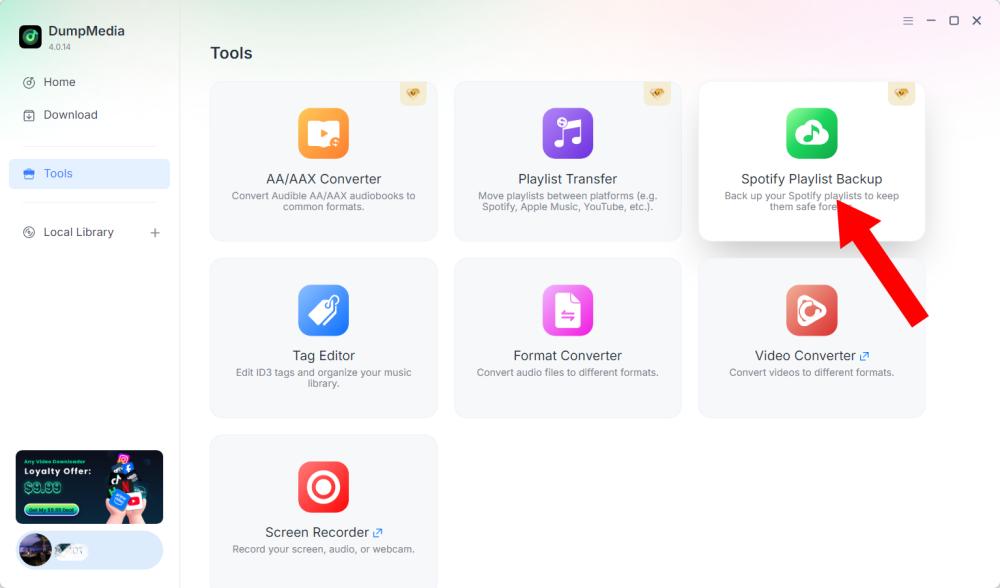
Paso 2: Haga clic en "Conectar con Spotify"
Busque y haga clic en Conectar con Spotify botón en la interfaz del software. La aplicación lo redirigirá automáticamente al integrado Spotify jugador.
Paso 3: Conecta tu Spotify Cuenta
Cuando la característica Spotify El reproductor se abre dentro del software, siga las indicaciones disponibles para conectar su Spotify cuenta. Complete el proceso de conexión antes de proceder a la administración de listas de reproducción. Una vez que su Spotify La cuenta se ha conectado correctamente; ya puedes acceder a tus listas de reproducción disponibles y seleccionar la operación que necesites.
Consejo: Si la conexión no se realiza como se esperaba, compruebe su conexión a Internet y confirme que la Spotify El reproductor se ha abierto correctamente.
Parte 3. Cómo seleccionar un Spotify Lista de reproducción
Después de conectar su Spotify En tu cuenta, puedes seleccionar la lista de reproducción que deseas respaldar o restaurar.
Paso 1: Accede a tus listas de reproducción
Abra la sección de lista de reproducción en DumpMedia Spotify Copia de seguridad de la lista de reproducción después de conectar su Spotify cuenta. Tus listas de reproducción disponibles deberían mostrarse en la interfaz.
Paso 2: Elige una lista de reproducción
Elige la lista de reproducción con cuidado, especialmente si tienes varias listas con nombres similares.
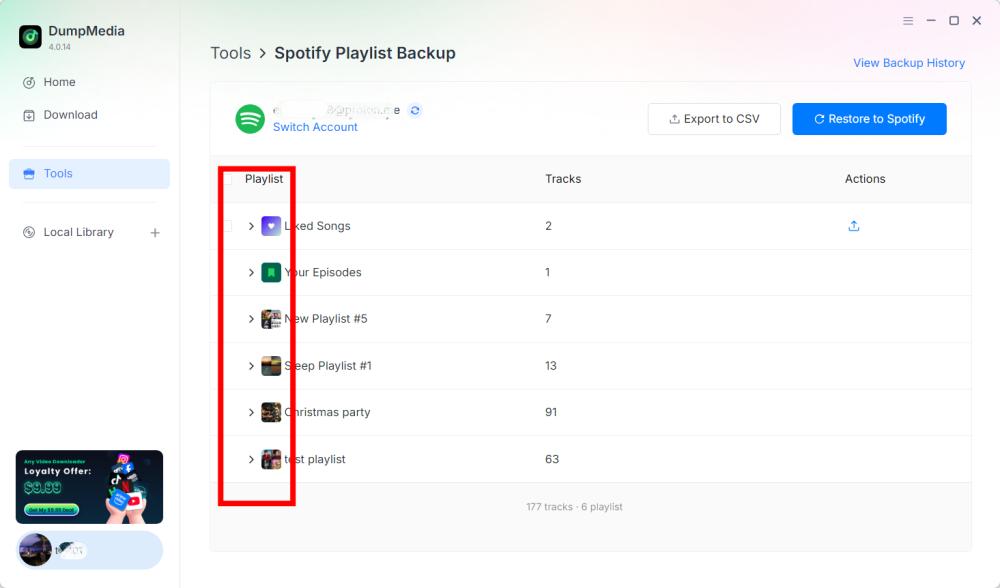
Paso 3: Seleccione una operación
Después de seleccionar una lista de reproducción, elija la operación correspondiente según sus necesidades. Las operaciones disponibles incluyen Exportar a CSV y Restaurar a Spotify.
- Exportar a CSV: Exportar una lista de reproducción a CSV permite guardar la información de la lista de reproducción en un archivo que se puede abrir y revisar con aplicaciones de hoja de cálculo como Microsoft Excel.
- Restaurar a Spotify: DumpMedia Spotify La copia de seguridad de listas de reproducción admite la restauración de listas de reproducción a través de la función Restaurar en Spotify .
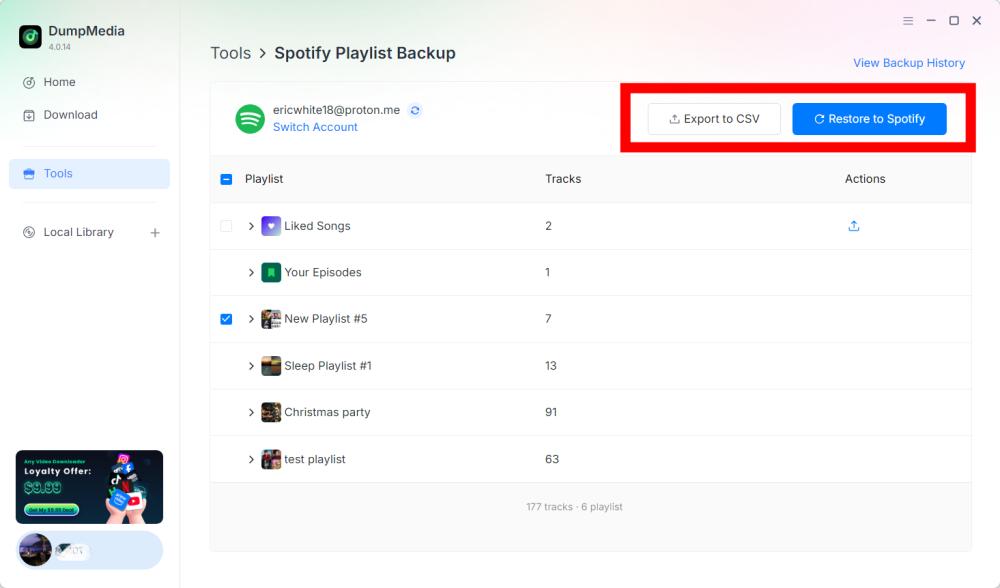
Paso 4: Compruebe el archivo exportado.
DumpMedia Spotify La función de copia de seguridad de listas de reproducción guarda los archivos en su carpeta predeterminada. Puede cambiar esta ubicación a través del menú Preferencias. Una vez finalizada la exportación, localice el archivo CSV generado. Puede abrirlo con una hoja de cálculo compatible para revisar su contenido.
Importante: Los campos específicos incluidos en el archivo CSV deben confirmarse de acuerdo con la versión actual de DumpMedia Spotify Copia de seguridad de la lista de reproducción.
Paso 5: Revisar su Spotify Cuenta
Si elige Restaurar a Spotify, abierto Spotify y comprueba si la lista de reproducción se ha restaurado correctamente.
Nota: Los resultados de la restauración pueden depender de los datos de la copia de seguridad. Spotify Conexión de la cuenta y las capacidades de restauración actuales del software. El manejo exacto de las pistas no disponibles o modificadas requiere confirmación en la documentación del producto.
Paso 6: Ver el historial de copias de seguridad
DumpMedia Spotify La función de copia de seguridad de listas de reproducción incluye la opción "Ver historial de copias de seguridad", que le permite revisar sus registros. Encontrará "Ver historial de copias de seguridad" en la esquina superior derecha de la interfaz del software. Haga clic en la opción para abrir la sección del historial de copias de seguridad.
Parte 4. Problemas comunes y solución de problemas
Las siguientes sugerencias para solucionar problemas abordan cuestiones generales que pueden surgir durante la conexión de la cuenta, las operaciones con listas de reproducción o la gestión de archivos. No se trata de códigos de error específicos del producto ni de soluciones oficiales.
No se puede conectar a Spotify
Las soluciones sugeridas:
- Comprueba tu conexión a Internet.
- Cerrar y reabrir DumpMedia Spotify Copia de seguridad de la lista de reproducción.
- Haga clic en Conectar con Spotify de nuevo.
- Complete el proceso de conexión en el integrado Spotify jugador.
Si el problema persiste, registre el mensaje de error exacto y póngase en contacto con nosotros. DumpMedia Soporte (soporte@dumpmedia. Com).
Las listas de reproducción no se muestran.
Las soluciones sugeridas:
- Confirme que el Spotify La cuenta está conectada.
- Vuelve a abrir la sección de listas de reproducción.
- Reinicia el software e inténtalo de nuevo.
- Comprueba si el problema afecta a todas las listas de reproducción o solo a una lista de reproducción específica.
Si el problema persiste, proporcione al servicio de asistencia los detalles de la lista de reproducción afectada y cualquier información de error disponible.
- Haz clic en el menú situado en la parte superior derecha del programa y selecciona "Enviar comentarios".
- Describe tu problema y escribe tu clave de licencia en el cuadro de texto.
- Por último, marque la casilla "Adjuntar el archivo de registro" antes de enviar el formulario.
La exportación a CSV no se completa.
Las soluciones sugeridas:
- Confirme que el Spotify La cuenta está conectada.
- Intenta exportar la lista de reproducción de nuevo.
- Compruebe la carpeta de salida configurada en Preferencias.
- Verifique que la carpeta de destino sea accesible.
- Si es posible, prueba la exportación con otra lista de reproducción.
Si la exportación sigue fallando, guarde el mensaje de error y póngase en contacto con el servicio de atención al cliente.
Restaurar a Spotify No funciona
Las soluciones sugeridas:
- Vuelve a conectar tu Spotify cuenta.
- Comprueba que has seleccionado la lista de reproducción o el disco de respaldo correcto.
- Intente nuevamente el proceso de restauración.
- Abra Spotify y compruebe si la lista de reproducción se ha restaurado parcialmente.
- Contacto DumpMedia Si el problema persiste, solicite asistencia.
No dé por sentado que restaurar repetidamente la misma copia de seguridad es seguro en todas las situaciones. Compruebe la lista de reproducción resultante antes de intentar realizar operaciones de restauración adicionales.
Preguntas frecuentes
P1. ¿Cómo conecto mi Spotify cuenta para DumpMedia Spotify ¿Copia de seguridad de la lista de reproducción?
Haga clic en Conectar con SpotifyEl software abrirá automáticamente el integrado Spotify reproductor, donde puedes conectar tu Spotify cuenta.
P2. ¿Puedo exportar? Spotify ¿Convertir listas de reproducción a CSV?
Sí. Después de conectar su Spotify Cree una cuenta y, seleccionando una lista de reproducción, elija Exportar a CSV para crear un archivo de copia de seguridad.
P3. ¿Puedo restaurar una lista de reproducción? Spotify?
Sí. DumpMedia Spotify La copia de seguridad de la lista de reproducción proporciona una restauración a Spotify Opción para operaciones de restauración asistidas.
P4. ¿Dónde se guardan mis archivos de copia de seguridad?
Los archivos de copia de seguridad se guardan en la carpeta de salida predeterminada. Puede comprobar o cambiar la ubicación abriendo el menú superior derecho, seleccionando Preferencias y buscando Carpeta de salida.
P5. ¿Cómo puedo ver los registros de copias de seguridad anteriores?
Haz clic en "Ver historial de copias de seguridad" en la esquina superior derecha del software para consultar el historial de copias de seguridad disponible.
Q6. ¿Qué debo hacer si Spotify ¿No puedes conectarte?
Compruebe su conexión a Internet y vuelva a abrir el software. Si el problema persiste, póngase en contacto con nosotros. DumpMedia Ayuda con los detalles del error.
P7. ¿Qué debo hacer si mi lista de reproducción no aparece?
Confirme que su Spotify Una vez conectada la cuenta, reinicie el software y vuelva a comprobar la sección de listas de reproducción. Si la lista de reproducción sigue sin estar disponible, póngase en contacto con el servicio de asistencia.
P8. ¿Puedo restaurar una copia de seguridad en un lugar diferente? Spotify cuenta?
Esta función aún no está disponible en la versión actual, pero estén atentos a futuras actualizaciones.