


¿Cómo convertir YouTube a Apple Music?
Muchos usuarios de YouTube Music desean transferir sus canciones o listas de reproducción favoritas a Apple Music por sus listas seleccionadas, su perfecta integración con dispositivos Apple y la posibilidad de escuchar sin conexión. Sin embargo, el problema radica en que YouTube Music y Apple Music no se sincronizan de forma nativa. Esto plantea la siguiente pregunta: ¿cómo convertir YouTube Music a Apple Music de forma eficiente sin perder las listas de reproducción? Esta guía explorará los mejores métodos para convertir YouTube Music a Apple Music, ofrecerá consejos útiles para la transferencia de listas de reproducción y responderá a las preguntas más frecuentes.
Guía de contenido Parte 1. ¿Puedo convertir música de YouTube a Apple Music directamente?Parte 2. Convertir música de YouTube a Apple Music en WinDows/MacParte 3. Preguntas frecuentesParte 4. Para resumirlo todo
Parte 1. ¿Puedo convertir música de YouTube a Apple Music directamente?
Lamentablemente, no existe una forma directa de transferir o sincronizar tu biblioteca de YouTube Music con Apple Music. Ambas plataformas utilizan diferentes ecosistemas y protección DRM, lo que impide transferencias directas. Si bien puedes recrear listas de reproducción manualmente buscando canciones en Apple Music, este método requiere mucho tiempo, especialmente si tienes cientos de canciones.
Afortunadamente, el uso de herramientas profesionales como DumpMedia Con Any Music Converter, puedes convertir YouTube a Apple Music descargando pistas de YouTube Music e importándolas a Apple Music conservando la calidad y los metadatos de la canción.
Parte 2. Convertir música de YouTube a Apple Music en WinDows/Mac
El método más confiable para convertir YouTube a Apple Music es usar un programa de escritorio. Una de las mejores herramientas disponibles es DumpMedia Cualquier convertidor de música, que permite a los usuarios descargar canciones y listas de reproducción de YouTube Music, convertirlas a formatos compatibles con Apple Music e incluso transferir listas de reproducción directamente.
Descarga gratuita Descarga gratuita
A continuación se presentan las características clave principales:
- Compatibilidad con múltiples plataformas: en lugar de cambiar entre aplicaciones individuales, esta herramienta integra compatibilidad con varios servicios de transmisión importantes, como Spotify, Apple Music, YouTube Music y más.
- Formatos de salida versátiles: DumpMedia Proporciona una amplia gama de formatos compatibles para garantizar que los archivos funcionen en casi cualquier dispositivo (MP3 reproductores de MP3, teléfonos inteligentes, equipos de sonido para automóviles, etc.): MP3, M4A, WAV, FLAC, AIFF y AAC.
- Calidad sin pérdida: compatible 100% Retención de la calidad del audio original, normalmente hasta 320 kbps para MP3s.
- Conversión por lotes: le permite agregar listas de reproducción o álbumes completos a una cola para su procesamiento simultáneo.
- Gestión inteligente de metadatos: conservación de etiquetas ID3: conserva automáticamente los metadatos esenciales, incluidos el artista, el álbum, el título, el año y la carátula del álbum.
- Reproductores web integrados: DumpMedia Normalmente incluye un reproductor web integrado para cada servicio. Esto significa que no necesitas tener el Spotify o aplicaciones de escritorio de Apple Music instaladas; puede buscar y seleccionar canciones directamente dentro de la DumpMedia de la interfaz del.
¿Cómo convertir YouTube a Apple Music?
Paso 1: Instale DumpMedia Cualquier convertidor de música en tu WinComputadora Windows o Mac. Abra el programa y seleccione YouTube Music.
Descarga gratuita Descarga gratuita
Paso 2. Busca directamente las canciones, listas de reproducción o álbumes que quieras transferir a Apple Music. Luego, arrástralos y suéltalos sobre el botón "+" y agrégalos a la lista de conversión.
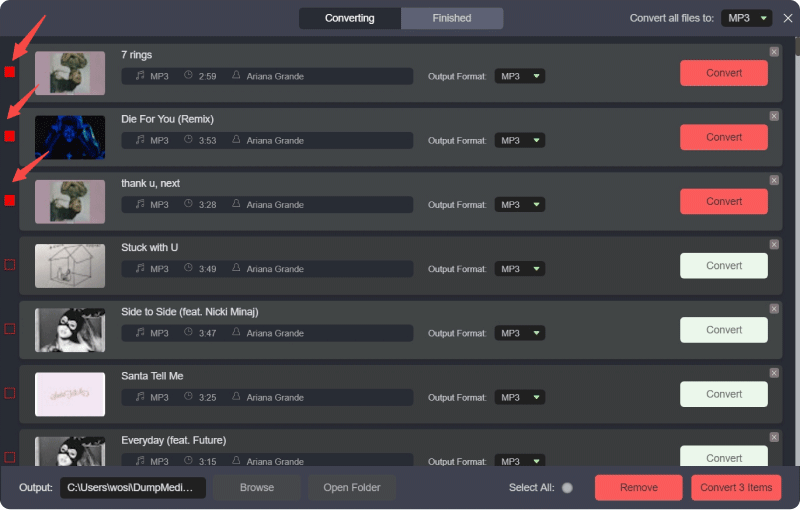
Paso 3: Haga clic en el panel Formato para elegir MP3 como formato de salida. También se pueden cambiar otros parámetros de salida restantes a su gusto.
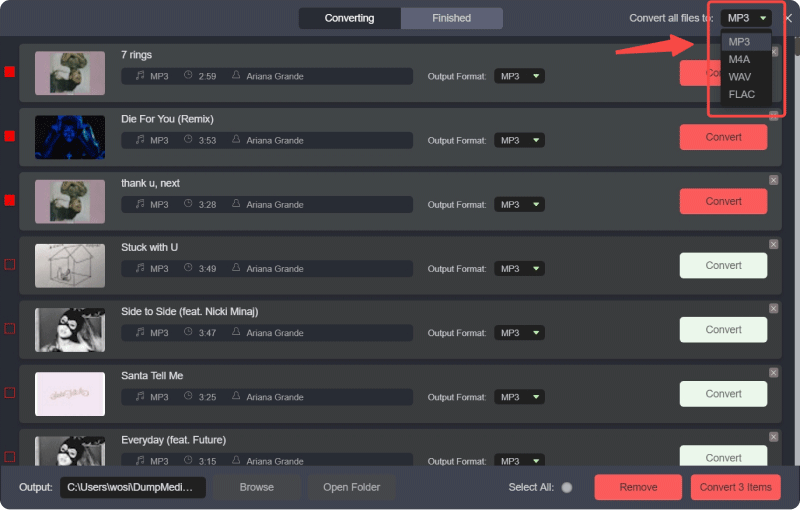
Paso 4. A continuación, puede pulsar el botón "Convertir todo" para guardar los archivos localmente de forma masiva.
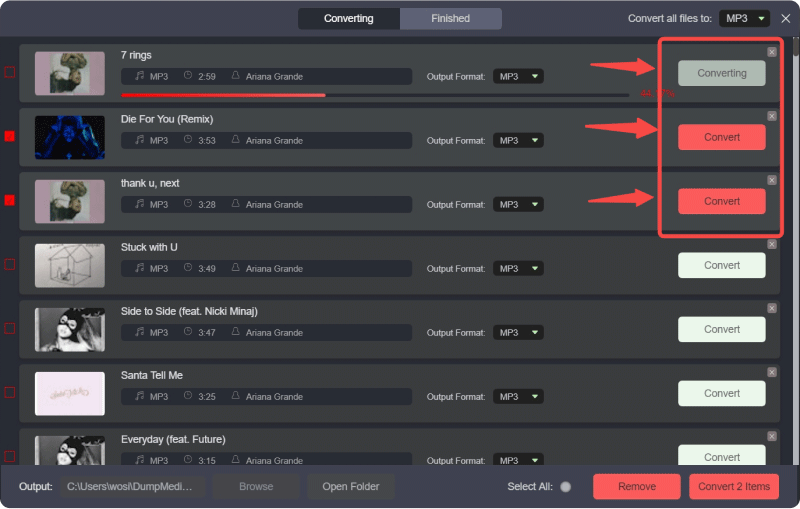
Paso 5: Abra la aplicación Apple Music en WinDows o Mac.
Paso 6. Vaya a Archivo > Agregar a la biblioteca (o arrastre y suelte los archivos en la biblioteca).
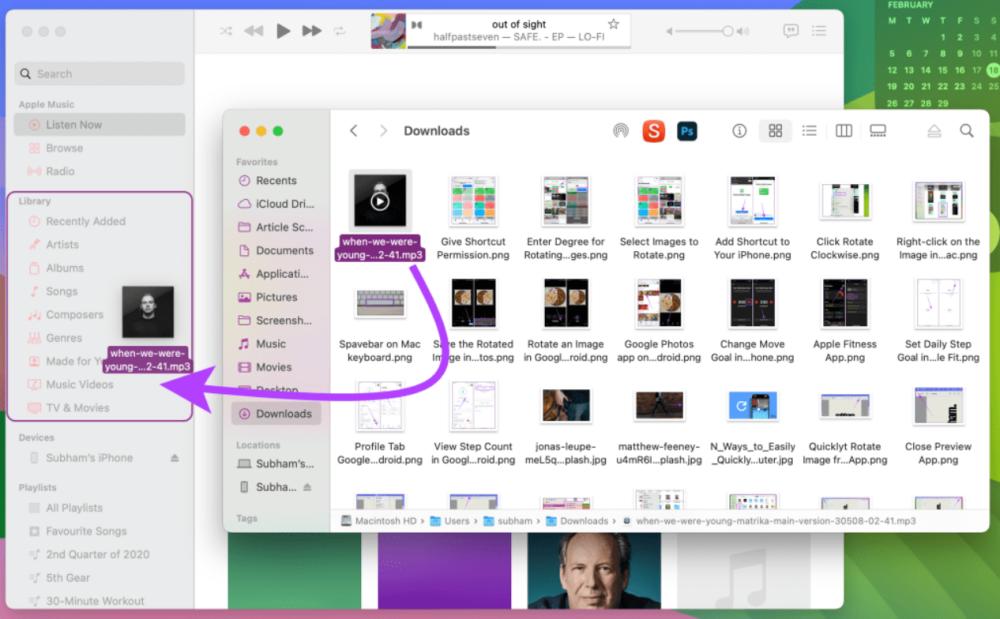
Paso 7. Espera a que Apple Music procese los archivos. Tus canciones de YouTube Music ya forman parte de tu biblioteca de Apple Music.
Siguiendo estos pasos, podrás convertir con éxito YouTube a Apple Music sin tener que buscar ni descargar manualmente cada canción individualmente.
Consejo adicional: Transfiera listas de reproducción completas con DumpMedia
DumpMedia Any Music Converter también incluye la función de transferencia de listas de reproducción. Esta herramienta te permite migrar listas de reproducción completas de YouTube Music a Apple Music:
Paso 1. Abra cualquier convertidor de música. Elija Herramientas > Transferencia de listas de reproducción.

Paso 2. Seleccione YouTube Music como fuente.
Paso 3. Seleccione Apple Music como destino.
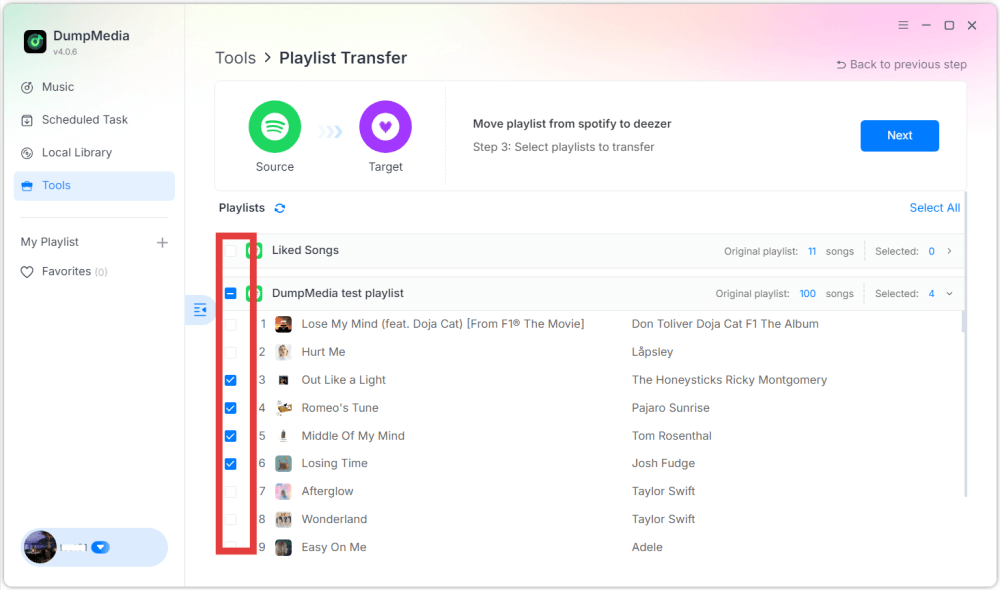
Paso 4. Selecciona qué transferir; admitimos tus canciones, artistas, álbumes favoritos y tus listas de reproducción personalizadas.
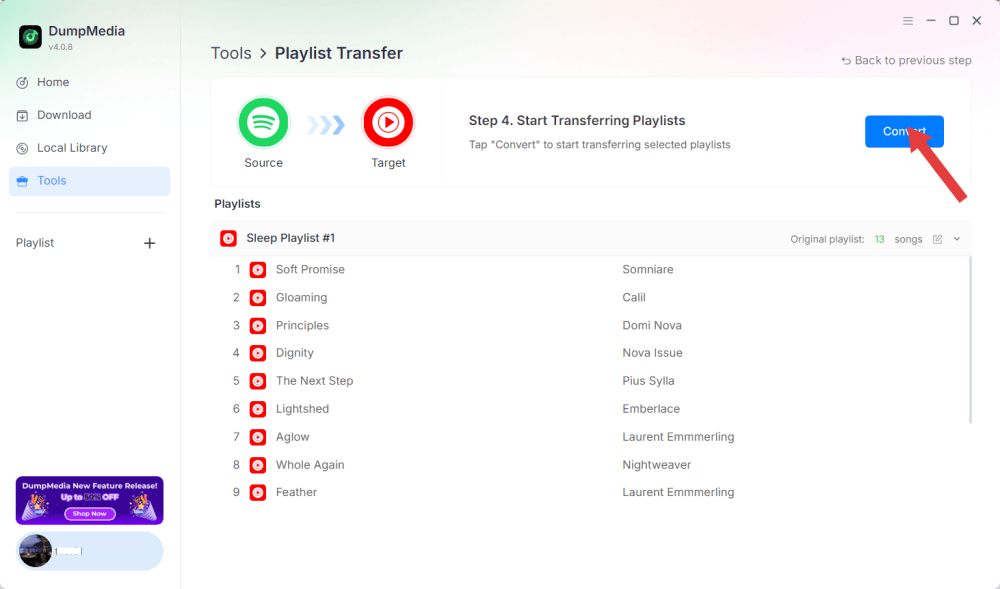
Paso 5. Haga clic en Convertir para iniciar la transferencia.
Paso 6. La transferencia ha finalizado. Haz clic en «Ir a Apple Music». Tus listas de reproducción se han transferido a un nuevo servicio y ya puedes disfrutar de una nueva lista de reproducción en Apple Music.
Parte 3. Preguntas frecuentes
1. ¿Puedo convertir YouTube a Apple Music gratis?
Sí, utilizando herramientas como DumpMedia Con cualquier convertidor de música, puedes descargar pistas de YouTube Music e importarlas a Apple Music. DumpMedia ofrece una prueba gratuita, las funciones completas pueden requerir una licencia paga.
2. ¿Se conservará la calidad de la canción durante la conversión?
DumpMedia le permite seleccionar formatos de salida y tasas de bits, garantizando que los archivos descargados mantengan una alta calidad de audio.
3. ¿Puedo transferir listas de reproducción completas?
Sí. Usando la función Transferencia de lista de reproducción en DumpMediaPuedes mover listas de reproducción completas de YouTube Music a Apple Music sin perder el orden de las canciones ni los metadatos.
4. ¿Es seguro usar DumpMedia ¿Para descargas de música de YouTube?
Sí. DumpMedia Funciona localmente en tu ordenador, por lo que tus datos y cuentas permanecen seguros. No interfiere con los servidores de Apple Music ni de YouTube Music.
Parte 4. Para resumirlo todo
Aunque YouTube Music y Apple Music no se integran de forma nativa, aún puedes convertir YouTube a Apple Music de manera eficiente usando DumpMedia Conversor de música. Al descargar pistas, subirlas a Apple Music o usar la función Transferencia de listas de reproducción, puedes mantener todas tus canciones favoritas organizadas en tu biblioteca de Apple Music.