


So übertragen Sie Spotify Musik zu YouTube: Vollständige Anleitung für alle Geräte
Das Übertragen von Wiedergabelisten zwischen Streaming-Plattformen ist ein häufiges Bedürfnis, insbesondere beim Wechsel von Apps oder beim Zusammenführen der Musikbibliothek. Wenn Sie möchten privaten Transfer Spotify Musik auf YouTubeDie gute Nachricht ist: Moderne Übertragungstools ermöglichen einen nahtlosen Übergang zwischen Web, Desktop und Mobilgeräten. Dieser Leitfaden führt Sie Schritt für Schritt durch jede Methode. Mit Unterstützung für Spotify Da YouTube auf allen gängigen Geräten verfügbar ist, können Sie Ihre Wiedergabelisten mühelos migrieren und haben so jederzeit Zugriff auf Ihre Musik, egal wo Sie Musik hören.
Inhaltsverzeichnis Teil 1. Übertragung Spotify Playlist zu YouTube OnlineTeil 2. Übertragung Spotify Playlist zu YouTube auf Windows/MacTeil 3. Übertragung Spotify Playlist zu YouTube auf iOSTeil 4. Übertragung Spotify Playlist zu YouTube auf AndroidTeil 5. Häufig gestellte FragenTeil 6. Alles zusammenfassen
Teil 1. Übertragung Spotify Playlist zu YouTube Online
Wenn Sie den schnellsten Weg zum Übertragen wünschen. Spotify Um Musik ohne Softwareinstallation auf YouTube zu übertragen, ist ein Online-Tool zur Playlist-Synchronisierung die bequemste Option. Eine weit verbreitete Lösung ist TuneMyMusic, ein browserbasierter Dienst, der die direkte Übertragung von Playlists zwischen den wichtigsten Streaming-Plattformen ermöglicht.
So funktioniert TuneMyMusic online:
- Öffne TuneMyMusic in deinem Browser.
- Wählen Spotify als Quellplattform und melden Sie sich an.
- Wählen Sie die Wiedergabeliste aus, die Sie verschieben möchten.
- Wählen YouTube als Ziel.
- Bestätigen Sie die Titelliste und starten Sie die Übertragung.
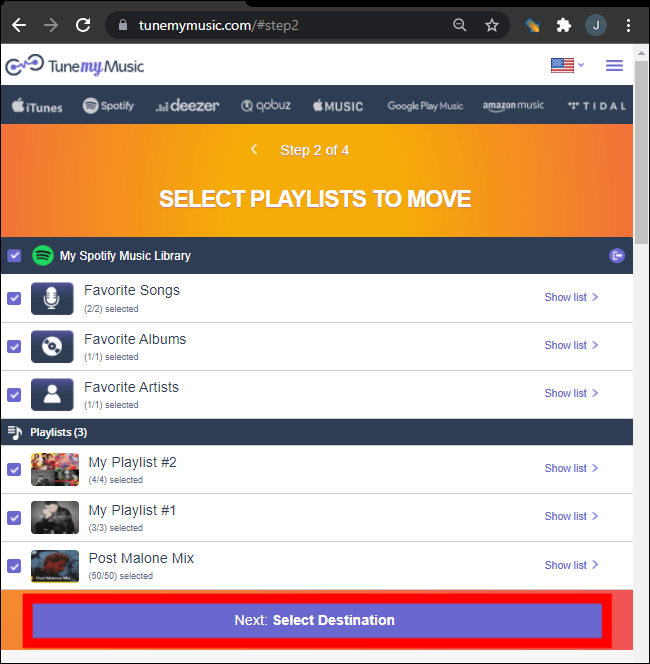
Diese Methode ist schnell, plattformübergreifend und erfordert keine lokale Installation. Sie ist ideal für Nutzer, die Spotify-Musik möglichst unkompliziert auf YouTube übertragen möchten.
Teil 2. Übertragung Spotify Playlist zu YouTube auf Windows/Mac
Für Desktop-Nutzer, die mehr Kontrolle, höhere Konvertierungsstabilität und automatisierte Wiedergabelistenverwaltung wünschen, DumpMedia Jeder Musikkonverter bietet ein spezielles Modul zum Übertragen von Wiedergabelisten. Dies ist besonders vorteilhaft für Benutzer, die regelmäßig Wiedergabelisten übertragen. Spotify Musik in großen Mengen auf YouTube hochladen oder eine vorhersehbare und wiederholbare Wiedergabelistenzuordnung benötigen.
Kostenloser Download Kostenloser Download
Wichtigste Vorteile der Playlist-Übertragungsfunktion:
- Unterstützt die Migration mehrerer Wiedergabelisten gleichzeitig
- Verarbeitet Metadaten, Coverbilder und die Reihenfolge der Musiktitel
- Bietet eine robuste Abgleichlogik, um nicht übereinstimmende Spuren zu minimieren.
- Funktioniert bei beiden Windows und macOS
Anwendung:
Schritt 1. Öffnen Sie Any Music Converter. Wählen Sie Tools > Playlist Transfer.

Schritt 2: Auswählen Spotify als Quelle.
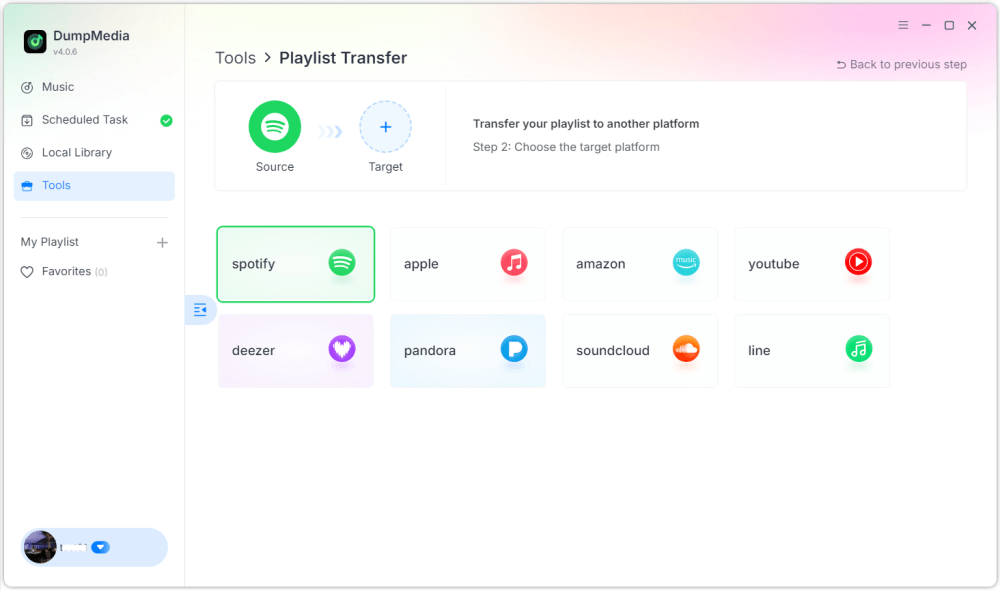
Schritt 3. Wählen Sie YouTube Music als Ziel aus.
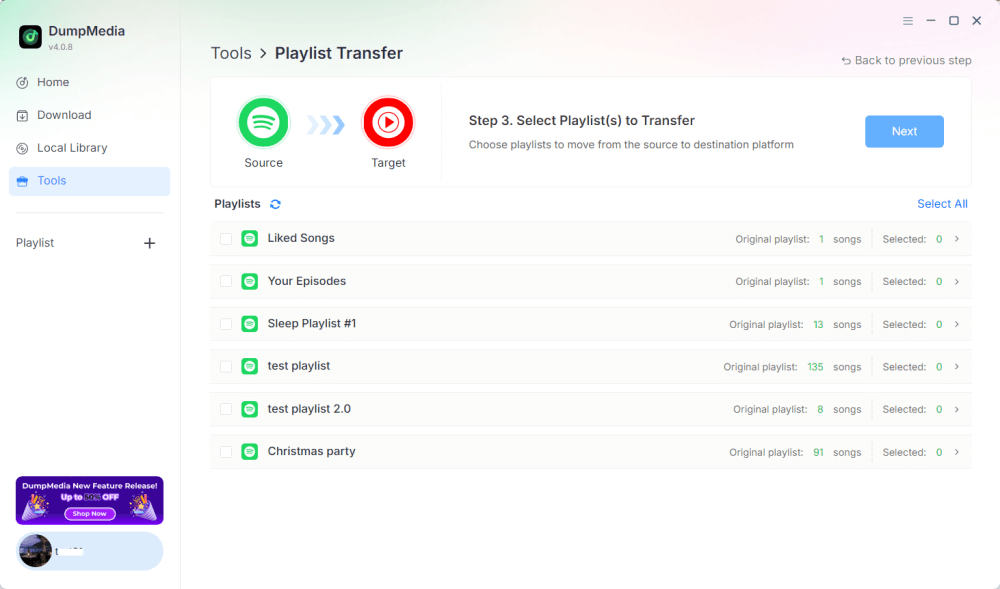
Schritt 4. Wählen Sie aus, was übertragen werden soll. Wir unterstützen Ihre Lieblingssongs, -künstler, -alben und Ihre kuratierten Wiedergabelisten.
Schritt 5. Klicken Sie auf „Konvertieren“, um die Übertragung zu starten.
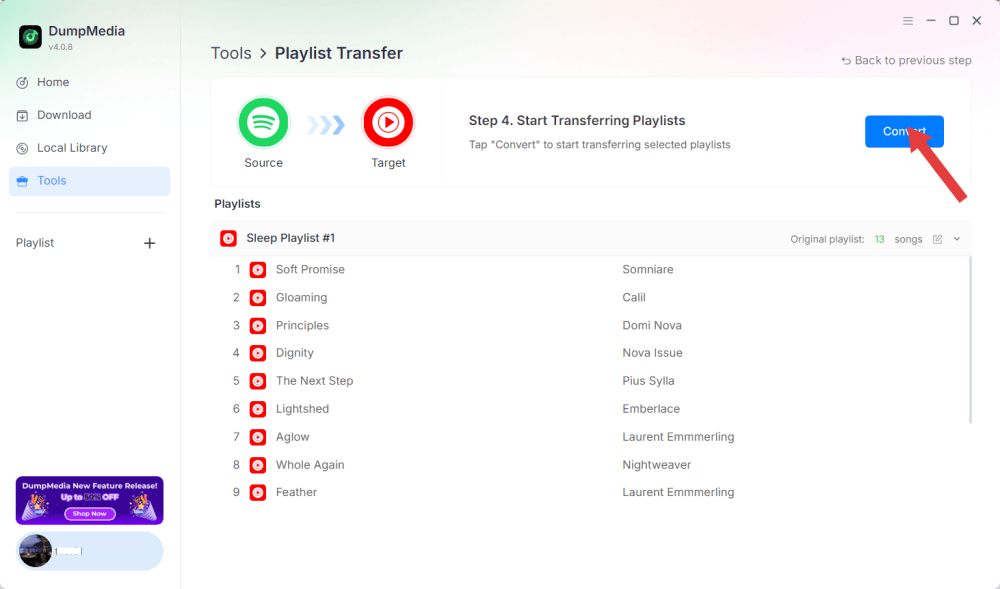
Schritt 6. Die Übertragung ist abgeschlossen. Klicken Sie auf „Zu YouTube Music“. Ihre Wiedergabelisten wurden zu einem neuen Dienst übertragen, und Sie können jetzt eine neue Wiedergabeliste auf YouTube Music genießen.
Da alle Vorgänge lokal ausgeführt werden, ist diese Lösung stabiler als browserbasierte Tools und eignet sich perfekt für Benutzer, die häufig Spotify-Musik für mehrere Wiedergabelisten oder große Bibliotheken auf YouTube übertragen müssen.
Teil 3. Übertragung Spotify Playlist zu YouTube auf iOS
Wenn Sie ein iPhone oder iPad verwenden und Spotify-Musik zu YouTube übertragen möchten, ist ein für Mobilgeräte optimiertes Migrationstool wie SongShift eine bewährte Option. Es wurde speziell für Apple-Systeme entwickelt und bietet intuitive Workflows zum Zuordnen von Wiedergabelisten.
So funktioniert SongShift:
- Installieren Sie SongShift aus dem App Store.
- verbinden Sie Ihren Spotify -Konto.
- Verbinde dein YouTube-Konto.
- Erstellen Sie eine neue Schichtaufgabe und wählen Sie die Spotify Playlist als Quelle.
- Wählen Sie YouTube als Ziel aus und überprüfen Sie, ob die Musiktitel übereinstimmen.
- Führe die Überweisung durch.
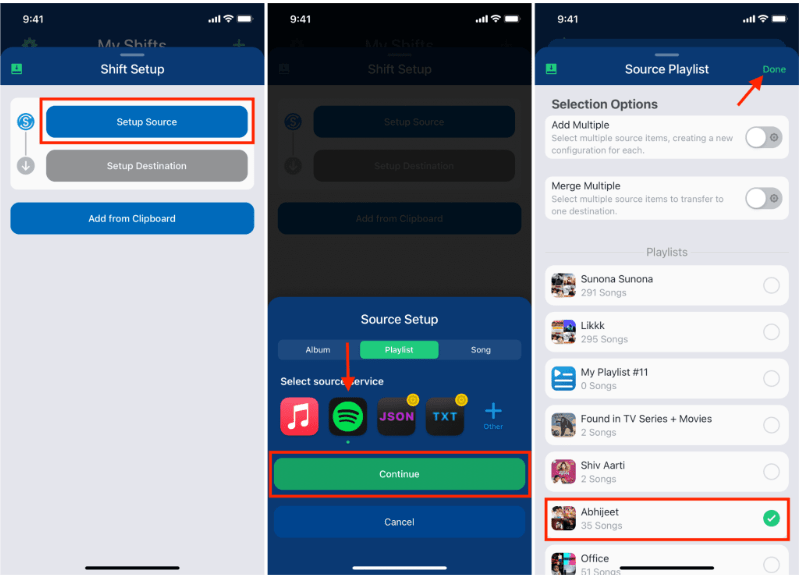
Die Stärke von SongShift liegt in der nativen iOS-Benutzeroberfläche, was die Übertragung von Daten vereinfacht. Spotify Musikwiedergabe auf YouTube läuft reibungslos für Nutzer, die hauptsächlich mit mobilen Geräten arbeiten.
Teil 4. Übertragung Spotify Playlist zu YouTube auf Android
Auf Android-Geräten ist die einfachste Möglichkeit zum Übertragen Spotify Musik zu YouTube wird mit Soundiiz Mobile Web übertragen, das gut in mobilen Browsern funktioniert und Android-freundliche Oberflächen unterstützt.
Schritte für Soundiiz Mobile Web:
- Öffne die Soundiiz-Website in deinem Android-Browser.
- Melde dich bei deinem Spotify -Konto.
- Wähle die Playlist aus, die du verschieben möchtest.
- Wählen Sie YouTube als Zieldienst aus.
- Bestätigen und starten Sie die Synchronisierung.
Dieser Workflow ist praktisch für Benutzer, die keine zusätzlichen Apps installieren möchten, aber dennoch eine unkomplizierte Möglichkeit zur Datenübertragung benötigen. Spotify Musik von YouTube streamen, während man unterwegs ist.
Teil 5. Häufig gestellte Fragen
1. Bleibt die Reihenfolge der Wiedergabeliste beim Übertragen gleich? Spotify Musik auf YouTube hochladen?
Die meisten Werkzeuge versuchen, die Ordnung aufrechtzuerhalten, aber die genaue Erhaltung hängt von der Verfügbarkeit der Spuren und der Genauigkeit der Erkennung ab.
2. Sind alle Spotify Sind die Tracks auf YouTube verfügbar?
Nicht immer. Urheberrechtliche Unterschiede, regionale Beschränkungen und nicht verfügbare Lieder können Lücken verursachen.
3. Benötigen diese Tools Zugriff auf meine Konten?
Ja. Sie benötigen eine Berechtigung, um Ihre Daten zu lesen. Spotify Erstelle Wiedergabelisten und füge sie deiner YouTube-Bibliothek hinzu. Seriöse Tools verwenden die sichere OAuth-Authentifizierung.
4. Wie lange dauert die Übertragung? Spotify Wiedergabelisten auf YouTube hochladen?
Das hängt von der Größe der Wiedergabeliste ab; kleine Wiedergabelisten sind innerhalb von Sekunden fertig; große Wiedergabelisten können mehrere Minuten dauern.
Teil 6. Alles zusammenfassen
Die beste Methode zum Übertragen finden Spotify Wie Sie Musik auf YouTube hochladen, hängt von Ihrem Workflow und Ihrem Gerät ab. Mit dem richtigen Tool gelingt der Transfer mühelos. Spotify Playlists auf YouTube hochladen und so die musikalische Kontinuität über verschiedene Plattformen hinweg gewährleisten.