


Anleitung von DumpMedia Spotify Playlist-Backup
Verwalten Sie Ihre Spotify Wiedergabelisten können eine Herausforderung darstellen, wenn man eine Sicherungskopie seiner sorgfältig organisierten Musiksammlungen erstellen möchte. DumpMedia Spotify Playlist Backup bietet eine komfortable Möglichkeit, Ihre Playlist zu sichern. Spotify Wiedergabelisten, Export von Wiedergabelisteninformationen in CSV-Dateien und Wiederherstellung von Wiedergabelisten auf Ihrem System Spotify -Konto.
Diese Anleitung erklärt, wie Sie Ihr Gerät verbinden Spotify Kontoverwaltung, Auswahl von Wiedergabelisten, Export von Sicherungsdateien, Wiederherstellung von Wiedergabelisten, Verwaltung des Sicherungsverlaufs und Anpassung des Ausgabeverzeichnisses. Es enthält außerdem Tipps zur Fehlerbehebung, die Ihnen bei häufig auftretenden Problemen helfen.
Inhaltsverzeichnis Teil 1. Installation und Registrierung DumpMedia Jeder MusikkonverterTeil 2. So verbinden Sie Ihre Spotify KontoTeil 3. Wie man einen auswählt Spotify PlaylistTeil 4. Häufige Probleme und FehlerbehebungHäufig gestellte Fragen
Teil 1. Installation und Registrierung DumpMedia Jeder Musikkonverter
Schritt 1: Herunterladen und Installieren DumpMedia Jeder Musikkonverter
DumpMedia Any Music Converter wird auf dem Mac unterstützt und WinAktuell werden diese Geräte unterstützt. Sie können das Installationspaket von der Produktseite herunterladen oder einfach auf die hier bereitgestellte Download-Schaltfläche klicken.
Kostenloser Download Kostenloser Download
Schritt 2: Starten DumpMedia Jeder Musikkonverter
Nach der Installation öffnen DumpMedia Installieren Sie einen beliebigen Musikkonverter auf Ihrem Computer. Sie werden eine übersichtliche und intuitive Benutzeroberfläche vorfinden, die die Konvertierung vereinfacht – auch für Erstanwender.
Tipp: Für das beste Erlebnis stellen Sie sicher, dass Sie mit dem Internet verbunden sind.
Schritt 3: Registrieren und aktivieren Sie einen beliebigen Musikkonverter
Start DumpMedia Any Music Converter. Klicken Sie unten links auf die Schaltfläche „Anmelden“ oder das Profilsymbol. Geben Sie Ihre E-Mail-Adresse und Ihr Passwort ein. Klicken Sie auf „Anmelden“, um die Registrierung abzuschließen.
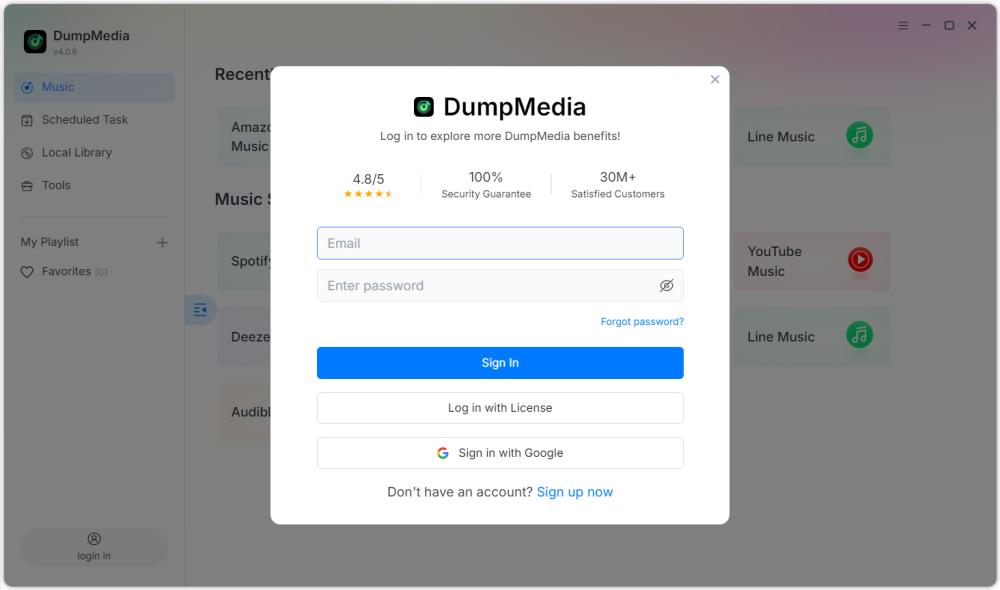
Tipp: Entsperren Spotify Playlist-Backup von Besuch der Produktseite und den Plan kaufen. Wählen Sie einen Abonnementplan, der Ihren Bedürfnissen entspricht, und zögern Sie nicht, sich an unseren Kundenservice zu wenden, um sich nach exklusiven Rabatten zu erkundigen.
Teil 2. So verbinden Sie Ihre Spotify Konto
Bevor Sie eine Wiedergabeliste auswählen, müssen Sie Ihr Gerät verbinden. Spotify Konto zu DumpMedia Spotify Playlist-Backup.
Hinweis: Bitte beachten Sie, dass Spotify Playlist Backup wird als eigenständiges Produkt verkauft und ist in keinem Standard-Abonnementplan von Music Converter enthalten.
Schritt 1: Starten DumpMedia Spotify Playlist-Backup
Öffnen Sie Any Music Converter. Wählen Sie „Tools“ > Spotify Playlist-Backup.
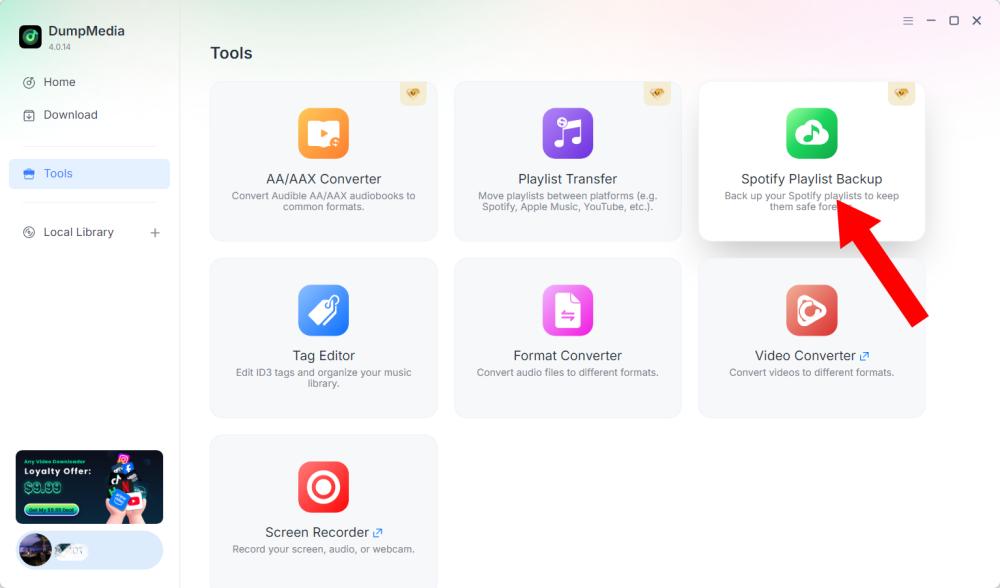
Schritt 2: Klicken Sie auf „Verbinden mit Spotify"
Suchen Sie die Option „Verbinden mit“ und klicken Sie darauf. Spotify Schaltfläche in der Softwareoberfläche. Die Anwendung leitet Sie automatisch zum integrierten Menü weiter. Spotify Player.
Schritt 3: Verbinden Sie Ihre Spotify Konto
Wenn das Spotify Der Player öffnet sich innerhalb der Software. Folgen Sie den Anweisungen, um Ihr Gerät zu verbinden. Spotify Konto. Schließen Sie den Verbindungsvorgang ab, bevor Sie mit der Wiedergabelistenverwaltung fortfahren. Sobald Ihr Konto Spotify Das Konto wurde erfolgreich verbunden. Sie können nun auf Ihre verfügbaren Wiedergabelisten zugreifen und die gewünschte Aktion auswählen.
Tipp: Falls die Verbindung nicht wie erwartet funktioniert, überprüfen Sie Ihre Internetverbindung und stellen Sie sicher, dass die Spotify Der Spieler hat korrekt geöffnet.
Teil 3. Wie man einen auswählt Spotify Playlist
Nach dem Anschließen Ihres Spotify Über Ihr Konto können Sie die Wiedergabeliste auswählen, die Sie sichern oder wiederherstellen möchten.
Schritt 1: Greifen Sie auf Ihre Wiedergabelisten zu
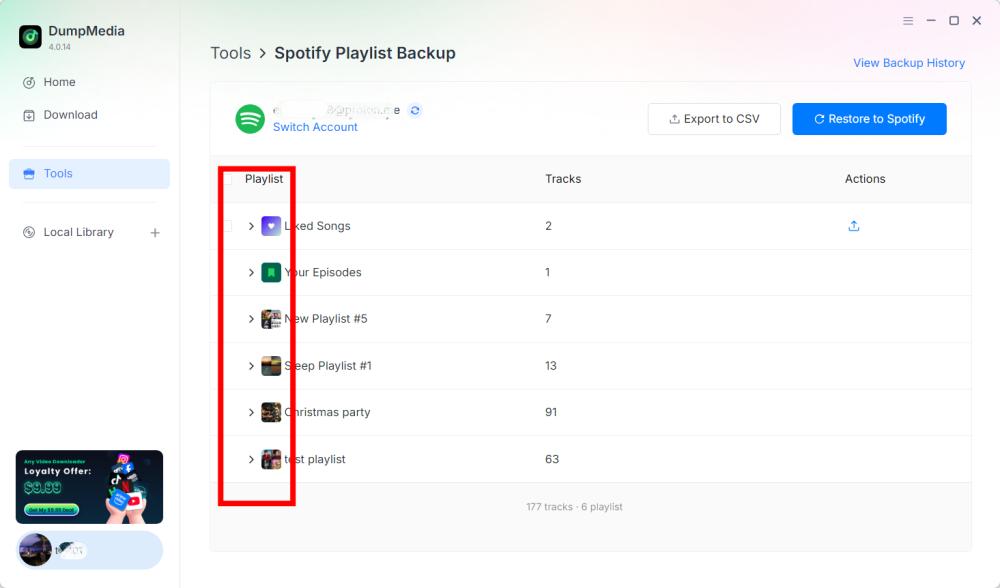
Öffnen Sie den Playlist-Bereich in DumpMedia Spotify Playlist-Sicherung nach dem Verbinden Ihres Geräts Spotify Konto. Ihre verfügbaren Wiedergabelisten sollten in der Benutzeroberfläche angezeigt werden.
Schritt 2: Eine Playlist auswählen
Wählen Sie die Playlist sorgfältig aus, insbesondere wenn Sie mehrere Playlists mit ähnlichen Namen haben.
Schritt 3: Wählen Sie eine Operation aus
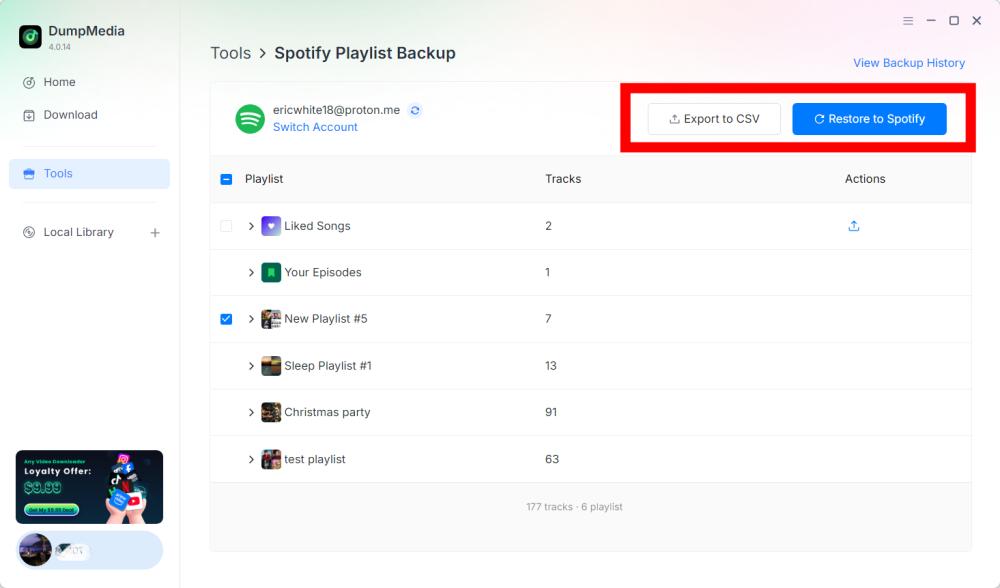
Nachdem Sie eine Wiedergabeliste ausgewählt haben, wählen Sie die entsprechende Operation entsprechend Ihren Anforderungen. Zu den verfügbaren Operationen gehören „Exportieren nach CSV“ und „Wiederherstellen“. Spotify.
- Export nach CSV: Durch den Export einer Wiedergabeliste als CSV-Datei können Sie die Wiedergabelisteninformationen in einer Datei speichern, die mit Tabellenkalkulationsprogrammen wie Microsoft Excel geöffnet und angezeigt werden kann.
- Wiederherstellung Spotify: DumpMedia Spotify Playlist Backup unterstützt die Wiederherstellung von Wiedergabelisten über die Funktion „Wiederherstellen auf“. Spotify .
Schritt 4: Überprüfen Sie die exportierte Datei
DumpMedia Spotify Playlist Backup speichert Sicherungsdateien im Standardordner. Sie können diesen Speicherort in den Einstellungen ändern. Nach Abschluss des Exports finden Sie die erstellte CSV-Datei. Diese können Sie mit einem kompatiblen Tabellenkalkulationsprogramm öffnen, um ihren Inhalt zu überprüfen.
Wichtig: Die im CSV-File enthaltenen Felder sollten anhand der aktuellen Version überprüft werden. DumpMedia Spotify Playlist-Backup.
Schritt 5: Überprüfe dein Spotify Konto
Wenn Sie „Wiederherstellen“ auswählen Spotify, geöffnet Spotify und überprüfen Sie, ob die Wiedergabeliste erfolgreich wiederhergestellt wurde.
Hinweis: Die Ergebnisse der Wiederherstellung können von den Sicherungsdaten abhängen. Spotify Die Kontoverbindung und die aktuellen Wiederherstellungsfunktionen der Software sind relevant. Die genaue Vorgehensweise bei nicht verfügbaren oder geänderten Titeln muss in der Produktdokumentation nachgelesen werden.
Schritt 6: Sicherungsverlauf anzeigen
DumpMedia Spotify Die Playlist-Sicherung bietet die Option „Sicherungsverlauf anzeigen“, mit der Sie Ihre Sicherungsdatensätze einsehen können. Sie finden diese Option oben rechts in der Benutzeroberfläche. Klicken Sie darauf, um den Sicherungsverlauf zu öffnen.
Teil 4. Häufige Probleme und Fehlerbehebung
Die folgenden Lösungsvorschläge behandeln allgemeine Probleme, die bei der Kontoverbindung, der Wiedergabelistenverwaltung oder der Dateiverwaltung auftreten können. Es handelt sich dabei nicht um bestätigte produktspezifische Fehlercodes oder offizielle Fehlerbehebungen.
Verbindung nicht möglich Spotify
Lösungsvorschläge:
- Prüfe deine Internetverbindung.
- Schließen und wieder öffnen DumpMedia Spotify Playlist-Backup.
- Klicken Sie auf Verbinden mit Spotify erneut.
- Schließen Sie den Verbindungsvorgang im integrierten System ab. Spotify Player.
Sollte das Problem weiterhin bestehen, notieren Sie sich die genaue Fehlermeldung und kontaktieren Sie uns. DumpMedia Support (support@dumpmedia.com).
Wiedergabelisten werden nicht angezeigt
Lösungsvorschläge:
- Bestätigen Sie, dass die Spotify Das Konto ist verbunden.
- Öffne den Playlist-Bereich erneut.
- Starten Sie die Software neu und versuchen Sie es erneut.
- Prüfen Sie, ob das Problem alle Wiedergabelisten oder nur eine bestimmte Wiedergabeliste betrifft.
Sollte das Problem weiterhin bestehen, übermitteln Sie dem Support bitte die Details der betroffenen Playlist sowie alle verfügbaren Fehlerinformationen.
- Klicken Sie auf das Menü oben rechts im Programm und wählen Sie „Feedback senden“.
- Beschreiben Sie Ihr Problem und tragen Sie Ihren Lizenzschlüssel in das Textfeld ein.
- Bitte aktivieren Sie abschließend das Kontrollkästchen „Protokolldatei anhängen“, bevor Sie das Formular absenden.
Der Export nach CSV wurde nicht abgeschlossen.
Lösungsvorschläge:
- Bestätigen Sie, dass die Spotify Das Konto ist verbunden.
- Versuchen Sie, die Playlist erneut zu exportieren.
- Überprüfen Sie den konfigurierten Ausgabeordner in den Einstellungen.
- Vergewissern Sie sich, dass der Zielordner zugänglich ist.
- Testen Sie den Export nach Möglichkeit mit einer anderen Wiedergabeliste.
Falls der Export weiterhin fehlschlägt, speichern Sie die Fehlermeldung und wenden Sie sich an den Kundensupport.
Wiederherstellung Spotify Funktioniert nicht
Lösungsvorschläge:
- Verbinden Sie Ihr Spotify -Konto.
- Prüfen Sie, ob Sie die richtige Playlist oder den richtigen Backup-Datensatz ausgewählt haben.
- Versuchen Sie den Wiederherstellungsprozess erneut.
- Öffne Spotify und prüfen Sie, ob die Wiedergabeliste teilweise wiederhergestellt wurde.
- Kontakt DumpMedia Unterstützung, falls das Problem weiterhin besteht.
Gehen Sie nicht davon aus, dass die wiederholte Wiederherstellung desselben Backups in jeder Situation sicher ist. Überprüfen Sie die resultierende Playlist, bevor Sie weitere Wiederherstellungsvorgänge durchführen.
Häufig gestellte Fragen
Q1. Wie verbinde ich meine Spotify Konto zu DumpMedia Spotify Playlist-Backup?
Klicken Sie auf Verbinden mit SpotifyDie Software öffnet automatisch die integrierte Funktion. Spotify Spieler, mit dem Sie Ihren Spotify -Konto.
Frage 2: Kann ich exportieren? Spotify Wiedergabelisten in CSV konvertieren?
Ja. Nach dem Verbinden Ihres Geräts Spotify Nach Auswahl eines Kontos und einer Playlist wählen Sie „Exportieren nach CSV“, um eine Sicherungsdatei zu erstellen.
Frage 3: Kann ich eine Wiedergabeliste wiederherstellen? Spotify?
Ja. DumpMedia Spotify Playlist Backup bietet eine Wiederherstellungsfunktion. Spotify Option für unterstützte Wiederherstellungsmaßnahmen.
Frage 4: Wo werden meine Sicherungsdateien gespeichert?
Sicherungsdateien werden im Standardausgabeordner gespeichert. Sie können den Speicherort überprüfen oder ändern, indem Sie das Menü oben rechts öffnen, „Einstellungen“ auswählen und dort den Eintrag „Ausgabeordner“ suchen.
Frage 5: Wie kann ich frühere Sicherungsaufzeichnungen anzeigen?
Klicken Sie in der oberen rechten Ecke der Software auf „Sicherungsverlauf anzeigen“, um den verfügbaren Sicherungsverlauf einzusehen.
Q6. Was soll ich tun, wenn Spotify Verbindung nicht möglich?
Überprüfen Sie Ihre Internetverbindung und öffnen Sie die Software erneut. Sollte das Problem weiterhin bestehen, wenden Sie sich bitte an [Kontaktinformationen einfügen]. DumpMedia Unterstützung bei der Fehleranalyse.
Frage 7: Was soll ich tun, wenn meine Wiedergabeliste fehlt?
Bestätigen Sie, dass Ihre Spotify Wenn Ihr Konto verbunden ist, starten Sie die Software neu und überprüfen Sie den Playlist-Bereich erneut. Sollte die Playlist weiterhin nicht verfügbar sein, wenden Sie sich bitte an den Support.
Frage 8: Kann ich ein Backup auf einem anderen Ort wiederherstellen? Spotify Konto?
Diese Funktion ist in der aktuellen Version noch nicht verfügbar, aber bleiben Sie gespannt auf zukünftige Updates.