


Hur man överför YouTube Music till Spotify: Komplett guide
Om du har använt YouTube Music men funderar på att byta till Spotify, en viktig fråga är hur man flyttar sina spellistor utan att förlora sin musiksamling. Att manuellt återskapa spellistor kan ta lång tid, särskilt om man har ägnat år åt att bygga dem. Lyckligtvis finns det flera verktyg och metoder som gör det möjligt att överföra YouTube Music till Spotify effektivt. I den här guiden utforskar vi praktiska sätt att migrera ditt musikbibliotek med hjälp av skrivbordsprogram och onlineverktyg.
Innehållsguide Del 1. Översikt: YouTube Music vs. SpotifyDel 2. Konvertera YouTube Music till Spotify on Windows/MacDel 3. Överför YouTube Music-spellista till Spotify ONLINEDel 4. Vanliga frågorDel 5. Slutsats
Del 1. Översikt: YouTube Music vs. Spotify
Innan du lär dig hur du överför YouTube Music till Spotify, är det bra att förstå skillnaderna mellan de två streamingplattformarna. Medan båda tjänsterna ger tillgång till stora musikbibliotek fokuserar de på något olika användarupplevelser.
ljudkvalitet
En viktig skillnad är ljudkvaliteten. Spotify erbjuder streamingalternativ av hög kvalitet och fortsätter att utveckla avancerade ljudfunktioner för premiumanvändare. YouTube Music erbjuder också god streamingkvalitet, men dess styrka ligger mer i mångfalden av innehåll snarare än rent ljudfokuserade funktioner. Eftersom plattformen är integrerad med YouTube kan användare enkelt få tillgång till liveframträdanden, remixer, covers och inofficiella uppladdningar som kanske inte visas i traditionella musikkataloger.
Prissättning och prenumerationsplaner
Båda plattformarna erbjuder gratis- och premiumnivåer. SpotifyGratisabonnemanget inkluderar annonser och vissa uppspelningsbegränsningar, medan gratisversionen av YouTube Music också inkluderar annonser och begränsar bakgrundsuppspelning på mobila enheter. Premiumabonnemang tar bort dessa begränsningar och ger ytterligare funktioner som nedladdningar offline och reklamfri lyssning.
- Läs vår djupgående jämförelse för att se skillnaden mellan Spotify Gratis kontra premium.
Musikupptäckt och rekommendation
Spotify är allmänt känt för sina algoritmdrivna spellistor som Discover Weekly och Daily Mixes, som hjälper användare att hitta nya låtar baserat på lyssningsvanor. YouTube Music, å andra sidan, drar nytta av YouTubes rekommendationssystem och stora videobibliotek, som erbjuder en blandning av officiella låtar och videobaserat innehåll.
Enhetskompatibilitet och ekosystemintegration
Spotify integreras med en mängd olika enheter, inklusive smarta högtalare, spelkonsoler och bilsystem. YouTube Music integreras nära med Google tjänster och Android-enheter. På grund av dessa skillnader väljer vissa lyssnare att överföra YouTube Music till Spotify för att dra nytta av Spotifys ekosystem och verktyg för att upptäcka spellistor.
Del 2. Konvertera YouTube Music till Spotify on Windows/Mac
En av de mest pålitliga metoderna för att överföra YouTube Music till Spotify använder skrivbordsprogramvara som låter dig ladda ner YouTube Music-låtar och ladda upp dem till SpotifyEn kraftfull lösning för denna process är DumpMedia Vilken musikkonverterare som helst, som fungerar på båda Windows och macOS.
Gratis nedladdning Gratis nedladdning
Det här verktyget låter användare ladda ner låtar eller spellistor från YouTube Music och konvertera dem till vanliga ljudformat som är kompatibla med SpotifyEfter att filerna har laddats ner kan de läggas till i Spotifys lokala bibliotek.
Fler fantastiska funktioner hos DumpMedia
- ⭐Integration med YouTube Music Web Player
- ⭐Fungerar för både YouTube Music Premium- och Free-användare
- ⭐Konvertera musik till MP3/AAC/WAV/FLAC/ALAC/AIFF
- ⭐Erbjud upp till 35x snabbare omvandlingshastighet
- ⭐Låt dig anpassa utdatainställningar
- ⭐Bevara all metadatainformation
- ⭐100% Rena. Ingen risk med att använda
Konvertera YouTube Music till Spotify med DumpMedia
Steg 1. Ladda ned och installera DumpMedia Valfri musikkonverterare på din Mac/Windows.
Gratis nedladdning Gratis nedladdning
Steg 2. Starta det så ser du gränssnittet. Använd ditt YouTube Music Premium/Free-konto för att logga in. Bläddra i YouTube Music-biblioteket för att komma åt valfri låt att ladda ner för streaming offline. Genom att dra och släppa dem till konverteringslistan (plusknappen) läggs alla låtar som finns till för att förbereda konverteringen.
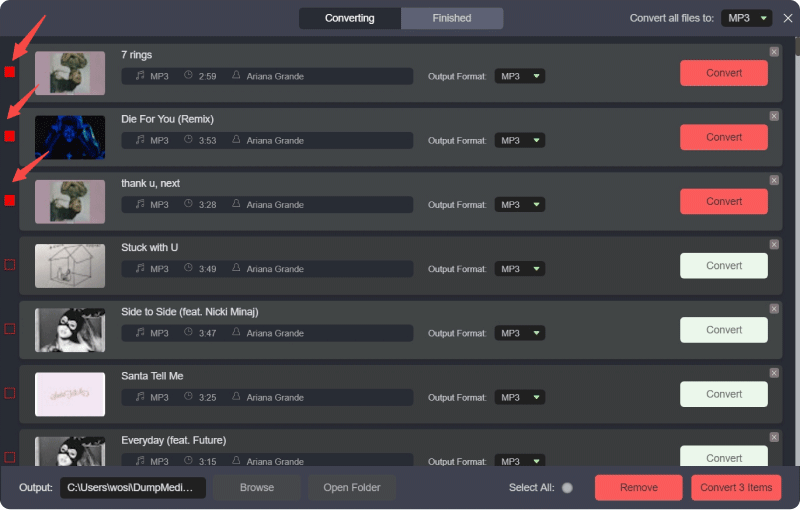
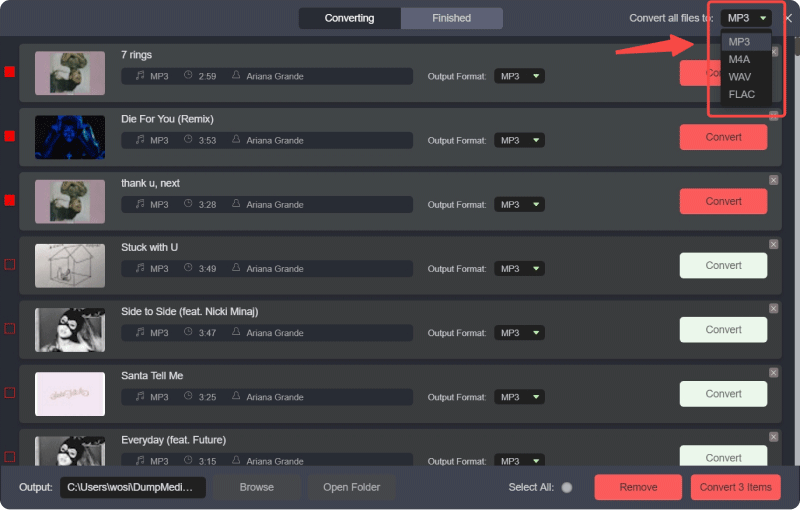
Steg 3. På konverteringsgränssnittet kan du välja utdataformat som MP3, och ställ in Sample Rate eller Bitrate på Preference. Välj även en mapp där musikfilerna ska sparas.
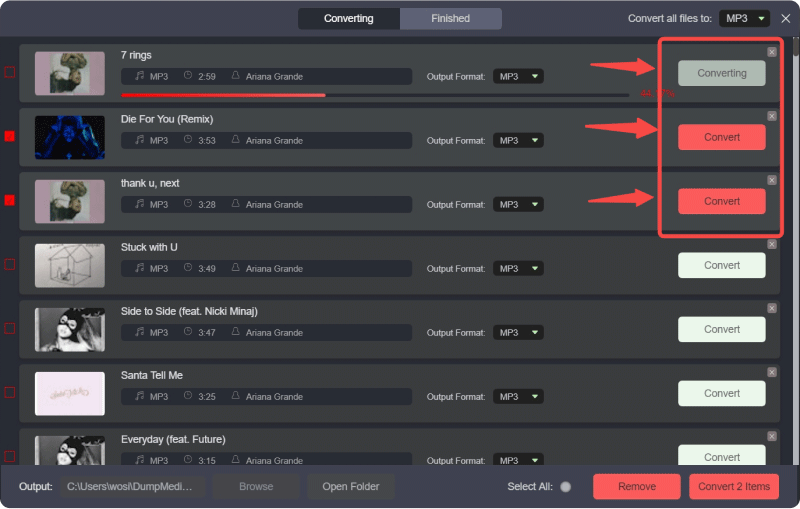
Steg 4. I det sista steget klickar du på knappen "Konvertera alla" för att börja konvertera alla YouTube Music-låtar till MP3 uppkopplad.
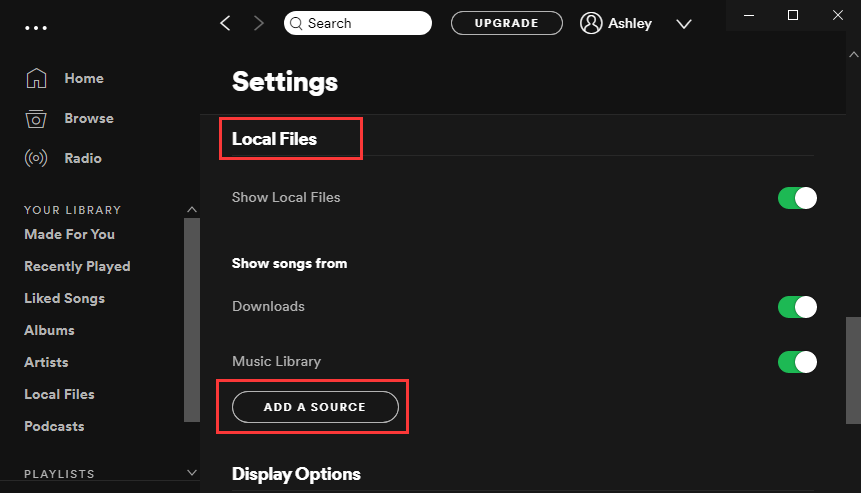
Steg 5. Öppet Spotify på din dator och gå till Inställningar-menyn. Aktivera alternativet Lokala filer så att Spotify kan upptäcka musik som lagras på din enhet. Välj sedan mappen där DumpMedia sparade de nedladdade spåren.
Steg 6. Spotify kommer att skanna mappen och lägga till låtarna i ditt lokala bibliotek. När låtarna visas kan du skapa en ny spellista och lägga till dem precis som vilken annan som helst. Spotify låtar.
Den här metoden låter dig överföra YouTube Music till Spotify samtidigt som du behåller kontrollen över dina musikfiler.
Ytterligare tips: Funktion för överföring av spellistor
DumpMedia Any Music Converter har även en funktion för spellistaöverföring som är utformad för att förenkla migreringsprocessen. Istället för att ladda ner och lägga till varje låt individuellt kan den här funktionen hjälpa till att återskapa spellistor automatiskt mellan plattformar.
Genom att ansluta dina konton och välja den spellista du vill migrera, DumpMedia kan återskapa spellistestrukturen på SpotifyFör användare med stora musikbibliotek är detta ett av de mest effektiva sätten att överföra YouTube Music till Spotify utan att lägga timmar på att organisera låtar manuellt.

Del 3. Överför YouTube Music-spellista till Spotify ONLINE
Om du föredrar att inte installera programvara på din dator finns det ett annat sätt att överföra YouTube Music till Spotify är genom att använda ett onlineverktyg för migrering av spellistor. En populär tjänst är TuneMyMusic, som låter användare flytta spellistor mellan olika streamingplattformar via en webbläsare.
Steg-för-steg-guide
Steg 1. För att starta, öppna TuneMyMusic-webbplatsen och klicka på alternativet för att påbörja en ny överföring. Välj YouTube Music som källplattform och logga in på ditt konto så att verktyget kan komma åt dina spellistor.
Steg 2. När dina spellistor har laddats väljer du den spellista du vill flytta. Tjänsten analyserar låtlistan och förbereder låtarna för matchning med Spotifys katalog.
Steg 3. Välj sedan Spotify som destinationsplattform och auktorisera anslutningen.
Steg 4. Efter att överföringen har bekräftats kommer TuneMyMusic automatiskt att söka efter motsvarande spår på Spotify och återskapa spellistan.
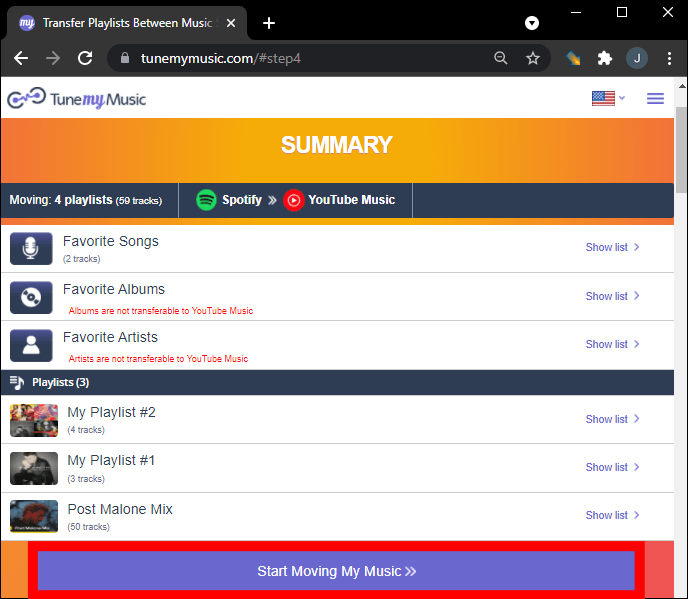
Steg 5. När processen är klar kan du öppna Spotify och se den nyskapade spellistan i ditt bibliotek.
Onlineverktyg som TuneMyMusic erbjuder en bekväm lösning för användare som vill överföra YouTube Music till Spotify snabbt utan att installera programvara för datorn. Gratisversioner kan dock ha begränsningar för spellistornas storlek eller antalet överföringar.
Del 4. Vanliga frågor
Kan jag överföra YouTube Music till Spotify direkt?
Nej. Streamingtjänster tillåter vanligtvis inte direkta spellistaöverföringar mellan plattformar. Du behöver tredjepartsverktyg som DumpMedia eller TuneMyMusic för att slutföra processen.
Kommer alla låtar att överföras utan problem?
De flesta låtar överförs korrekt eftersom båda plattformarna har stora musikkataloger. Ibland kan det dock hända att vissa spår inte är tillgängliga på Spotify, vilket innebär att de inte kan matchas under överföringen.
Är det möjligt att överföra hela spellistor?
Ja. Många verktyg stöder fullständig migrering av spellistor. DumpMediaFunktionen för spellistaöverföring och onlinetjänster som TuneMyMusic kan återskapa spellistor på Spotify.
Är det säkert att använda verktyg för överföring av spellistor?
Pålitliga verktyg använder säkra autentiseringssystem för att ansluta till dina streamingkonton. Välj alltid betrodda tjänster när du försöker överföra YouTube Music till Spotify.
Del 5. Slutsats
Att byta musikströmningsplattform betyder inte att du måste förlora dina favoritspellistor. Med rätt verktyg är det fullt möjligt att överföra YouTube Music till Spotify utan att återskapa ditt musikbibliotek manuellt.
Desktop-programvara som DumpMedia Any Music Converter erbjuder en kraftfull lösning genom att låta användare ladda ner låtar från YouTube Music och ladda upp dem till Spotify som lokala filer. Dess funktion för spellisteöverföring kan ytterligare förenkla processen för stora musiksamlingar. Samtidigt erbjuder onlinetjänster som TuneMyMusic ett bekvämt webbläsarbaserat alternativ för att snabbt migrera spellistor.