


Como transferir Spotify Música para o YouTube: Guia completo para todos os dispositivos
Transferir suas playlists entre plataformas de streaming é uma necessidade comum, especialmente ao trocar de aplicativo ou consolidar sua biblioteca de músicas. Se você quiser transferência Spotify música para o YouTubeA boa notícia é que as ferramentas de transferência modernas tornam o processo perfeito entre a web, o desktop e os dispositivos móveis. Este guia irá orientá-lo passo a passo em cada método. Com suporte para Spotify Com o YouTube em todos os principais dispositivos, você pode migrar suas playlists sem esforço e manter sua música acessível onde quer que você a ouça.
Guia de conteúdo Parte 1. Transferência Spotify Lista de reprodução do YouTube onlineParte 2. Transferência Spotify Lista de reprodução no YouTube Windows/MacParte 3. Transferência Spotify Adicionar lista de reprodução ao YouTube no iOSParte 4. Transferência Spotify Adicionar lista de reprodução ao YouTube no AndroidParte 5. FAQsParte 6. Para resumir tudo
Parte 1. Transferência Spotify Lista de reprodução do YouTube online
Se você deseja a forma mais rápida de transferência, Spotify Para transferir músicas para o YouTube sem instalar nenhum software, a opção mais prática é usar uma ferramenta online de sincronização de playlists. Uma solução bastante utilizada é o TuneMyMusic, um serviço baseado em navegador que permite a migração direta de playlists entre as principais plataformas de streaming.
Como funciona o TuneMyMusic online:
- Abra o TuneMyMusic no seu navegador.
- Escolha Spotify como plataforma de origem e faça login.
- Selecione a lista de reprodução que deseja mover.
- Escolha YouTube como destino.
- Confirme a lista de faixas e inicie a transferência.
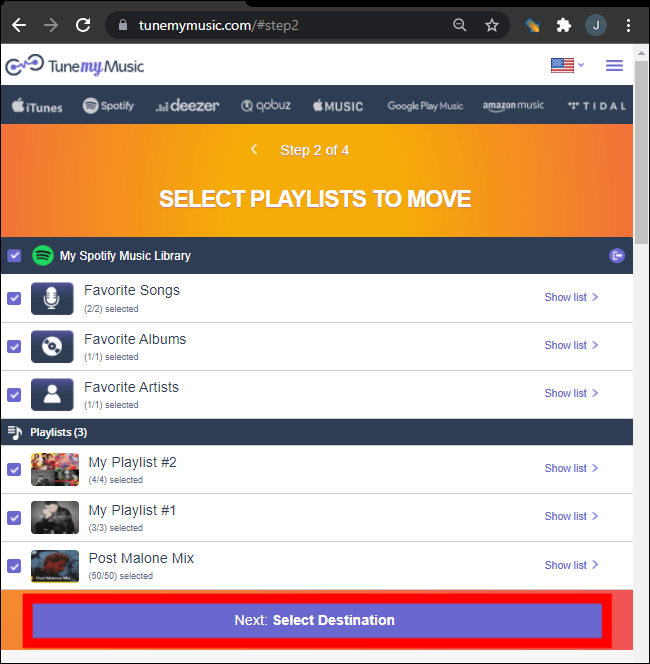
Este método é rápido, multiplataforma e não requer instalação local. É ideal para usuários que simplesmente desejam transferir músicas do Spotify para o YouTube da maneira mais fácil possível.
Parte 2. Transferência Spotify Lista de reprodução no YouTube Windows/Mac
Para usuários de desktop que buscam maior controle, maior estabilidade de conversão e gerenciamento automatizado de listas de reprodução, DumpMedia Qualquer conversor de música Oferece um módulo dedicado à transferência de listas de reprodução. É especialmente vantajoso para usuários que transferem listas de reprodução regularmente. Spotify Para quem precisa de músicas para o YouTube em massa ou para quem precisa de mapeamento de listas de reprodução previsível e repetível.
Download grátis Download grátis
Principais vantagens da funcionalidade de Transferência de Listas de Reprodução:
- Suporta migração em massa de listas de reprodução.
- Gerencia metadados, capas de álbuns e ordenação de faixas.
- Fornece uma lógica de correspondência robusta para minimizar faixas incompatíveis.
- Funciona em ambos Windows e macOS
Como usá-lo:
Passo 1. Abra o Any Music Converter. Selecione Ferramentas > Transferência de lista de reprodução.

Passo 2. Selecionar Spotify como uma fonte.
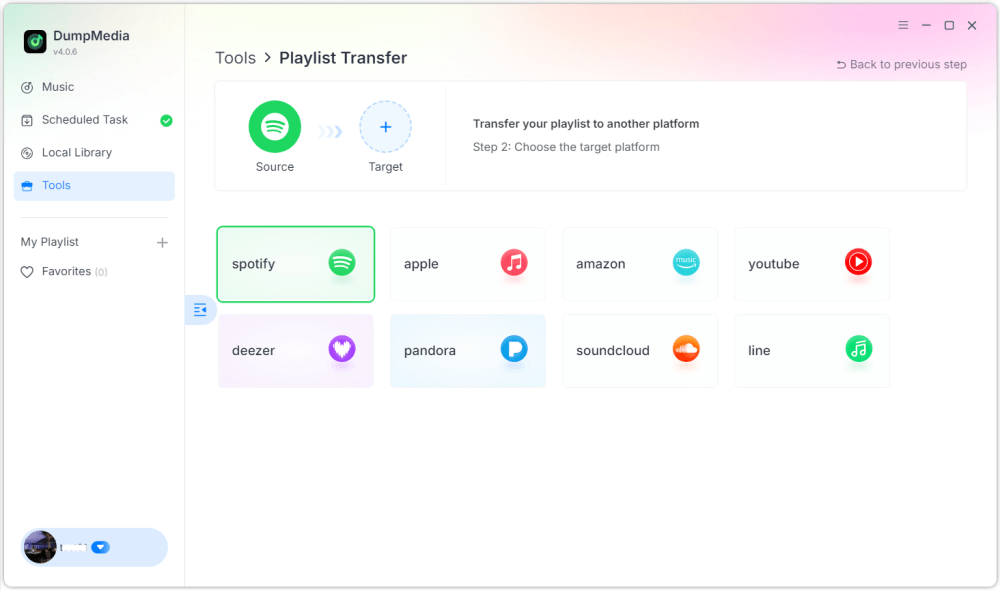
Passo 3. Selecione o YouTube Music como destino.
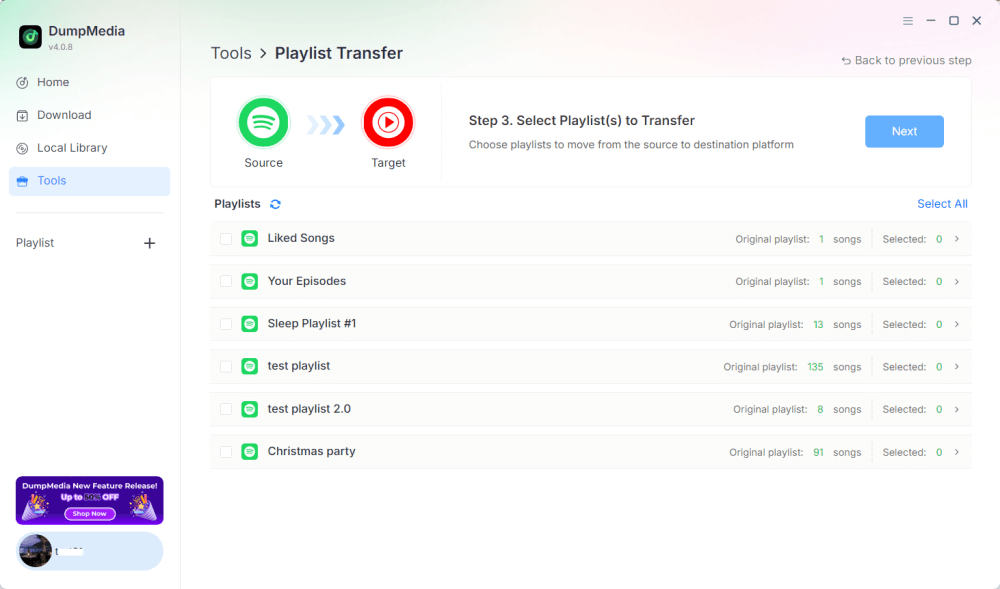
Passo 4. Selecione o que deseja transferir. Oferecemos suporte às suas músicas, artistas, álbuns favoritos e às suas playlists personalizadas.
Passo 5. Clique em Converter para iniciar a transferência.
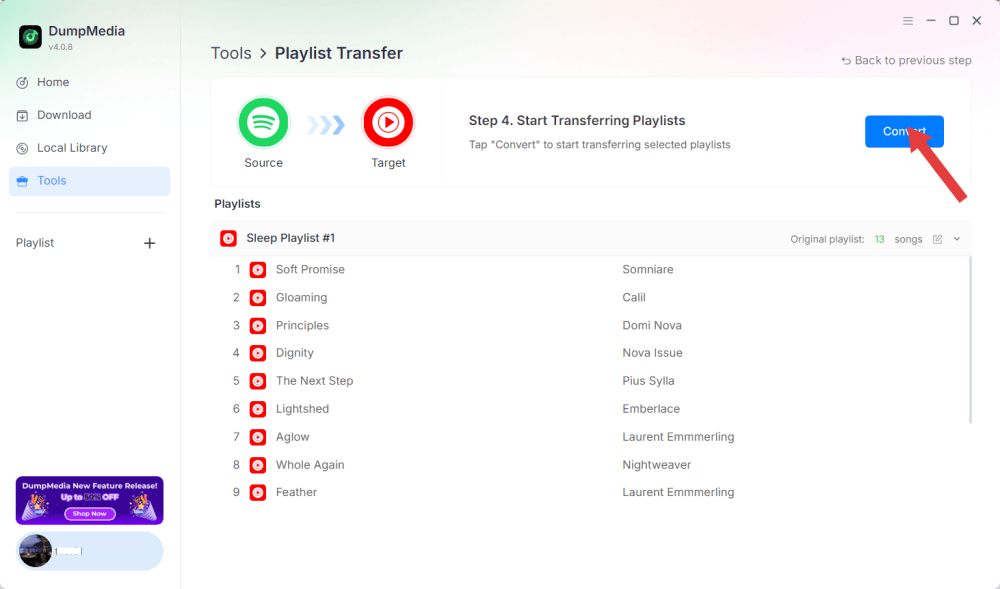
Etapa 6. A transferência foi concluída. Clique em "Acessar o YouTube Music". Suas playlists foram transferidas para um novo serviço e você já pode começar a curtir suas novas playlists no YouTube Music.
Como todas as operações são executadas localmente, essa solução é mais estável do que as ferramentas baseadas em navegador, sendo perfeita para usuários que precisam transferir músicas do Spotify para o YouTube com frequência, seja para várias playlists ou bibliotecas grandes.
Parte 3. Transferência Spotify Adicionar lista de reprodução ao YouTube no iOS
Se você usa um iPhone ou iPad e quer transferir músicas do Spotify para o YouTube, uma ferramenta de migração otimizada para dispositivos móveis, como o SongShift, é uma opção comprovada. Ele foi desenvolvido especificamente para o ecossistema da Apple e oferece fluxos de trabalho intuitivos para mapeamento de playlists.
Como funciona o SongShift:
- Instale o SongShift na App Store.
- Ligue o seu Spotify conta.
- Conecte sua conta do YouTube.
- Crie uma nova tarefa de turno e escolha a Spotify lista de reprodução como fonte.
- Defina o YouTube como destino e confirme se a faixa corresponde.
- Efetue a transferência.
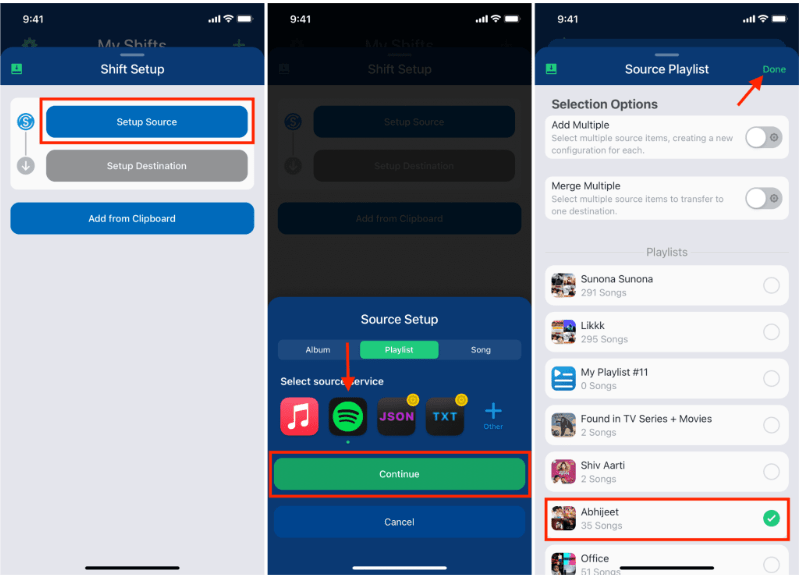
A força do SongShift reside nas interações de interface do usuário nativas do iOS, tornando a tarefa de transferência mais fácil. Spotify Reprodução de música no YouTube sem problemas para usuários que trabalham principalmente em dispositivos móveis.
Parte 4. Transferência Spotify Adicionar lista de reprodução ao YouTube no Android
Em dispositivos Android, a maneira mais fácil de transferir Spotify Para reproduzir músicas no YouTube, utilize o Soundiiz Mobile Web, que funciona bem em navegadores móveis e oferece interfaces compatíveis com Android.
Passos para configurar o Soundiiz Mobile Web:
- Abra o site da Soundiiz no seu navegador Android.
- Entrar na sua Spotify conta.
- Escolha a playlist que você quer usar.
- Selecione o YouTube como serviço de destino.
- Confirme e inicie a sincronização.
Esse fluxo de trabalho é conveniente para usuários que não desejam instalar aplicativos adicionais, mas ainda precisam de uma maneira simples de transferir dados. Spotify Ouça música no YouTube enquanto estiver em movimento.
Parte 5. FAQs
1. A ordem da lista de reprodução permanecerá a mesma quando eu transferir? Spotify Música para o YouTube?
A maioria das ferramentas tenta manter a ordem, mas a preservação exata depende da disponibilidade de trilhas e da precisão do reconhecimento.
2. São todos Spotify As faixas estão disponíveis no YouTube?
Nem sempre. Diferenças nos direitos autorais, restrições regionais e músicas indisponíveis podem causar lacunas.
3. Essas ferramentas exigem acesso às minhas contas?
Sim. Eles precisam de autorização para ler o seu Spotify Crie listas de reprodução e adicione-as à sua biblioteca do YouTube. Ferramentas confiáveis usam autenticação OAuth segura.
4. Quanto tempo leva para transferir? Spotify Listas de reprodução para o YouTube?
Depende do tamanho da lista de reprodução; listas pequenas são concluídas em segundos; bibliotecas grandes podem levar vários minutos.
Parte 6. Para resumir tudo
Encontrar o melhor método de transferência Spotify A transferência de músicas para o YouTube depende do seu fluxo de trabalho e do dispositivo que você utiliza. Com a ferramenta certa, você pode fazer isso sem esforço. Spotify As listas de reprodução do YouTube mantêm a continuidade musical em todas as plataformas.