


Spotify Sem som? Soluções fáceis que realmente funcionam.
Muitos Spotify Os usuários de repente se deparam com o problema frustrante de Spotify Sem som, embora a música pareça estar tocando normalmente. Às vezes, a barra de progresso se move, as listas de reprodução carregam corretamente e as músicas continuam tocando, mas não há absolutamente nenhum áudio. Se você estiver enfrentando problemas de som em SpotifyVocê não está sozinho. Neste guia, explicaremos os principais motivos por trás disso. SpotifyNão há som, mostraremos soluções passo a passo e forneceremos uma solução de longo prazo para uma reprodução offline mais estável.
Guia de conteúdo Parte 1. Razões pelas quais Spotify não tem somParte 2. Como corrigir a ausência de som em SpotifyParte 3. Melhor Maneira de Evitar Spotify Problemas de reprodução permanentesParte 4. FAQs Parte 5. Conclusão
Parte 1. Razões pelas quais Spotify não tem som
Existem muitas causas possíveis para Spotify Sem problemas de som. Na maioria dos casos, o problema está relacionado a:
- configurações de saída de áudio incorretas
- corrupção do cache do aplicativo
- desatualizado Spotify versões
- Conflitos de Bluetooth
- erros de reprodução de streaming
- problemas de configuração de som do sistema
Às vezes Spotify Não há som, embora outros aplicativos funcionem perfeitamente.
Parte 2. Como corrigir a ausência de som em Spotify
Sem som Spotify Pode ser extremamente frustrante, especialmente quando a barra de progresso se move, mas os alto-falantes estão em silêncio. A boa notícia é que a maioria desses problemas pode ser resolvida rapidamente.
Correção 1. Verificar Spotify Configurações de volume
Uma das razões mais simples para Spotify A ausência de som ocorre porque o volume do aplicativo está silenciado.
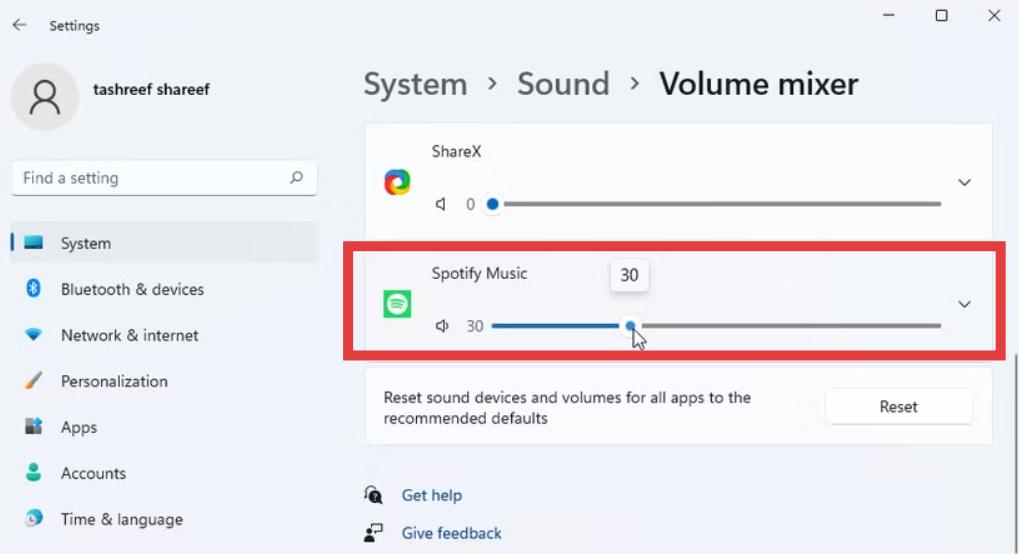
On Windows:
- Clique com o botão direito do mouse no ícone de som.
- Misturador de volume aberto
- Certificar-se de que Spotify não está silenciado
No Mac:
- Verifique as configurações de áudio do sistema.
- verificar Spotify volume de saída
Essa solução básica resolve muitos problemas. Spotify problemas de som imediatamente.
Correção 2. Reinicie Spotify App
Falhas temporárias na reprodução costumam causar Spotify Sem problemas de som. Tente fechar completamente. Spotify e reabrindo o aplicativo. Isso atualiza. Spotifymecanismo de reprodução e sessão de áudio.
Solução 3. Desative os dispositivos Bluetooth
Às vezes Spotify Envia áudio para o dispositivo de saída errado. Se você tiver algum problema, isso pode ocorrer. Spotify Sem som, desconecte os fones de ouvido Bluetooth, alto-falantes sem fio ou dispositivos de áudio externos. Em seguida, selecione manualmente o dispositivo de reprodução correto.
Correção 4. Limpar Spotify Esconderijo
Arquivos de cache corrompidos são uma das principais causas de problemas. Spotify Sem problemas de som. Limpar essa opção nas configurações do aplicativo força o software a atualizar sua estrutura de dados. Isso geralmente melhora a estabilidade da reprodução.
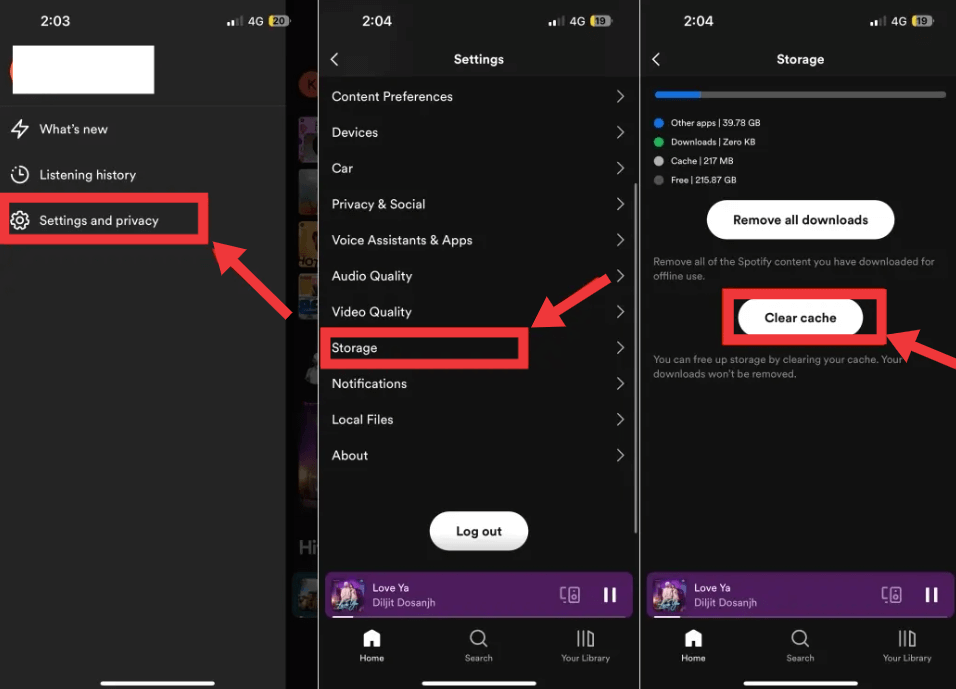
Artigo relacionado: Como limpar Spotify Cache no computador/dispositivo móvel >>>>>>
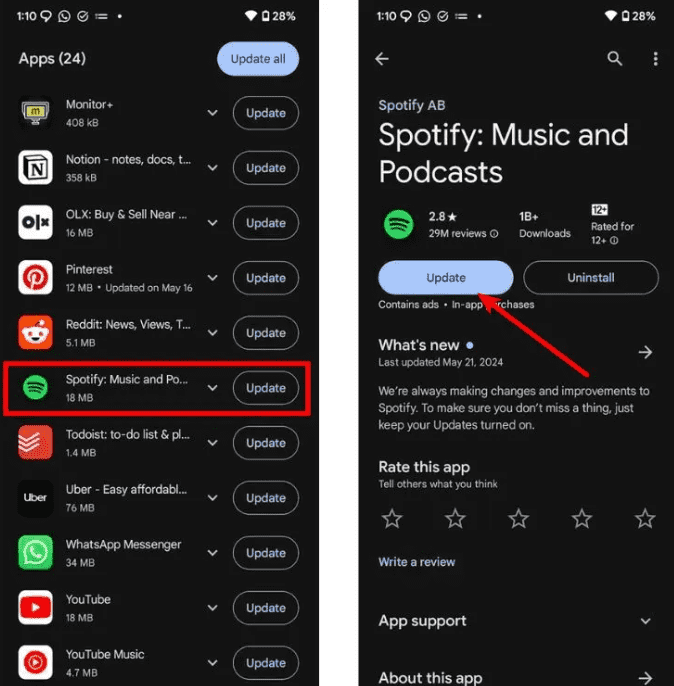
Correção 5. Atualização Spotify para a versão mais recente
Mais antigo Spotify As versões podem conter erros, causando Spotify Não ter som. Atualizando Spotify Pode corrigir falhas de reprodução e erros de saída de som. Use sempre a versão mais recente para obter a melhor experiência.
Solução 6. Verifique a saída de áudio do dispositivo.
Muitos usuários experimentam Spotify Sem som simplesmente porque o dispositivo de reprodução selecionado está incorreto. Verifique os alto-falantes, fones de ouvido, saída HDMI e dispositivos de áudio USB. Isso é especialmente comum em Winsistemas Windows e Mac.
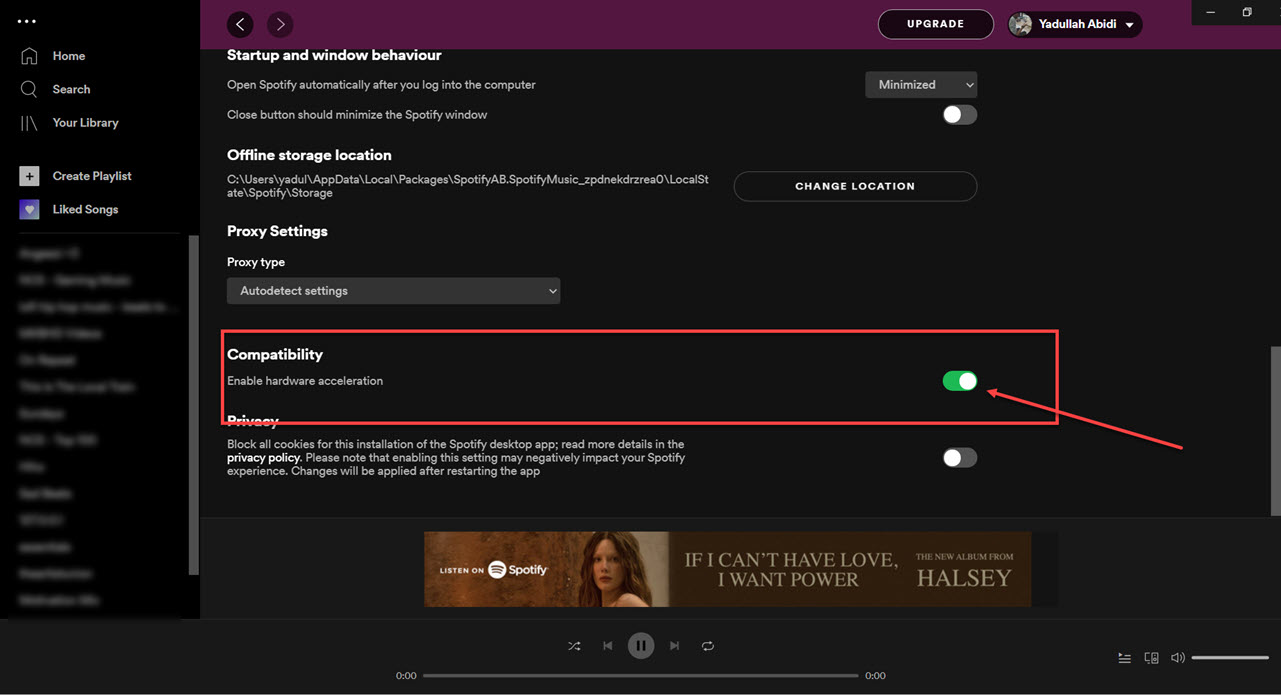
Solução 7. Desative a aceleração de hardware.
A aceleração de hardware às vezes pode entrar em conflito com os drivers de áudio. Desative-a. Isso pode resolver problemas persistentes. Spotify Sem problemas de som.
- Abra Spotify Configurações
- Deslize até Compatibilidade
- Desative a aceleração de hardware
Correção 8. Reinstale Spotify
If Spotify Se os arquivos ficarem corrompidos, reinstalar o aplicativo pode resolver o problema. Desinstalar Spotify Instale o programa completamente e baixe uma nova cópia do site oficial. Esta é uma das soluções mais eficazes para problemas persistentes. Spotify Sem problemas de som.
Parte 3. Melhor Maneira de Evitar Spotify Problemas de reprodução permanentes
Se você experimenta frequentemente Spotify Sem som, buffering ou instabilidade na reprodução, ouvir offline pode proporcionar uma experiência mais estável. Uma das melhores soluções é DumpMedia Spotify Music Converter.
Download grátis Download grátis
Por que é DumpMedia Spotify Music Converter Sua melhor opção? Ele pode baixar e convertem Spotify Solteiros, álbuns, listas de reprodução e podcasts para vários formatos sem DRM, como MP3O programa converte vários formatos de áudio, incluindo M4A, WAV, FLAC e ALAC. Além disso, mantém a qualidade original do áudio após a conversão. Assim, você pode desfrutar da música convertida em alta qualidade. Com as configurações integradas, você também pode ajustar os parâmetros do áudio de saída, como canal, taxa de amostragem, taxa de bits e velocidade.
Uma vez baixado, seu Spotify as músicas serão armazenadas no seu dispositivo local e você poderá gerenciá-las facilmente como backups seguros ou ouvi-las Spotify música offline usando qualquer dispositivo de mídia que você possui. Você também pode facilmente manter Spotify música após assinatura.
Características do DumpMedia Spotify Music Converter:
- ✅Teste gratuito de 30 dias
- ✅100% Limpo. Sem risco em usar
- ✅Atualizações gratuitas e suporte técnico
- ✅Mantenha a qualidade original do áudio
- ✅Preservar informações de metadados e tags ID3
- ✅Compatível com Windows e macOS
- ✅Trabalhe para ambos Spotify Prêmio e Spotify Usuários Livres
- ✅Acesse a biblioteca musical completa a partir do built-in Spotify Web Player
Como usar DumpMedia Spotify Music Converter:
Passo 1. Baixe e instale DumpMedia Spotify Music Converter para o seu Mac/PC. Inicie-o e você verá a interface. Use o seu Spotify Conta Premium/Gratuita para efetuar login.
Download grátis Download grátis
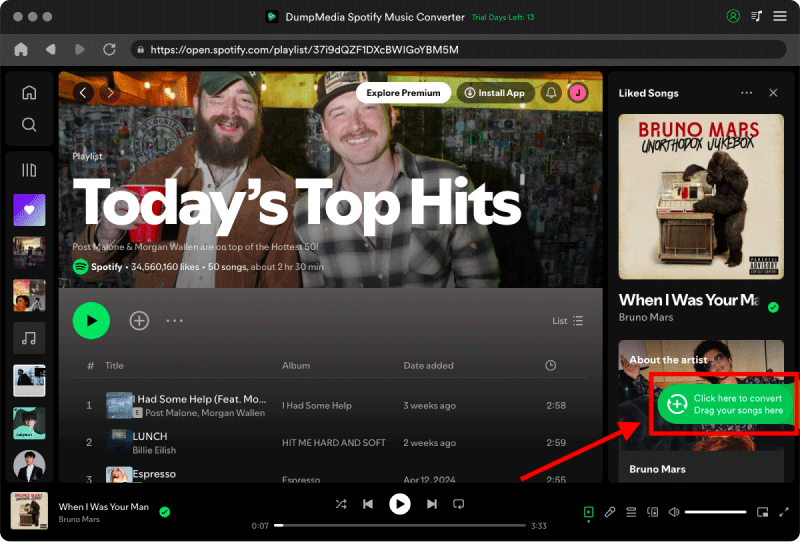
Passo 2. Em seguida, arraste as músicas ou as playlists diretamente para o ícone flutuante "+" para adicioná-las à fila de conversão e preparar o download.
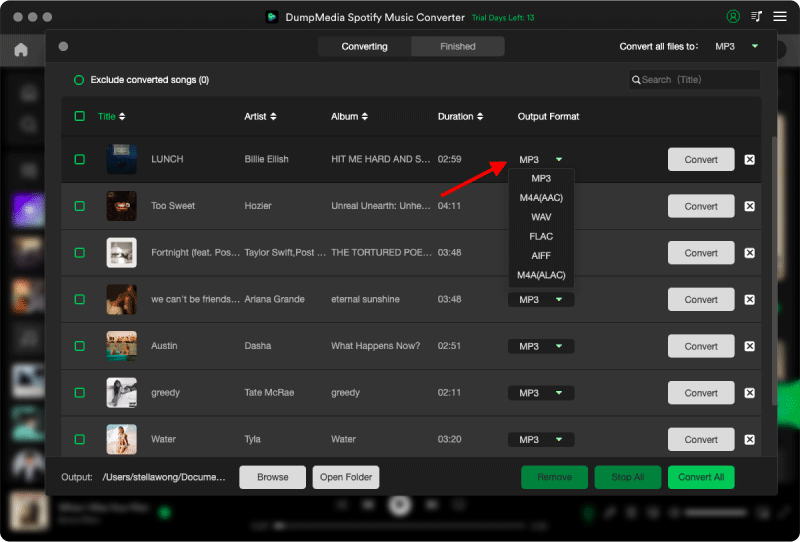
Passo 3. Quando estiver satisfeito com as músicas selecionadas, você pode escolher qual formato de arquivo de áudio prefere. Clique em “Converter todas as tarefas para” para escolher o formato de arquivo de saída desejado.
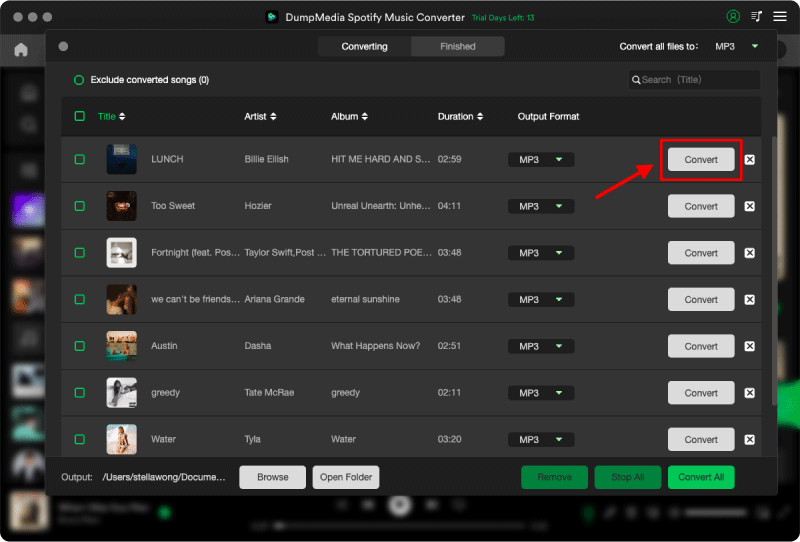
Passo 4. Finalmente, à medida que as configurações são concluídas, os usuários podem processar a conversão clicando no ícone “Converter”. Então DumpMedia Spotify Music Converter fará o download das músicas em segundos com sua velocidade super rápida.
Parte 4. FAQs
Porque Spotify Não tem som?
Spotify Problemas de ausência de som geralmente são causados por configurações de saída de áudio, cache corrompido, versões desatualizadas do aplicativo ou conflitos de reprodução de streaming.
Por que é Spotify Estou ouvindo, mas não sai som?
Isso normalmente acontece quando Spotify O áudio é encaminhado para o dispositivo errado ou o cache de reprodução fica corrompido.
Porque Spotify Não há som com o Bluetooth?
Dispositivos Bluetooth às vezes se desconectam incorretamente ou alternam a saída de áudio automaticamente.
Parte 5. Conclusão
Apesar Spotify Problemas de áudio podem ocorrer por diversos motivos, sendo a maioria deles relacionados à instabilidade do streaming, conflitos na saída de áudio ou erros no cache do aplicativo. Soluções básicas de problemas podem resolver problemas temporários, mas usuários que desejam uma experiência de reprodução mais estável geralmente preferem soluções de áudio offline para reduzir a dependência do streaming.