


Como usar DumpMedia Spotify Backup da lista de reprodução
Gerenciando seu Spotify Criar listas de reprodução pode ser um desafio quando você quer manter um backup de suas coleções de música cuidadosamente organizadas. DumpMedia Spotify O Playlist Backup oferece uma maneira prática de fazer backup das suas playlists. Spotify listas de reprodução, exportar informações de listas de reprodução para arquivos CSV e restaurar listas de reprodução para o seu dispositivo. Spotify conta.
Este guia explica como conectar seu Spotify Crie uma conta, selecione listas de reprodução, exporte arquivos de backup, restaure listas de reprodução, gerencie o histórico de backups e personalize a pasta de saída. Também inclui sugestões de solução de problemas para ajudar você a lidar com problemas comuns.
Guia de conteúdo Parte 1. Instalar e Registrar DumpMedia Qualquer conversor de músicaParte 2. Como conectar seu Spotify de CorretoraParte 3. Como selecionar um Spotify listaParte 4. Problemas Comuns e Solução de ProblemasPerguntas frequentes
Parte 1. Instalar e Registrar DumpMedia Qualquer conversor de música
Etapa 1: baixar e instalar DumpMedia Qualquer conversor de música
DumpMedia Qualquer conversor de música é compatível com Mac e WinAtualmente, os dispositivos Dows são compatíveis. Você pode baixar o pacote de instalação na página do produto ou simplesmente clicando no botão de download fornecido aqui.
Download grátis Download grátis
Etapa 2: lançamento DumpMedia Qualquer conversor de música
Após a instalação, abra DumpMedia Qualquer conversor de música no seu computador. Você verá uma interface limpa e intuitiva, projetada para simplificar a conversão, mesmo para usuários iniciantes.
Dica: Certifique-se de estar conectado à internet para ter a melhor experiência.
Passo 3: Registre e ative o Any Music Converter
Lançamento DumpMedia Any Music Converter. Clique no botão "Entrar" ou no ícone do perfil no canto inferior esquerdo. Digite o endereço de e-mail e a senha. Clique em "Entrar" para concluir o cadastro.
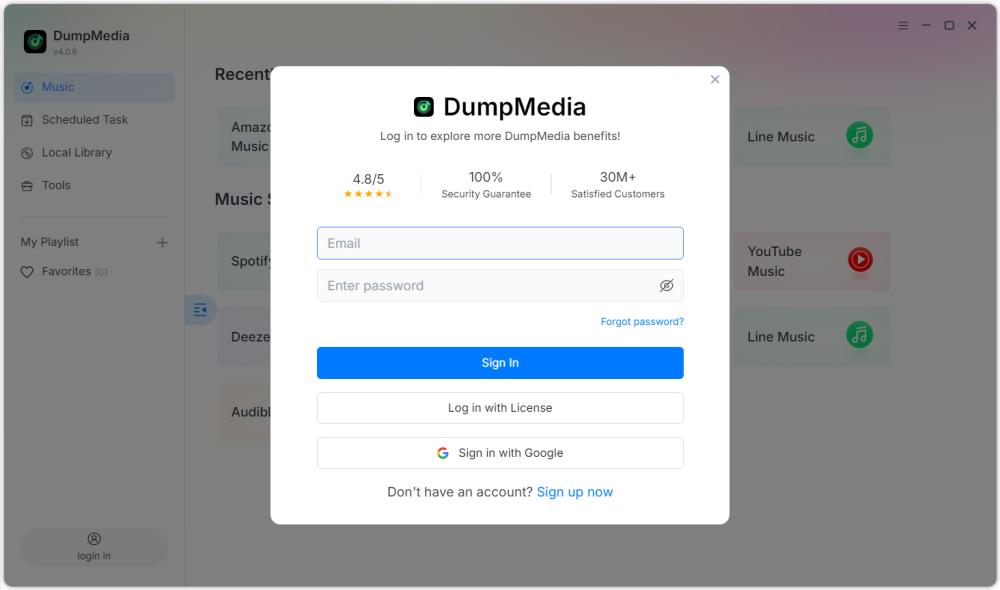
Dica: Desbloquear Spotify Backup da lista de reprodução por visitando a página do produto e adquira o plano. Escolha um plano de assinatura que atenda às suas necessidades e não hesite em contatar nossa equipe de atendimento ao cliente para saber mais sobre descontos exclusivos.
Parte 2. Como conectar seu Spotify de Corretora
Antes de selecionar uma lista de reprodução, você precisa conectar seu Spotify responsabilizar-se por DumpMedia Spotify Backup da lista de reprodução.
Dica: Observe que Spotify O Playlist Backup é vendido separadamente e não está incluído em nenhum plano de assinatura padrão do Music Converter.
Etapa 1: lançamento DumpMedia Spotify Backup da lista de reprodução
Abra o Any Music Converter. Selecione Ferramentas > Spotify Backup da lista de reprodução.
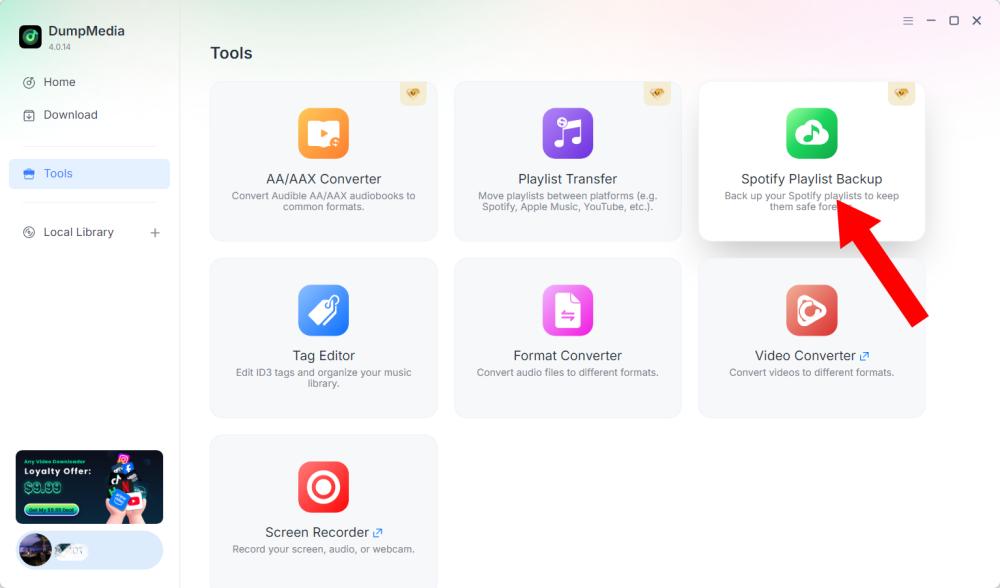
Passo 2: Clique em "Conectar a" Spotify"
Encontre e clique em Conectar a Spotify botão na interface do software. O aplicativo irá redirecioná-lo automaticamente para o recurso integrado. Spotify jogador.
Etapa 3: conecte seu Spotify de Corretora
Quando o Spotify O reprodutor será aberto dentro do software; siga as instruções disponíveis para conectar o seu dispositivo. Spotify conta. Conclua o processo de conexão antes de prosseguir para o gerenciamento de listas de reprodução. Assim que sua Spotify A conta foi conectada com sucesso. Você pode acessar suas listas de reprodução disponíveis e selecionar a operação desejada.
Dica: Se a conexão não funcionar como esperado, verifique sua conexão com a internet e confirme se a Spotify O reprodutor foi aberto corretamente.
Parte 3. Como selecionar um Spotify lista
Depois de conectar seu Spotify Na sua conta, você pode selecionar a lista de reprodução que deseja fazer backup ou restaurar.
Passo 1: Acesse suas listas de reprodução
Abra a seção de lista de reprodução em DumpMedia Spotify Faça backup da sua lista de reprodução após conectar o seu dispositivo. Spotify conta. Suas listas de reprodução disponíveis devem ser exibidas na interface.
Passo 2: Escolha uma lista de reprodução
Escolha a lista de reprodução com cuidado, especialmente se você tiver várias listas de reprodução com nomes semelhantes.
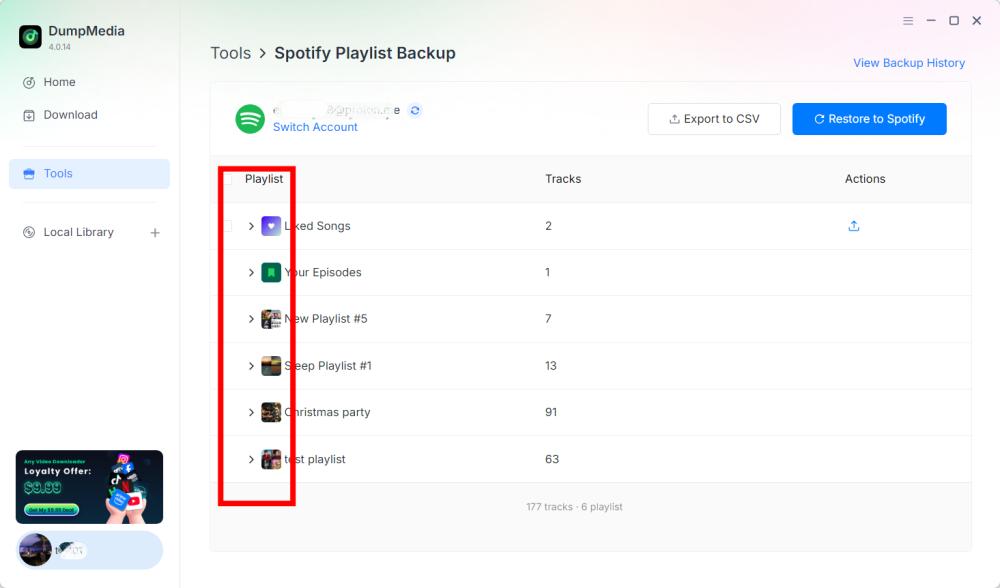
Etapa 3: Selecione uma operação
Após selecionar uma lista de reprodução, escolha a operação correspondente de acordo com suas necessidades. As operações disponíveis incluem Exportar para CSV e Restaurar para Spotify.
- Exportar para CSV: Exportar uma lista de reprodução para CSV permite salvar as informações da lista em um arquivo que pode ser aberto e analisado usando aplicativos de planilha, como o Microsoft Excel.
- restaurar para Spotify: DumpMedia Spotify O Backup de Listas de Reprodução permite a restauração de listas de reprodução através da opção Restaurar para Spotify opção.
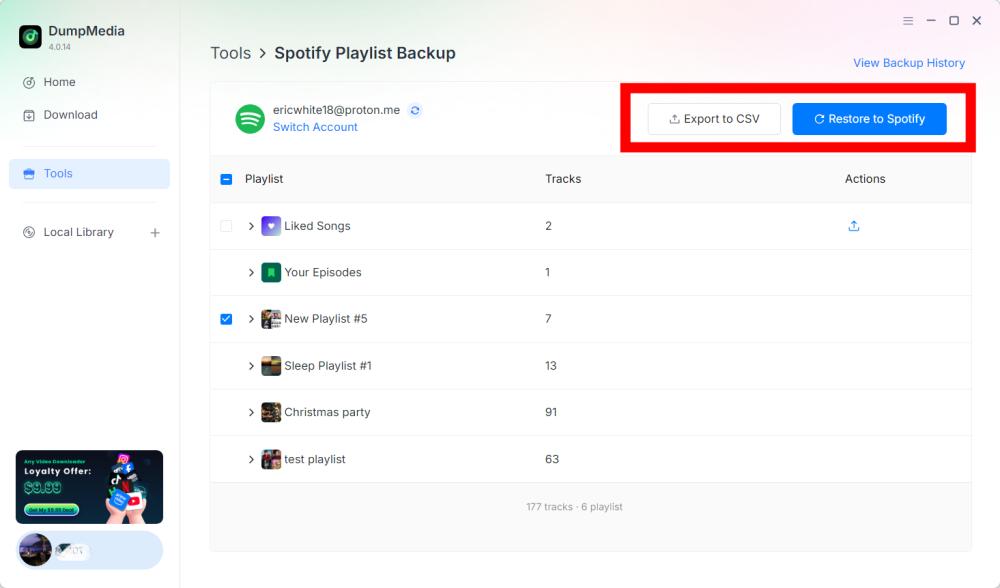
Etapa 4: Verifique o arquivo exportado
DumpMedia Spotify O Playlist Backup salva os arquivos de backup na pasta padrão. Você pode alterar esse local no menu Preferências. Após a conclusão da exportação, localize o arquivo CSV gerado. Você pode abrir o arquivo usando um aplicativo de planilha compatível para revisar o conteúdo.
Importante: Os campos específicos incluídos no arquivo CSV devem ser confirmados de acordo com a versão atual do programa. DumpMedia Spotify Backup da lista de reprodução.
Passo 5: Verifique o seu Spotify de Corretora
Se você escolher Restaurar para Spotify, aberto Spotify e verifique se a lista de reprodução foi restaurada com sucesso.
Observação: Os resultados da restauração podem depender dos dados de backup. Spotify A conexão da conta e os recursos de restauração atuais do software são essenciais. O tratamento exato de faixas indisponíveis ou alteradas requer confirmação na documentação do produto.
Etapa 6: Visualizar histórico de backups
DumpMedia Spotify O Playlist Backup inclui uma opção "Visualizar Histórico de Backups" que permite revisar seus registros de backup. Encontre "Visualizar Histórico de Backups" no canto superior direito da interface do software. Clique na opção para abrir a seção de histórico de backups.
Parte 4. Problemas Comuns e Solução de Problemas
As sugestões de resolução de problemas a seguir abordam problemas gerais que podem ocorrer durante a conexão da conta, operações de listas de reprodução ou gerenciamento de arquivos. Elas não são códigos de erro específicos do produto confirmados nem correções oficiais.
Não foi possível conectar-se a Spotify
Soluções sugeridas:
- Verifique sua conexão com a internet.
- Fechar e reabrir DumpMedia Spotify Backup da lista de reprodução.
- Clique em Conectar para Spotify novamente.
- Conclua o processo de conexão no ambiente integrado. Spotify jogador.
Se o problema persistir, anote a mensagem de erro exata e entre em contato. DumpMedia Suporte (support@dumpmedia.com).
As listas de reprodução não estão sendo exibidas.
Soluções sugeridas:
- Confirme se o Spotify A conta está conectada.
- Reabra a seção de listas de reprodução.
- Reinicie o software e tente novamente.
- Verifique se o problema afeta todas as listas de reprodução ou apenas uma lista específica.
Caso o problema persista, forneça ao Suporte os detalhes da lista de reprodução afetada e quaisquer informações de erro disponíveis.
- Clique no menu no canto superior direito do programa e escolha "Enviar feedback".
- Descreva o seu problema e anote a sua chave de licença na caixa de texto.
- Por fim, marque a caixa "Anexar o arquivo de registro" antes de enviar.
A exportação para CSV não foi concluída.
Soluções sugeridas:
- Confirme se o Spotify A conta está conectada.
- Tente exportar a lista de reprodução novamente.
- Verifique a pasta de saída configurada em Preferências.
- Verifique se a pasta de destino está acessível.
- Se possível, teste a exportação com outra lista de reprodução.
Se a exportação continuar falhando, salve a mensagem de erro e entre em contato com o suporte ao cliente.
restaurar para Spotify Não funciona
Soluções sugeridas:
- Reconecte seu Spotify conta.
- Verifique se você selecionou a lista de reprodução ou o disco de backup correto.
- Tente o processo de restauração novamente.
- Abra Spotify e verifique se a lista de reprodução foi parcialmente restaurada.
- Contato DumpMedia Entre em contato para obter suporte caso o problema persista.
Não presuma que restaurar repetidamente o mesmo backup seja seguro em todas as situações. Verifique a lista de reprodução resultante antes de tentar operações de restauração adicionais.
Perguntas frequentes
Q1. Como faço para conectar meu Spotify responsabilizar-se por DumpMedia Spotify Fazer backup da lista de reprodução?
Clique em Conectar para SpotifyO software abrirá automaticamente o aplicativo integrado. Spotify reprodutor, onde você pode conectar seu Spotify conta.
Q2. Posso exportar Spotify Listas de reprodução para CSV?
Sim. Depois de conectar o seu Spotify Após criar uma conta e selecionar uma lista de reprodução, escolha "Exportar para CSV" para criar um arquivo de backup.
P3. Posso restaurar uma lista de reprodução para Spotify?
Sim. Travas deslizantes portáteis DumpMedia Spotify O Backup de Lista de Reprodução oferece uma opção de Restauração para Spotify opção para operações de restauração com suporte.
Q4. Onde meus arquivos de backup são salvos?
Os arquivos de backup são salvos na pasta de saída padrão. Você pode verificar ou alterar o local abrindo o menu no canto superior direito, selecionando Preferências e localizando Pasta de Saída.
Q5. Como posso visualizar os registros de backup anteriores?
Clique em "Exibir histórico de backups" no canto superior direito do software para revisar o histórico de backups disponível.
Q6. O que devo fazer se Spotify Não consegue conectar?
Verifique sua conexão com a internet e abra o software novamente. Se o problema persistir, entre em contato com o suporte. DumpMedia Forneça suporte com os detalhes do erro.
Q7. O que devo fazer se minha lista de reprodução estiver faltando?
Confirme que o seu Spotify Após conectar a conta, reinicie o software e verifique novamente a seção de listas de reprodução. Se a lista de reprodução continuar indisponível, entre em contato com o suporte.
P8. Posso restaurar um backup para um local diferente? Spotify conta?
Essa funcionalidade ainda não está disponível na versão atual, mas fique atento às futuras atualizações.