


Como converter vídeos do YouTube para o Apple Music?
Muitas pessoas que gostam do YouTube Music podem querer migrar suas músicas ou playlists favoritas para o Apple Music , aproveitando suas playlists selecionadas, integração perfeita com dispositivos Apple e a possibilidade de ouvir offline. No entanto, o desafio é que o YouTube Music e o Apple Music não sincronizam nativamente. Isso levanta a questão: como converter o YouTube Music para o Apple Music de forma eficiente sem perder suas playlists selecionadas? Este guia explorará os melhores métodos para converter o YouTube Music para o Apple Music, dicas úteis para a transferência de playlists e responderá às perguntas mais frequentes.
Guia de conteúdo Parte 1. Posso converter músicas do YouTube diretamente para o Apple Music?Parte 2. Converter músicas do YouTube para o Apple Music em Windows/MacParte 3. FAQsParte 4. Para resumir tudo
Parte 1. Posso converter músicas do YouTube diretamente para o Apple Music?
Infelizmente, não há uma maneira direta de transferir ou sincronizar sua biblioteca do YouTube Music com o Apple Music. Ambas as plataformas usam ecossistemas diferentes e proteção DRM, o que impede transferências diretas. Embora você possa recriar playlists manualmente pesquisando músicas no Apple Music, essa abordagem é demorada, principalmente se você tiver centenas de faixas.
Felizmente, usando ferramentas profissionais como DumpMedia Com qualquer conversor de música, você pode converter músicas do YouTube para o Apple Music baixando faixas do YouTube Music e importando-as para o Apple Music, preservando a qualidade da música e os metadados.
Parte 2. Converter músicas do YouTube para o Apple Music em Windows/Mac
O método mais confiável para converter vídeos do YouTube para o Apple Music é usando um software para computador. Uma das melhores ferramentas disponíveis é... DumpMedia Qualquer conversor de música, que permite aos usuários baixar músicas e playlists do YouTube Music, convertê-las em formatos compatíveis com o Apple Music e até mesmo transferir playlists diretamente.
Download grátis Download grátis
Abaixo estão as principais características:
- Suporte multiplataforma: em vez de alternar entre aplicativos individuais, esta ferramenta integra suporte para vários dos principais serviços de streaming, como SpotifyApple Music, YouTube Music e muito mais.
- Formatos de saída versáteis: DumpMedia Oferece uma ampla gama de formatos compatíveis para garantir que os arquivos funcionem em praticamente qualquer dispositivo (MP3 reprodutores, smartphones, aparelhos de som automotivos, etc.): MP3, M4A, WAV, FLAC, AIFF e AAC.
- Qualidade sem perdas: Suporta 100% retenção da qualidade de áudio original, normalmente até 320 kbps para MP3s.
- Conversão em lote: Permite adicionar listas de reprodução ou álbuns inteiros a uma fila para processamento simultâneo.
- Gestão inteligente de metadados: Preservação de tags ID3: Retém automaticamente metadados essenciais, incluindo artista, álbum, título, ano e arte da capa.
- Reprodutores Web integrados: DumpMedia Normalmente, cada serviço inclui um reprodutor web integrado. Isso significa que você não precisa ter o Spotify ou com os aplicativos Apple Music instalados no computador; você pode navegar e selecionar músicas diretamente no aplicativo. DumpMedia interface.
Como converter vídeos do YouTube para o Apple Music?
Passo 1. Instale DumpMedia Qualquer conversor de música no seu WinNo seu computador, abra o programa e selecione YouTube Music.
Download grátis Download grátis
Passo 2. Procure diretamente as músicas, playlists ou álbuns que deseja transferir para o Apple Music. Em seguida, arraste e solte-os no botão "+" e adicione-os à lista de conversão.
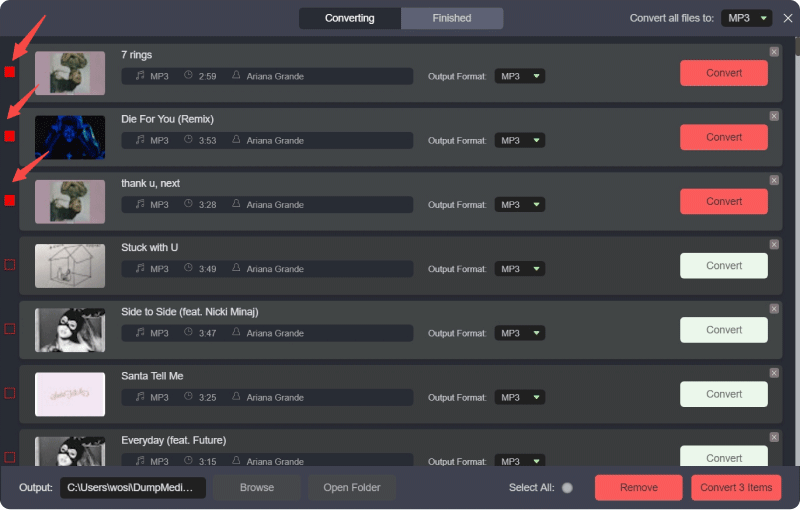
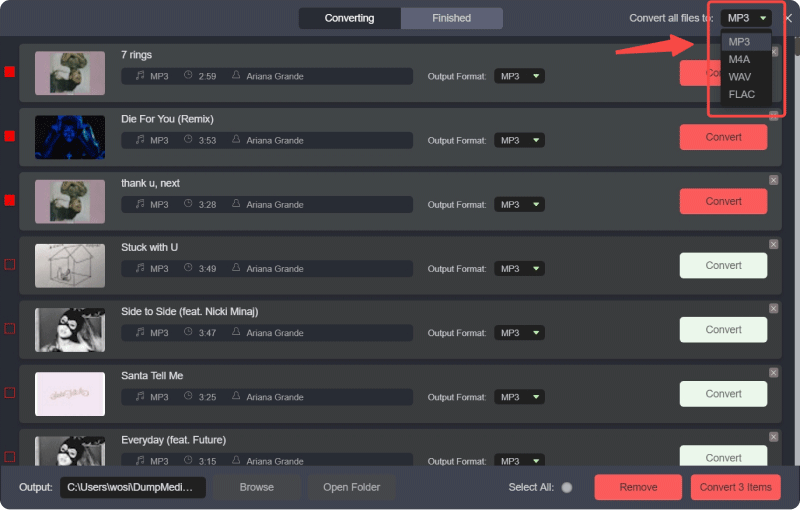
Passo 3. Clique no painel Formatar para escolher MP3 como o formato de saída. Outras configurações de parâmetros de saída restantes também podem ser alteradas como você quiser.
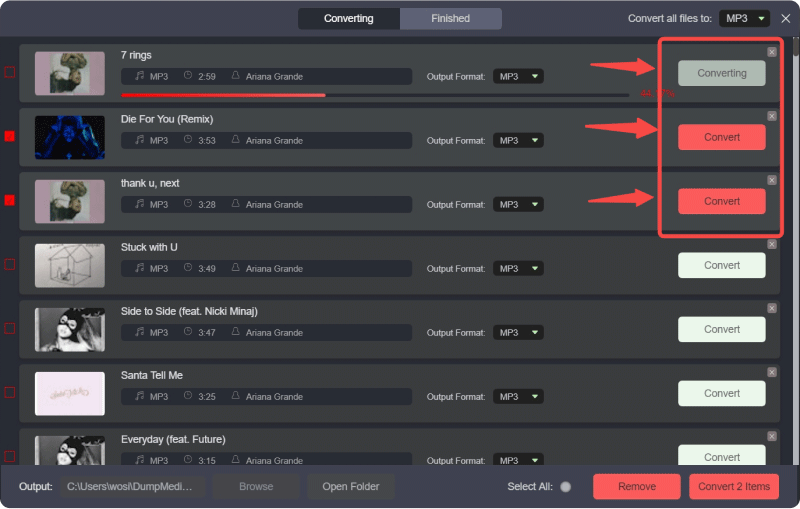
Passo 4. Em seguida, você pode clicar no botão "Converter tudo" para salvar os arquivos localmente em lote.
Passo 5. Abra o aplicativo Apple Music em Windows ou Mac.
Passo 6. Vá para Arquivo > Adicionar à Biblioteca (ou arraste e solte os arquivos na biblioteca).
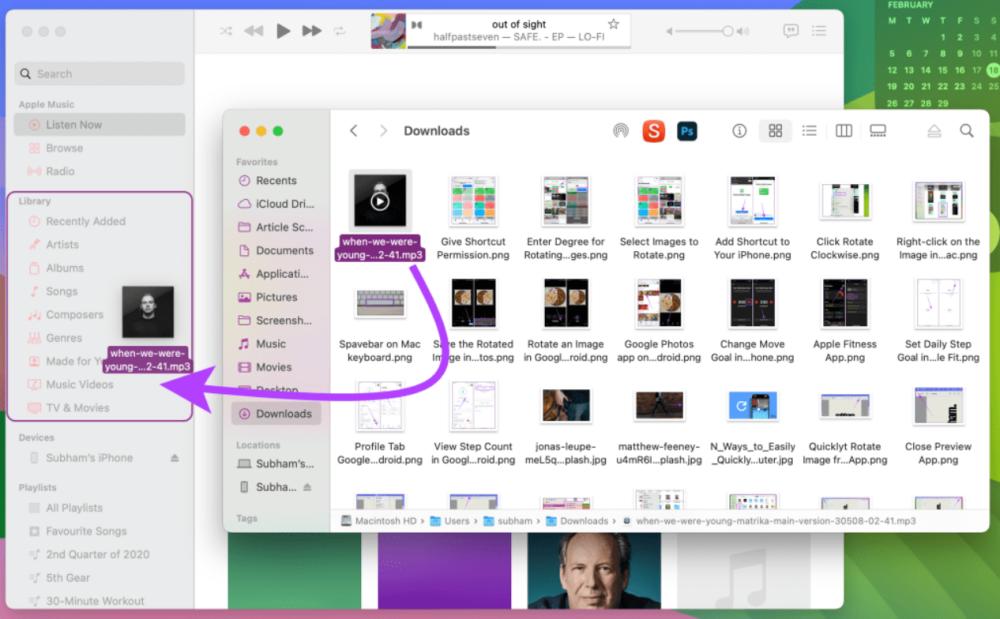
Passo 7. Aguarde o Apple Music processar os arquivos. Suas faixas do YouTube Music agora fazem parte da sua biblioteca do Apple Music.
Seguindo estes passos, você poderá converter com sucesso músicas do YouTube para o Apple Music sem precisar procurar e baixar cada música individualmente.
Dica adicional: Transfira listas de reprodução inteiras com DumpMedia
DumpMedia O Any Music Converter também inclui um recurso de transferência de playlists. Essa ferramenta permite migrar playlists inteiras do YouTube Music para o Apple Music:
Passo 1. Abra o Any Music Converter. Selecione Ferramentas > Transferência de lista de reprodução.

Passo 2. Selecione o YouTube Music como fonte.
Passo 3. Selecione Apple Music como destino.
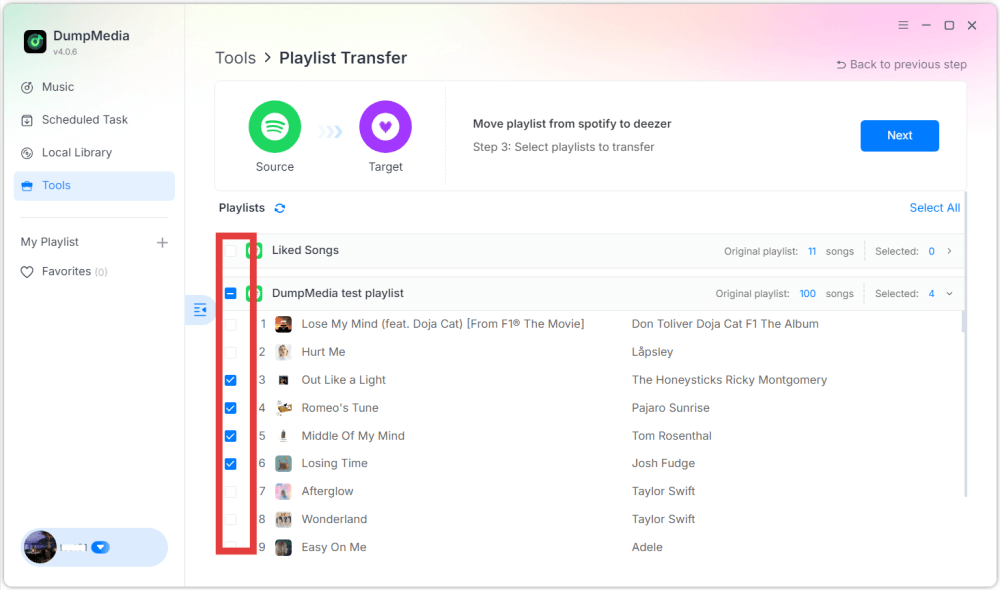
Passo 4. Selecione o que deseja transferir. Oferecemos suporte às suas músicas, artistas, álbuns favoritos e às suas playlists personalizadas.
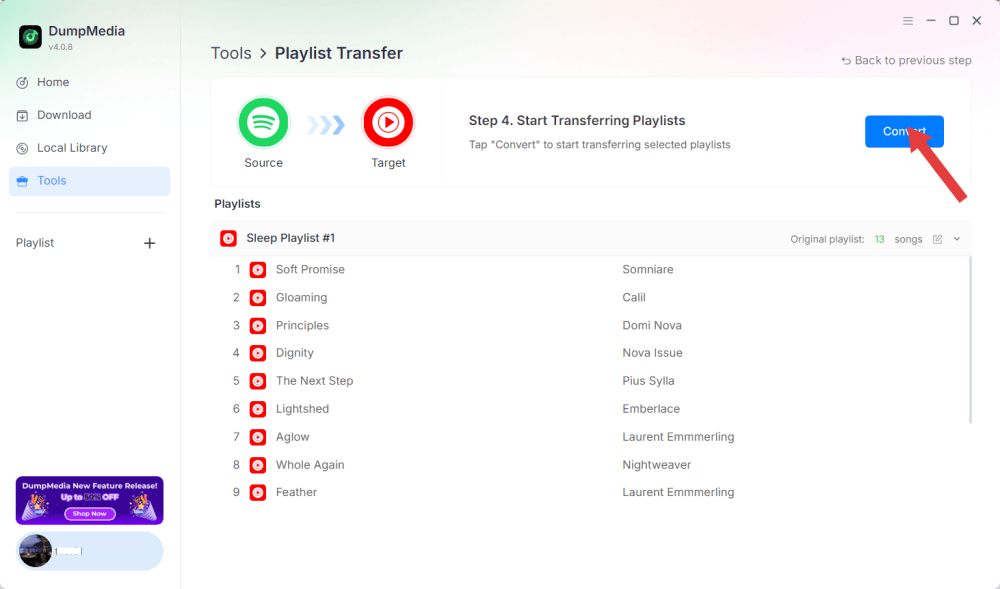
Passo 5. Clique em Converter para iniciar a transferência.
Etapa 6. A transferência foi concluída. Clique em "Ir para o Apple Music". Suas playlists foram transferidas para um novo serviço e você já pode começar a curtir suas novas playlists no Apple Music.
Parte 3. FAQs
1. Posso converter o YouTube para o Apple Music gratuitamente?
Sim, usando ferramentas como DumpMedia Com qualquer conversor de música, você pode baixar faixas do YouTube Music e importá-las para o Apple Music. DumpMedia Oferece um período de teste gratuito; todos os recursos podem exigir uma licença paga.
2. A qualidade da música será preservada durante a conversão?
DumpMedia Permite selecionar formatos de saída e taxas de bits, garantindo que os arquivos baixados mantenham alta qualidade de áudio.
3. Posso transferir listas de reprodução inteiras?
Sim. Usando o recurso de Transferência de Lista de Reprodução em DumpMediaVocê pode migrar playlists completas do YouTube Music para o Apple Music sem perder a ordem das músicas ou os metadados.
4. É seguro usar DumpMedia Para downloads do YouTube Music?
Sim. Travas deslizantes portáteis DumpMedia Funciona localmente no seu computador, portanto seus dados e contas permanecem seguros. Não interfere nos servidores do Apple Music ou do YouTube Music.
Parte 4. Para resumir tudo
Embora o YouTube Music e o Apple Music não se integrem nativamente, você ainda pode converter o YouTube para o Apple Music de forma eficiente usando... DumpMedia O Any Music Converter permite que você mantenha todas as suas músicas favoritas organizadas na sua biblioteca do Apple Music, baixando faixas, enviando-as para o Apple Music ou usando o recurso de Transferência de Listas de Reprodução.