


Por que meu Apple Music não está funcionando? Soluções em 2026
O Apple Music é uma das plataformas de streaming de música mais populares, mas muitos usuários frequentemente buscam respostas para a pergunta: “por que meu Apple Music não está funcionando Se o Apple Music não estiver reproduzindo músicas, os downloads offline pararem de funcionar ou o aplicativo travar constantemente, esses problemas podem afetar seriamente a experiência de audição. Neste guia, explicaremos os motivos mais comuns pelos quais o Apple Music não está funcionando e mostraremos soluções práticas para corrigir problemas de reprodução no iPhone, Mac, etc. Windows e outros dispositivos.
Sumário Parte 1. Por que o Apple Music parou de funcionar? Parte 2. Como corrigir o problema do Apple Music? Parte 3. Melhor maneira de manter o Apple Music funcionando offline permanentemente Informações detalhadas sobre arquivos BDMV Parte 4. Resumo
Parte 1. Por que o Apple Music parou de funcionar?
Se você está se perguntando "por que meu Apple Music não está funcionando?", existem várias causas possíveis para o problema.
Má conexão com a Internet
Muitos usuários que pesquisam "por que meu Apple Music não está funcionando" descobrem que a instabilidade da rede é a causa principal. O streaming do Apple Music exige uma conexão de internet estável. Wi-Fi fraco ou dados móveis instáveis podem impedir o carregamento de músicas, causar interrupções na reprodução ou problemas de buffering. Suas playlists do Apple Music também podem não estar sendo atualizadas em todos os dispositivos.
Problemas do servidor de música da Apple
Às vezes, o próprio Apple Music sofre interrupções temporárias nos servidores. Durante esses períodos, as músicas podem não ser reproduzidas no seu dispositivo.
Assinatura expirada
O Apple Music exige uma assinatura ativa para streaming e reprodução offline. Se a sua assinatura expirar, as músicas baixadas podem desaparecer e a reprodução offline pode parar de funcionar.
Restrições de DRM
As músicas do Apple Music são protegidas por DRM (Digital Rights Management) , o que limita o acesso e a reprodução dos arquivos baixados. Devido ao DRM, as músicas só funcionam dentro do aplicativo Apple Music. Essa é uma das principais razões pelas quais os usuários continuam perguntando "por que meu Apple Music não está funcionando" ao ouvir música offline.
Erros de aplicativo e problemas de cache
Aplicativos desatualizados ou arquivos de cache corrompidos também podem causar problemas de reprodução no Apple Music. O aplicativo pode fechar inesperadamente durante a reprodução.
Problemas de autorização de dispositivo
As contas do Apple Music estão vinculadas a IDs Apple e dispositivos autorizados. Se a autorização falhar, os usuários podem perder o acesso à sua biblioteca de músicas.
Parte 2. Como resolver o problema do Apple Music que não está funcionando?
Se você estiver enfrentando problemas de reprodução no Apple Music, tente as seguintes soluções.
Reinicie o aplicativo Apple Music
Reiniciar o aplicativo Apple Music é a solução mais comum para erros de sincronização, telas congeladas ou problemas de reprodução.
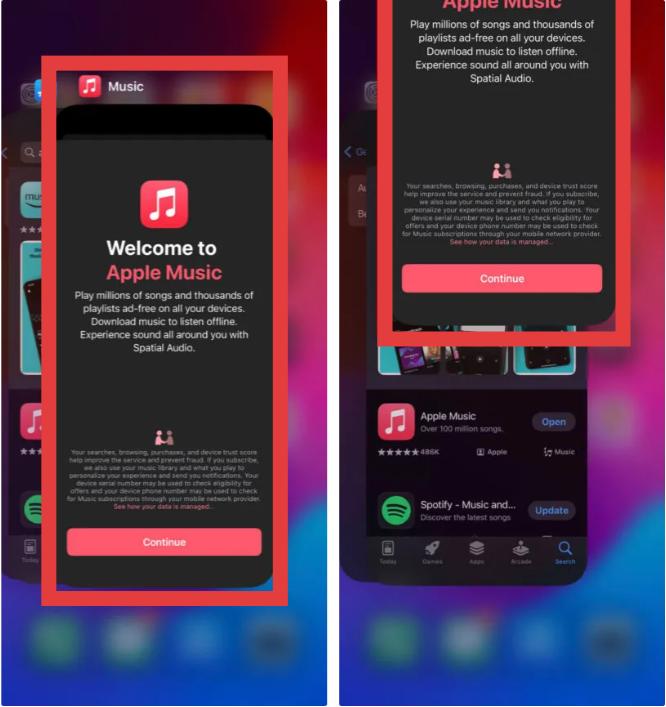
No iOS: A partir da parte inferior da tela, deslize para cima até o meio e mantenha pressionado até que o Seletor de Apps apareça. Deslize para cima no cartão de pré-visualização do Apple Music para fechá-lo à força. Retorne à tela inicial e toque no ícone do app Música para reiniciar.
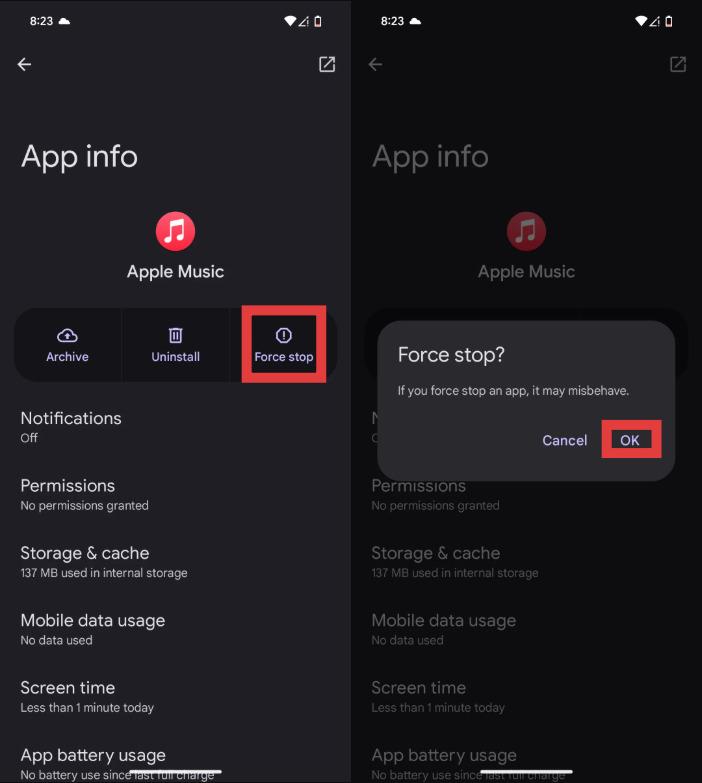
No Android: Acesse Configurações > Aplicativos > Apple Music e toque em Forçar parada. Isso encerrará todos os processos em segundo plano. Em seguida, abra o Apple Music novamente a partir da sua gaveta de aplicativos.
No macOS: Selecione a janela do Apple Music e pressione Command (⌘) + Q. Em seguida, abra-o novamente a partir do Dock.
On Windows (10/11): Pressione Ctrl + Shift + Esc. Encontre o Apple Music na aba "Processos". Clique com o botão direito do mouse e selecione Finalizar Tarefa.
Verifique a sua conexão com a internet
Se você está se perguntando por que o Apple Music não está funcionando durante o streaming, uma conexão de internet instável costuma ser a causa. Alterne entre Wi-Fi e dados móveis no seu dispositivo para testar se os problemas de rede estão afetando a reprodução.
Atualizar iOS ou macOS
Versões de software desatualizadas podem causar problemas de compatibilidade com o Apple Music. Atualizar o sistema pode ajudar a corrigir situações em que o Apple Music não está funcionando corretamente.

Faça login novamente com seu ID Apple.
Às vezes, a verificação da conta do Apple Music falha. Sair e entrar novamente no seu ID Apple pode resolver problemas relacionados à reprodução offline e à sincronização de músicas.
Ressincronizar a biblioteca de músicas
Se as playlists ou músicas baixadas desaparecerem, os usuários podem pensar "por que meu Apple Music não está funcionando?", quando, na verdade, o problema é uma falha na Sincronização da Biblioteca. Desative e reative a Sincronização da Biblioteca nas configurações para atualizar seu banco de dados de músicas.
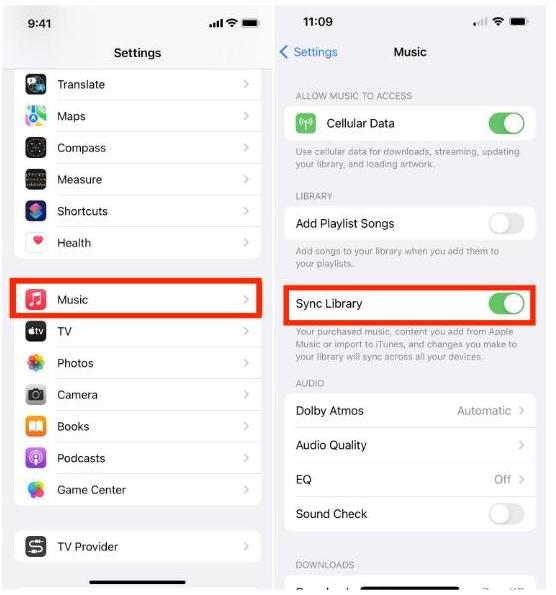
No iOS: Abra Ajustes > Apps > Música. Ative a opção Sincronizar Biblioteca.
No Android: Toque no menu de três pontos (⋮) no canto superior direito e selecione Configurações. Encontre Sincronizar Biblioteca e desative-a, depois ative-a novamente.
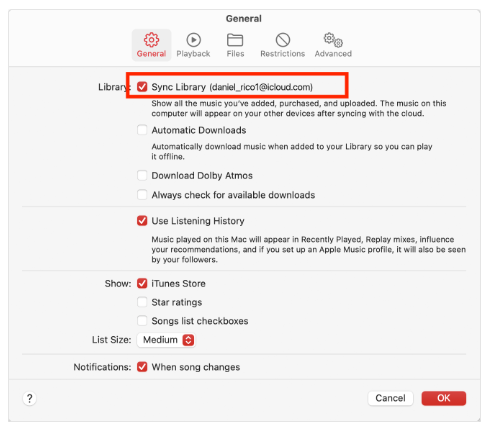
No macOS: Abra o app Música. Vá para Música > Ajustes > Geral e desmarque a opção Sincronizar Biblioteca, clique em OK e, em seguida, volte e marque-a novamente.
On Windows (10/11): Clique no seu nome/ícone de perfil na parte inferior da barra lateral. Acesse Configurações > Geral. Desative e ative novamente a opção Sincronizar Biblioteca.
Baixar novamente músicas offline
Downloads corrompidos são outro motivo pelo qual meu Apple Music não funciona offline. Remover e baixar as músicas novamente pode restaurar a funcionalidade de reprodução.
Limpe o cache e reinicie o dispositivo.
Dados em cache e arquivos temporários podem interferir no funcionamento do app Apple Music. Limpar o cache e reiniciar o dispositivo geralmente resolve problemas de reprodução.
Parte 3. A melhor maneira de manter o Apple Music funcionando offline permanentemente.
Uma das maiores frustrações para os usuários é quando a reprodução offline para de funcionar repentinamente. Muitas pessoas pesquisam "por que meu Apple Music não está funcionando offline?" depois de descobrirem que as músicas baixadas não tocam mais sem acesso à internet. Isso geralmente acontece porque os downloads offline do Apple Music ainda dependem da verificação de DRM e da autenticação da assinatura. Para usuários que desejam uma reprodução offline mais estável, existem opções locais. MP3 A reprodução costuma ser uma solução mais confiável.
Para evitar problemas recorrentes de reprodução no Apple Music, muitos usuários optam por converter as músicas do Apple Music em arquivos de áudio locais. Uma das melhores ferramentas para isso é DumpMedia Conversor de música da AppleEste conversor profissional ajuda os usuários. converter música da Apple para MP3 e salve-as para reprodução offline estável, sem depender totalmente do aplicativo Apple Music.
Download grátis Download grátis
🏆Principais características de DumpMedia Conversor de música da Apple
- 🎶Baixe o Apple Music para MP3, WAV, FLAC e AAC
- 🎶Remover a proteção DRM do Apple Music*
- 🎶Mantenha a qualidade de som original
- 🎶Baixe playlists e álbuns em lote
- 🎶Velocidade de conversão rápida
- 🎶Preservar metadados de músicas e tags ID3
- 🎶Compatível com reprodução offline em qualquer dispositivo
Para usuários que perguntam repetidamente “por que meu Apple Music não está funcionando”, local MP3 A conversão oferece uma solução de reprodução a longo prazo.
Como converter músicas do Apple Music para reprodução offline estável
Passo 1. Baixe e instale DumpMedia Instale o Apple Music Converter no seu Mac/PC. Inicie o programa e você verá a interface. Use sua conta do Apple Music para fazer login.
Download grátis Download grátis
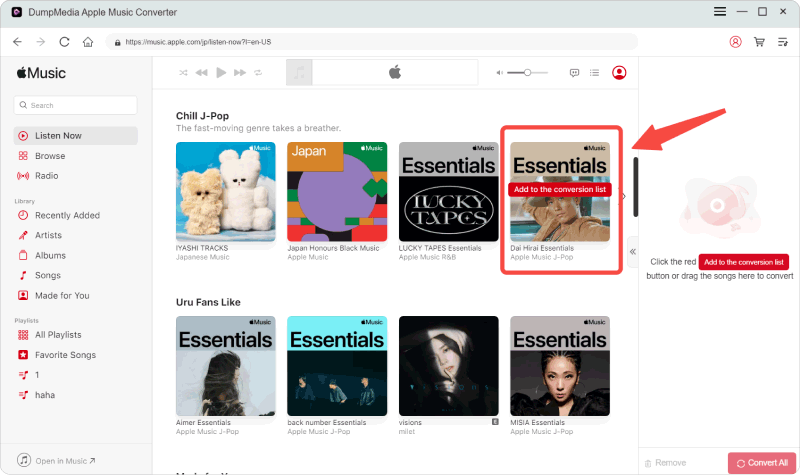
Passo 2. Encontre a lista de reprodução, o álbum ou a música específica que deseja converter. Você pode arrastar uma única música para o ícone "+" no lado direito da tela. Como alternativa, abra uma lista de reprodução/álbum inteiro e clique no ícone "Adicionar à conversão" para carregar toda a lista no conversor.
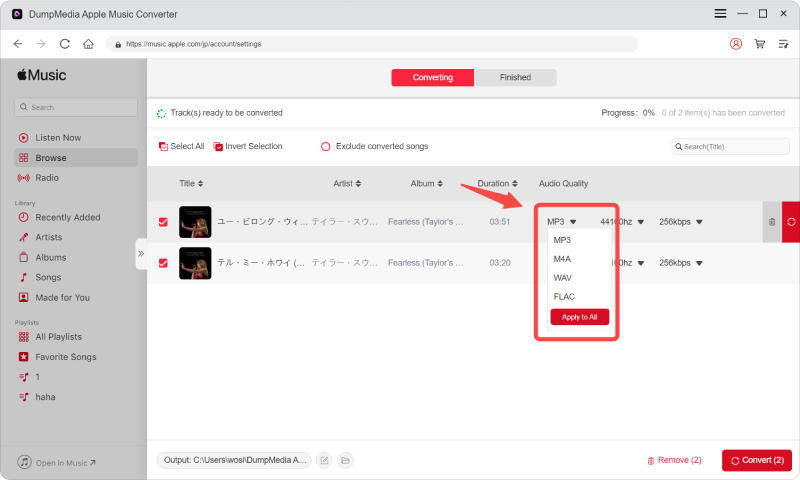
Passo 3. Selecionar MP3 (mais compatível). Você também pode alterar a taxa de bits ou a taxa de amostragem. Para obter o melhor equilíbrio, escolha 320 kbps.
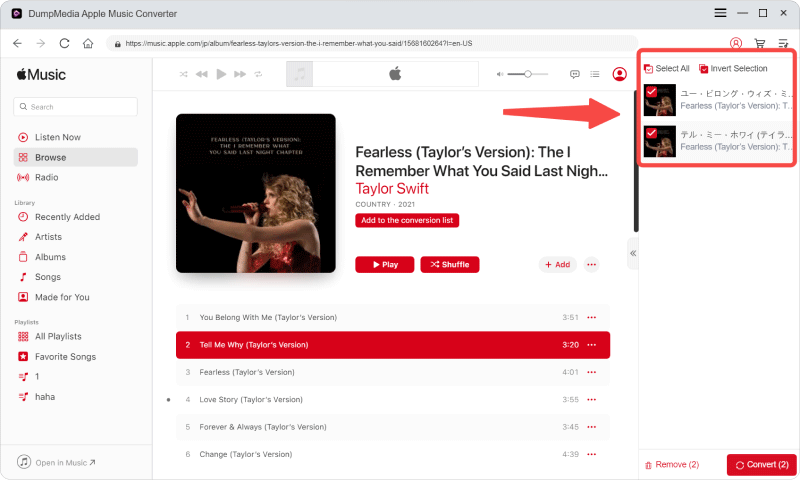
Passo 4. Após a conclusão das configurações, os usuários podem processar a conversão clicando no ícone "Converter". DumpMedia irá converter músicas do Apple Music para MP3 Em segundos, graças à sua velocidade ultrarrápida.
Após a conversão, suas músicas poderão ser reproduzidas offline sem problemas de verificação do Apple Music.
Parte 4. FAQs
Por que meu Apple Music não está funcionando?
Problemas com o Apple Music podem ser causados por problemas de internet, expiração da assinatura, restrições de DRM ou bugs do aplicativo.
Por que minhas músicas do Apple Music estão acinzentadas?
Músicas em cinza geralmente indicam problemas de licenciamento ou sincronização.
Por que não consigo reproduzir músicas baixadas do Apple Music?
Os downloads offline ainda exigem verificação de conta e autenticação DRM.
Posso guardar as músicas do Apple Music para sempre?
Os downloads oficiais expiram com a assinatura. Os arquivos locais convertidos podem ser armazenados permanentemente.
Is DumpMedia O Apple Music Converter é seguro?
Sim. Ele foi projetado para conversão de músicas do Apple Music e gerenciamento de reprodução offline.
Parte 4. Resumo
Se você continua se perguntando “por que meu Apple Music não está funcionando?”, o problema geralmente está relacionado a restrições de DRM, verificação de assinatura, dependência de aplicativos ou conectividade com a internet. Para usuários que desejam uma experiência de audição offline mais confiável, DumpMedia O Apple Music Converter oferece uma maneira prática de converter músicas do Apple Music em arquivos locais permanentes. MP3 Ao remover as restrições de reprodução e a dependência de aplicativos, os usuários podem aproveitar o Apple Music com mais flexibilidade em diferentes dispositivos e ambientes offline.
Download grátis Download grátis
*DumpMedia Funciona descriptografando e baixando músicas do Apple Music para arquivos sem DRM, permitindo que você obtenha uma cópia limpa e irrestrita da sua biblioteca para qualquer dispositivo. Sua funcionalidade não inclui a remoção de DRM de arquivos de áudio locais.