


¿Por qué no funciona mi Apple Music? Soluciones en 2026
Apple Music es una de las plataformas de transmisión de música más populares, pero muchos usuarios buscan con frecuencia respuestas a la pregunta: “¿Por qué mi Apple Music no funciona? ?” Ya sea que Apple Music no reproduzca canciones, que las descargas sin conexión dejen de funcionar o que la aplicación siga fallando, estos problemas pueden afectar seriamente la experiencia auditiva. En esta guía, explicaremos las razones más comunes por las que Apple Music no funciona y le mostraremos soluciones prácticas para solucionar los problemas de reproducción en iPhone, Mac, WinDows y otros dispositivos.
Índice Parte 1. ¿Por qué ha dejado de funcionar Apple Music? Parte 2. ¿Cómo solucionar el problema de Apple Music? Parte 3. La mejor manera de mantener Apple Music funcionando sin conexión de forma permanente. Información detallada sobre los archivos BDMV. Parte 4. Resumen
Parte 1. ¿Por qué ha dejado de funcionar Apple Music?
Si te preguntas "¿por qué no funciona mi Apple Music?", existen varias causas posibles para este problema.
Mala conexión a internet
Muchos usuarios que buscan "¿por qué no funciona mi Apple Music?" descubren que la inestabilidad de la red es la causa principal. La reproducción de Apple Music requiere una conexión a internet estable. Una conexión Wi-Fi débil o datos móviles inestables pueden provocar que las canciones no se carguen, interrupciones en la reproducción o problemas de almacenamiento en búfer. Además, tus listas de reproducción de Apple Music no se actualizan correctamente en todos tus dispositivos.
Problemas con el servidor de música de Apple
En ocasiones, Apple Music experimenta interrupciones temporales en sus servidores. Durante estos periodos, es posible que las canciones no se reproduzcan en tu dispositivo.
Suscripción vencida
Apple Music requiere una suscripción activa para la reproducción en streaming y sin conexión. Si tu suscripción caduca, las canciones descargadas podrían desaparecer y la reproducción sin conexión podría dejar de funcionar.
Restricciones de DRM
Las canciones de Apple Music están protegidas por DRM (Gestión de Derechos Digitales) , que limita el acceso y la reproducción de los archivos descargados. Debido al DRM, las canciones solo funcionan dentro de la aplicación Apple Music. Esta es una de las principales razones por las que los usuarios siguen preguntando "¿por qué no funciona mi Apple Music?" al escuchar música sin conexión.
Errores de la aplicación y problemas de caché
Las aplicaciones desactualizadas o los archivos de caché dañados también pueden causar problemas de reproducción en Apple Music. La aplicación podría cerrarse inesperadamente durante la reproducción.
Problemas de autorización de dispositivos
Las cuentas de Apple Music están vinculadas a los ID de Apple y a los dispositivos autorizados. Si la autorización falla, los usuarios podrían perder el acceso a su biblioteca musical.
Parte 2. ¿Cómo solucionar el problema de Apple Music que no funciona?
Si experimentas problemas de reproducción con Apple Music, prueba las siguientes soluciones.
Reinicie la aplicación Apple Music
Reiniciar la aplicación Apple Music es la solución habitual para los errores de sincronización, las pantallas congeladas o los fallos de reproducción.
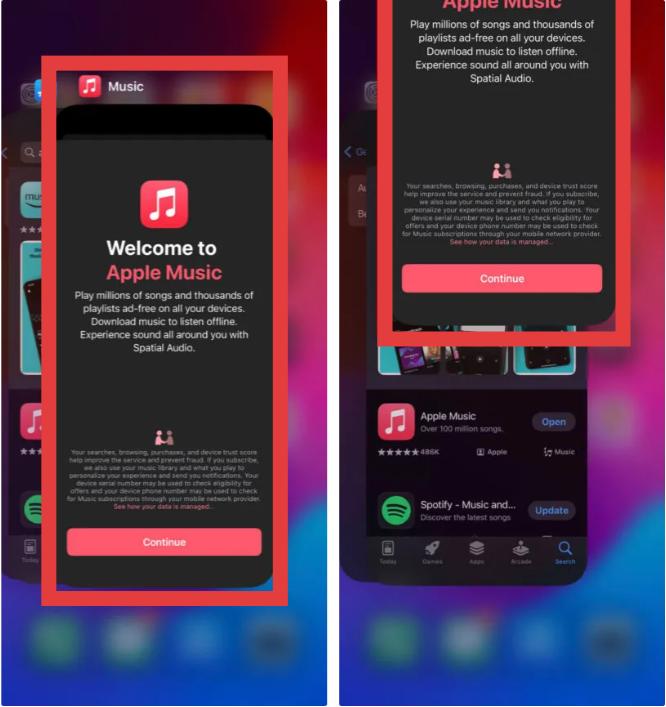
En iOS: Desde la parte inferior de la pantalla, desliza el dedo hacia arriba hasta el centro y mantén pulsado hasta que aparezca el selector de aplicaciones. Desliza el dedo hacia arriba sobre la tarjeta de vista previa de Apple Music para cerrarla. Vuelve a la pantalla de inicio y pulsa el icono de Música para reiniciar.
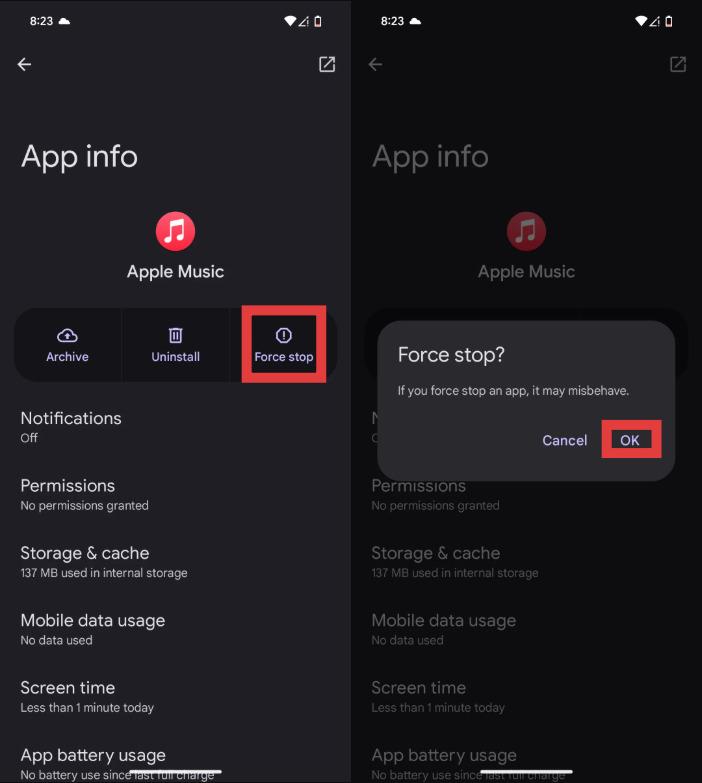
En Android: Ve a Ajustes > Aplicaciones > Apple Music y pulsa Forzar detención. Esto finalizará todos los procesos en segundo plano. A continuación, vuelve a abrir Apple Music desde el menú de aplicaciones.
En macOS: Selecciona la ventana de Apple Music y pulsa Comando (⌘) + Q. A continuación, ábrela de nuevo desde el Dock.
On WinDow (10/11): Pulsa Ctrl + Shift + Esc. Busca Apple Music en la pestaña "Procesos". Haz clic con el botón derecho y selecciona Finalizar tarea.
Comprueba tu conexión a Internet
Si te preguntas por qué no funciona Apple Music durante la reproducción, una conexión a internet inestable suele ser la causa. Cambia entre Wi-Fi y datos móviles en tu dispositivo para comprobar si los problemas de red están afectando la reproducción.
Actualizar iOS o macOS
Las versiones de software obsoletas pueden causar problemas de compatibilidad con Apple Music. Actualizar el sistema puede ayudar a solucionar los problemas de funcionamiento de Apple Music.

Vuelve a iniciar sesión con tu ID de Apple.
En ocasiones, la verificación de la cuenta de Apple Music falla. Cerrar sesión y volver a iniciarla en tu ID de Apple puede solucionar problemas relacionados con la reproducción sin conexión y la sincronización de música.
Sincronizar de nuevo la biblioteca de música
Si desaparecen las listas de reproducción o las canciones descargadas, los usuarios pueden preguntarse "¿por qué no funciona mi Apple Music?", cuando en realidad el problema es un fallo en la sincronización de la biblioteca. Desactive y vuelva a activar la sincronización de la biblioteca en la configuración para actualizar su base de datos musical.
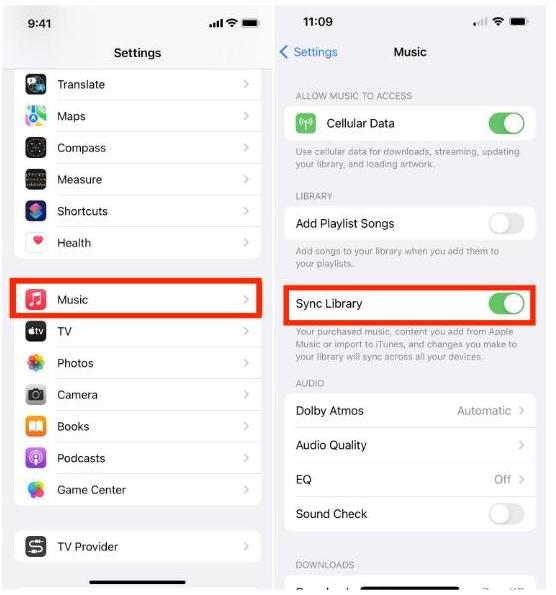
En iOS: Abre Ajustes > Aplicaciones > Música. Activa la opción Sincronizar biblioteca.
En Android: Toca el menú de tres puntos (⋮) en la esquina superior derecha y selecciona Configuración. Busca Sincronizar biblioteca y desactívala, luego vuelve a activarla.
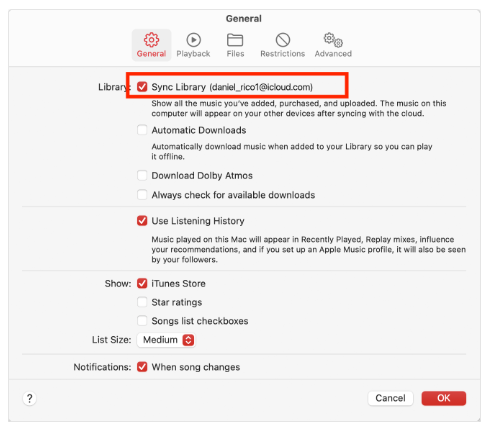
En macOS: Abre la aplicación Música. Ve a Música > Ajustes > General y desmarca la opción Sincronizar biblioteca, haz clic en Aceptar y, a continuación, vuelve a marcarla.
On WinDow (10/11): Haz clic en tu nombre/icono de perfil en la parte inferior de la barra lateral. Ve a Configuración > General. Desactiva y vuelve a activar la sincronización de la biblioteca.
Volver a descargar canciones sin conexión
Las descargas corruptas son otra razón por la que mi Apple Music no funciona sin conexión. Eliminar y volver a descargar las canciones podría solucionar el problema de reproducción.
Borrar la caché y reiniciar el dispositivo.
Los datos almacenados en caché y los archivos temporales pueden interferir con la aplicación Apple Music. Borrar la caché y reiniciar el dispositivo suele solucionar los problemas de reproducción.
Parte 3. La mejor manera de mantener Apple Music funcionando sin conexión de forma permanente.
Una de las mayores frustraciones para los usuarios es cuando la reproducción sin conexión deja de funcionar repentinamente. Muchas personas buscan "¿por qué mi Apple Music no funciona sin conexión?" después de descubrir que las canciones descargadas ya no se reproducen sin acceso a Internet. Esto suele ocurrir porque las descargas sin conexión de Apple Music todavía dependen de la verificación DRM y la autenticación de la suscripción. Para los usuarios que desean una escucha sin conexión más estable, la reproducción local MP3 La reproducción en streaming suele ser una solución más fiable.
Para evitar problemas recurrentes de reproducción de Apple Music, muchos usuarios optan por convertir las canciones de Apple Music en archivos de audio locales. Una de las mejores herramientas para este propósito es DumpMedia Apple Music ConverterEste convertidor profesional ayuda a los usuarios convertir música de Apple a MP3 y guárdalos para una reproducción sin conexión estable sin depender completamente de la aplicación Apple Music.
Descarga gratuita Descarga gratuita
🏆Características clave de DumpMedia Apple Music Converter
- 🎶Descarga Apple Music para MP3WAV, FLAC y AAC
- 🎶Eliminar la protección DRM de Apple Music*
- 🎶Mantén la calidad de sonido original
- 🎶Descarga por lotes listas de reproducción y álbumes
- 🎶Velocidad de conversión rápida
- 🎶Conservar los metadatos de la canción y las etiquetas ID3
- 🎶Compatible con la reproducción sin conexión en cualquier dispositivo.
Para los usuarios que preguntan repetidamente "¿por qué no funciona mi Apple Music?", la solución local MP3 La conversión proporciona una solución de reproducción a largo plazo.
Cómo convertir Apple Music para una reproducción estable sin conexión
Paso 1: Descarga e instala DumpMedia Instala Apple Music Converter en tu Mac/PC. Ejecútalo y verás la interfaz. Inicia sesión con tu cuenta de Apple Music.
Descarga gratuita Descarga gratuita
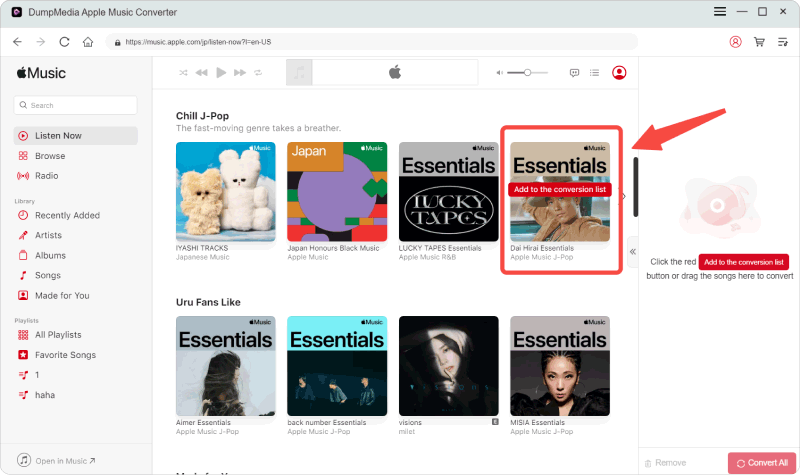
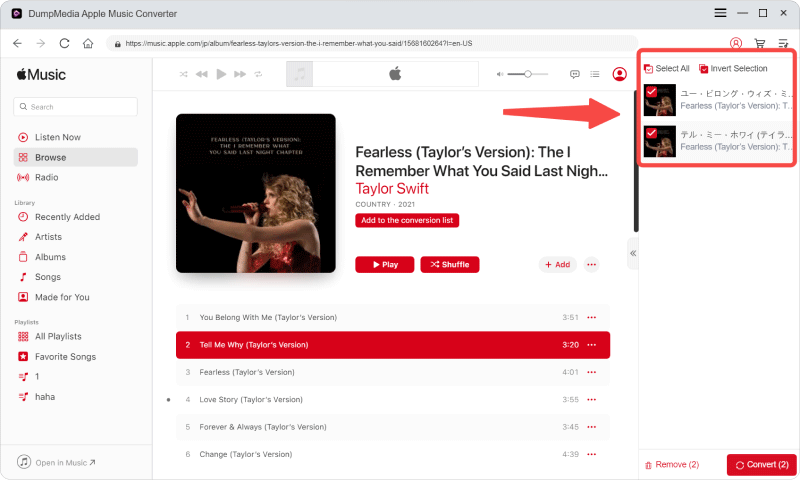
Paso 2. Busca la lista de reproducción, el álbum o la canción que deseas convertir. Puedes arrastrar una sola canción al icono "+" situado a la derecha de la pantalla. También puedes abrir una lista de reproducción o un álbum completo y hacer clic en el icono "Añadir para convertir" para cargarlo en el convertidor.
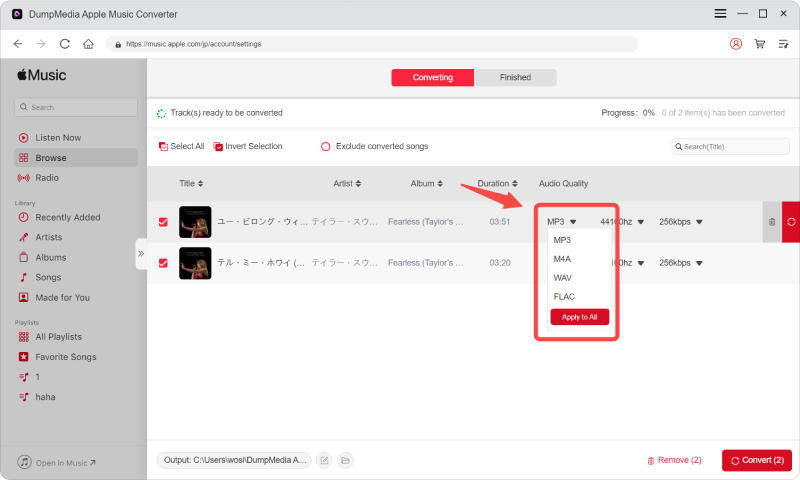
Paso 3: Seleccionar MP3 (la más compatible). También puedes cambiar la tasa de bits o la frecuencia de muestreo. Para obtener el mejor equilibrio, elige 320 kbps.
Paso 4: Una vez completada la configuración, los usuarios pueden procesar la conversión haciendo clic en el icono "Convertir". DumpMedia convertirá las canciones de Apple Music a MP3 En cuestión de segundos gracias a su velocidad ultrarrápida.
Tras la conversión, podrás reproducir tus canciones sin conexión a internet y sin problemas de verificación con Apple Music.
Parte 4. Preguntas frecuentes
¿Por qué no funciona mi Apple Music?
Los problemas con Apple Music pueden deberse a problemas de conexión a internet, la caducidad de la suscripción, restricciones de DRM o errores en la aplicación.
¿Por qué aparecen atenuadas mis canciones de Apple Music?
Las canciones que aparecen atenuadas suelen indicar problemas de licencia o de sincronización.
¿Por qué no puedo reproducir las canciones descargadas de Apple Music?
Las descargas sin conexión siguen requiriendo verificación de cuenta y autenticación DRM.
¿Puedo conservar las canciones de Apple Music para siempre?
Las descargas oficiales caducan con la suscripción. Los archivos locales convertidos se pueden almacenar permanentemente.
Is DumpMedia ¿Es seguro Apple Music Converter?
Sí. Está diseñado para la conversión de Apple Music y la gestión de la reproducción sin conexión.
Parte 4. Resumen
Si sigues preguntando "¿por qué no funciona mi Apple Music?", el problema suele estar relacionado con restricciones DRM, verificación de suscripción, dependencia de la aplicación o conectividad a Internet. Para los usuarios que desean una escucha sin conexión más fiable, DumpMedia Apple Music Converter ofrece una forma práctica de convertir canciones de Apple Music en archivos locales permanentes. MP3 archivos. Al eliminar las restricciones de reproducción y la dependencia de la aplicación, los usuarios pueden disfrutar de Apple Music de forma más flexible en diferentes dispositivos y entornos sin conexión.
Descarga gratuita Descarga gratuita
*DumpMedia Funciona descifrando y descargando las canciones de Apple Music en archivos sin DRM, lo que te permite obtener una copia limpia y sin restricciones de tu biblioteca para cualquier dispositivo. Su funcionalidad no incluye la eliminación del DRM de los archivos de audio locales.