


Så här använder du DumpMedia Spotify Säkerhetskopiering av spellista
Hantera din Spotify Spellistor kan vara utmanande när du vill ha en säkerhetskopia av dina noggrant organiserade musiksamlingar. DumpMedia Spotify Säkerhetskopiering av spellistor är ett bekvämt sätt att säkerhetskopiera dina Spotify spellistor, exportera spellisteinformation till CSV-filer och återställa spellistor till din Spotify konto.
Den här guiden förklarar hur du ansluter din Spotify konto, välja spellistor, exportera säkerhetskopierade filer, återställa spellistor, hantera säkerhetskopieringshistorik och anpassa utdatamappen. Den innehåller även felsökningsförslag som hjälper dig att hantera vanliga problem.
Innehållsguide Del 1. Installera och registrera DumpMedia Vilken musikkonverterare som helstDel 2. Hur du ansluter din Spotify Min sidaDel 3. Hur man väljer en Spotify spellistaDel 4. Vanliga problem och felsökningVanliga frågor om partihandel med mat och dryck
Del 1. Installera och registrera DumpMedia Vilken musikkonverterare som helst
Steg 1: Hämta och installera DumpMedia Vilken musikkonverterare som helst
DumpMedia Any Music Converter stöds på Mac och Windows-enheter för närvarande. Du kan ladda ner installationspaketet från produktsidan eller helt enkelt genom att klicka på nedladdningsknappen som finns här.
Gratis nedladdning Gratis nedladdning
Steg 2: Starta DumpMedia Vilken musikkonverterare som helst
Öppna efter installationen DumpMedia Valfri musikkonverterare på din dator. Du kommer att se ett rent och intuitivt gränssnitt utformat för att göra konverteringen enkel, även för förstagångsanvändare.
Tips: Se till att du är ansluten till internet för bästa möjliga upplevelse.
Steg 3: Registrera och aktivera valfri musikkonverterare
Starta DumpMedia Valfri musikkonverterare. Klicka på knappen "logga in" eller profilikonen längst ner till vänster. Ange e-postadress och lösenord. Klicka på "Logga in" för att slutföra registreringen.
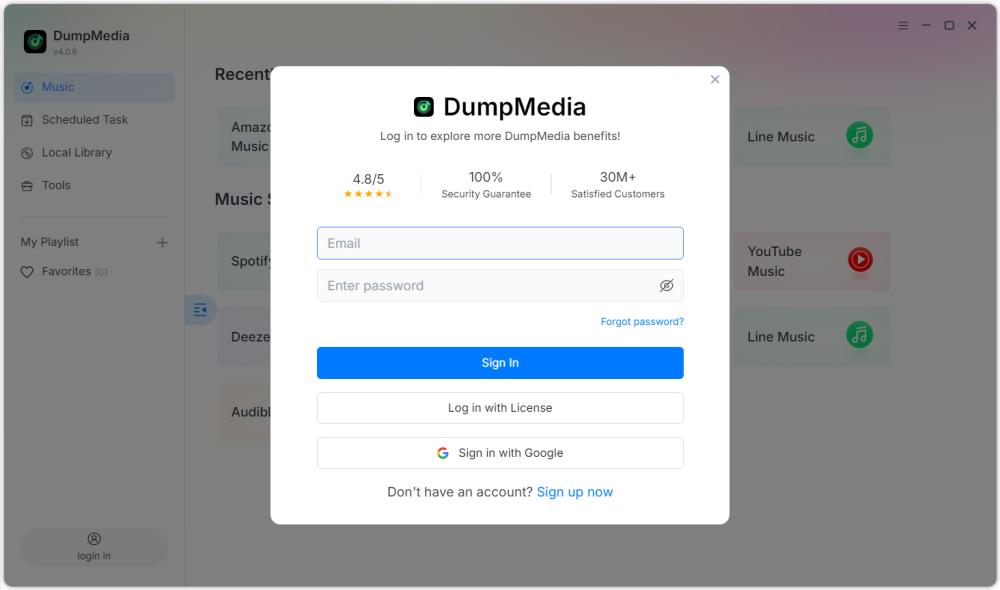
Tips: Lås upp Spotify Säkerhetskopiering av spellista besöker produktsidan och köp av abonnemanget. Välj ett abonnemang som passar dina behov och tveka inte att kontakta vår kundtjänst för att fråga om exklusiva rabatter.
Del 2. Hur du ansluter din Spotify Min sida
Innan du väljer en spellista måste du ansluta din Spotify konto till DumpMedia Spotify Säkerhetskopiering av spellista.
Tips: Observera att Spotify Säkerhetskopiering av spellista säljs som en fristående produkt och ingår inte i några vanliga Music Converter-prenumerationsplaner.
Steg 1: Starta DumpMedia Spotify Säkerhetskopiering av spellista
Öppna valfri musikkonverterare. Välj Verktyg > Spotify Säkerhetskopiering av spellista.
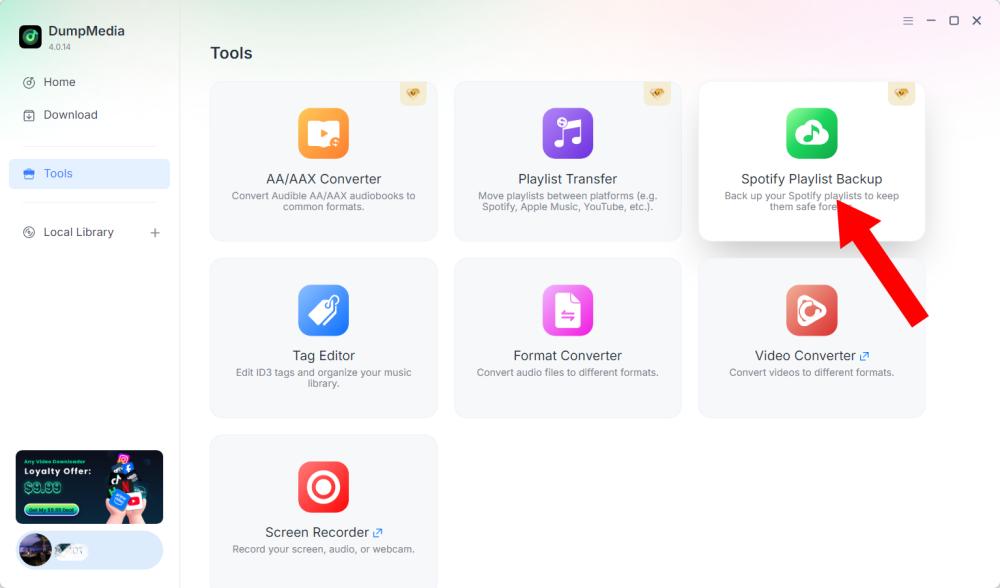
Steg 2: Klicka på "Anslut till Spotify"
Hitta och klicka på Anslut till Spotify knappen i programgränssnittet. Programmet omdirigerar dig automatiskt till den inbyggda Spotify spelaren.
Steg 3: Anslut din Spotify Min sida
När Spotify spelaren öppnas inuti programvaran, följ de tillgängliga anvisningarna för att ansluta din Spotify konto. Slutför anslutningsprocessen innan du fortsätter till hantering av spellistor. När ditt Spotify Kontot är anslutet kan du komma åt dina tillgängliga spellistor och välja den åtgärd du behöver.
Tips: Om anslutningen inte fungerar som förväntat, kontrollera din internetanslutning och bekräfta att Spotify spelaren har öppnats korrekt.
Del 3. Hur man väljer en Spotify spellista
Efter att ha anslutit din Spotify konto kan du välja den spellista du vill säkerhetskopiera eller återställa.
Steg 1: Få åtkomst till dina spellistor
Öppna spellistasektionen i DumpMedia Spotify Säkerhetskopiering av spellista efter att du har anslutit din Spotify konto. Dina tillgängliga spellistor bör visas i gränssnittet.
Steg 2: Välj en spellista
Välj spellistan noggrant, särskilt om du har flera spellistor med liknande namn.
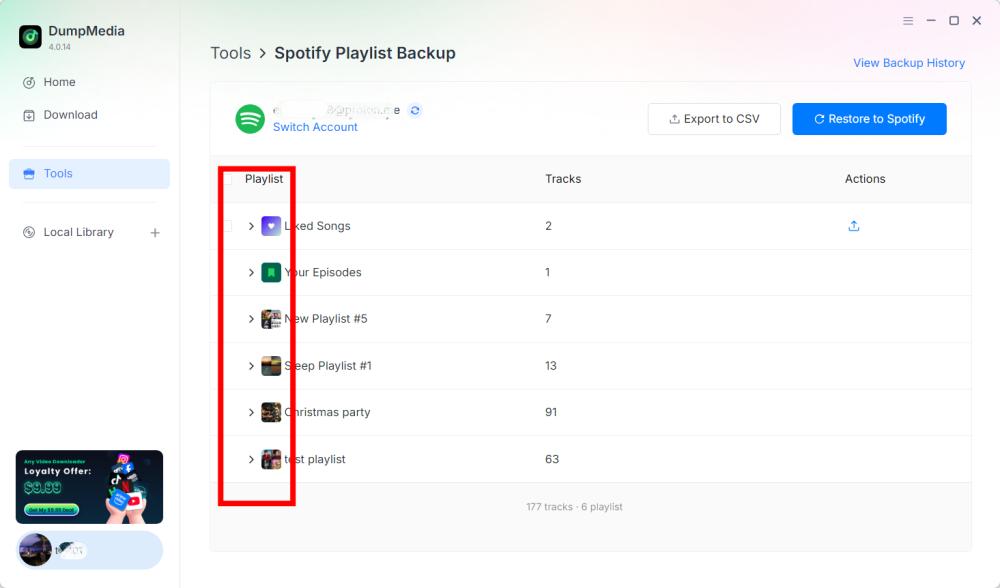
Steg 3: Välj en operation
När du har valt en spellista väljer du motsvarande åtgärd enligt dina behov. Tillgängliga åtgärder inkluderar Exportera till CSV och Återställ till Spotify.
- Exportera till CSV: Genom att exportera en spellista till CSV kan du spara spellisteinformation i en fil som kan öppnas och granskas med kalkylprogram som Microsoft Excel.
- återställa Spotify: DumpMedia Spotify Säkerhetskopiering av spellista stöder återställning av spellistor via Återställ till Spotify alternativ.
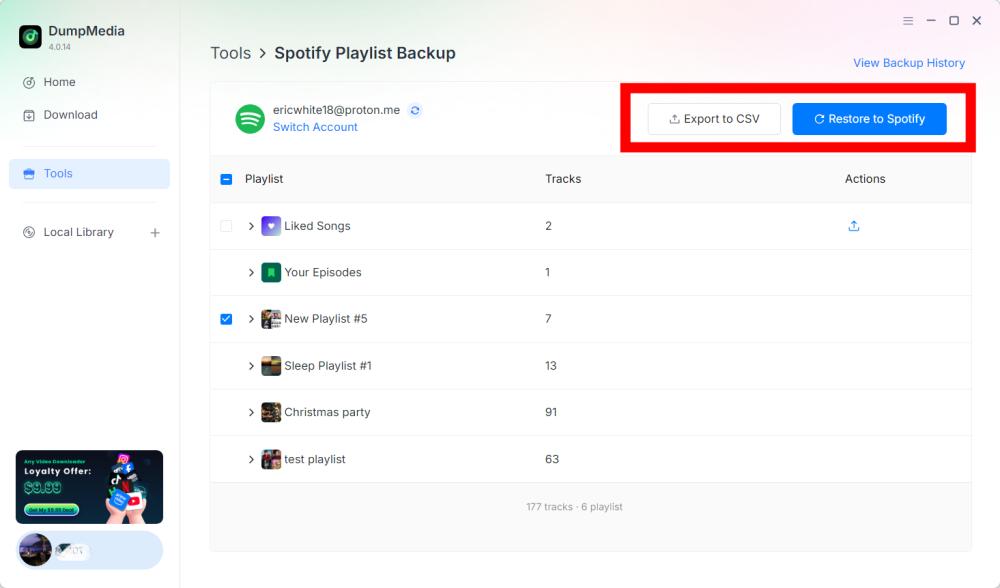
Steg 4: Kontrollera den exporterade filen
DumpMedia Spotify Säkerhetskopiering av spellista sparar säkerhetskopiorna i standardmappen. Du kan ändra den här platsen via menyn Inställningar. När exporten är klar letar du upp den genererade CSV-filen. Du kan öppna filen med ett kompatibelt kalkylprogram för att granska dess innehåll.
Viktigt: De specifika fälten som ingår i CSV-filen bör bekräftas enligt den aktuella versionen av DumpMedia Spotify Säkerhetskopiering av spellista.
Steg 5: Kolla din Spotify Min sida
Om du väljer Återställ till Spotify, öppen Spotify och kontrollera om spellistan har återställts.
Obs! Återställningsresultaten kan bero på säkerhetskopieringsdata, Spotify kontoanslutning och programvarans aktuella återställningsmöjligheter. Den exakta hanteringen av otillgängliga eller ändrade spår kräver bekräftelse från produktdokumentationen.
Steg 6: Visa säkerhetskopieringshistorik
DumpMedia Spotify Säkerhetskopiering av spellista inkluderar ett alternativ för att visa säkerhetskopieringshistorik som låter dig granska dina säkerhetskopieringsposter. Hitta Visa säkerhetskopieringshistorik i det övre högra hörnet av programgränssnittet. Klicka på alternativet för att öppna avsnittet med säkerhetskopieringshistorik.
Del 4. Vanliga problem och felsökning
Följande felsökningsförslag avser allmänna problem som kan uppstå vid kontoanslutning, spellistehantering eller filhantering. De är inte bekräftade produktspecifika felkoder eller officiella korrigeringar.
Det gick inte att ansluta till Spotify
Föreslagna lösningar:
- Kontrollera din internetanslutning.
- Stäng och öppna igen DumpMedia Spotify Säkerhetskopiering av spellista.
- Klicka på Anslut till Spotify igen.
- Slutför anslutningsprocessen i den inbyggda Spotify spelaren.
Om problemet kvarstår, anteckna det exakta felmeddelandet och kontakta DumpMedia Support (support@dumpmediaCom).
Spellistor visas inte
Föreslagna lösningar:
- Bekräfta att Spotify kontot är anslutet.
- Öppna spellisteavsnittet igen.
- Starta om programvaran och försök igen.
- Kontrollera om problemet påverkar alla spellistor eller bara en specifik spellista.
Om problemet kvarstår, ange information om den berörda spellistan och all tillgänglig felinformation till supporten.
- Klicka på menyn längst upp till höger i programmet och välj "Skicka feedback".
- Beskriv ditt problem och skriv ner din licensnyckel i textrutan.
- Slutligen, markera rutan "Bifoga loggfilen" innan du skickar in.
Exporten till CSV slutförs inte
Föreslagna lösningar:
- Bekräfta att Spotify kontot är anslutet.
- Försök exportera spellistan igen.
- Kontrollera den konfigurerade utdatamappen i Inställningar.
- Kontrollera att målmappen är tillgänglig.
- Testa exporten med en annan spellista om möjligt.
Om exporten fortsätter att misslyckas, spara felmeddelandet och kontakta kundsupporten.
återställa Spotify Fungerar inte
Föreslagna lösningar:
- Återanslut din Spotify konto.
- Kontrollera att du har valt rätt spellista eller säkerhetskopia.
- Försök att genomföra återställningsprocessen igen.
- Öppet Spotify och kontrollera om spellistan delvis återställdes.
- Kontakt DumpMedia Support om problemet fortsätter.
Utgå inte från att det är säkert att återställa samma säkerhetskopia upprepade gånger i alla situationer. Kontrollera den resulterande spellistan innan du försöker dig på ytterligare återställningsåtgärder.
Vanliga frågor om partihandel med mat och dryck
Q1. Hur ansluter jag min Spotify konto till DumpMedia Spotify Säkerhetskopiering av spellista?
Klicka på Anslut till SpotifyProgramvaran öppnar automatiskt den inbyggda Spotify spelare, där du kan ansluta din Spotify konto.
F2. Kan jag exportera Spotify spellistor till CSV?
Ja. Efter att du har anslutit din Spotify kontot och väljer en spellista, välj Exportera till CSV för att skapa en säkerhetskopia.
F3. Kan jag återställa en spellista till Spotify?
Ja. DumpMedia Spotify Säkerhetskopiering av spellista ger en återställning till Spotify alternativ för stödda restaureringsåtgärder.
F4. Var sparas mina säkerhetskopior?
Säkerhetskopierade filer sparas i standardmappen för utdata. Du kan kontrollera eller ändra platsen genom att öppna menyn uppe till höger, välja Inställningar och sedan hitta Utdatamappen.
F5. Hur kan jag visa tidigare säkerhetskopior?
Klicka på Visa säkerhetskopieringshistorik i programmets övre högra hörn för att granska tillgänglig säkerhetskopieringshistorik.
F6. Vad ska jag göra om Spotify kan inte ansluta?
Kontrollera din internetanslutning och öppna programvaran igen. Om problemet kvarstår, kontakta DumpMedia Hjälp med felinformationen.
F7. Vad ska jag göra om min spellista saknas?
Bekräfta att din Spotify Om kontot är anslutet, starta om programvaran och kontrollera spellisteavsnittet igen. Om spellistan fortfarande är otillgänglig, kontakta supporten.
F8. Kan jag återställa en säkerhetskopia till en annan plats Spotify konto?
Den här funktionen är ännu inte tillgänglig i den nuvarande versionen, men håll utkik efter framtida uppdateringar.