


Hur man överför DVD till USB: Kopiera eller konvertera? (Komplett guide)
Många användare söker efter sätt att slutföra en DVD till USB överföra så att de kan titta på filmer på moderna enheter som smarta TV-apparater, bärbara datorer eller bilsystem. Men vad de flesta inte inser är att det inte alltid fungerar som förväntat att bara kopiera filer från en DVD till ditt USB-minne. I många fall spelas inte filerna upp korrekt, eller så spelas de inte upp alls. I den här guiden guidar vi dig genom det korrekta sättet att flytta ditt DVD-innehåll till ett USB-minne, förklarar varför vanliga metoder misslyckas och visar dig hur du gör ditt DVD-innehåll faktiskt spelbart på vilken enhet som helst.
InnehållsguideDel 1. Kan du överföra DVD-innehåll till USB?Del 2. Två sätt att överföra DVD-innehåll till USBDel 3: Att avsluta det hela
Del 1. Kan du överföra DVD-innehåll till USB?
Ja, det är tekniskt möjligt att överföra från DVD till USB. Du kan sätta i din DVD i datorn och kopiera filer direkt till en USB-enhet. DVD-skivor lagrar dock video i ett specifikt format (vanligtvis VOB-filer i en VIDEO_TS-mapp), vilket inte stöds av många moderna enheter. Så även om du slutför en kopiering kan du få filer som inte kan öppnas eller spelas upp.
Varför "DVD till USB" inte alltid fungerar
Många användare antar att det räcker med att flytta filer. Men i verkligheten beror en lyckad DVD till USB-process på kompatibilitet. Här är de viktigaste problemen:
- Filformat som inte stöds: DVD-filer är vanligtvis i VOB-format, vilket inte stöds i stor utsträckning av TV-apparater, telefoner eller USB-spelare.
- Komplex DVD-struktur: DVD-skivor innehåller flera filer (IFO, BUP, VOB), och att kopiera dem individuellt kan avbryta uppspelningen.
- Enhetskompatibilitetsproblem: Även om din USB-enhet innehåller DVD-filerna kanske din enhet inte känner igen eller spelar upp dem korrekt.
- DRM eller kopieringsskydd: Vissa DVD-skivor har ett skydd som förhindrar direktkopiering eller uppspelning.
Del 2. Två sätt att överföra DVD-innehåll till USB
Det finns två huvudsakliga metoder för att hantera en DVD till USB-process. Låt oss jämföra dem.
Metod 1: Direktkopiering (grundläggande metod)
- Sätt i DVD-skivan i datorn
- Öppna DVD-mappen
- Kopiera VIDEO_TS-mappen
- Klistra in den i ditt USB-minne
Alla tillgångar på ett och samma ställe
- Lätt och snabbt
- Ingen ytterligare programvara behövs
Nackdelar:
- Filer kanske inte spelas upp på de flesta enheter
- Stora filstorlekar
- Dålig kompatibilitet
Den här metoden fungerar bara om din målenhet stöder DVD-filstrukturer, vilket de flesta moderna enheter inte gör.
Metod 2: Konvertera DVD till USB-vänligt format (rekommenderas)
Istället för att kopiera råfiler konverterar du DVD:n till ett allmänt stödt format som MP4 innan du överför den till USB. Den här metoden säkerställer att ditt DVD-innehåll som överförs till USB resulterar i filer som faktiskt fungerar. Ett verktyg som DumpMedia Video Converter förenklar hela arbetsflödet från DVD till USB genom att låta dig konvertera DVD-videor till MP4, AVI eller andra format.
Gratis nedladdning Gratis nedladdning
Här är en enkel steg-för-steg-guide:
Steg 1. Installera och starta DumpMedia Videokonverterare.
Steg 2. Sätt i din DVD i datorn.
Steg 3. Ladda DVD-innehållet i programvaran.
Steg 4. Välj MP4 eller ett annat kompatibelt format.
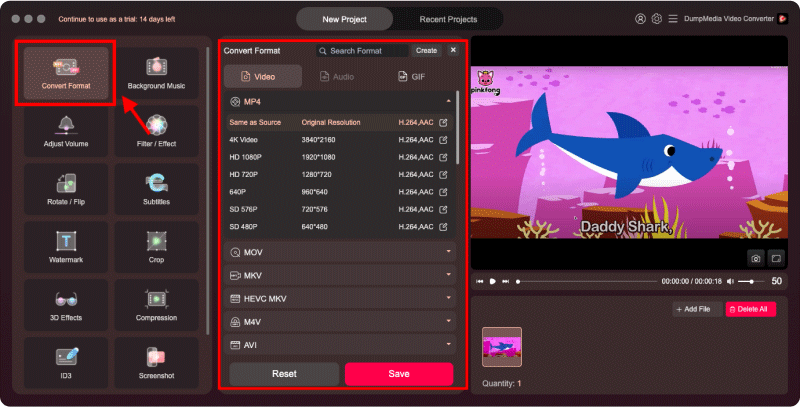
Steg 5. Starta omvandlingsprocessen.
Steg 6. Spara de konverterade filerna direkt till ditt USB-minne.
Del 3: Att avsluta det hela
Att slutföra en överföring från DVD till USB handlar inte bara om att flytta filer; det handlar om att se till att filerna faktiskt fungerar när du behöver dem. Verktyg som DumpMedia Video Converter gör den här processen enkel, så att du kan hantera både konvertering och överföring effektivt utan teknisk komplexitet. Om ditt mål är att titta på ditt DVD-innehåll på olika enheter utan begränsningar, gör rätt metod hela skillnaden. Istället för att förlita sig på grundläggande kopiering, ger ett korrekt konverteringsbaserat arbetsflöde för DVD till USB en långsiktig lösning som är både praktisk och pålitlig.

30% rabatt >>>