


Hur konverterar man YouTube till Apple Music?
Många som gillar YouTube Music kanske vill flytta sina favoritlåtar eller spellistor till Apple Music för dess utvalda spellistor, sömlösa integration med Apple-enheter och offline-lyssningsmöjligheter. Utmaningen är dock att YouTube Music och Apple Music inte synkroniseras direkt med varandra. Detta väcker frågan: hur kan man effektivt konvertera YouTube till Apple Music utan att förlora sina utvalda spellistor? Den här guiden utforskar de bästa metoderna för att konvertera YouTube Music till Apple Music och ger användbara tips för överföring av spellistor samt svarar på vanliga frågor.
Innehållsguide Del 1. Kan jag konvertera YouTube Music till Apple Music direkt?Del 2. Konvertera YouTube Music till Apple Music på Windows/MacDel 3. Vanliga frågorDel 4. För att summera det hela
Del 1. Kan jag konvertera YouTube Music till Apple Music direkt?
Tyvärr finns det inget direkt sätt att överföra eller synkronisera ditt YouTube Music-bibliotek med Apple Music. Båda plattformarna använder olika ekosystem och DRM-skydd, vilket förhindrar enkla överföringar. Även om du kan återskapa spellistor manuellt genom att söka efter låtar på Apple Music, är den här metoden tidskrävande, särskilt om du har hundratals låtar.
Som tur är, med hjälp av professionella verktyg som DumpMedia Med valfri musikkonverterare kan du konvertera YouTube till Apple Music genom att ladda ner YouTube Music-spår och importera dem till Apple Music samtidigt som du bevarar låtkvalitet och metadata.
Del 2. Konvertera YouTube Music till Apple Music på Windows/Mac
Den mest pålitliga metoden för att konvertera YouTube till Apple Music är att använda datorprogramvara. Ett av de bästa verktygen som finns är DumpMedia Vilken musikkonverterare som helst, vilket gör det möjligt för användare att ladda ner låtar och spellistor från YouTube Music, konvertera dem till Apple Music-kompatibla format och till och med överföra spellistor direkt.
Gratis nedladdning Gratis nedladdning
Nedan följer de viktigaste funktionerna:
- Stöd för flera plattformar: Istället för att växla mellan enskilda appar integrerar det här verktyget stöd för flera stora streamingtjänster, som Spotify, Apple Music, YouTube Music och mer.
- Mångsidiga utdataformat: DumpMedia erbjuder ett brett utbud av kompatibla format för att säkerställa att filer fungerar på nästan alla enheter (MP3 spelare, smartphones, bilstereo etc.): MP3, M4A, WAV, FLAC, AIFF och AAC.
- Förlustfri kvalitet: Stöder 100% bibehållande av originalljudkvalitet, vanligtvis upp till 320 kbps för MP3s.
- Batchkonvertering: Gör att du kan lägga till hela spellistor eller album i en kö för samtidig bearbetning.
- Smart metadatahantering: ID3-taggbevarande: Bevarar automatiskt viktiga metadata, inklusive artist, album, titel, år och albumomslag.
- Inbyggda webbspelare: DumpMedia har vanligtvis en inbäddad webbspelare för varje tjänst. Det betyder att du inte behöver ha Spotify eller Apple Music-skrivbordsappar installerade; du kan bläddra bland och välja låtar direkt i DumpMedia gränssnitt.
Hur konverterar man YouTube till Apple Music?
Steg 1. installera DumpMedia Valfri musikkonverterare på din Windows eller Mac-dator. Öppna programmet och välj YouTube Music.
Gratis nedladdning Gratis nedladdning
Steg 2. Sök direkt efter de låtar, spellistor eller album du vill flytta till Apple Music. Dra och släpp dem sedan till knappen "+" och lägg till dem i konverteringslistan.
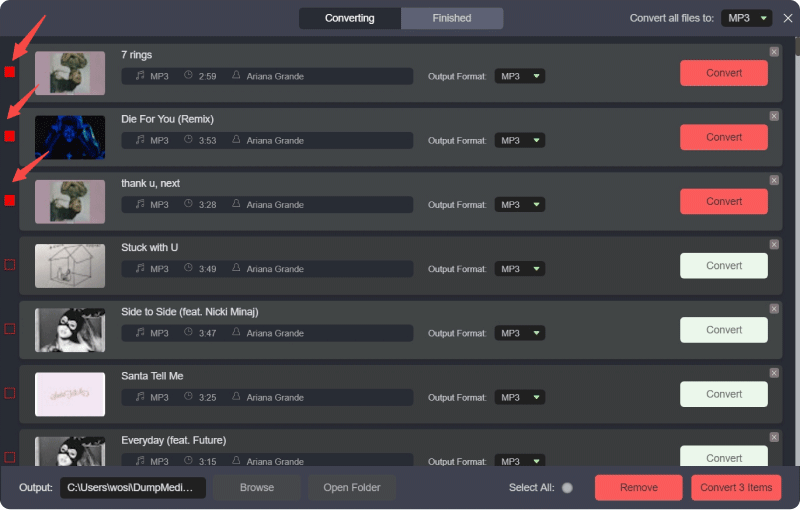
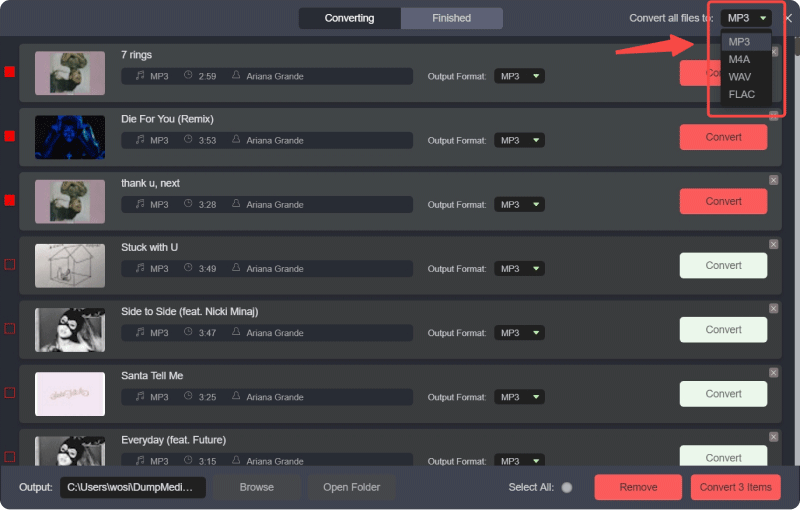
Steg 3. Klicka på panelen Format för att välja MP3 som utdataformat. Andra återstående utgångsparameterinställningar kan också ändras som du vill.
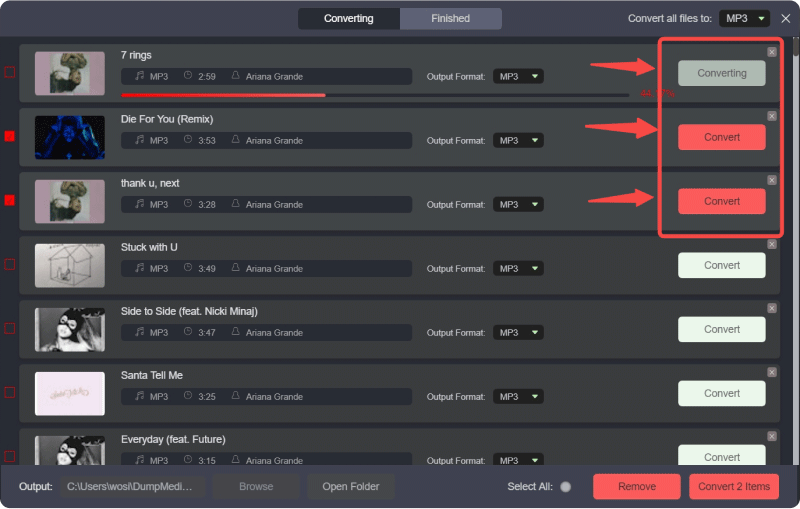
Steg 4. Sedan kan du trycka på knappen "Konvertera alla" för att spara filerna lokalt i bulk.
Steg 5. Öppna Apple Music-appen på Windows eller Mac.
Steg 6. Gå till Arkiv > Lägg till i biblioteket (eller dra och släpp filerna till biblioteket).
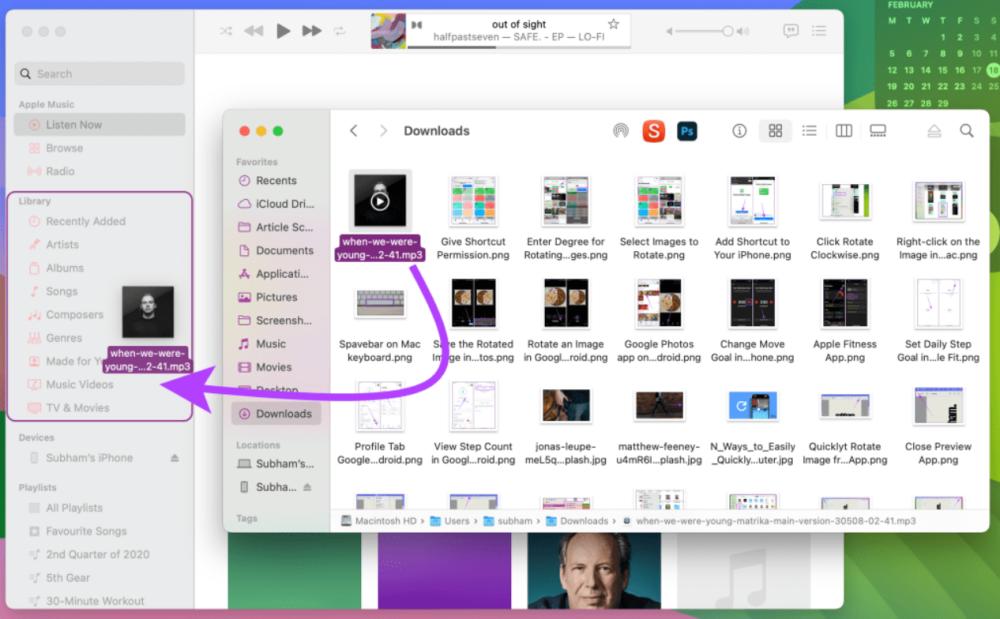
Steg 7. Vänta tills Apple Music har bearbetat filerna. Dina YouTube Music-spår är nu en del av ditt Apple Music-bibliotek.
Genom att följa dessa steg kan du konvertera YouTube till Apple Music utan att manuellt söka efter och ladda ner varje låt individuellt.
Ytterligare tips: Överför hela spellistor med DumpMedia
DumpMedia Any Music Converter har även en funktion för spellistöverföring. Det här verktyget låter dig migrera hela spellistor från YouTube Music till Apple Music:
Steg 1. Öppna valfri musikkonverterare. Välj Verktyg > Överför spellistor.

Steg 2. Välj YouTube Music som källa.
Steg 3. Välj Apple Music som destination.
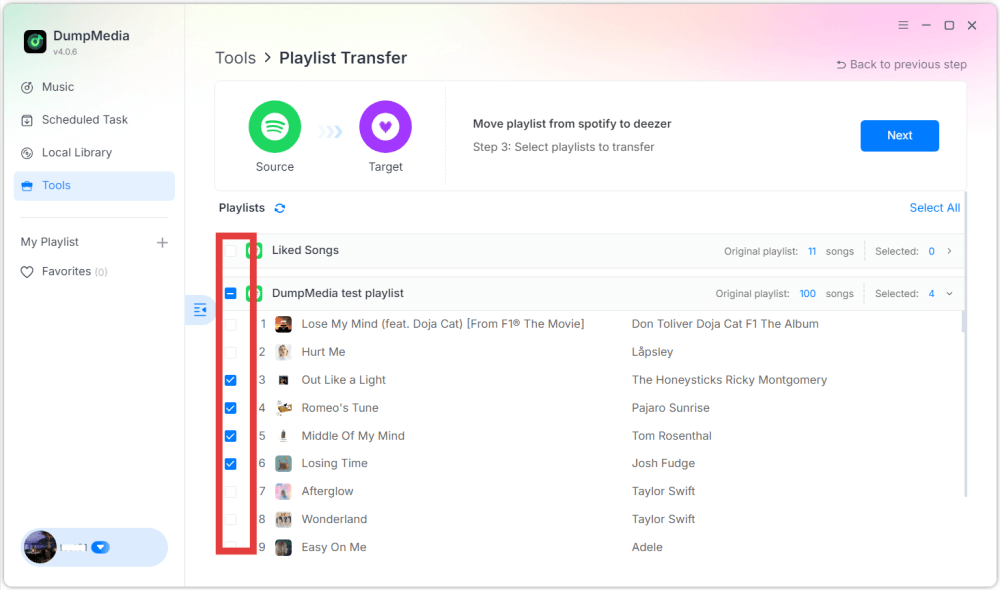
Steg 4. Välj vad du vill överföra. Vi stöder dina favoritlåtar, artister, album och dina utvalda spellistor.
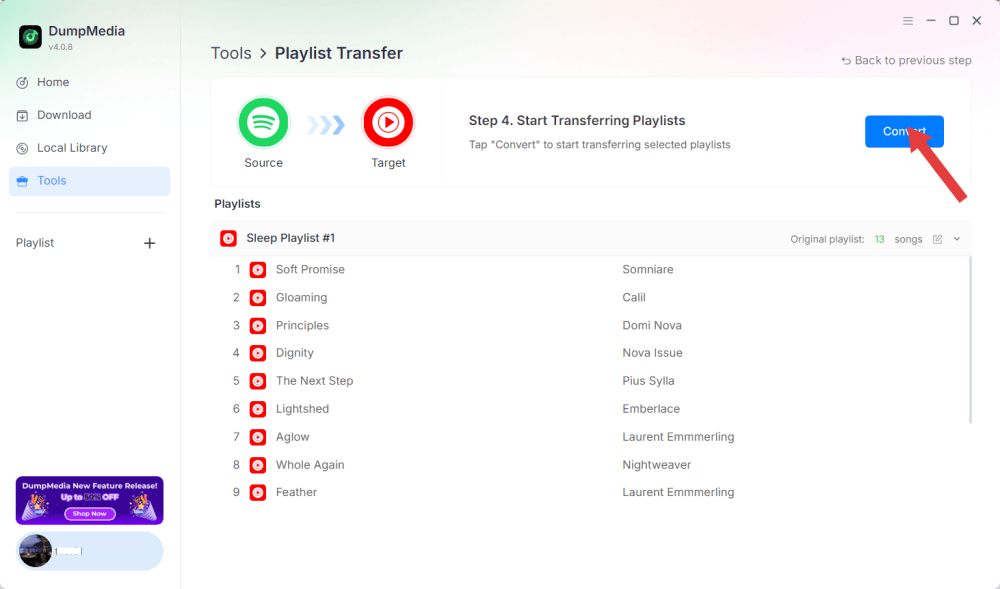
Steg 5. Klicka på Konvertera för att starta överföringen.
Steg 6. Överföringen är klar. Klicka på "Gå till Apple Music". Dina spellistor har flyttats till en ny tjänst och du kan börja lyssna på en ny spellista på Apple Music.
Del 3. Vanliga frågor
1. Kan jag konvertera YouTube till Apple Music gratis?
Ja, med hjälp av verktyg som DumpMedia Med valfri musikkonverterare kan du ladda ner YouTube Music-spår och importera dem till Apple Music. DumpMedia erbjuder en gratis provperiod, alla funktioner kan kräva en betald licens.
2. Kommer låtkvaliteten att bevaras under konverteringen?
DumpMedia låter dig välja utdataformat och bithastigheter, vilket säkerställer att de nedladdade filerna bibehåller hög ljudkvalitet.
3. Kan jag överföra hela spellistor?
Ja. Använda funktionen för överföring av spellistor i DumpMedia, kan du flytta hela YouTube Music-spellistor till Apple Music utan att förlora låtordning eller metadata.
4. Är det säkert att använda DumpMedia för nedladdningar av YouTube Music?
Ja. DumpMedia fungerar lokalt på din dator, så dina data och konton förblir säkra. Det stör inte Apple Music- eller YouTube Music-servrar.
Del 4. För att summera det hela
Även om YouTube Music och Apple Music inte integreras direkt kan du fortfarande konvertera YouTube till Apple Music effektivt med hjälp av DumpMedia Valfri musikkonverterare. Genom att ladda ner låtar, ladda upp dem till Apple Music eller använda funktionen för spellistaöverföring kan du hålla alla dina favoritlåtar organiserade i ditt Apple Music-bibliotek.