


Nasıl Kullanılır? DumpMedia Spotify Çalma Listesi Yedekleme
Sizin yönetme Spotify Özenle düzenlediğiniz müzik koleksiyonlarınızın yedeklerini saklamak istediğinizde çalma listeleri oluşturmak zor olabilir. DumpMedia Spotify Çalma Listesi Yedekleme, çalma listelerinizi yedeklemenin kullanışlı bir yolunu sunar. Spotify Çalma listeleri oluşturabilir, çalma listesi bilgilerini CSV dosyalarına aktarabilir ve çalma listelerinizi geri yükleyebilirsiniz. Spotify hesap.
Bu kılavuz, cihazınızı nasıl bağlayacağınızı açıklamaktadır. Spotify Hesap oluşturma, çalma listelerini seçme, yedekleme dosyalarını dışa aktarma, çalma listelerini geri yükleme, yedekleme geçmişini yönetme ve çıktı klasörünü özelleştirme gibi işlemleri içerir. Ayrıca, sık karşılaşılan sorunlarla başa çıkmanıza yardımcı olacak sorun giderme önerileri de sunar.
İçindekiler Kılavuzu Bölüm 1. Kurulum ve Kayıt DumpMedia Herhangi bir Müzik DönüştürücüBölüm 2. Bağlantıyı Nasıl Kurarsınız? Spotify HesapBölüm 3. Nasıl Seçilir? Spotify çalma listesiBölüm 4. Yaygın Sorunlar ve Sorun GidermeSıkça Sorulan Sorular
Bölüm 1. Kurulum ve Kayıt DumpMedia Herhangi bir Müzik Dönüştürücü
Adım 1: İndirin ve yükleyin DumpMedia Herhangi bir Müzik Dönüştürücü
DumpMedia Herhangi bir müzik dönüştürücü Mac'te desteklenmektedir ve WinŞu anda Dows cihazları desteklenmektedir. Kurulum paketini ürün sayfasından veya burada verilen indirme düğmesine tıklayarak indirebilirsiniz.
Adım 2: Lansman DumpMedia Herhangi bir Müzik Dönüştürücü
kurulumdan sonra aç DumpMedia Bilgisayarınızdaki herhangi bir müzik dönüştürme programını kullanın. Yeni başlayanlar için bile dönüştürmeyi kolaylaştırmak üzere tasarlanmış, sade ve sezgisel bir arayüz göreceksiniz.
İpucu: En iyi deneyim için internete bağlı olduğunuzdan emin olun.
3. Adım: Any Music Converter'ı Kaydedin ve Etkinleştirin
Başlatmak DumpMedia Herhangi bir müzik dönüştürücü. Sol alt köşedeki "Giriş yap" düğmesine veya profil simgesine tıklayın. E-posta adresinizi ve şifrenizi girin. Kaydı tamamlamak için "Oturum aç" düğmesine tıklayın.
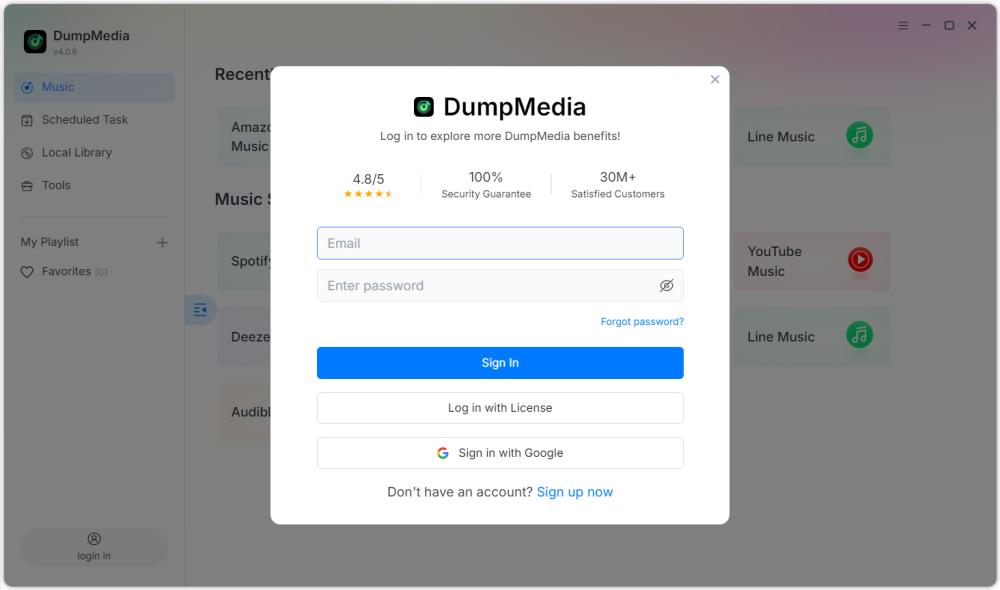
İpucu: Kilidi açın Spotify Çalma Listesi Yedeklemesi tarafından ürün sayfasını ziyaret etmek ve planı satın alın. İhtiyaçlarınıza uygun bir abonelik planı seçin ve özel indirimler hakkında bilgi almak için müşteri hizmetleri ekibimizle iletişime geçmekten çekinmeyin.
Bölüm 2. Bağlantıyı Nasıl Kurarsınız? Spotify Hesap
Çalma listesi seçmeden önce, bağlantı kurmanız gerekiyor. Spotify hesap DumpMedia Spotify Çalma Listesi Yedekleme.
İpucu: Lütfen şunu dikkate alın: Spotify Çalma Listesi Yedekleme, ayrı bir ürün olarak satılmaktadır ve standart Music Converter abonelik planlarının hiçbirine dahil değildir.
Adım 1: Lansman DumpMedia Spotify Çalma Listesi Yedekleme
Any Music Converter uygulamasını açın. Araçlar > seçeneğini seçin. Spotify Çalma Listesi Yedekleme.
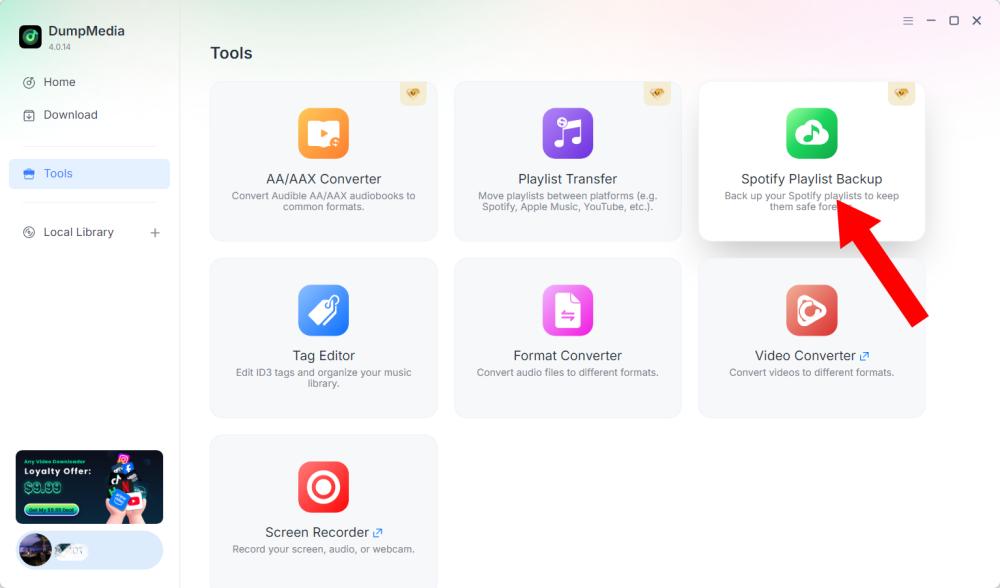
Adım 2: "Bağlan" seçeneğine tıklayın. Spotify"
"Bağlan" seçeneğini bulun ve tıklayın. Spotify Yazılım arayüzündeki düğmeye tıklayın. Uygulama sizi otomatik olarak yerleşik menüye yönlendirecektir. Spotify oyuncu.
Adım 3: Bağlantınızı Kurun Spotify Hesap
Zaman Spotify Oynatıcı yazılımın içinde açılır, bağlantı kurmak için mevcut yönergeleri izleyin. Spotify Hesabınıza bağlanın. Çalma listesi yönetimine geçmeden önce bağlantı işlemini tamamlayın. Bağlantınız tamamlandıktan sonra... Spotify Hesabınız başarıyla bağlandı, mevcut oynatma listelerinize erişebilir ve ihtiyacınız olan işlemi seçebilirsiniz.
İpucu: Bağlantı beklendiği gibi gerçekleşmezse, internet bağlantınızı kontrol edin ve doğrulayın. Spotify Oyuncu doğru şekilde açtı.
Bölüm 3. Nasıl Seçilir? Spotify çalma listesi
Bağladıktan sonra Spotify Hesabınız üzerinden yedeklemek veya geri yüklemek istediğiniz oynatma listesini seçebilirsiniz.
Adım 1: Oynatma Listelerinize Erişin
Oynatma listesi bölümünü açın. DumpMedia Spotify Bağlantıyı kurduktan sonra çalma listesi yedeklemesi Spotify Hesabınız. Kullanılabilir çalma listeleriniz arayüzde görüntülenmelidir.
Adım 2: Bir Çalma Listesi Seçin
Özellikle benzer isimlere sahip birden fazla çalma listeniz varsa, çalma listesini dikkatlice seçin.
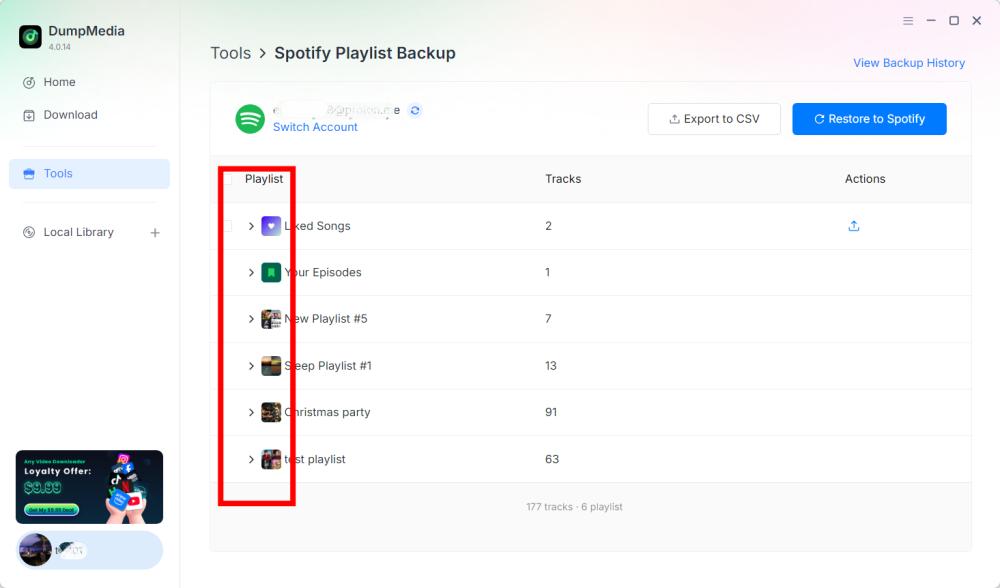
Adım 3: Bir İşlem Seçin
Bir oynatma listesi seçtikten sonra, gereksinimlerinize göre ilgili işlemi seçin. Mevcut işlemler arasında CSV'ye Aktar ve Geri Yükle bulunur. Spotify.
- CSV'ye Aktarma: Bir oynatma listesini CSV'ye aktarmak, oynatma listesi bilgilerini Microsoft Excel gibi elektronik tablo uygulamaları kullanılarak açılabilecek ve incelenebilecek bir dosyaya kaydetmenizi sağlar.
- Geri yükleme Spotify: DumpMedia Spotify Çalma Listesi Yedekleme, "Geri Yükle" seçeneği aracılığıyla çalma listesi geri yüklemeyi destekler. Spotify seçeneği.
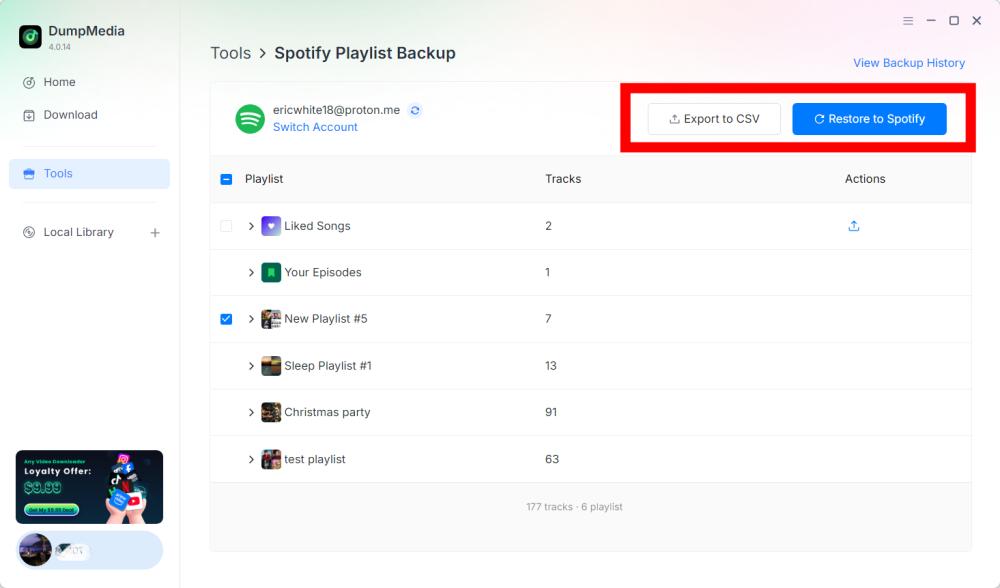
Adım 4: Dışa Aktarılan Dosyayı Kontrol Edin
DumpMedia Spotify Çalma Listesi Yedekleme, yedekleme dosyalarını varsayılan klasörüne kaydeder. Bu konumu Tercihler menüsünden değiştirebilirsiniz. Dışa aktarma işlemi tamamlandıktan sonra, oluşturulan CSV dosyasını bulun. İçeriğini incelemek için dosyayı uyumlu bir elektronik tablo uygulamasıyla açabilirsiniz.
Önemli: CSV dosyasında yer alan belirli alanların, mevcut sürüme göre doğrulanması gerekmektedir. DumpMedia Spotify Çalma Listesi Yedekleme.
5 Adım: Kontrol Edin Spotify Hesap
Geri Yükle seçeneğini seçerseniz Spotifyaçık Spotify ve oynatma listesinin başarıyla geri yüklenip yüklenmediğini kontrol edin.
Not: Geri yükleme sonuçları yedekleme verilerine bağlı olabilir. Spotify Hesap bağlantısı ve yazılımın mevcut geri yükleme yetenekleri. Kullanılamayan veya değişen parçaların tam olarak nasıl ele alınacağı, ürün dokümanlarından teyit gerektirir.
Adım 6: Yedekleme Geçmişini Görüntüle
DumpMedia Spotify Çalma Listesi Yedekleme yazılımı, yedekleme kayıtlarınızı incelemenizi sağlayan bir Yedekleme Geçmişini Görüntüle seçeneği içerir. Yedekleme Geçmişini Görüntüle seçeneğini yazılım arayüzünün sağ üst köşesinde bulabilirsiniz. Yedekleme geçmişi bölümünü açmak için bu seçeneğe tıklayın.
Bölüm 4. Yaygın Sorunlar ve Sorun Giderme
Aşağıdaki sorun giderme önerileri, hesap bağlantısı, oynatma listesi işlemleri veya dosya yönetimi sırasında ortaya çıkabilecek genel sorunları ele almaktadır. Bunlar, ürüne özgü onaylanmış hata kodları veya resmi çözümler değildir.
Bağlantı kurulamadı Spotify
Önerilen çözümler:
- İnternet bağlantınızı kontrol edin.
- Kapat ve yeniden aç DumpMedia Spotify Çalma Listesi Yedekleme.
- Bağlan'a tıklayın Spotify tekrar.
- Dahili bağlantı işlemini tamamlayın. Spotify oyuncu.
Sorun devam ederse, hata mesajını tam olarak kaydedin ve iletişime geçin. DumpMedia Destek (support@)dumpmedia. Com).
Çalma listeleri görüntülenmiyor.
Önerilen çözümler:
- Onaylayın Spotify Hesap bağlı.
- Oynatma listesi bölümünü yeniden açın.
- Yazılımı yeniden başlatın ve tekrar deneyin.
- Sorunun tüm oynatma listelerini mi yoksa yalnızca belirli bir oynatma listesini mi etkilediğini kontrol edin.
Sorun devam ederse, etkilenen oynatma listesinin ayrıntılarını ve mevcut hata bilgilerini Destek ekibine iletin.
- Programın sağ üst köşesindeki menüye tıklayın ve "Geri bildirim gönder" seçeneğini seçin.
- Sorununuzu açıklayın ve lisans anahtarınızı metin kutusuna yazın.
- Son olarak, göndermeden önce lütfen "Günlük dosyasını ekle" kutusunu işaretleyin.
CSV'ye Aktarma İşlemi Tamamlanmadı
Önerilen çözümler:
- Onaylayın Spotify Hesap bağlı.
- Oynatma listesini tekrar dışa aktarmayı deneyin.
- Tercihler bölümünde yapılandırılmış çıktı klasörünü kontrol edin.
- Hedef klasöre erişilebildiğinden emin olun.
- Mümkünse, dışa aktarma işlemini başka bir oynatma listesiyle test edin.
Dışa aktarma işlemi başarısız olmaya devam ederse, hata mesajını kaydedin ve müşteri desteğiyle iletişime geçin.
Geri yükleme Spotify Çalışmıyor
Önerilen çözümler:
- yeniden bağlanın Spotify hesap.
- Doğru çalma listesini veya yedek kaydı seçtiğinizden emin olun.
- Onarım işlemini tekrar deneyin.
- Açılış Spotify ve oynatma listesinin kısmen geri yüklenip yüklenmediğini kontrol edin.
- İletişim DumpMedia Sorun devam ederse destek isteyin.
Aynı yedeklemeyi tekrar tekrar geri yüklemenin her durumda güvenli olduğunu varsaymayın. Ek geri yükleme işlemlerine başlamadan önce oluşturulan oynatma listesini kontrol edin.
Sıkça Sorulan Sorular
Q1. cihazımı nasıl bağlarım Spotify hesap DumpMedia Spotify Çalma listesi yedeklemesi mi?
Bağlan'a tıklayın SpotifyYazılım otomatik olarak yerleşik dosyayı açacaktır. Spotify oynatıcınızda, bağlantı kurabileceğiniz yer. Spotify hesap.
S2. İhracat yapabilir miyim? Spotify Çalma listelerini CSV'ye dönüştürmek mi?
Evet. Bağlantıyı kurduktan sonra. Spotify Hesabınızı seçin ve bir oynatma listesi belirleyin, ardından yedekleme dosyası oluşturmak için CSV'ye Aktar'ı seçin.
S3. Bir oynatma listesini geri yükleyebilir miyim? Spotify?
Evet. DumpMedia Spotify Çalma Listesi Yedekleme, Geri Yükleme özelliği sağlar. Spotify Desteklenen restorasyon işlemleri için seçenek.
S4. Yedek dosyalarım nerede kaydediliyor?
Yedekleme dosyaları varsayılan çıktı klasörüne kaydedilir. Sağ üst menüyü açıp, Tercihler'i seçerek ve Çıktı Klasörü'nü bularak konumu kontrol edebilir veya değiştirebilirsiniz.
S5. Önceki yedekleme kayıtlarını nasıl görüntüleyebilirim?
Yazılımın sağ üst köşesindeki "Yedekleme Geçmişini Görüntüle" seçeneğine tıklayarak mevcut yedekleme geçmişini inceleyebilirsiniz.
S6. eğer ne yapmalıyım Spotify bağlanamıyor?
İnternet bağlantınızı kontrol edin ve yazılımı yeniden açın. Sorun devam ederse, iletişime geçin. DumpMedia Hata ayrıntılarıyla ilgili destek sağlayın.
S7. Çalma listem kaybolursa ne yapmalıyım?
onaylayın Spotify Hesap bağlıysa, yazılımı yeniden başlatın ve oynatma listesi bölümünü tekrar kontrol edin. Oynatma listesi hala kullanılamıyorsa, Destek ekibiyle iletişime geçin.
S8. Yedeklemeyi farklı bir konuma geri yükleyebilir miyim? Spotify hesabı?
Bu özellik mevcut sürümde henüz bulunmamaktadır, ancak gelecekteki güncellemeler için lütfen takipte kalın.