How to Transfer Apple Music to YouTube Music: Complete Guide

羅西(Rosie)撰寫

上次更新時間:2026-03-11

2最小讀取

Many users who originally built their music libraries on 蘋果音樂 eventually decide to explore YouTube音樂 because of its powerful music discovery features, integration with YouTube videos, and seamless compatibility with Google services. However, one common problem when switching services is how to 將 Apple Music 轉移到 YouTube Music without manually rebuilding every playlist.

Fortunately, several tools can help automate this process. In this guide, we’ll explore the most effective methods to transfer Apple Music songs to YouTube Music. By the end of this guide, you’ll know exactly how to move your playlists quickly and efficiently.

內容指南 Method 1. Transfer Apple Music Playlists to YouTube Music with DumpMediaMethod 2. Transfer Apple Music Playlists to YouTube Music with TuneMyMusic比較 DumpMedia and TuneMyMusic 摘要

Method 1. Transfer Apple Music Playlists to YouTube Music with DumpMedia

One of the most reliable ways to transfer Apple Music to YouTube Music is by using a desktop tool that offers advanced playlist migration features. A recommended solution is DumpMedia 任何音樂轉換器, which includes a dedicated Playlist Transfer function designed for moving playlists between music platforms.

DumpMedia Any Music Converter is a professional desktop program designed for managing music libraries, converting audio formats, and transferring playlists across streaming services. Its built-in Playlist Transfer feature allows users to transfer Apple Music songs to YouTube Music efficiently while preserving playlist structure and song metadata.

免費下載 免費下載

主要特點 DumpMedia 任何音樂轉換器

  • Playlist Transfer Function: The dedicated playlist transfer tool enables users to migrate entire playlists instead of moving songs individually.
  • Batch Playlist Migration: Users can move multiple playlists simultaneously, saving significant time when handling large music libraries.
  • Smart Song Matching: The software automatically matches songs between Apple Music and YouTube Music, ensuring the correct tracks appear in the destination playlist.
  • Metadata Preservation: Important details such as artist name, album information, and track titles remain intact after the transfer.
  • Stable Desktop Performance: Since the software runs locally on your computer, the process is more stable than browser-based tools.

Step-by-Step to Transfer Apple Music to YouTube Music

步驟二 首先,下載 DumpMedia 從官方網站下載任何音樂轉換器。將該程式安裝到您的裝置上。 Win在 Windows 或 Mac 電腦上啟動程式。開啟應用程序,然後選擇“工具”>“播放清單傳輸”。

DumpMedia 播放清單傳輸

步驟二 Select Apple Music as a source. Then select YouTube Music as the target platform.

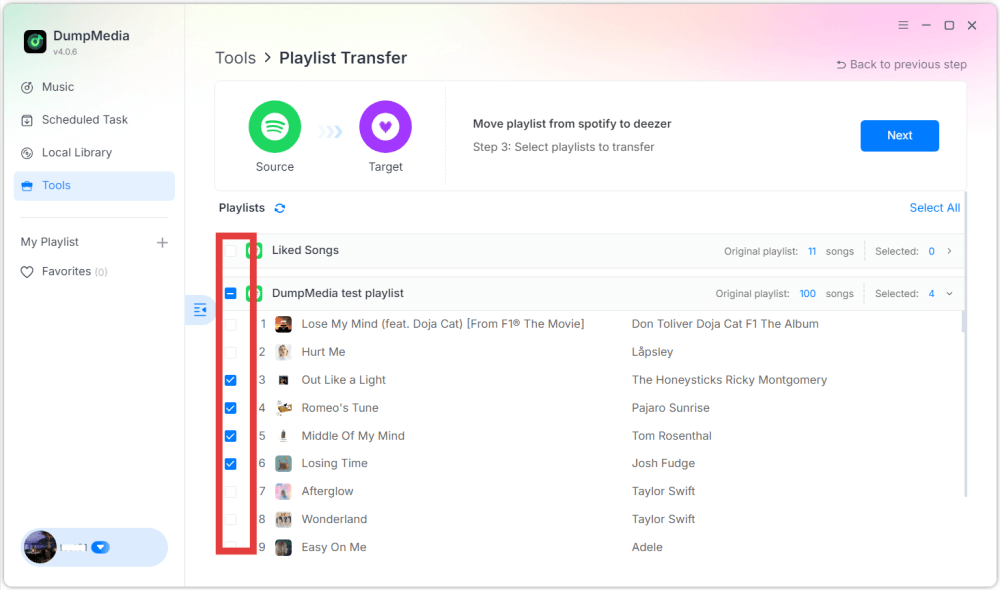
步驟二 Find the playlists you want to transfer from Apple Music to YouTube Music, and select all the playlists you want to move.

轉移蘋果音樂

步驟二 點擊“轉換”按鈕開始遷移播放清單。 DumpMedia will recreate the playlist automatically on YouTube Music.

步驟二 The transfer is finished. Click "Go to YouTube Music". Your playlists have been moved to a new service, and you can start enjoying your new music streaming service.

Method 2. Transfer Apple Music Playlists to YouTube Music with TuneMyMusic

Another convenient way to transfer Apple Music to YouTube Music is by using an online playlist migration service. One widely used tool is TuneMyMusic. It is a web-based service that allows users to move playlists between different streaming platforms without installing software. It supports numerous music services and provides a straightforward interface.

產品特色

  • 可直接在網頁瀏覽器使用
  • 支援多種串流媒體平台
  • Simple step-by-step workflow
  • 無需安裝

Because of its simplicity, TuneMyMusic is often used for quick playlist transfers.

Steps to Transfer Apple Music to YouTube Music with TuneMyMusic

步驟二 Visit the TuneMyMusic website and click “Let’s Start” to begin the transfer process. Select Apple Music as the source platform and sign in to your account. The service will request permission to access your playlists.

步驟二 Choose the playlist you want to migrate. You can either import playlists directly from your account or paste a playlist link.

步驟二 Next, select YouTube Music as the destination platform and log in to authorize the connection.

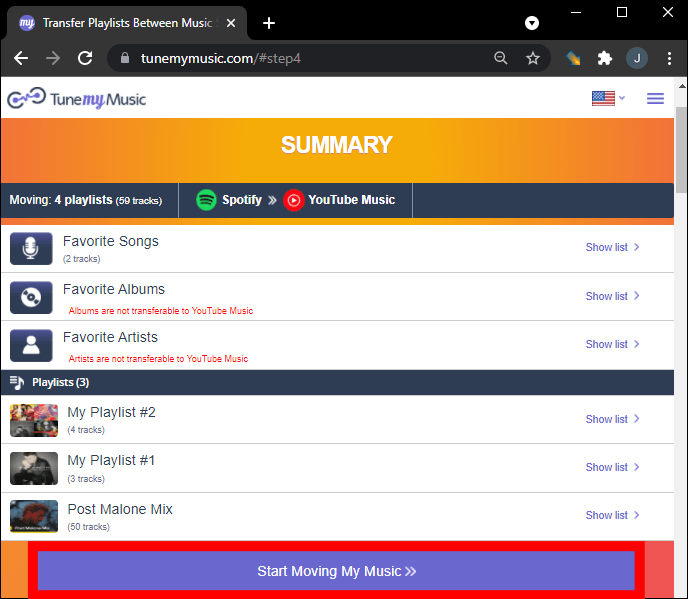
步驟二 Click “Start Moving My Music.” TuneMyMusic will automatically match songs between Apple Music and YouTube Music.

Start Moving My Apple Music

步驟二 Once the process is complete, open YouTube Music and confirm that your playlist has been successfully recreated.

This method provides a simple way to transfer Apple Music to YouTube Music without installing additional programs.

比較 DumpMedia and TuneMyMusic

Both tools can help users transfer Apple Music to YouTube Music, but they serve slightly different needs. Here is a comparison to help you choose the right solution.

平台和可訪問性

DumpMedia is ideal for desktop users who want more control, while TuneMyMusic is more convenient for quick transfers on any device.

Playlist Transfer Stability

DumpMedia performs the transfer process locally on your computer. This means it is less affected by internet instability and can handle larger playlists more reliably when you transfer Apple Music to YouTube Music.

TuneMyMusic relies entirely on an online connection because it operates in a web browser. If the internet connection becomes unstable, the transfer process may slow down or occasionally fail.

Batch Playlist Migration

DumpMedia is better suited for large music collections and frequent playlist migrations. TuneMyMusic also supports transferring playlists, but the number of playlists or songs that can be transferred at once may be limited in the free version.

Transfer Accuracy and Metadata Preservation

DumpMedia uses advanced matching algorithms to identify corresponding tracks across platforms. During the process of transferring Apple Music to YouTube Music, it also preserves important metadata such as song titles, artists, and playlist order.

TuneMyMusic also attempts to match tracks automatically, but because it is a web-based tool, the accuracy may sometimes vary depending on catalog availability.

易於使用

TuneMyMusic is faster to start, while DumpMedia provides more features after installation.

摘要

Switching music streaming platforms doesn’t mean you have to lose your favorite playlists. With modern playlist migration tools, it is now easy to transfer Apple Music to YouTube Music without manually recreating each playlist. Desktop software such as DumpMedia Any Music Converter offers the most reliable solution thanks to its powerful Playlist Transfer feature, batch migration capabilities, and stable performance. By choosing the right method, you can transfer music quickly and keep your carefully curated playlists intact, allowing you to continue enjoying your music library seamlessly on your preferred streaming platform.

免費下載 免費下載

註冊即可享 30% 折扣 註冊獲取
30% 折扣 >>>