


如何使用 DumpMedia Spotify 播放清單備份
管理您的 Spotify 當你想備份精心整理的音樂收藏時,播放清單可能會帶來挑戰。 DumpMedia Spotify 播放清單備份提供了一種便捷的方式來備份您的播放清單。 Spotify 播放清單、將播放清單資訊匯出到 CSV 檔案以及將播放清單還原到您的設備 Spotify 帳戶。
本指南說明如何連接您的 Spotify 您可以登入帳戶、選擇播放清單、匯出備份檔案、還原播放清單、管理備份歷史記錄以及自訂輸出資料夾。此外,它還提供故障排除建議,幫助您解決常見問題。
內容指南 第一部分:安裝和註冊 DumpMedia 任何音樂轉換器第 2 部分。如何連接您的 Spotify 帳戶第三部分:如何選擇 Spotify 播放列表第 4 部分。常見問題
第一部分:安裝和註冊 DumpMedia 任何音樂轉換器
步驟1:下載並安裝 DumpMedia 任何音樂轉換器
DumpMedia Any Music Converter 皆支援 Mac 系統。 Win目前支援 Dows 設備。您可以從產品頁面下載安裝包,或直接點擊此處提供的下載按鈕。
步驟2:啟動 DumpMedia 任何音樂轉換器
安裝後,打開 DumpMedia 您電腦上的任何音樂轉換器都擁有簡潔直覺的介面,即使是初次使用的使用者也能輕鬆上手。
提示:為了獲得最佳體驗,請確保已連接到網路。
步驟 3:註冊並啟動 Any Music Converter
發佈會 DumpMedia 使用 Any Music Converter。點擊左下角的「登入」按鈕或個人資料圖示。輸入電子郵件地址和密碼。點擊“登入”完成註冊。
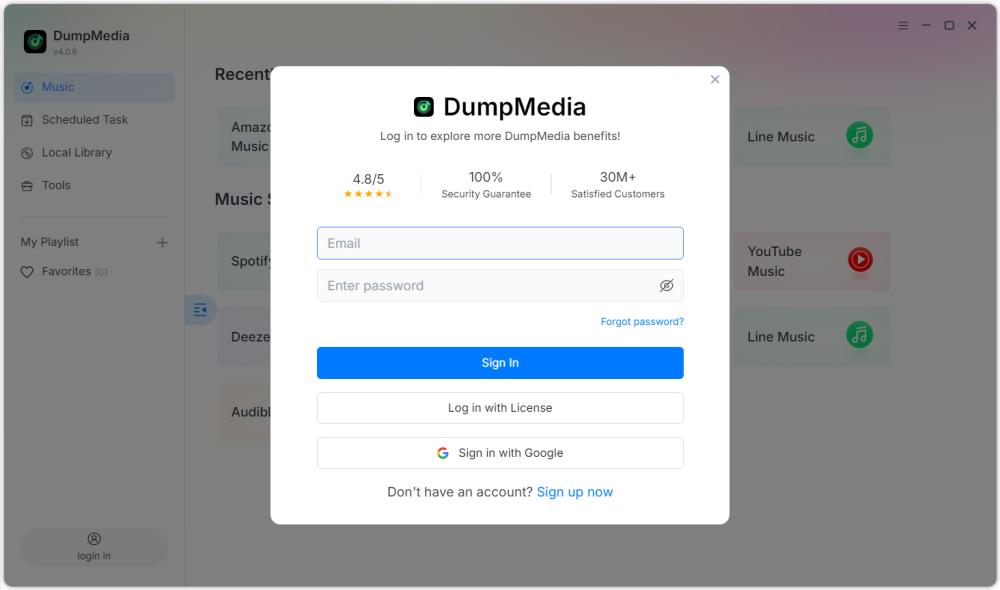
提示:解鎖 Spotify 播放清單備份 造訪產品頁面 並購買套餐。選擇適合您需求的訂閱套餐,如有任何疑問,請隨時聯絡我們的客服團隊,諮詢專屬折扣。
第 2 部分。如何連接您的 Spotify 帳戶
在選擇播放清單之前,您需要連接您的裝置。 Spotify 記入 DumpMedia Spotify 播放清單備份。
提示:請注意 Spotify 播放清單備份是作為獨立產品出售的,不包含在任何標準音樂轉換器訂閱計劃中。
步驟1:啟動 DumpMedia Spotify 播放清單備份
開啟 Any Music Converter。選擇“工具”> Spotify 播放清單備份。
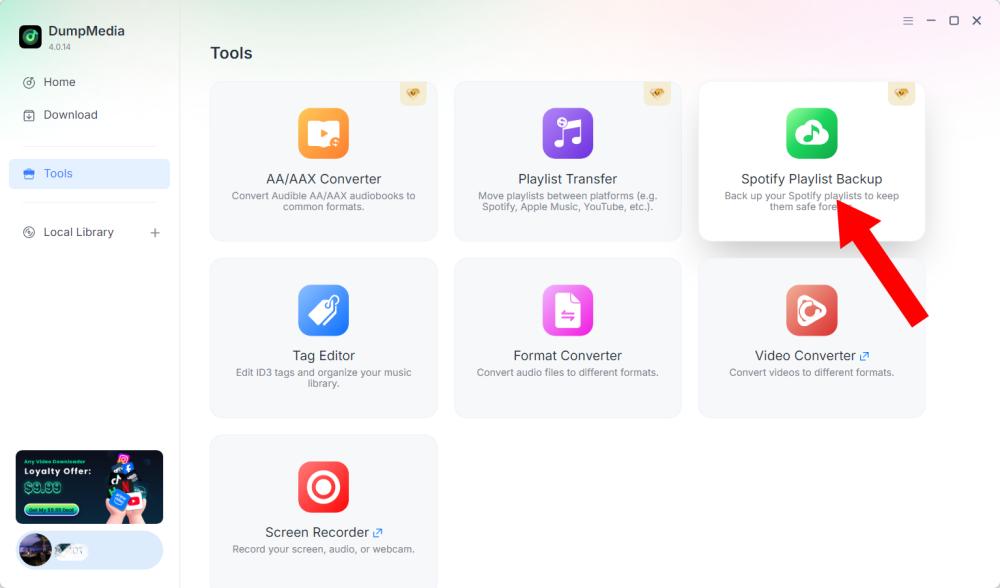
步驟 2:點選“連接到” Spotify"
找到並點擊“連接到” Spotify 軟體介面中的按鈕。應用程式將自動將您重定向到內建的 Spotify 播放器。
第 3 步:連接您的 Spotify 帳戶
當 Spotify 播放器會在軟體內打開,請依照指示連接您的裝置。 Spotify 帳戶。請先完成連線過程,然後再進行播放清單管理。一旦您的 Spotify 帳戶已成功連接,您可以存取可用的播放清單並選擇所需的操作。
提示:如果連線未如預期進行,請檢查您的網路連線並確認連線是否正常。 Spotify 玩家已成功打開。
第三部分:如何選擇 Spotify 播放列表
連接您的 Spotify 在帳戶中,您可以選擇要備份或還原的播放清單。
第一步:存取您的播放列表
開啟播放清單部分 DumpMedia Spotify 連線後備份播放列表 Spotify 帳戶。您可用的播放清單應該會顯示在介面上。
步驟二:選擇播放列表
請謹慎選擇播放列表,尤其是當您有多個名稱相似的播放列表時。
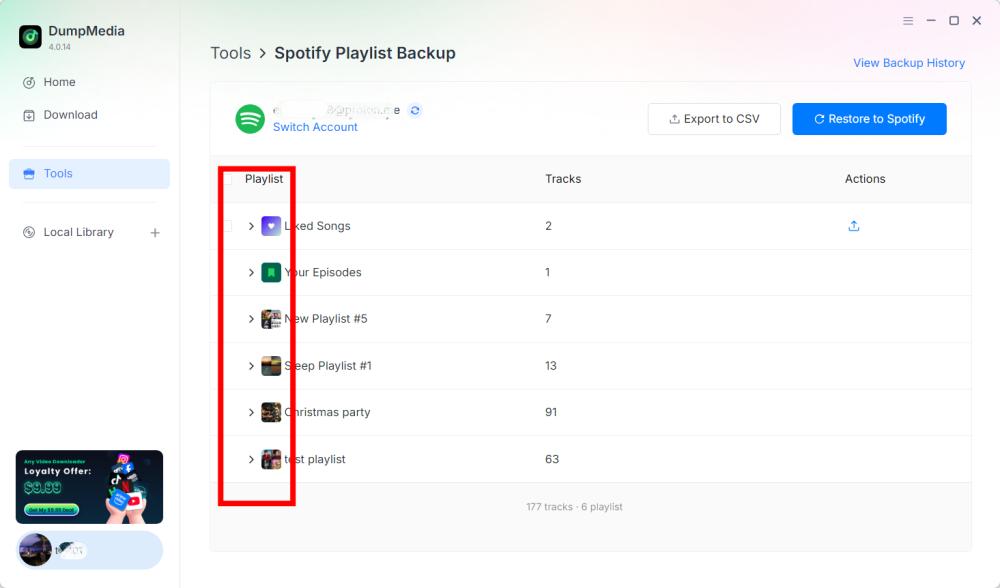
步驟 3:選擇操作
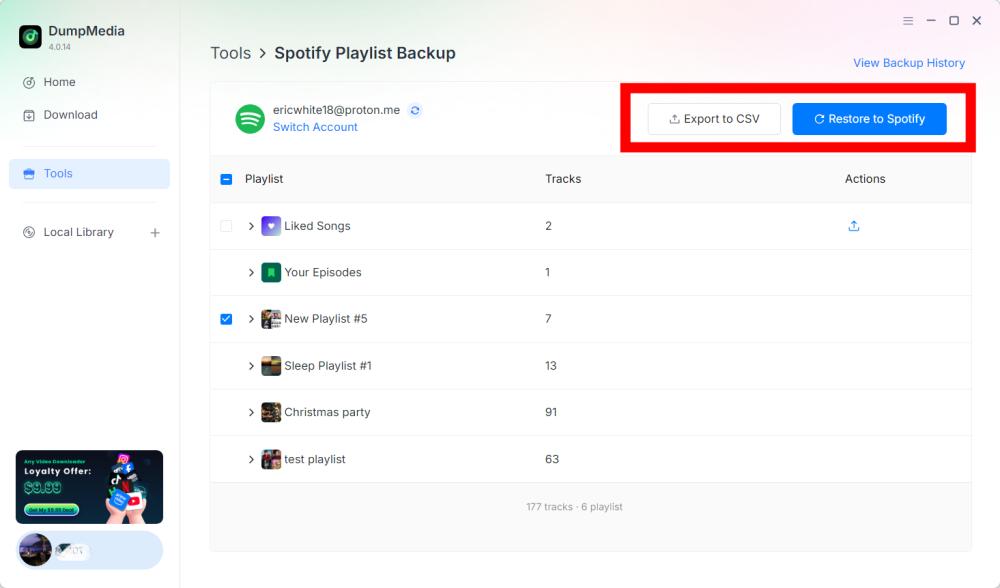
選擇播放清單後,根據您的需求選擇相應的操作。可用操作包括匯出到 CSV 和恢復到 Spotify.
- 匯出為 CSV:將播放清單匯出為 CSV 可讓您將播放清單資訊儲存到可以使用 Microsoft Excel 等電子表格應用程式開啟和檢視的檔案中。
- 還原到 Spotify: DumpMedia Spotify 播放清單備份支援透過「恢復」功能恢復播放清單。 Spotify 選項。
步驟 4:檢查匯出的文件
DumpMedia Spotify 播放清單備份會將備份檔案保存在其預設資料夾中。您可以透過「首選項」選單變更此位置。匯出完成後,找到產生的 CSV 檔案。您可以使用相容的電子表格應用程式開啟該檔案以查看其內容。
重要提示:CSV 檔案中包含的具體欄位應根據目前版本進行確認。 DumpMedia Spotify 播放清單備份。
步驟 5 檢查你的 Spotify 帳戶
如果您選擇恢復到 Spotify,開放 Spotify 檢查播放清單是否已成功恢復。
注意:恢復結果可能取決於備份資料。 Spotify 帳戶連接以及軟體目前的恢復功能。對於不可用或已變更的曲目,具體處理方法需參考產品文件。
步驟 6:查看備份歷史記錄
DumpMedia Spotify 播放清單備份包含「查看備份記錄」選項,方便您查看備份記錄。您可以在軟體介面右上角找到「查看備份歷史記錄」選項。點擊該選項即可開啟備份歷史記錄部分。
第 4 部分。
以下故障排除建議針對帳戶連線、播放清單操作或檔案管理過程中可能出現的常見問題。這些建議並非已確認的特定產品錯誤代碼或官方修復方案。
無法連接到 Spotify
建議的解決方案:
- 檢查您的互聯網連接。
- 關閉並重新打開 DumpMedia Spotify 播放清單備份。
- 點擊連接 Spotify 一次。
- 在內建程式中完成連接過程 Spotify 播放器。
如果問題仍然存在,請記錄完整的錯誤訊息並聯絡我們。 DumpMedia 支持(support@dumpmedia.COM)。
播放清單未顯示
建議的解決方案:
- 確認 Spotify 帳戶已連接。
- 重新開啟播放清單部分。
- 重啟軟體後再試一次。
- 檢查該問題是影響所有播放清單還是僅影響特定播放清單。
如果問題仍然存在,請向技術支援提供受影響的播放清單詳細資訊和任何可用的錯誤資訊。
- 點擊程式右上角的選單,然後選擇「傳送回饋」。
- 請在文字方塊中描述您的問題並寫下您的許可證密鑰。
- 最後,請在提交前勾選「附加日誌檔案」複選框。
匯出至 CSV 檔案未完成
建議的解決方案:
- 確認 Spotify 帳戶已連接。
- 請嘗試再次匯出播放清單。
- 在「首選項」中檢查配置的輸出資料夾。
- 請確認目標資料夾可存取。
- 如果可以,請使用另一個播放清單測試匯出功能。
如果匯出仍然失敗,請儲存錯誤訊息並聯絡客戶支援。
還原到 Spotify 無效
建議的解決方案:
- 重新連接您的 Spotify 帳戶。
- 請檢查您是否選擇了正確的播放清單或備份記錄。
- 再次嘗試恢復過程。
- 未結案工單 Spotify 檢查播放清單是否已部分恢復。
- 聯繫我們 DumpMedia 如果問題持續存在,請提供支援。
不要想當然地認為在任何情況下重複恢復相同備份都是安全的。在嘗試其他恢復操作之前,請檢查恢復後的播放清單。
常見問題
Q1。 我如何連接我的 Spotify 記入 DumpMedia Spotify 播放清單備份?
點擊連接 Spotify該軟體將自動開啟內建的 Spotify 玩家,你可以將你的裝置連接到該裝置。 Spotify 帳戶。
Q2. 我可以出口嗎? Spotify 將播放清單轉換為 CSV 檔案?
是的。連接您的 Spotify 建立帳戶並選擇播放列表,然後選擇「匯出到 CSV」以建立備份檔案。
Q3. 我可以恢復播放清單嗎? Spotify?
是的。 DumpMedia Spotify 播放清單備份提供恢復功能 Spotify 支援的恢復操作選項。
Q4. 我的備份檔案保存在哪裡?
備份檔案保存在預設輸出資料夾中。您可以透過開啟右上角選單,選擇“首選項”,然後找到“輸出資料夾”來查看或變更此位置。
Q5. 如何查看先前的備份記錄?
點擊軟體右上角的「查看備份歷史記錄」以查看可用的備份歷史記錄。
Q6。 如果我該怎麼辦 Spotify 無法連線?
請檢查您的網路連接,然後重新開啟軟體。如果問題仍然存在,請聯絡我們。 DumpMedia 請提供錯誤詳情以提供支援。
Q7. 如果我的播放清單遺失了,我該怎麼辦?
確認您的 Spotify 帳戶已連接,請重新啟動軟體,然後再次檢查播放清單部分。如果播放清單仍然不可用,請聯絡客服。
Q8. 我可以將備份還原到其他位置嗎? Spotify 帳戶?
此功能在當前版本中尚未推出,但請繼續關注未來的更新。