How to Convert YouTube to Apple Music?

羅西(Rosie)撰寫

上次更新時間:2026-03-11

2最小讀取

Many people who enjoy YouTube音樂 may want to move their favorite songs or playlists to 蘋果音樂 for its curated playlists, seamless integration with Apple devices, and offline listening capabilities. However, the challenge is that YouTube Music and Apple Music don’t natively sync with each other. This raises the question: how can you convert YouTube to Apple Music efficiently without losing your curated playlists? This guide will explore the best methods to convert YouTube Music to Apple Music and helpful tips for playlist transfers, and answer frequently asked questions.

內容指南 Part 1. Can I Convert YouTube Music to Apple Music Directly?Part 2. Convert YouTube Music to Apple Music on Win道/麥第 3 部分。 常見問題解答第4部分。

Part 1. Can I Convert YouTube Music to Apple Music Directly?

Unfortunately, there is no direct way to transfer or sync your YouTube Music library with Apple Music. Both platforms use different ecosystems and DRM protection, which prevents straightforward transfers. While you can manually recreate playlists by searching for songs on Apple Music, this approach is time-consuming, especially if you have hundreds of tracks.

Fortunately, using professional tools like DumpMedia Any Music Converter, you can convert YouTube to Apple Music by downloading YouTube Music tracks and importing them into Apple Music while preserving song quality and metadata.

Part 2. Convert YouTube Music to Apple Music on Win道/麥

The most reliable method to convert YouTube to Apple Music is using desktop software. One of the best tools available is DumpMedia 任何音樂轉換器, which allows users to download YouTube Music songs and playlists, convert them into Apple Music-compatible formats, and even transfer playlists directly.

免費下載 免費下載

Below are the primary key features:

  • Multi-Platform Support: Instead of switching between individual apps, this tool integrates support for several major streaming services, like Spotify, Apple Music, YouTube Music, and more.
  • 多種輸出格式: DumpMedia provides a wide range of compatible formats to ensure files work on almost any device (MP3 players, smartphones, car stereos, etc.): MP3, M4A, WAV, FLAC, AIFF, and AAC.
  • Lossless Quality: Supports 100% original audio quality retention, typically up to 320 kbps for MP3s.
  • Batch Conversion: Allows you to add entire playlists or albums to a queue for simultaneous processing.
  • Smart Metadata Management: ID3 Tag Preservation: Automatically retains essential metadata, including Artist, Album, Title, Year, and Album Artwork.
  • Built-in Web Players: DumpMedia typically features an embedded web player for each service. This means you don't need to have the Spotify or Apple Music desktop apps installed; you can browse and select songs directly within the DumpMedia 接口。

How to Convert YouTube to Apple Music?

步驟二 安裝 DumpMedia 任何音樂轉換器 Windows or Mac computer. Open the program and select YouTube Music.

免費下載 免費下載

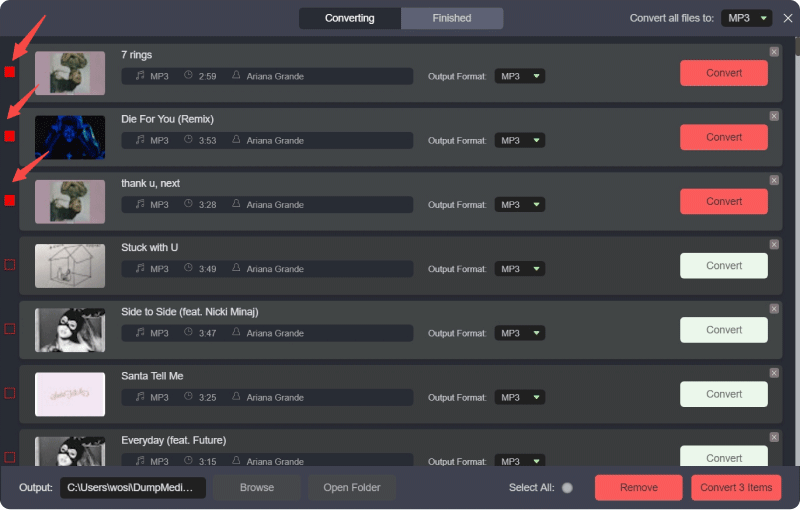
步驟二 Directly search for the songs, playlists, or albums you want to move to Apple Music. Then drag and drop them to the "+" button, and add them to the converting list.

轉換 YouTube 音樂

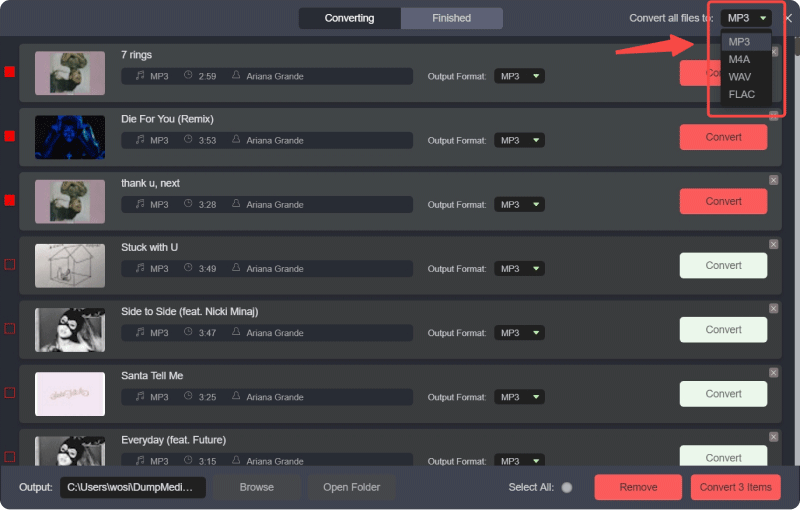
步驟二 Click the Format panel to choose MP3 作為輸出格式。其他剩餘的輸出參數設定也可以根據您的需求進行變更。

選擇 MP3 輸出格式

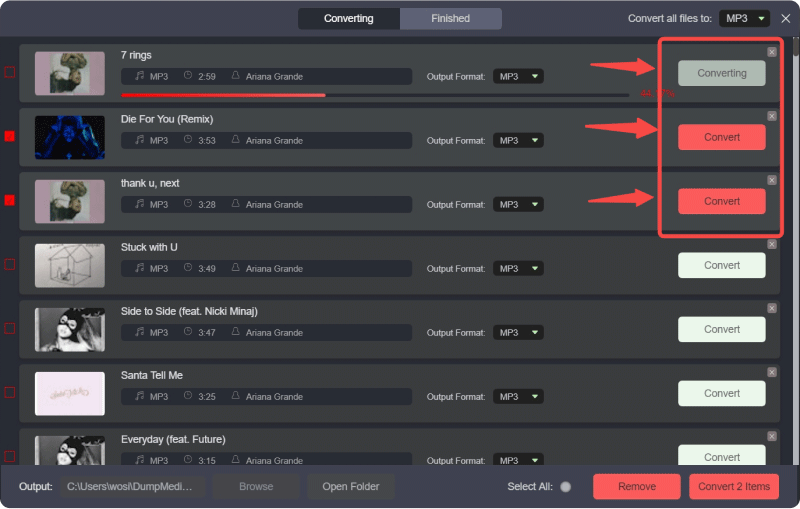
步驟二 Then, you can hit the "Convert All" button to save the files locally in bulk.

將 YouTube 音樂轉換為 MP3

步驟二 Open the Apple Music app on Win道或Mac。

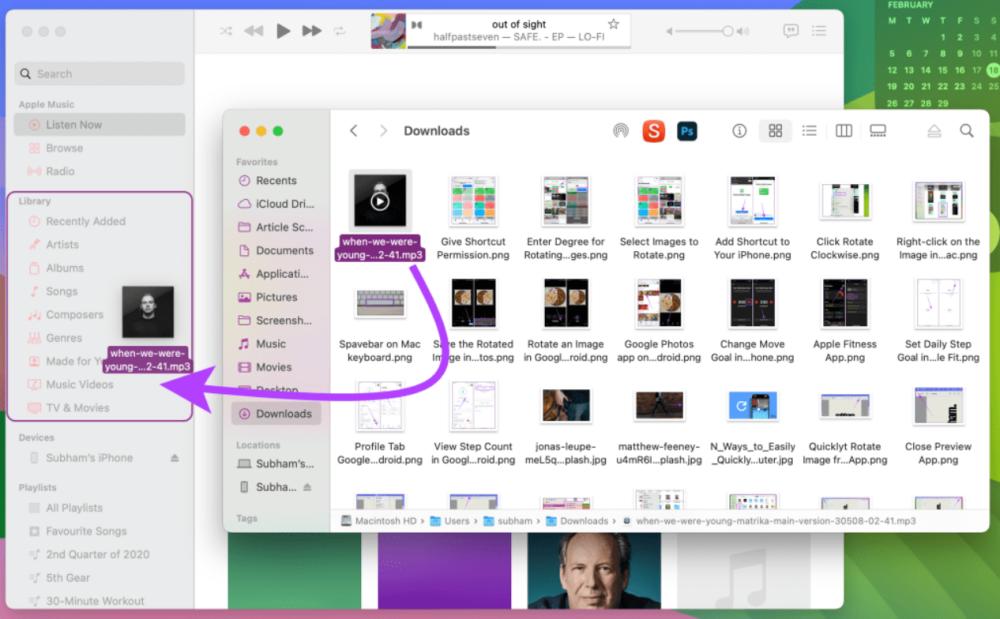
步驟二 Go to File > Add to Library (or drag and drop the files into the library).

Add Downloaded Music To Apple Music

步驟二 Wait for Apple Music to process the files. Your YouTube Music tracks are now part of your Apple Music library.

By following these steps, you can successfully convert YouTube to Apple Music without manually searching and downloading each song individually.

Additional Tip: Transfer Entire Playlists with DumpMedia

DumpMedia Any Music Converter also includes a Playlist Transfer feature. This tool allows you to migrate entire playlists from YouTube Music to Apple Music:

步驟二 開啟 Any Music Converter。選擇“工具”>“播放清單傳輸”。

DumpMedia 播放清單傳輸

步驟二 Select YouTube Music as a source.

步驟二 Select Apple Music as a destination.

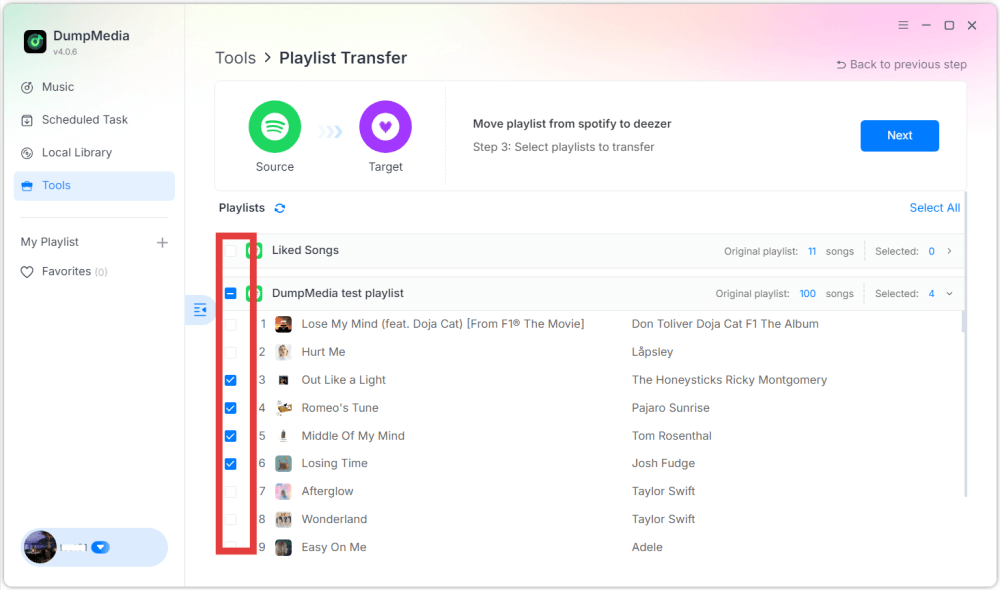
步驟二 選擇要傳輸的內容,我們支援您最喜歡的歌曲、歌手、專輯和您精心挑選的播放清單。

Transfer YouTube Music Playlists

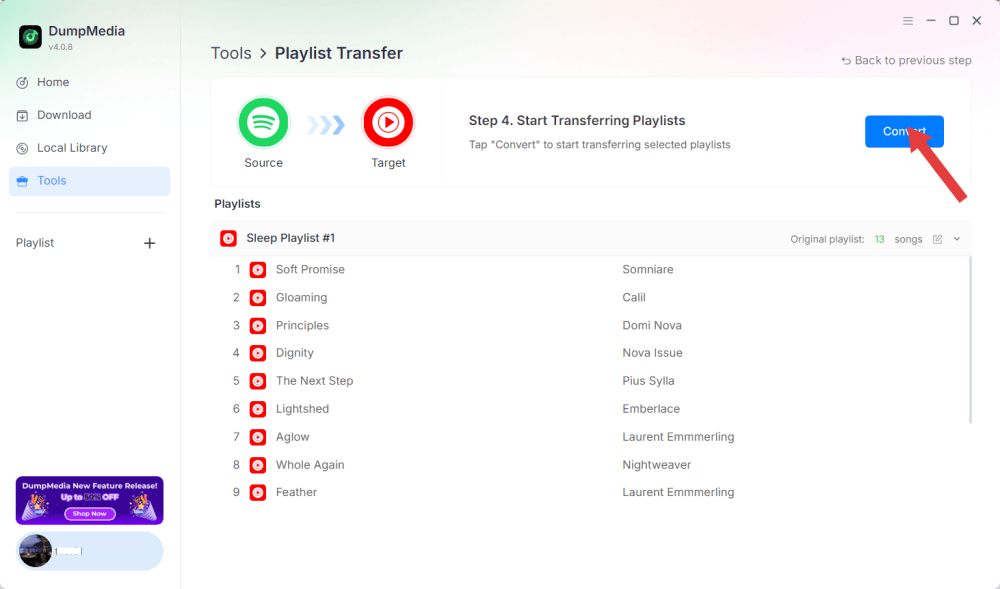
步驟二 點擊“轉換”開始傳輸。

Transfer Entire Playlists with DumpMedia

步驟二 The transfer is finished. Click "Go to Apple Music". Your playlists have been moved to a new service, and you can start enjoying a new playlist on Apple Music.

第 3 部分。 常見問題解答

1. Can I convert YouTube to Apple Music for free?

是的,使用類似 DumpMedia Any Music Converter, you can download YouTube Music tracks and import them into Apple Music. While DumpMedia offers a free trial, full features may require a paid license.

2. Will the song quality be preserved during the conversion?

DumpMedia allows you to select output formats and bitrates, ensuring that the downloaded files maintain high audio quality.

3. Can I transfer entire playlists?

Yes. Using the Playlist Transfer feature in DumpMedia, you can move complete YouTube Music playlists to Apple Music without losing song order or metadata.

4. 使用安全嗎 DumpMedia for YouTube Music downloads?

是的。 DumpMedia operates locally on your computer, so your data and accounts remain secure. It does not interfere with Apple Music or YouTube Music servers.

第4部分。

Although YouTube Music and Apple Music don’t natively integrate, you can still convert YouTube to Apple Music efficiently using DumpMedia Any Music Converter. By downloading tracks, uploading them to Apple Music, or using the Playlist Transfer feature, you can keep all your favorite songs organized in your Apple Music library.

免費下載 免費下載

註冊即可享 30% 折扣 註冊獲取
30% 折扣 >>>