


YouTube 영상을 Apple Music으로 변환하는 방법은 무엇인가요?
YouTube Music을 즐겨 이용하는 많은 사람들이 Apple Music의 맞춤형 플레이리스트, Apple 기기와의 원활한 연동, 오프라인 감상 기능 때문에 좋아하는 노래나 플레이리스트를 Apple Music 으로 옮기고 싶어합니다 . 하지만 YouTube Music과 Apple Music은 기본적으로 동기화되지 않습니다. 그렇다면 맞춤 플레이리스트를 잃지 않고 YouTube Music을 Apple Music으로 효율적으로 변환하는 방법은 무엇일까요? 이 가이드에서는 YouTube Music을 Apple Music으로 변환하는 최적의 방법과 플레이리스트 전송에 유용한 팁을 살펴보고 자주 묻는 질문에 답변합니다.
컨텐츠 가이드 파트 1. 유튜브 뮤직을 애플 뮤직으로 바로 변환할 수 있나요?파트 2. YouTube 음악을 Apple Music으로 변환하기 Win다우즈/맥파트 3. FAQ파트 4. 모든 것을 요약하려면
파트 1. 유튜브 뮤직을 애플 뮤직으로 바로 변환할 수 있나요?
아쉽게도 YouTube Music 라이브러리를 Apple Music과 직접 전송하거나 동기화하는 방법은 없습니다. 두 플랫폼은 서로 다른 생태계와 DRM 보호 기능을 사용하기 때문에 간단한 전송이 불가능합니다. Apple Music에서 노래를 검색하여 재생 목록을 수동으로 다시 만들 수는 있지만, 특히 수백 곡의 노래가 있는 경우 시간이 많이 소요됩니다.
다행히도, 다음과 같은 전문 도구를 사용하면 DumpMedia Any Music Converter를 사용하면 YouTube Music 트랙을 다운로드하고 Apple Music으로 가져와 음질과 메타데이터를 유지하면서 YouTube에서 Apple Music으로 변환할 수 있습니다.
파트 2. YouTube 음악을 Apple Music으로 변환하기 Win다우즈/맥
YouTube 동영상을 Apple Music으로 변환하는 가장 확실한 방법은 데스크톱 소프트웨어를 사용하는 것입니다. 현재 사용 가능한 최고의 도구 중 하나는 다음과 같습니다. DumpMedia 모든 음악 변환기이 기능을 통해 사용자는 YouTube Music의 노래와 재생 목록을 다운로드하고, Apple Music과 호환되는 형식으로 변환하고, 재생 목록을 직접 전송할 수도 있습니다.
주요 특징은 다음과 같습니다.
- 멀티 플랫폼 지원: 개별 앱을 전환할 필요 없이, 이 도구는 여러 주요 스트리밍 서비스를 통합적으로 지원합니다. Spotify애플 뮤직, 유튜브 뮤직 등.
- 다양한 출력 형식: DumpMedia 다양한 호환 형식을 제공하여 거의 모든 장치에서 파일이 작동하도록 보장합니다.MP3 플레이어, 스마트폰, 차량용 스테레오 등): MP3M4A, WAV, FLAC, AIFF, AAC 등의 형식을 지원합니다.
- 무손실 음질: 지원 100% 원본 오디오 품질 유지(일반적으로 최대 320kbps) MP3s.
- 일괄 변환: 전체 재생 목록이나 앨범을 대기열에 추가하여 동시에 처리할 수 있습니다.
- 스마트 메타데이터 관리: ID3 태그 보존: 아티스트, 앨범, 제목, 연도 및 앨범 아트워크를 포함한 필수 메타데이터를 자동으로 보존합니다.
- 내장 웹 플레이어: DumpMedia 일반적으로 각 서비스마다 내장 웹 플레이어가 포함되어 있습니다. 즉, 별도의 플레이어가 필요하지 않습니다. Spotify 또는 Apple Music 데스크톱 앱이 설치되어 있는 경우, 앱 내에서 직접 노래를 찾아 선택할 수 있습니다. DumpMedia 인터페이스.
YouTube 영상을 Apple Music으로 변환하는 방법은 무엇인가요?
1 단계 설치 DumpMedia Any Music Converter를 사용해 보세요. WinWindows 또는 Mac 컴퓨터에서 프로그램을 열고 YouTube Music을 선택하세요.
2단계. Apple Music으로 옮기고 싶은 노래, 재생 목록 또는 앨범을 직접 검색하세요. 그런 다음 해당 항목을 "+" 버튼으로 드래그 앤 드롭하여 변환 목록에 추가하세요.
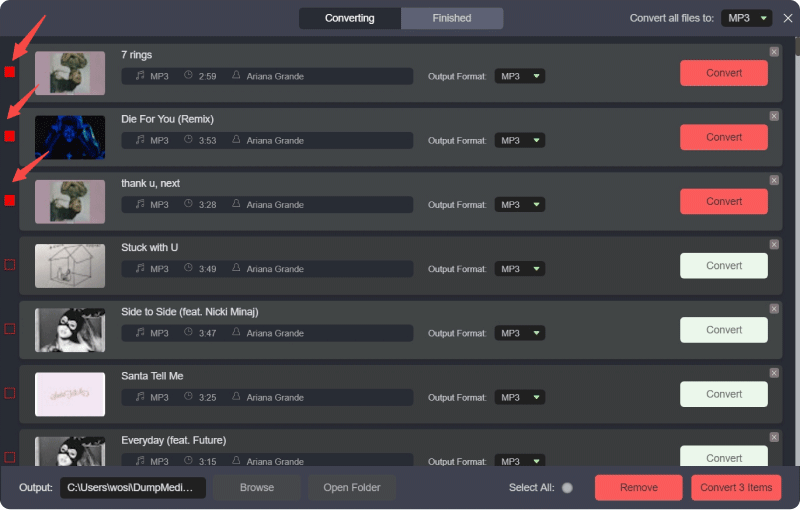
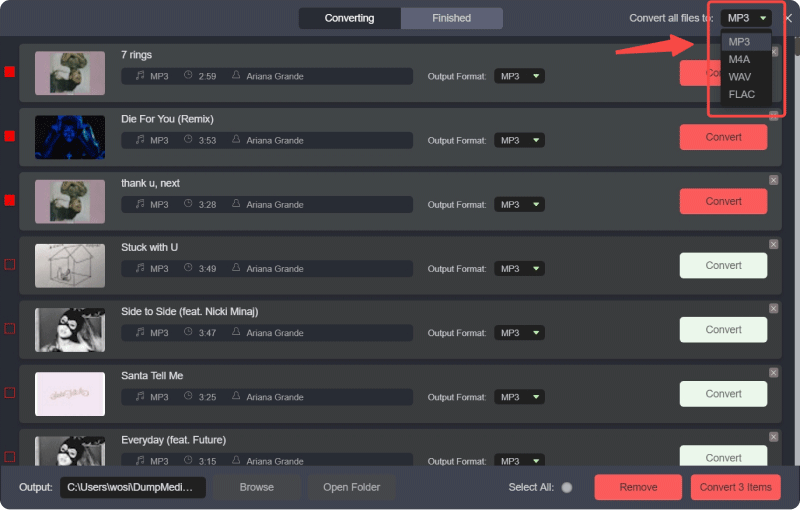
3 단계 서식 패널을 클릭하여 선택하세요 MP3 출력 형식으로. 나머지 출력 매개변수 설정도 원하는 대로 변경할 수 있습니다.
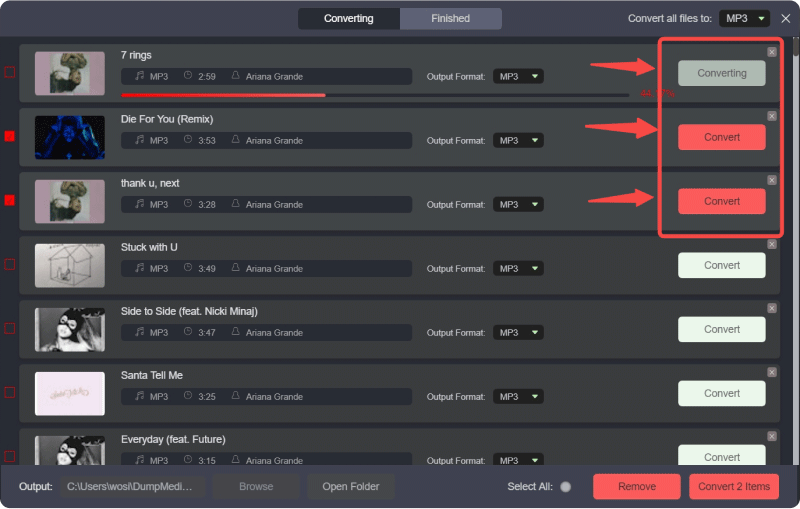
4단계. 그런 다음 "모두 변환" 버튼을 클릭하여 파일을 일괄적으로 로컬에 저장할 수 있습니다.
5 단계 Apple Music 앱을 엽니다. Win다우나 맥.
6단계. 파일 > 라이브러리에 추가를 선택하거나 파일을 라이브러리로 드래그 앤 드롭합니다.
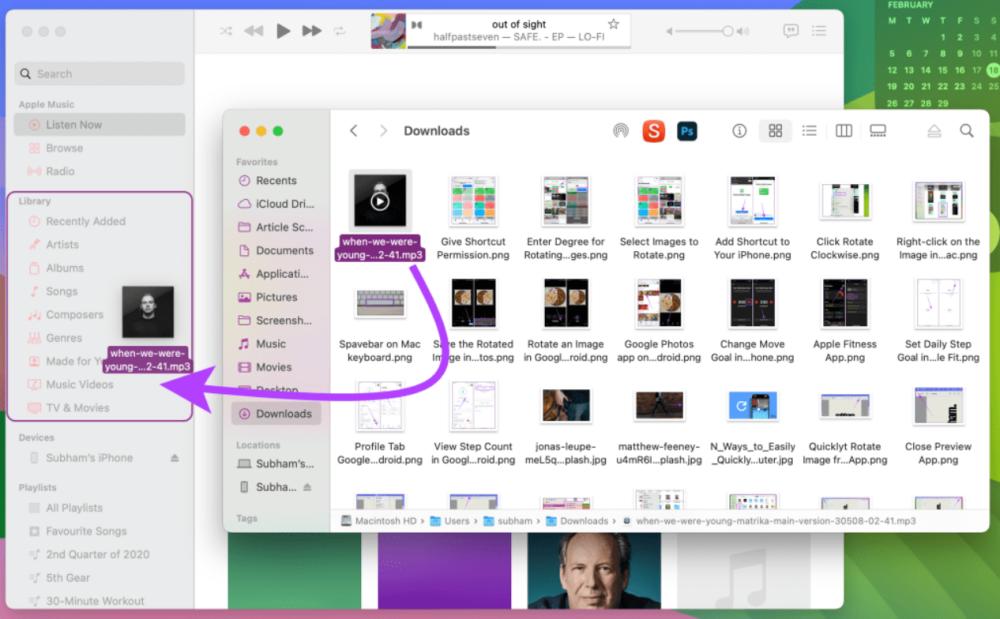
7단계. Apple Music에서 파일 처리가 완료될 때까지 기다리세요. 이제 YouTube Music 트랙이 Apple Music 보관함에 추가되었습니다.
다음 단계를 따르면 각 노래를 개별적으로 검색하고 다운로드할 필요 없이 YouTube의 음악을 Apple Music으로 성공적으로 변환할 수 있습니다.
추가 팁: 전체 재생 목록을 전송하세요 DumpMedia
DumpMedia Any Music Converter에는 재생 목록 전송 기능도 포함되어 있습니다. 이 도구를 사용하면 YouTube Music에서 Apple Music으로 전체 재생 목록을 옮길 수 있습니다.
1단계. Any Music Converter를 실행합니다. 도구 > 재생 목록 전송을 선택합니다.

2단계. 소스로 YouTube Music을 선택합니다.
3단계. 목적지로 Apple Music을 선택합니다.
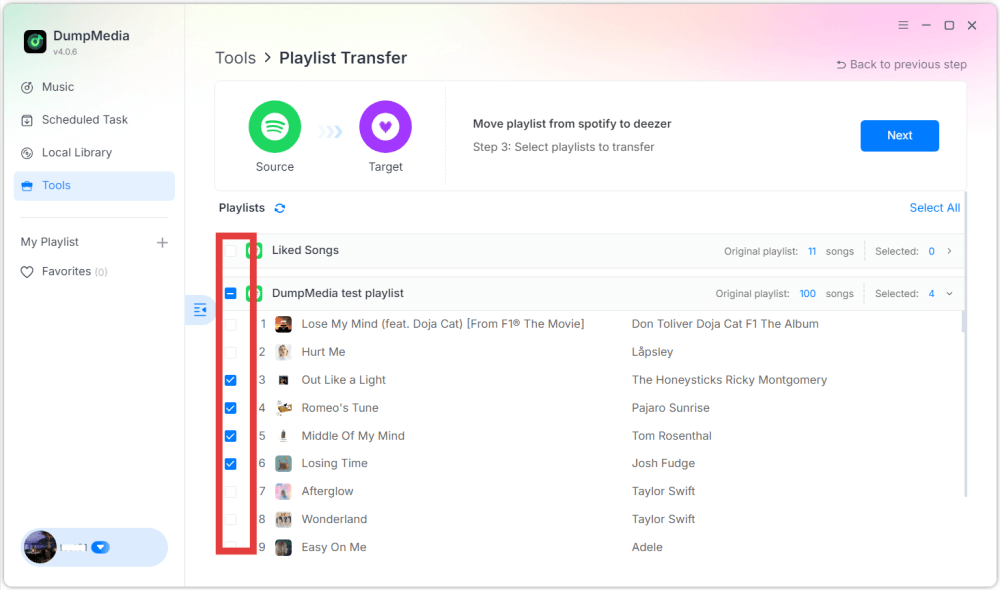
4단계. 전송할 항목을 선택하세요. 좋아하는 노래, 아티스트, 앨범, 그리고 직접 만든 플레이리스트까지 모두 전송할 수 있습니다.
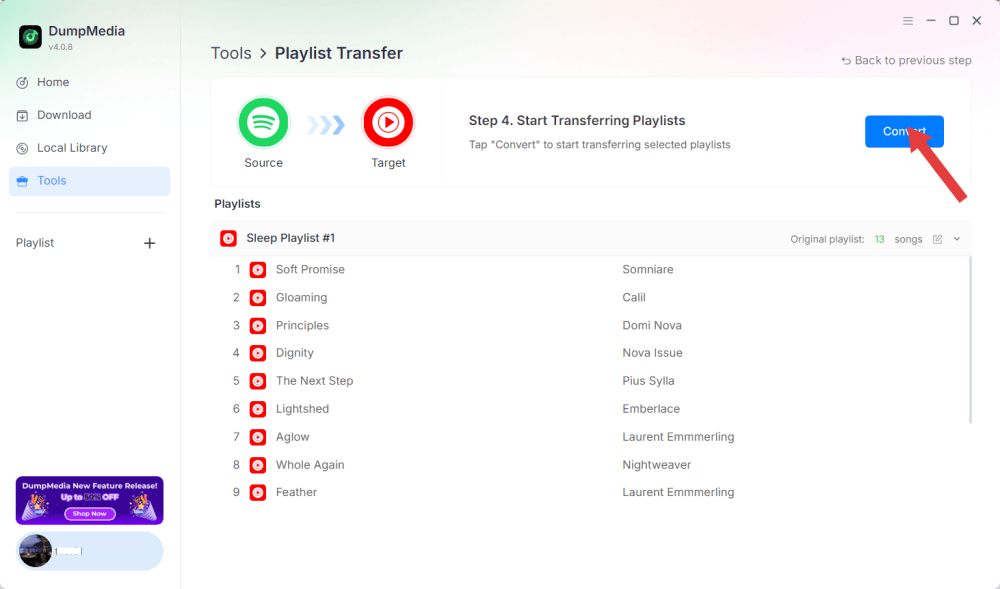
5단계. '변환'을 클릭하여 전송을 시작하세요.
6단계. 전송이 완료되었습니다. "Apple Music으로 이동"을 클릭하세요. 재생 목록이 새 서비스로 이동되었으며, Apple Music에서 새로운 재생 목록을 즐길 수 있습니다.
파트 3. FAQ
1. 유튜브를 애플 뮤직으로 무료로 변환할 수 있나요?
네, 다음과 같은 도구를 사용하면 DumpMedia Any Music Converter를 사용하면 YouTube Music 트랙을 다운로드하여 Apple Music으로 가져올 수 있습니다. DumpMedia 무료 체험판을 제공하며, 모든 기능을 사용하려면 유료 라이선스가 필요할 수 있습니다.
2. 변환 과정에서 음원의 음질이 유지되나요?
DumpMedia 출력 형식과 비트 전송률을 선택할 수 있어 다운로드한 파일의 음질이 높게 유지됩니다.
3. 전체 재생 목록을 옮길 수 있나요?
예. 플레이리스트 전송 기능을 사용하면 됩니다. DumpMediaYouTube Music 재생 목록 전체를 노래 순서나 메타데이터 손실 없이 Apple Music으로 옮길 수 있습니다.
4. 사용해도 안전한가요? DumpMedia 유튜브 뮤직 다운로드용인가요?
예. DumpMedia 이 프로그램은 사용자의 컴퓨터에서 로컬로 실행되므로 데이터와 계정이 안전하게 보호됩니다. Apple Music이나 YouTube Music 서버에 영향을 미치지 않습니다.
파트 4. 모든 것을 요약하려면
YouTube Music과 Apple Music은 기본적으로 통합되어 있지 않지만, 다음 방법을 사용하면 YouTube 콘텐츠를 Apple Music으로 효율적으로 변환할 수 있습니다. DumpMedia Any Music Converter를 사용하면 트랙을 다운로드하거나 Apple Music에 업로드하거나 재생 목록 전송 기능을 사용하여 좋아하는 모든 노래를 Apple Music 보관함에 깔끔하게 정리할 수 있습니다.