


Spotify 응답하지 않나요? 2026년에 해결해 드리겠습니다.
많은 사용자들이 다음과 같은 불편한 문제를 겪습니다. Spotify 응답하지 않는다 음악을 재생하거나, 재생 목록을 열거나, 오프라인 모드를 사용하려고 할 때 문제가 발생할 수 있습니다. 때때로 이러한 문제가 발생합니다. Spotify 앱 완전히 멈추거나, 예기치 않게 충돌하거나, 재생 중에 작동이 중단됩니다. Spotify 앱 문제는 매우 흔합니다. 이 가이드에서는 그 이유를 설명하겠습니다. Spotify 갑자기 작동이 멈췄을 때, 일반적인 문제 해결 방법 Spotify 앱 문제 해결 방법 및 더욱 안정적인 오프라인 음악 재생을 즐기는 방법.
컨텐츠 가이드 1부. 왜 Spotify 애플리케이션이 응답하지 않나요?2 부분. 어떻게 고치는 지 Spotify 애플리케이션이 응답하지 않습니까?3부. 피하는 가장 좋은 방법 Spotify 재생 문제파트 4. FAQ5 부. 결론
1부. 왜 Spotify 애플리케이션이 응답하지 않나요?
왜 많은 이유가 있습니다 Spotify 음악 재생이나 앱 사용 중에 반응이 없습니다.
불쌍한 인터넷 연결
Spotify 스트리밍 및 계정 인증에는 안정적인 인터넷 연결이 매우 중요합니다. 네트워크 연결이 불안정하면 문제가 발생할 수 있습니다. Spotify 반응이 멈추거나 얼어붙는 것.
손상된 Spotify 캐시
내부에 저장된 임시 파일 Spotify 시간이 지남에 따라 손상되어 앱 충돌 및 재생 문제를 일으킬 수 있습니다.
구식의 Spotify 앱
이전 Spotify 버전에는 "를 유발하는 버그가 포함될 수 있습니다."Spotify "응답하지 않습니다" 오류.
Spotify 서버 문제
때때로 Spotify 서버 장애는 전 세계적으로 사용자 재생 및 앱 성능에 영향을 미칩니다.
배경 소프트웨어 충돌
바이러스 백신 소프트웨어, 방화벽 설정 또는 하드웨어 가속 충돌 또한 원인이 될 수 있습니다. Spotify 응답을 중단합니다.
장치 호환성 문제
구형 운영 체제 또는 지원되지 않는 기기에서는 최신 버전을 실행하는 데 어려움을 겪을 수 있습니다. Spotify 앱이 원활하게 작동합니다.
다음은 "Spotify "응답하지 않습니다" 문제.
2 부분. 어떻게 고치는 지 Spotify 애플리케이션이 응답하지 않습니까?
If Spotify 기기에서 앱이 응답하지 않으면 다음 해결 방법을 시도해 보세요.
1. 다시 시작하기 Spotify
완전히 닫힘 Spotify 앱을 다시 실행하세요. 이 간단한 방법으로 일시적인 재생 문제가 해결되는 경우가 많습니다.
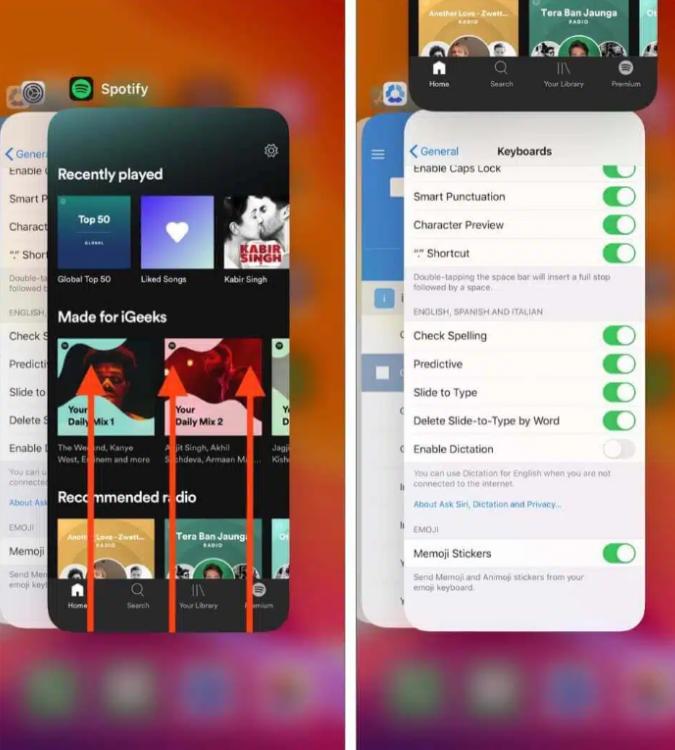
iOS(iPhone/iPad)에서: 화면 하단 가장자리에서 위로 스와이프한 다음 중간에서 잠시 멈추세요(또는 구형 기기에서는 홈 버튼을 두 번 클릭하세요). 다음을 찾으세요. Spotify 미리보기 카드를 화면에서 완전히 위로 스와이프하여 없애세요.
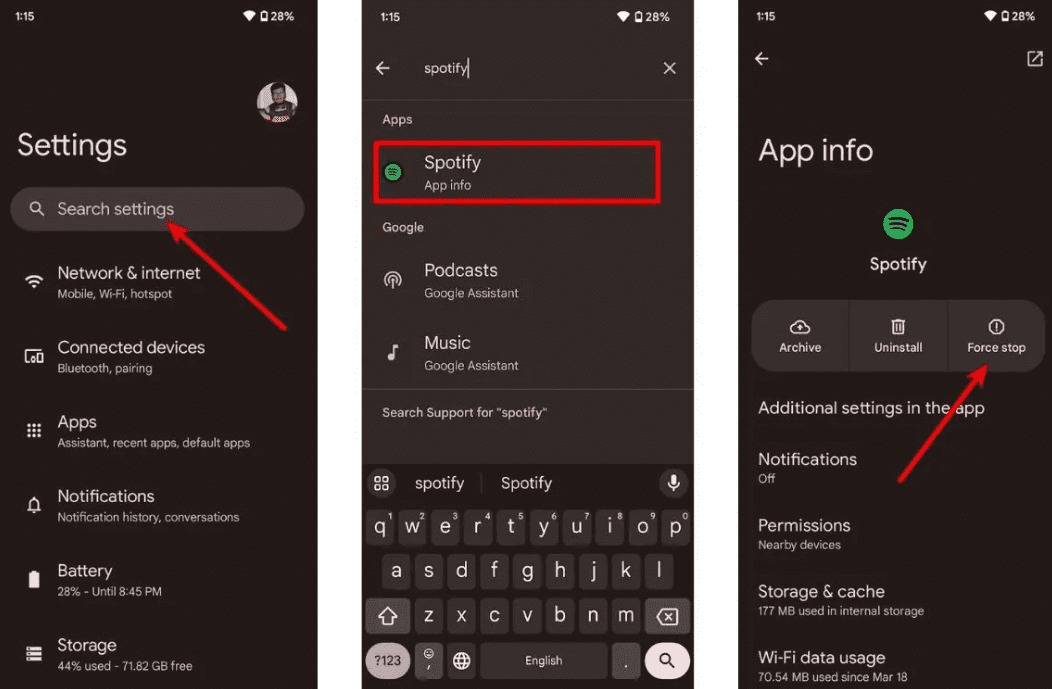
Android : 설정 > 앱 > Spotify 그런 다음 '강제 종료'를 누르세요. 이렇게 하면 백그라운드에서 실행 중인 모든 작업이 종료됩니다. 열기 Spotify 앱 서랍에서.
macOS: Spotify 상단 메뉴 표시줄에서 종료를 선택하세요 Spotify또는 창을 클릭하고 Command(⌘) + Q를 누르세요.
On Win다우존스 지수(10/11): 왼쪽 상단 모서리에 있는 '파일'을 클릭하세요. Spotify 창을 닫고 종료를 선택하세요(오른쪽 상단의 "X"를 누르면 창이 닫히는 대신 시스템 트레이로 최소화되는 경우가 많습니다).
수정 2. 인터넷 연결 확인
Wi-Fi와 모바일 데이터를 번갈아 사용하며 연결 안정성을 테스트하세요.
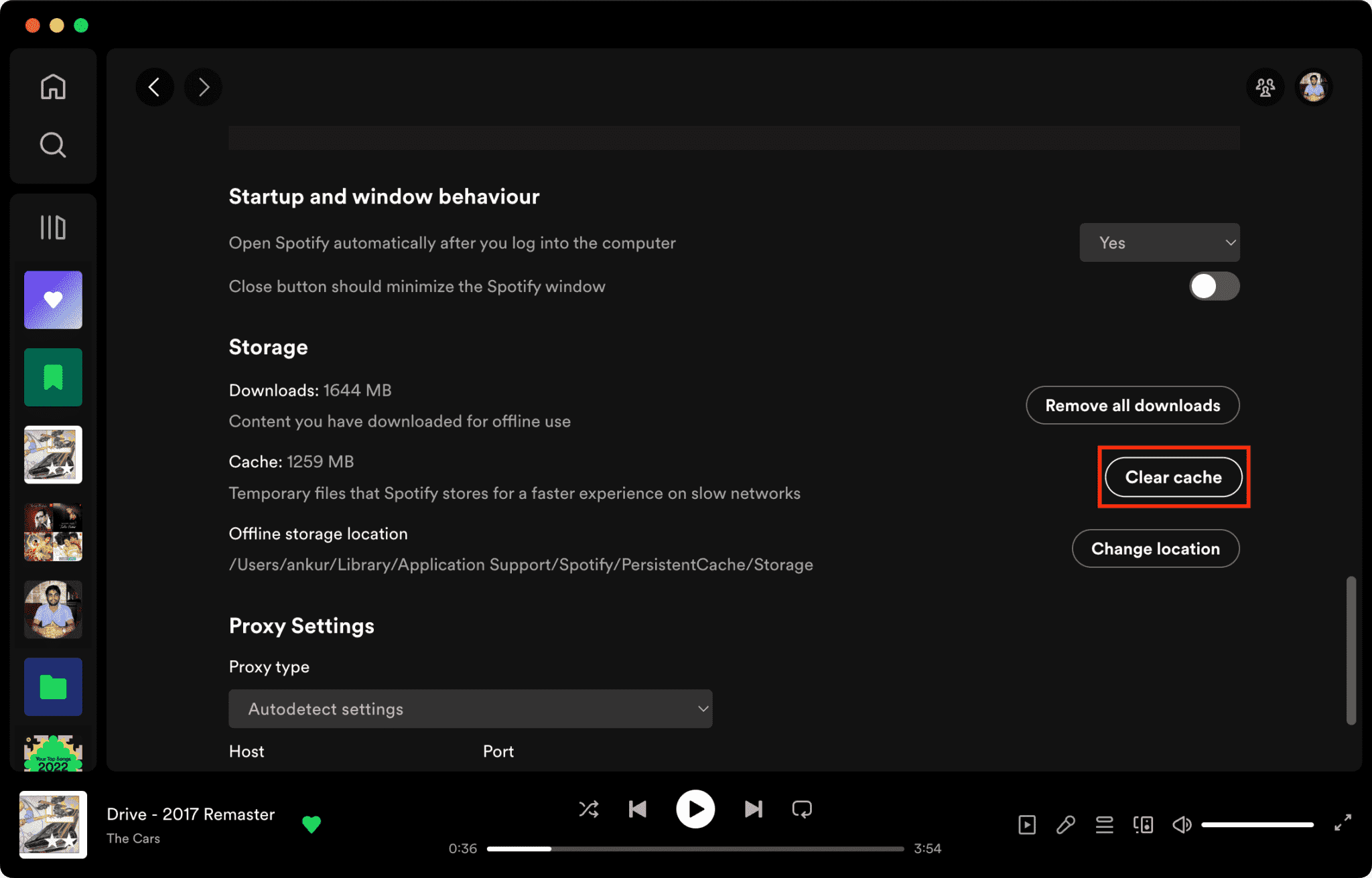
3. 지우기 수정 Spotify 캐시
손상된 캐시 파일이 주요 원인 중 하나입니다. Spotify 응답하지 않습니다.
지우는 방법 Spotify Mac에서 캐시/Win다우스/아이폰/안드로이드 >>>>
4. 업데이트 수정 Spotify 앱
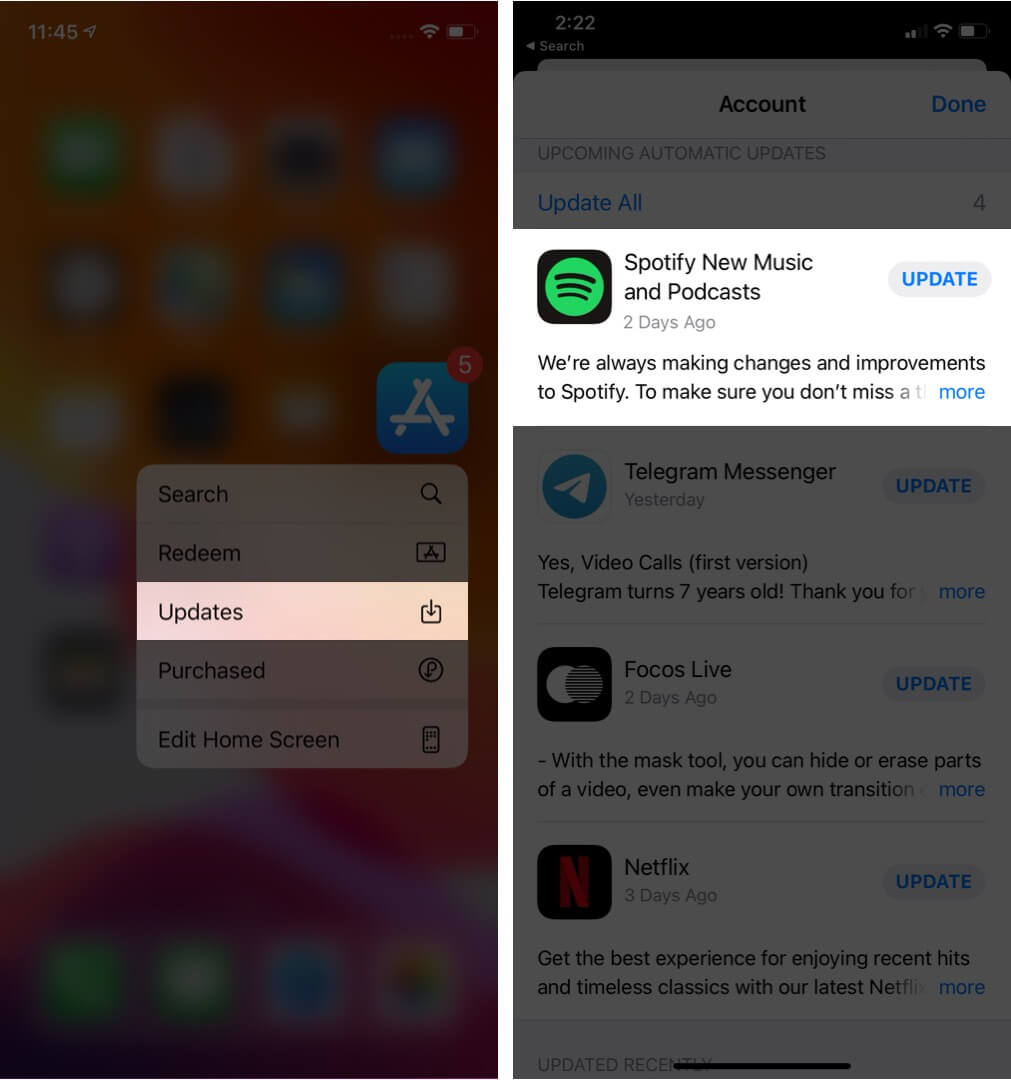
최신 버전 설치 중 Spotify 이번 업데이트에서는 알려진 소프트웨어 버그가 수정될 수 있습니다.
5. 장치 다시 시작하기
컴퓨터나 휴대폰을 재부팅하면 시스템 리소스를 새로 고칠 수 있습니다.
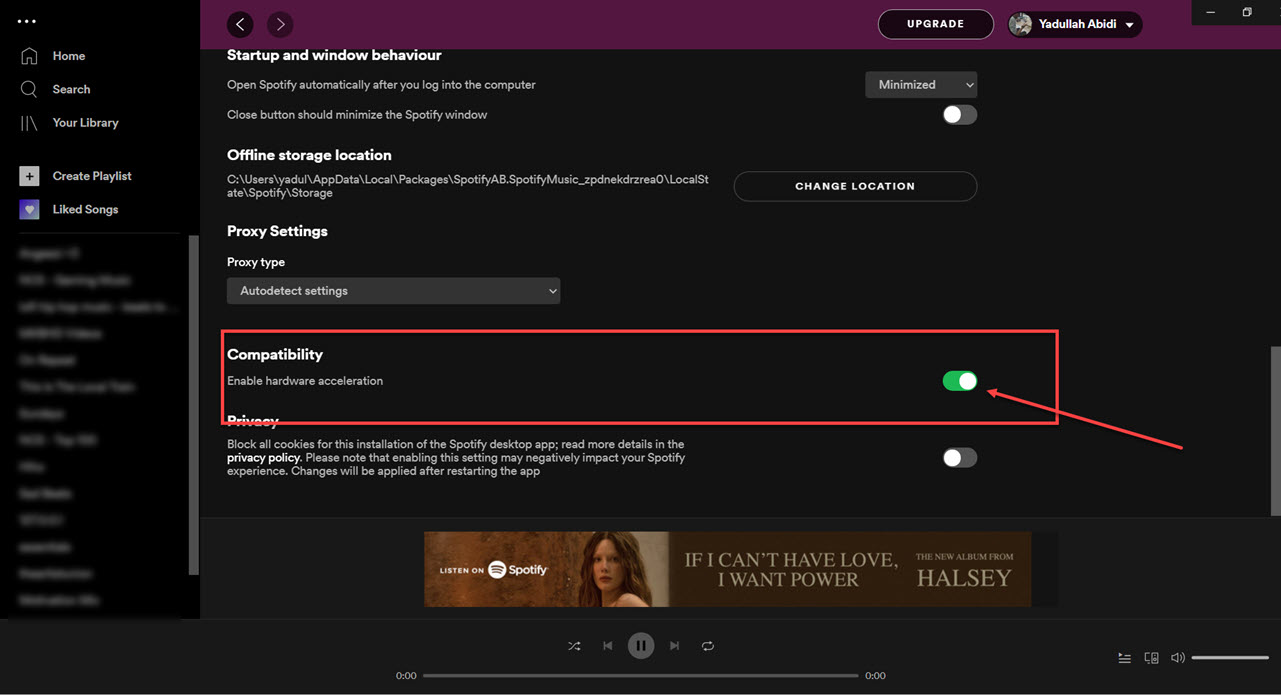
6. 하드웨어 가속 비활성화하기
하드웨어 가속을 비활성화할 수 있습니다. 이렇게 하면 가끔씩 화면 멈춤 현상이 해결됩니다.
수정 7. 확인 Spotify 서버 상태
글로벌 Spotify 간헐적으로 발생하는 장애로 인해 재생 및 로그인 서비스에 영향을 미칠 수 있습니다.
3부. 피하는 가장 좋은 방법 Spotify 재생 문제
많은 사용자는 다운로드되었다고 생각합니다. Spotify 노래는 항상 오프라인에서 재생되지만, 다운로드한 노래는 DRM으로 보호되어 스트리밍 앱 내에서만 재생됩니다. 다운로드한 파일은 자유롭게 전송할 수 없습니다. "Spotify "응답하지 않음" 문제에 대한 인기 있는 도구 중 하나는 다음과 같습니다. DumpMedia Spotify Music Converter이 소프트웨어는 사용자가 변환할 수 있도록 합니다. Spotify 음악을 로컬 오디오 형식으로 저장하여 오프라인에서 더욱 유연하게 재생할 수 있습니다. Spotify 앱이 기기에서 작동하지 않는 경우, 다음을 수행할 수 있습니다. 놀이 Spotify 노래 오프라인 다른 음악 플레이어로 바로 재생하세요.
🏆주요 기능 DumpMedia Spotify Music Converter
- 다운로드 Spotify 음악 MP3WAV, FLAC 및 AAC
- 제거 Spotify DRM 보호*
- 원음질을 유지하세요
- 플레이리스트와 앨범을 일괄 다운로드
- 빠른 변환 속도
- 곡 메타데이터 및 ID3 태그를 보존합니다.
- 모든 기기에서 오프라인 재생을 지원합니다.
다음과 같은 문제로 불편함을 느끼는 사용자들을 위해 Spotify 앱 불안정성에도 불구하고 로컬 음악 재생은 훨씬 더 안정적으로 느껴집니다.
개 심자 Spotify 에 MP3 단계별
1 단계 다운로드 및 설치 DumpMedia Spotify Music Converter 맥/PC에서 실행하세요. 그러면 인터페이스가 나타납니다. 사용하세요. Spotify 프리미엄/무료 계정으로 로그인하세요.
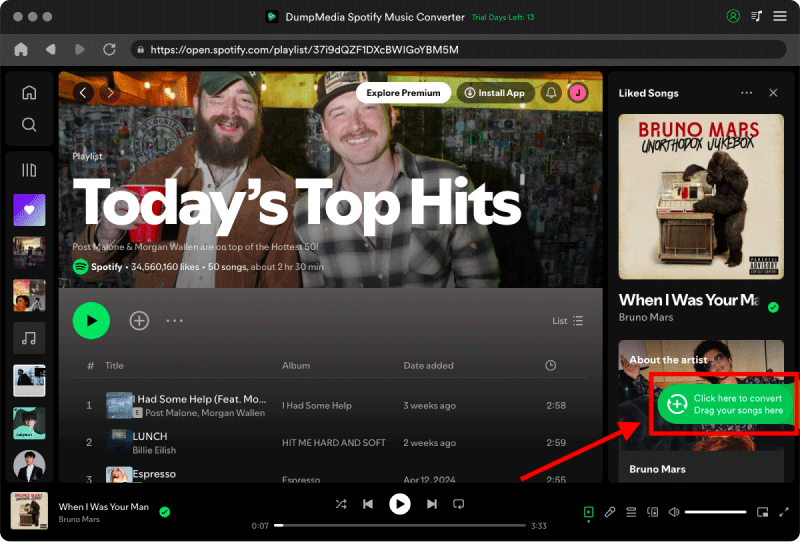
2단계. 변환하려는 재생 목록, 앨범 또는 특정 곡을 찾으세요. 화면 오른쪽의 "+" 아이콘 위로 곡 하나를 드래그할 수 있습니다. 또는 전체 재생 목록/앨범을 열고 "변환에 추가" 아이콘을 클릭하여 전체 목록을 변환기에 불러올 수도 있습니다.
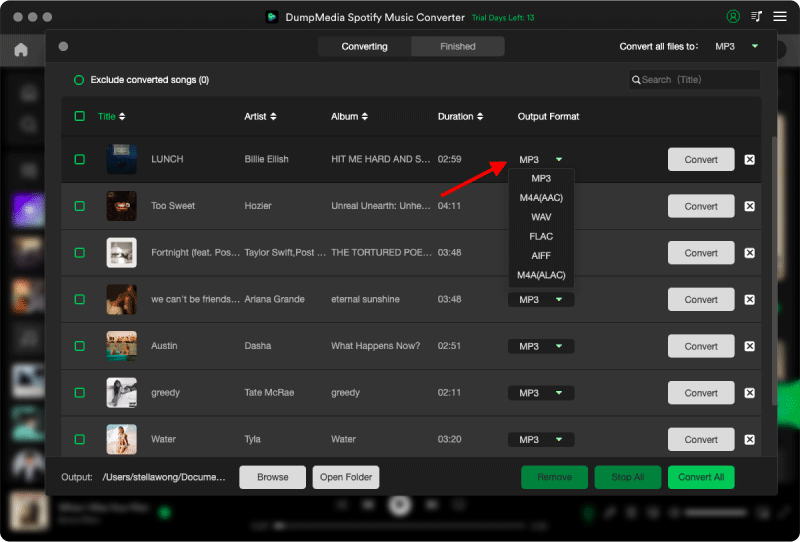
3 단계 선택 MP3 (가장 호환성이 좋습니다). 또한 비트레이트 또는 샘플링 속도를 변경할 수 있습니다. 최적의 균형을 위해서는 320kbps를 선택하세요.
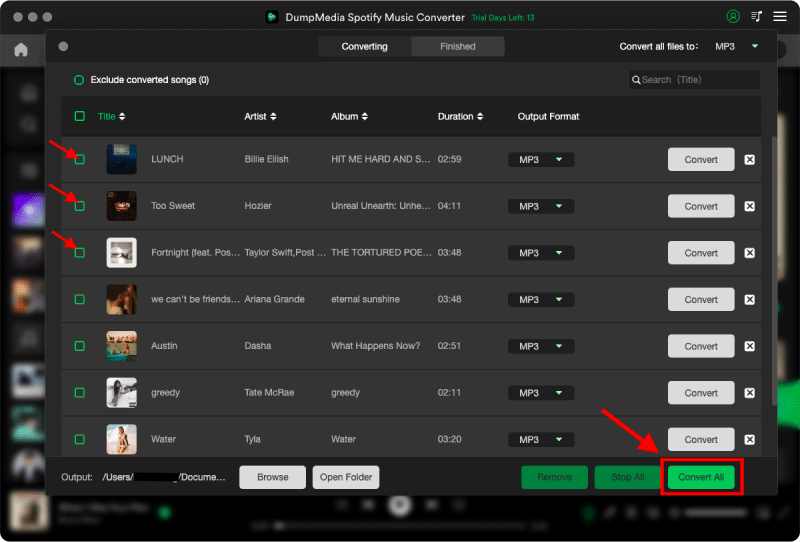
4 단계 설정이 완료되면 사용자는 "변환" 아이콘을 눌러 변환을 진행할 수 있습니다. DumpMedia 다운로드됩니다 Spotify 노래 MP3 초고속으로 몇 초 만에 작동합니다.
파트 4. FAQ
왜? Spotify 응답이 없나요?
Spotify 인터넷 문제, 손상된 캐시 파일, 오래된 소프트웨어 또는 서버 문제로 인해 응답하지 않을 수 있습니다.
이유는 무엇입니까 Spotify 계속 얼려둘 건가요?
Spotify 화면 멈춤 현상은 종종 캐시 손상이나 하드웨어 가속 충돌과 관련이 있습니다.
왜? Spotify 내 폰에서 오류가 발생하나요?
모바일 Spotify 앱 충돌은 저장 공간 부족, 앱 버전 만료 또는 소프트웨어 충돌로 인해 발생할 수 있습니다.
왜? Spotify 오프라인 모드가 작동하지 않나요?
오프라인 재생은 여전히 다음에 따라 달라집니다. Spotify 권한 부여 및 앱 안정성.
Is DumpMedia Spotify Music Converter 안전한?
네. 바로 그러한 목적으로 설계되었습니다. Spotify 음악 변환 및 로컬 재생 관리.
참고: 스트리밍 플랫폼은 자체적인 규칙과 모니터링 시스템을 가지고 있습니다. 타사 도구로서, DumpMedia Spotify Music Converter 또한 해당 회사의 제한 사항이 적용되며, 이는 특정 경우에 사용에 영향을 미칠 수 있습니다. Spotify 서비스 약관을 위반하는 활동이 감지될 경우 조치를 취할 수 있습니다. 이는 전적으로 당사의 책임입니다. Spotify의 재량.
5 부. 결론
"Spotify "응답 없음" 문제는 인터넷 불안정, 손상된 캐시 파일, 오래된 소프트웨어 등으로 인해 발생할 수 있습니다. Spotify 앱 문제. 여러 임시 해결 방법을 통해 재생을 복원할 수 있지만, Spotify 스트리밍 서비스는 여전히 앱 안정성과 온라인 인증에 크게 의존합니다. 보다 안정적인 오프라인 청취를 원하는 사용자의 경우, DumpMedia Spotify Music Converter 변환하는 실용적인 방법을 제공합니다 Spotify 노래를 지역 노래로 MP3 다양한 기기에서 유연하게 재생할 수 있는 파일입니다.
*DumpMedia 암호 해독 및 다운로드를 통해 작동합니다. Spotify 이 기능을 사용하면 DRM이 없는 파일로 노래를 변환하여 모든 기기에서 제약 없이 깨끗한 음원 라이브러리 사본을 얻을 수 있습니다. 단, 로컬 오디오 파일의 DRM 제거 기능은 포함되어 있지 않습니다.